# Workist Documentation
> Process orders and inquiries automatically
---
Source: https://docs.workist.com/en/docs.md
# Workist Documentation
Welcome to the Workist documentation. Workist processes orders and inquiries automatically — your AI agent for sales.
## How does Workist work?
The Workist Agent automatically detects orders, reads out relevant information, validates it against master data, and then independently transfers everything into the ERP system. In case of errors or uncertainties, the team is proactively asked for help to guarantee a correct transfer.
## Core Features
- **Template-free** — Workist's AI understands context; no rigid layouts, no fixed rules.
- **ERP-integrated** — deep compatibility with SAP, Microsoft Dynamics, Sage, and more.
- **Zero-touch** — automatic matching against master data for high accuracy before export.
- **Self-learning** — the system improves with every document and every interaction.
## Who is it for?
B2B manufacturers and distributors who handle high transaction volumes and want to eliminate manual data entry — to streamline operations without disrupting existing workflows.
**What you need:** Your current ERP system, your standard business documents (PDFs, Excel), and a quick integration.
## Getting started
- **[Implementation Guide](/en/docs/implementation-guide.md)** — set up Workist yourself in five steps.
- **[Channel Configuration](/en/docs/channel-configuration.md)** — every setting of a processing channel in detail.
- **[Master Data](/en/docs/master-data.md)** — the basis for automatic matching.
- **[Data Exchange](/en/docs/data-exchange.md)** — SFTP, API, and connectors.
- **[AI Assistants](/en/docs/ai-assistants.md)** — use this documentation in Claude and other AI assistants.
---
Source: https://docs.workist.com/en/docs/smart-inbox.md
# Workist Smart Inbox
The Workist Smart Inbox connects Microsoft Outlook mailboxes to Workist so that incoming emails are classified automatically — as an Order, Request for Quotation (RFQ), Invoice, Order Confirmation, or Other. Relevant documents reach the right Workist channels without any manual forwarding.
## Two variants
There are two variants of the Smart Inbox, depending on the type of mailbox you want to connect:
- Shared Smart Inbox — the most common setup: teams connect shared Outlook mailboxes (collective inboxes). Workist classifies incoming emails and applies actions such as moving them to a folder or marking them as read.
- Personal Smart Inbox — employees connect their individual Outlook mailbox. Workist classifies incoming emails and tags them directly in Outlook (e.g. Orders or Requests for Quotation).
Each variant has its own admin guide that explains the requested permissions and walks through granting admin consent step by step.
## Admin consent
To let Workist access the mailboxes, an Outlook administrator must grant the application the required Microsoft Graph permissions once (admin consent). The Workbench shows the link for this as long as consent is missing. Copy it with "Copy link" and send it to your Outlook administrator.
| Variant | Where the link is | Who sees it |
|---|---|---|
| Shared Smart Inbox | "Settings" → navigation on the left under "Workflow Tools" → "Smart Inbox" | Users with the Manager or Admin role |
| Personal Smart Inbox | Your name in the bottom left → "Your profile" → section "Personal Smart Inbox for Outlook" | Users with the Member, Manager, IT or Admin role |
When Workist adds new functions that need further permissions (e.g. custom categories), the Workbench shows the hint "Admin approval required" with a new link. The roles are described under [Users and roles](/en/docs/administration/users-and-roles.md).
## Setting up the Shared Smart Inbox
After admin consent, users with the Manager or Admin role connect the mailboxes under "Settings" → "Workflow Tools" → "Smart Inbox" → "Add Integration". You set the name and mailbox address and choose, for each document type (order, order confirmation, price request, invoice), the channel in which Workist creates the documents. The channels cannot be changed later.
Via a mailbox's menu → "Manage" you adjust its behaviour:
- **Unprocessed Documents:** Emails that contain one of the given keywords or come from one of the given addresses or domains are not created as documents. They stay in the mailbox for manual processing.
- **Events:** For each document type, you define what happens in Outlook when a document was, for example, created, finished, discarded or deleted: move the email to an Outlook folder and/or mark it as read.
- **Custom Categories:** see the next section.
## Custom categories
For emails that are not an order, price request, invoice or order confirmation, you can create your own categories, for example for delivery complaints or questions about missing order confirmations. An AI assigns each of these emails to at most one active category, and only if it clearly fits.
You find the categories at the mailbox under "Manage" → "Custom Categories" → "Create Category". As a starting point, Workist offers "Recommended Categories" (e.g. "Order Confirmation" and "Delivery Complaint"). You describe a custom category with:
- **Name**
- **Detection Criteria:** which emails belong to it, in your own words
- **Supporting Keywords** (optional) that improve detection
For each category you define what happens to the detected emails:
| Action | Effect |
|---|---|
| "Add Outlook Tag" | The email gets a tag in Outlook (one tag per category, colour selectable). |
| "Move to Outlook Folder" | The email is moved to the selected Outlook folder. |
| "Mark as Read" | The email is marked as read in Outlook. |
| "Enable Auto-Forwarding" | The email is forwarded to email addresses or created as a document in a Workist channel. |
Use "Pause" and "Resume" to switch a category off and on temporarily, and "Delete" to remove it. Categories marked "Agent" belong to an [AI agent](/en/docs/agents.md).
## Personal Smart Inbox
The Personal Smart Inbox is marked as **Beta** in the Workbench. Every user with the Member, Manager, IT or Admin role sets it up for their own mailbox under "Your profile":
1. "Connect to Outlook" and sign in with Microsoft.
2. Choose the channels for orders and price requests in which Workist places detected documents.
Under "Excluded Content", enter keywords and email addresses or domains. Matching emails remain in your inbox and are not sent to Workist. Use "Pause" and "Resume" to interrupt forwarding temporarily, and "Disconnect" to end it.
If Workist loses access to your mailbox, you see a hint in your profile and receive an email (if you receive [email notifications](/en/docs/administration/notifications.md)). Disconnect the Personal Smart Inbox and connect it again.
---
Source: https://docs.workist.com/en/docs/ai-assistants.md
# AI Assistants
So that AI assistants answer questions about Workist from this documentation instead of from memory, Workist provides a skill. Independently of that, every page is available as Markdown.
## The "workist-docs" skill
The skill gives Claude and other AI agents instructions for questions about Workist:
- For each question it reads the relevant pages of this documentation and answers with the path in the channel configuration, the exact setting names and a link to the page.
- Before a customer-specific change, a workaround or a ticket is planned, it checks whether the requirement can already be met through configuration.
- It replies in the language of the question.
The skill contains no documentation content; it fetches the documentation anew for every question. Changes to the documentation therefore take effect immediately; you only need to reinstall the skill when the skill itself changes.
| File | Use |
| --- | --- |
| [workist-docs.skill](/skills/workist-docs.skill) | Claude Desktop, install by double-click |
| [workist-docs.zip](/skills/workist-docs.zip) | Upload in Claude in the browser |
| [SKILL.md](/skills/workist-docs/SKILL.md) | Claude Code and other AI agents |
## Setup
### Claude Desktop
1. Download [workist-docs.skill](/skills/workist-docs.skill).
2. Double-click the file. It opens in Claude Desktop.
3. Confirm the import and check under **Customize → Skills** that the skill is turned on.
4. Allow docs.workist.com, see [Network access](#network-access).
### Claude in the browser
1. Download [workist-docs.zip](/skills/workist-docs.zip).
2. In Claude, open **Customize → Skills** and upload the ZIP file.
3. Turn the skill on.
4. Allow docs.workist.com, see [Network access](#network-access).
On Team and Enterprise plans, admins can make the skill available to the whole organization with **Publish to org**.
### Network access
So that Claude Desktop and Claude in the browser can fetch the documentation, docs.workist.com must be allowed: allow the domain under **Settings → Capabilities** in **Allow network egress**. On Team and Enterprise plans, the organization owner sets this under **Organization settings → Capabilities**.
### Claude Code
For all your projects:
```sh
mkdir -p ~/.claude/skills/workist-docs
curl -fsSL https://docs.workist.com/skills/workist-docs/SKILL.md -o ~/.claude/skills/workist-docs/SKILL.md
```
For a single repository, put the file at `.claude/skills/workist-docs/SKILL.md` in the repository instead. The skill is then available to everyone who works in that repository.
So that Claude Code can fetch the documentation without asking each time, allow the domain in `~/.claude/settings.json` or in the repository's `.claude/settings.json`:
```json
{
"permissions": {
"allow": ["WebFetch(domain:docs.workist.com)"]
}
}
```
### Other AI agents
Tools that support the open [Agent Skills](https://agentskills.io) standard, for example Cursor, GitHub Copilot, Gemini CLI and OpenAI Codex, install the skill with:
```sh
npx skills add https://docs.workist.com/skills/workist-docs/SKILL.md
```
## Documentation as Markdown
For AI assistants without the skill, the documentation is available following the [llms.txt](https://llmstxt.org) standard:
| File | Content |
| --- | --- |
| [llms.txt](https://docs.workist.com/en/llms.txt) (English), [llms.txt](https://docs.workist.com/llms.txt) (German) | Index of all pages with a short description |
| [llms-full.txt](https://docs.workist.com/en/llms-full.txt) (English), [llms-full.txt](https://docs.workist.com/llms-full.txt) (German) | The entire documentation in one file |
| A page's address with the extension `.md` | That page as Markdown, for example `https://docs.workist.com/en/docs/ai-assistants.md` |
---
Source: https://docs.workist.com/en/docs/implementation-guide.md
# Implementation Guide
This guide walks you through self-onboarding to Workist step by step. Follow the five steps in the order given.
1. **[Step 1: Establish connection](/en/docs/implementation-guide/step-1-establish-connection.md)**
2. **[Step 2: Configure and upload master data](/en/docs/implementation-guide/step-2-configure-and-upload-master-data.md)**
3. **[Step 3: Configure processing channel](/en/docs/implementation-guide/step-3-configure-processing-channel.md)**
4. **[Step 4: Configure output format](/en/docs/implementation-guide/step-4-configure-output-format.md)**
5. **[Step 5: Test](/en/docs/implementation-guide/step-5-test.md)**
---
Source: https://docs.workist.com/en/docs/implementation-guide/step-1-establish-connection.md
# Step 1: Establish connection
Before data can be exchanged between your ERP system and Workist, a connection must be set up. Workist offers two options for this, and you can choose freely between them:
| Option | Recommended for |
|--------|---------------|
| **[SFTP](#option-a-sftp)** | File-based exchange (e.g. CSV/XML exports from the ERP), no own integration needed |
| **[API](#option-b-api)** | Programmatic integration and own applications; event-driven too with [webhooks](/en/docs/data-exchange/webhooks.md) |
Both options can also be combined, e.g. master data via SFTP and output via API.
For both options you need a Workbench account with the IT or Admin role (see [Users and roles](/en/docs/administration/users-and-roles.md)).
---
## Option A: SFTP {#option-a-sftp}
By default, Workist provides an SFTP server secured with public key authentication. Details on the directory structure, file handling and test commands are in the [SFTP documentation](/en/docs/data-exchange/sftp.md).
Setup takes three sub-steps:
1. [Generate an SSH key pair](#a1-ssh-schluesselpaar-erzeugen)
2. [Add the public key in the Workbench](#a2-oeffentlichen-schluessel-hinterlegen)
3. [Test the connection](#a3-verbindung-testen)
### A1 — Generate an SSH key pair {#a1-ssh-schluesselpaar-erzeugen}
Generate a new SSH key pair on your system. On macOS or Linux, this command is enough:
```bash
ssh-keygen -t rsa -b 4096 -C "your-team@example.com" -f ~/.ssh/workist_sftp
```
This creates two files:
- `~/.ssh/workist_sftp` — the **private** key. This file stays on your system only and must never be shared.
- `~/.ssh/workist_sftp.pub` — the **public** key. Its content is pasted into the Workbench in step A2.
Other platforms (e.g. Windows with PuTTY) are described in the [SFTP documentation](/en/docs/data-exchange/sftp.md#erstellen-eines-ssh-key-pairs).
:::warning Security
Only ever share the **public** key. The private key must not be sent to Workist or anyone else.
:::
### A2 — Add the public key in the Workbench {#a2-oeffentlichen-schluessel-hinterlegen}
Once the public key is stored in your Workist account, the matching private key can log in to the SFTP server without a password. Keys can be **added** and **deleted**, but not edited.
**Prerequisites**
- A Workbench account with the IT or Admin role. Other roles don't see the **Integrations** area.
- A public SSH key in OpenSSH format (the key text starts with `ssh-rsa`).
**1. Log in to the Workbench**
Open the Workbench in your browser and log in with your Workist account. After logging in you land on the overview page for incoming documents.
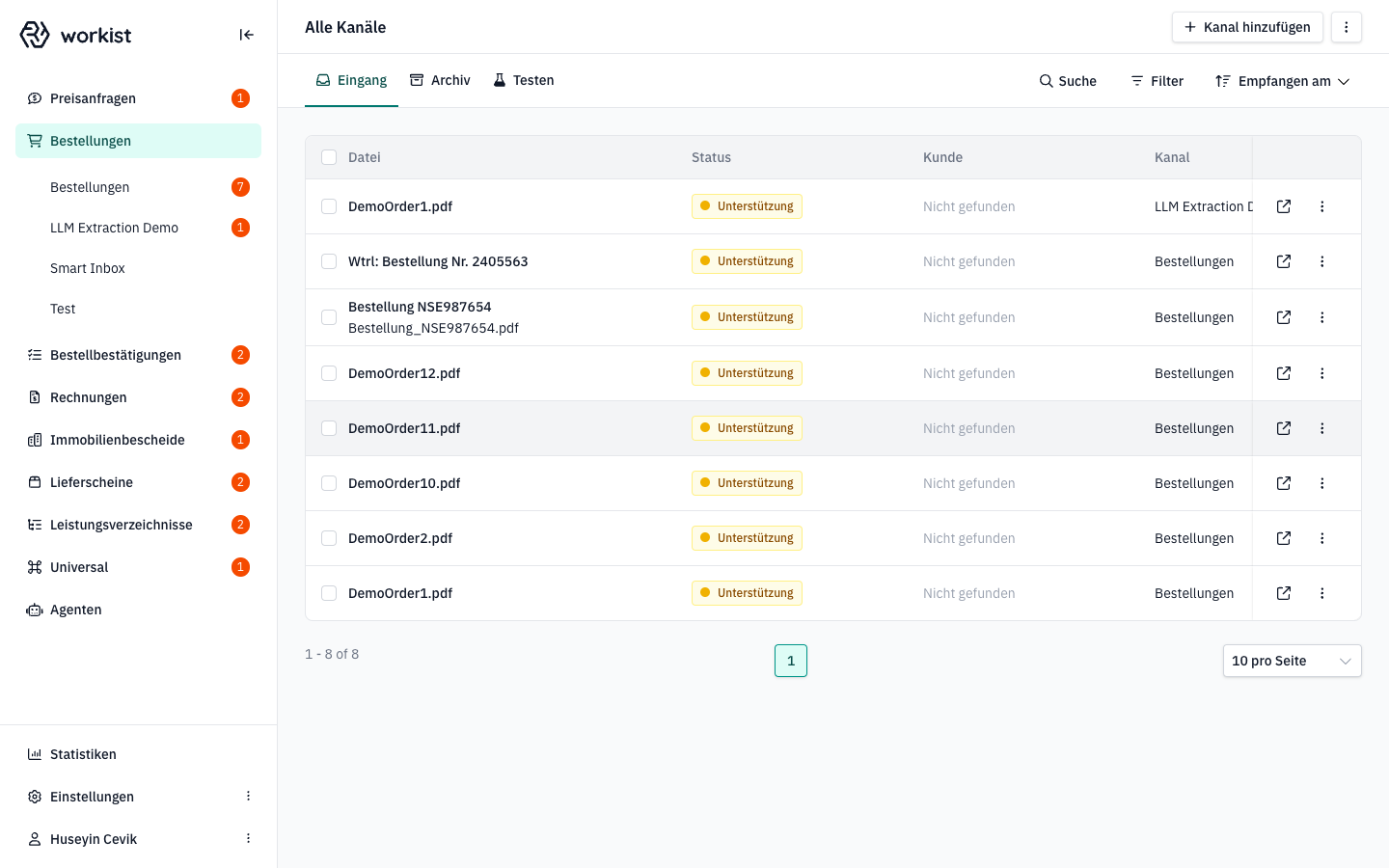
**2. Open Settings**
Click **Settings** at the bottom of the left navigation bar. A small menu appears, e.g. with the entries *Company*, *Teams*, *Employees* and *Integrations*. Which entries you see depends on your role.
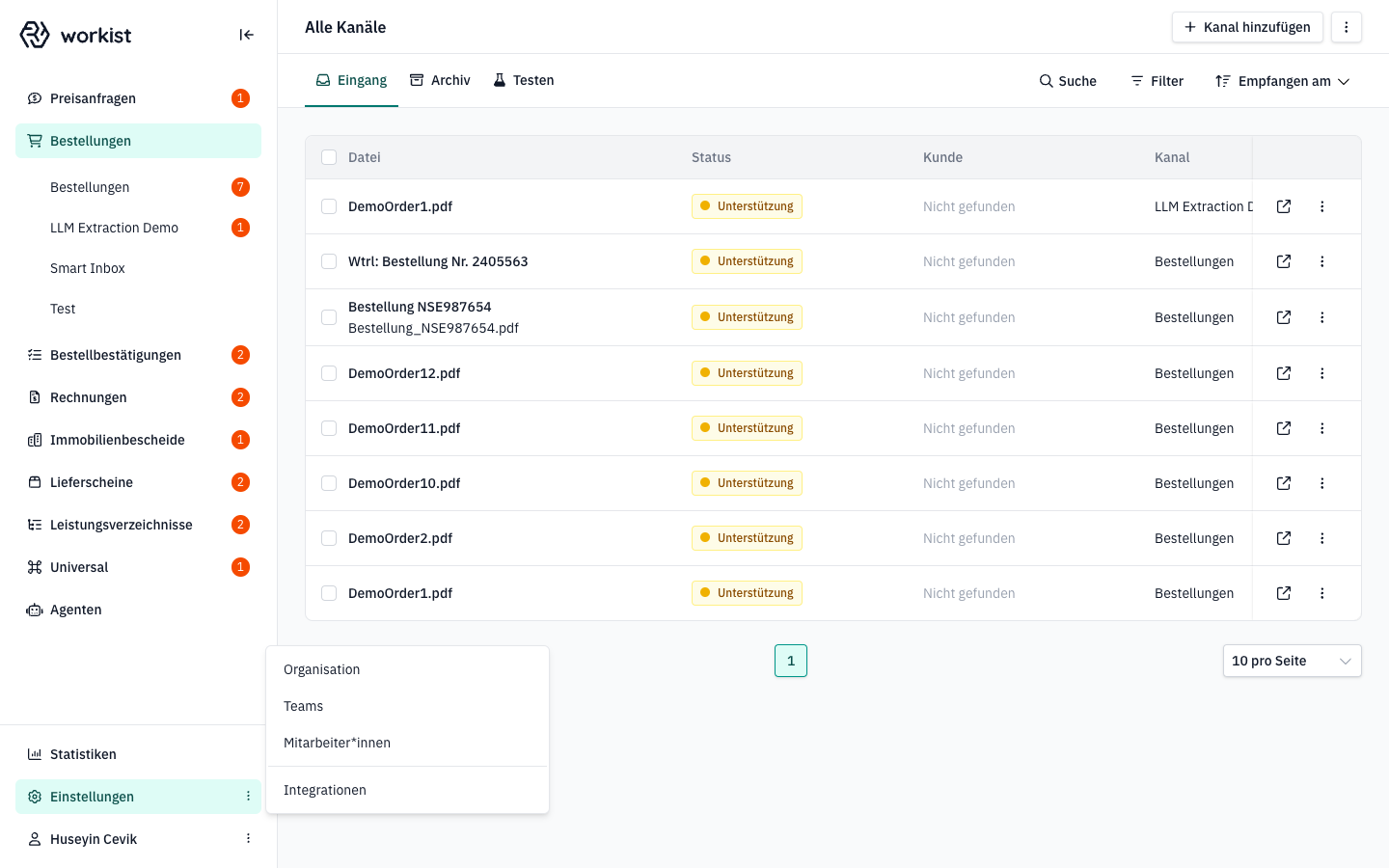
Choose **Integrations**.
**3. Open the "Integrations" area**
You are now in the settings area. On the left you see the sub-navigation with all settings categories. Under **Developer Tools** you find the entry **SFTP Public Keys**.
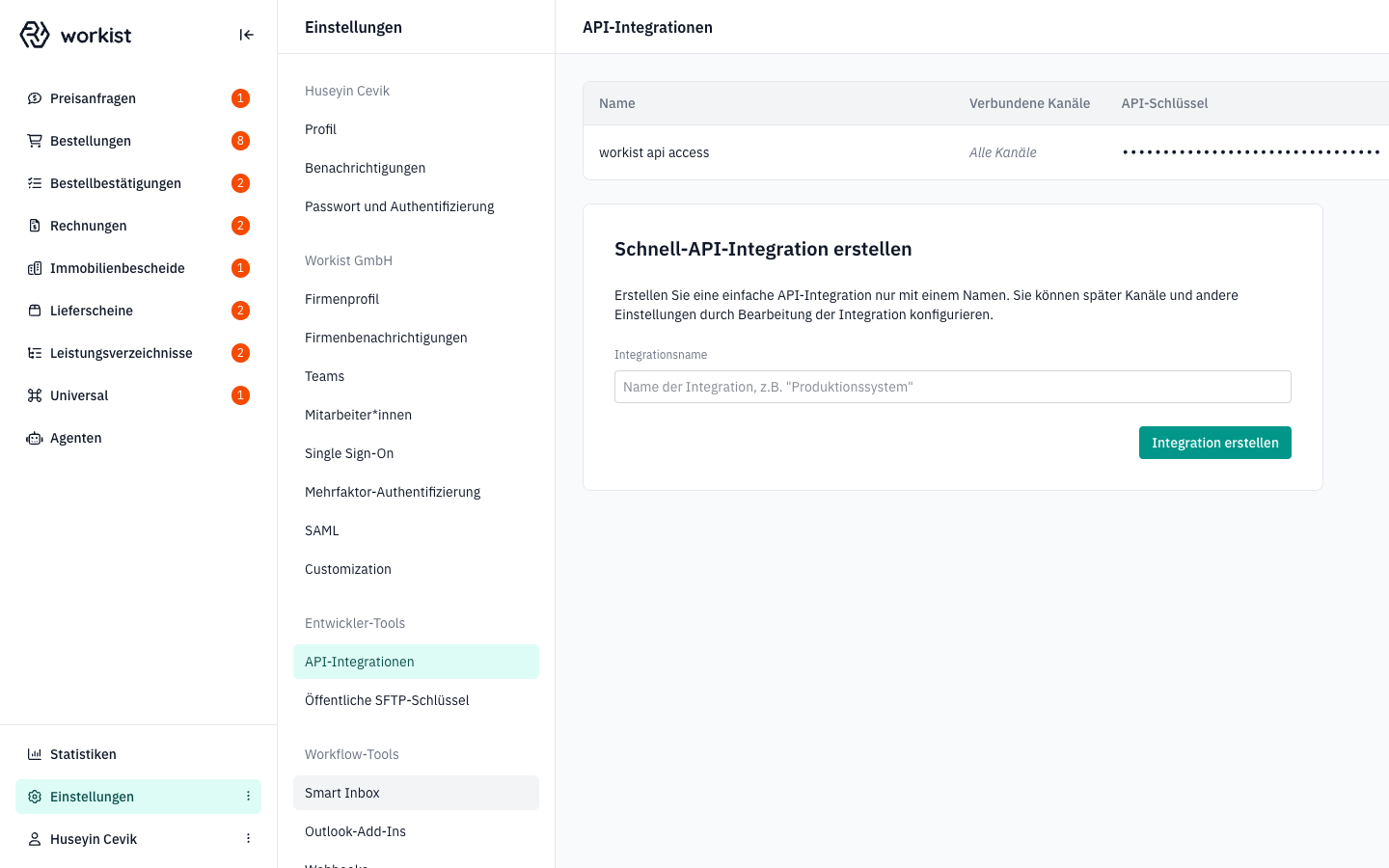
Click **SFTP Public Keys**.
**4. The "SFTP Public Keys" page**
At the top of the page, the **SFTP Server Information** card shows the connection details of Workist's SFTP server: Host, Port, RSA key fingerprint, IP Addresses and your User. Use the copy icon in each row to copy a value to the clipboard. Below it follows the **Add SFTP Public Key** form. If keys are already stored, they are also shown in a table above the form. The trash icon in a row deletes an existing key.
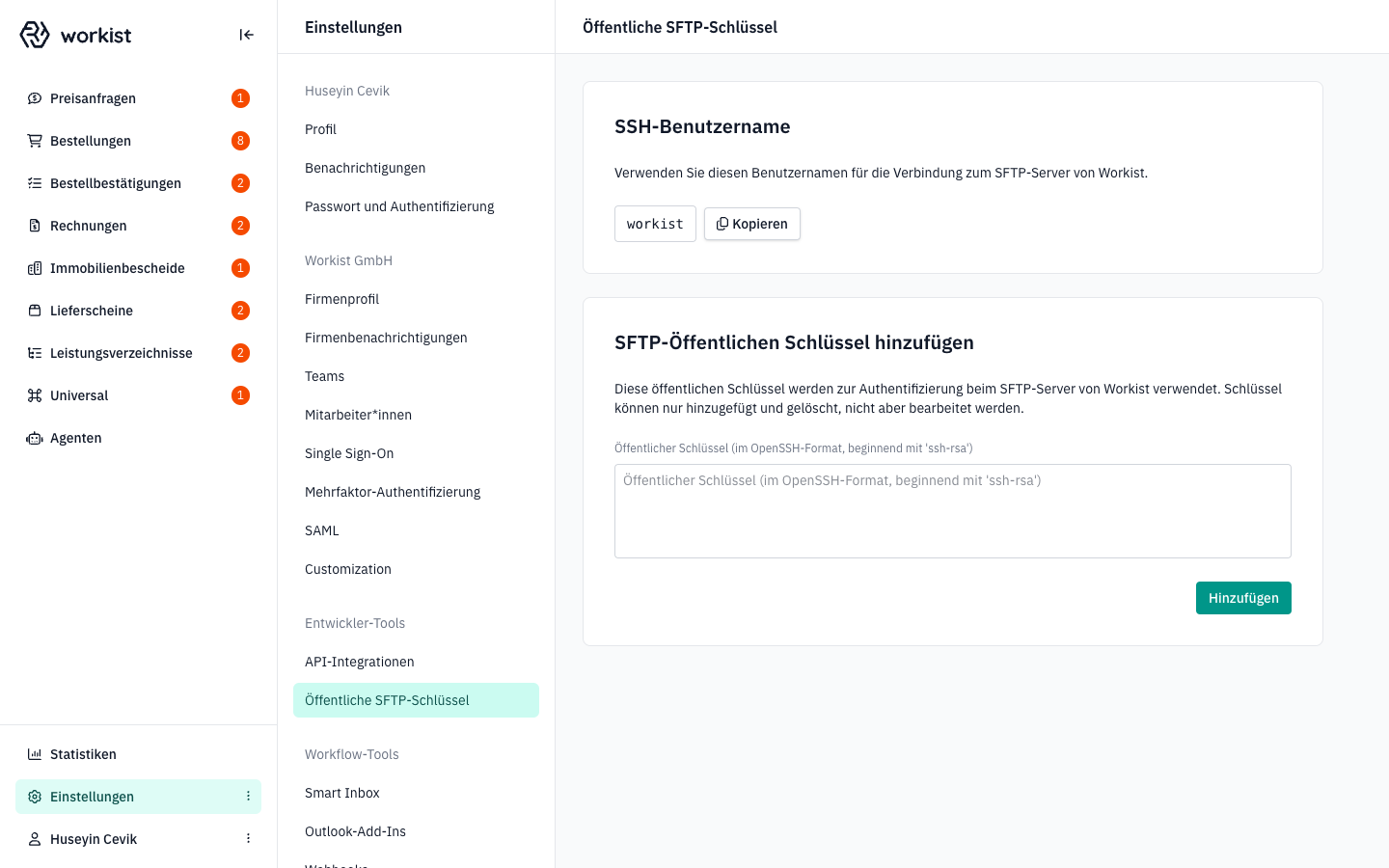
**5. Paste the public key**
Open the file `workist_sftp.pub` (or your `.pub` file) in a text editor and copy the **entire content**. Then paste the key into the field **Public Key body (OpenSSH Format, starting with 'ssh-rsa')**.
Example of a valid key:
```
ssh-rsa AAAAB3NzaC1yc2EAAAADAQABAAABAQC1zFZpL9a6bVQMWS20u3y3WzVCq6tbm... your-team@example.com
```
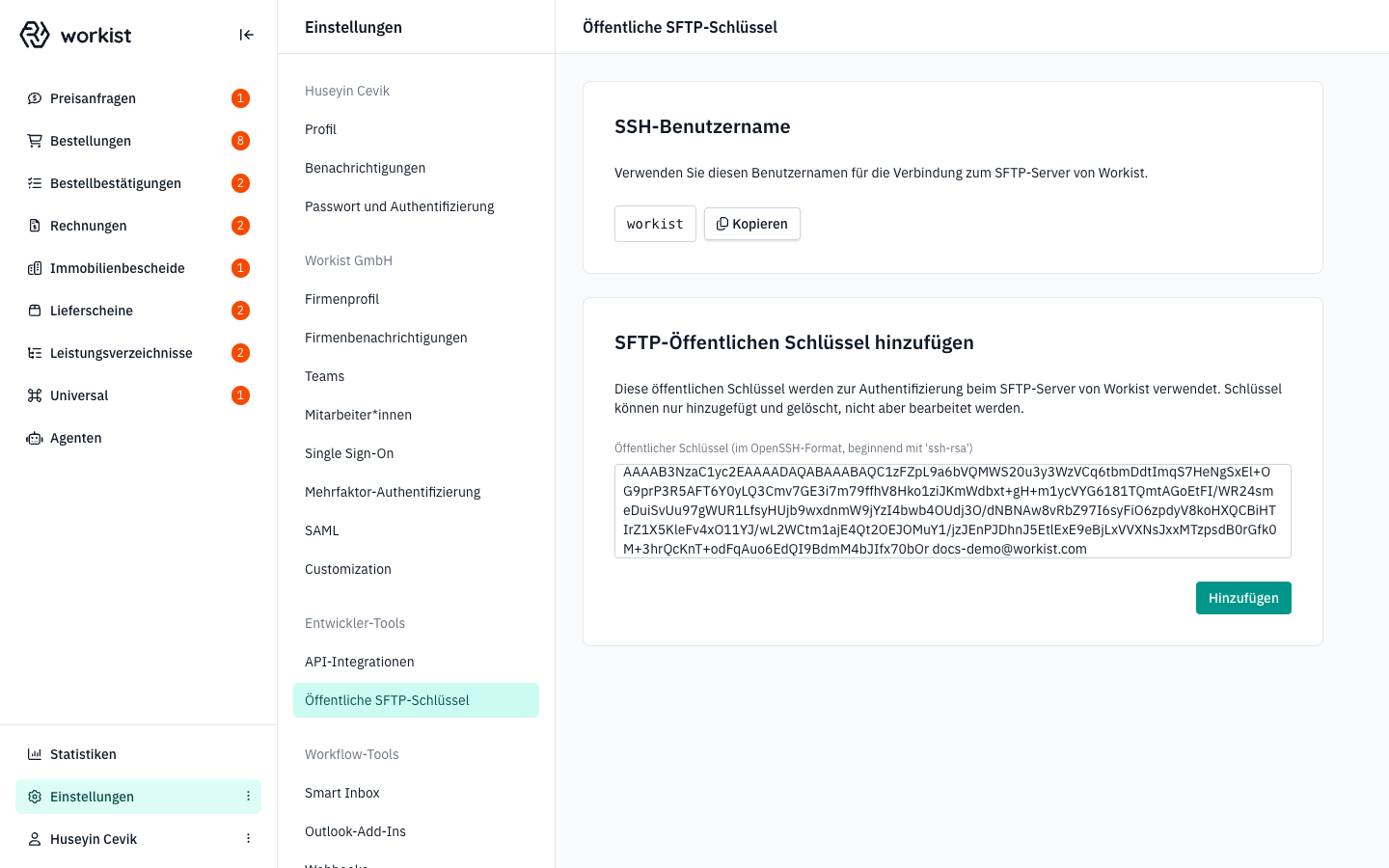
:::tip
The key is a single long line. Make sure no extra line breaks are added when copying.
:::
**6. Add the key**
Click **Add** at the bottom right of the card.
On success, a green confirmation message appears and the new key is shown in the table above the form with the time it was added.
**Remove a key**
On the same page, every row has a trash icon. Clicking it removes the key from the SFTP server **immediately**, without a confirmation prompt. So check that you selected the right key before deleting.
### A3 — Test the connection {#a3-verbindung-testen}
Host and user name are in the **SFTP Server Information** card at the top of the **SFTP Public Keys** page.
```bash
sftp -i ~/.ssh/workist_sftp @ftp.workist.com
```
When you connect for the first time, your client shows the server's fingerprint. Compare it with the RSA key fingerprint from the card before you confirm. More test commands and the directory structure are in the [SFTP documentation](/en/docs/data-exchange/sftp.md#verbindung-testen).
---
## Option B: API {#option-b-api}
Workist provides a REST API for data exchange. Through the API you upload documents, retrieve processed documents, report the result of the import and transfer master data.
You create the API key in the Workbench under **Settings** → **Integrations** → **API Integrations**. The [Quickstart](/en/docs/api-documentation/quickstart.md) walks you through this step and your first call. The [Document API](/en/docs/api-documentation/document-api.md) describes all operations, and the [Master Data API](/en/docs/api-documentation/master-data-api.md) covers transferring master data.
The API works on a pull basis: your system asks Workist for new results. If Workist should notify your system about events, e.g. when a document is finished, also set up [webhooks](/en/docs/data-exchange/webhooks.md).
---
## Help and support
If the connection fails even though the key is stored, or API access doesn't work as expected, contact your Workist representative and have the following information ready:
- the short name of your organisation
- for SFTP: the fingerprint of your key (`ssh-keygen -lf ~/.ssh/workist_sftp.pub`)
- the time of the last connection attempt and the error message from your client
---
Source: https://docs.workist.com/en/docs/implementation-guide/step-2-configure-and-upload-master-data.md
# Step 2: Configure and upload master data
So that Workist can resolve incoming documents correctly (e.g. article numbers, customers, delivery addresses), the system needs an up-to-date copy of your master data. This step describes **which data to deliver**, **how to set up the import in the Master Data Hub** and **how** to transfer the data.
## Which master data is needed?
Which master data lists you need depends on your use case. For almost every configuration, you need **customers** and **articles**.
| Master data list | Typically needed |
| --- | --- |
| [Customers (ordering party / debtor)](/en/docs/master-data/customers.md) | Required |
| [Articles](/en/docs/master-data/articles.md) | Required |
| [Delivery addresses](/en/docs/master-data/delivery-and-invoice-recipients.md) | optional |
| [Invoice addresses](/en/docs/master-data/delivery-and-invoice-recipients.md) | optional |
| [Customer contacts](/en/docs/master-data/customer-contacts.md) | optional |
| [Customer-specific articles](/en/docs/master-data/articles.md) | optional |
| [Unit conversion](/en/docs/master-data/unit-conversion.md) | optional, if Workist should convert units |
| [Framework agreements](/en/docs/master-data/framework-agreements.md) | optional, only for RFQs and orders |
| [Quotes](/en/docs/master-data/quotes.md) | optional, only for orders |
| [Orders to be matched](/en/docs/master-data/orders-to-be-matched.md) | optional, for order confirmations and invoices |
Depending on the document type, there is also a receiver list (same format as customers) and a list of internal contacts (same format as customer contacts). The table under [Which document type uses which list](/en/docs/master-data.md#listen-pro-dokumenttyp) shows which document type uses which list.
Prepare a current export from your ERP system for each list — ideally as **CSV (UTF-8, `;` or `,` as delimiter)**. You can deliver Excel files (`.xls`, `.xlsx`) via SFTP.
:::tip
Start with a **complete** master data export, not a delta. Every import replaces the entire list — rows that are not in the newest file are removed from the active data set. Workist sets up delta imports on request (see [How an import replaces your data](/en/docs/master-data.md#importverhalten)).
:::
## Who can set up master data
Users with the **Manager**, **IT** or **Admin** role can use the [Master Data Hub](/en/docs/master-data/master-data-hub.md) (see [Users, roles & teams](/en/docs/administration/users-and-roles.md)). Users with the **IT** role also receive an email when an import fails with an error you can fix yourself.
---
## Overview of the process
1. **Create the list:** Create one list per master data list in the [Master Data Hub](/en/docs/master-data/master-data-hub.md#liste-anlegen). When a channel is created, Workist already creates empty lists for the most important fields; check these first.
2. **Assign channels:** Assign each list to the channels and fields that should use it (see [Assigning channels](/en/docs/master-data/master-data-hub.md#kanaele-zuordnen)).
3. **Configure the import:** Set the file name pattern, delimiter, encoding and column mapping (see [Transformer configuration](/en/docs/master-data/transformer-configuration.md)).
4. **Test with a dry run:** Check the configuration with a sample file before you save (see [Dry run](/en/docs/master-data/master-data-hub.md#probelauf)).
5. **Deliver the data:** via SFTP, via the API or as an upload in the Workbench (see below).
6. **Check the result:** in the [import history](/en/docs/master-data/master-data-hub.md#importhistorie) (status, rows, error message) and in the [data explorer](/en/docs/master-data/master-data-hub.md#datenexplorer).
---
## Choosing the transfer method
Master data can be passed to Workist in three ways:
| Option | Recommended for |
| --- | --- |
| **[SFTP](#option-a-sftp)** | Regular, file-based exports from the ERP — no own integration needed |
| **[API](#option-b-api)** | Programmatic connection, event-driven updates, large data volumes |
| **[Upload in the Workbench](#option-c-workbench)** | First test and occasional manual updates |
All methods run through the same import configuration of the list and produce the same active data set.
---
## Option A: SFTP {#option-a-sftp}
With the SFTP import, your ERP system places the master data files in the `/export` folder of the Workist SFTP server at regular intervals (see [Step 1](/en/docs/implementation-guide/step-1-establish-connection.md)). Workist imports a file immediately when its name matches the file name pattern of a list. The [SFTP documentation](/en/docs/data-exchange/sftp.md#stammdaten) describes temporary files and further rules.
:::info Important
Without a matching file name pattern, an incoming file is stored in the SFTP folder but **not imported**. Therefore, finish the import configuration before you start productive deliveries.
:::
### Process
1. Export one master data file per list from the ERP.
2. Set up the list's import configuration in the Master Data Hub (file name pattern, delimiter/encoding, column mapping) and test it with a dry run.
3. Upload the file to the SFTP folder `/export` — Workist detects it automatically and starts the import.
4. Check the result in the list's import history.
After changing the import configuration, re-import the last delivered file with [Import from SFTP](/en/docs/master-data/master-data-hub.md#import-aus-sftp) without uploading it again.
---
## Option B: API {#option-b-api}
Via the [master data API](/en/docs/api-documentation/master-data-api.md), master data can be transferred in three ways:
- **As a CSV file** (at most 10 MB). The API only accepts CSV files; deliver Excel files via SFTP.
- **As a link** to a publicly accessible CSV file.
- **As a list of objects in JSON format** (at most 10,000 rows per request), for larger volumes in several blocks.
:::note
All variants run through the list's import configuration. Workist first converts JSON data into a comma-separated CSV file (UTF-8) whose columns are the keys of your objects. For JSON deliveries, therefore use the Workist column names as keys and leave the delimiter and column mapping in the import configuration empty. Without an import configuration, Workist reads every file comma-separated and with the Workist column names.
:::
For API imports, you need the list's ID from the Master Data Hub. Authentication, endpoints, data models and notes on bulk imports are described under [Using the master data API](/en/docs/api-documentation/master-data-api.md).
---
## Option C: Upload in the Workbench {#option-c-workbench}
For the first test — before SFTP deliveries or the API integration go live — upload master data directly in the Master Data Hub. This lets you test a new import configuration without waiting for the next ERP export.
1. Open the [Master Data Hub](/en/docs/master-data/master-data-hub.md): **Settings** at the bottom of the left navigation bar, then **Master data**.
2. Open the list and switch to the **Imports** tab.
3. Drop a **CSV file** onto the **Import file** card and click **Import**.
4. Check the result in the **Import history** on the same tab.
### Important notes
- **CSV only.** The upload in the Workbench only accepts `.csv` files. Deliver Excel files via SFTP.
- **Same import configuration.** Delimiter, encoding and column mapping come from the list's configuration. If the configuration expects `;` as delimiter, your CSV file must use this delimiter.
- **Test first, then import.** A successful import replaces the previously active version **immediately** — there is no draft or approval mode. Therefore test your file beforehand with a [dry run](/en/docs/master-data/master-data-hub.md#probelauf): it transforms the file without importing anything.
- **Confirmation ≠ import success.** The green confirmation in the browser only means that the file was accepted. Errors only appear later in the import history as a failed run.
- **A full import deletes what is missing.** Rows that are no longer in the new file are removed from the active data set. So don't upload a shortened test file to a list that a productive channel uses.
---
## Help and support
If a master data import fails or the values do not end up in the Workist schema as expected, first check the [error message in the import history](/en/docs/master-data/master-data-hub.md#fehlermeldungen). Otherwise, contact your point of contact at Workist and have the following information ready:
- the **name of the list** in the Master Data Hub and the **master data type** (e.g. "Articles"),
- the **time** of the failed import (column **Imported at** in the import history),
- the **input file** of the import (linked in the import history),
- the **error message** of the import or the result of a dry run.
---
Source: https://docs.workist.com/en/docs/implementation-guide/step-3-configure-processing-channel.md
# Step 3: Configure processing channel
In this step you set up the **processing channel**: you define how documents enter the channel, which fields Workist extracts, the confidence at which processing is automated, and which master data is used for matching.
All settings are described in full in the **[Channel Configuration](/en/docs/channel-configuration.md)** section. This page walks you through the most important points in the right order.
## Prerequisites
- Permission to configure channels (**Manager** and **Admin** roles), see [Users, roles & teams](/en/docs/administration/users-and-roles.md).
- Your master data from [Step 2](/en/docs/implementation-guide/step-2-configure-and-upload-master-data.md).
## 1. Create a channel
Use an existing channel or create a new one: in the left navigation, click the product (for example **Orders**) and, in the **All Channels** view, click **Add channel**. With **Duplicate channel** (three-dot menu ⋮ in the channel) you take over all settings of an existing channel. Details: [Adding and duplicating channels](/en/docs/channel-configuration.md#kanaele-anlegen-und-duplizieren).
:::warning A new channel is live immediately
- The channel's **email inbox** accepts emails from the moment it is created.
- **Automation** is off: every document waits in assistance.
- **Delivery** is on: as soon as someone completes a document, Workist writes the results to the Workist-managed SFTP server.
Therefore set up the output in [Step 4](/en/docs/implementation-guide/step-4-configure-output-format.md) before you complete any documents.
:::
To open the Channel Configuration, use the three-dot menu (⋮) in the channel → **Manage channel**.
## 2. Set the general details
Under **[General](/en/docs/channel-configuration/general.md)** you set the channel name and the responsible team. Only members of this team see the channel and its documents.
## 3. Set up the input
Under **[Incoming Documents](/en/docs/channel-configuration/incoming-documents.md)** you define how documents enter the channel:
- **Email**: check the inbox name and therefore the channel's address. Your senders send documents to this address, or you forward an existing mailbox to it. Which attachments Workist processes is described under [Which files does Workist process?](/en/docs/channel-configuration/incoming-documents.md#welche-dateien-verarbeitet-workist).
- **Self-service forms** (order channels only): your customers enter orders in a web form.
Voice agents are set up in a separate area, see [Voice agents](/en/docs/agents/voice-agents.md).
## 4. Configure document processing
Under **[Document Processing](/en/docs/channel-configuration/document-processing.md)** you define which fields Workist extracts, which master data it uses for matching, and which checks run. In particular, assign the master data from Step 2 there.
Leave **automation** switched off for now. Only switch it on once the results are correct during [testing](/en/docs/implementation-guide/step-5-test.md).
## Next step
In **[Step 4](/en/docs/implementation-guide/step-4-configure-output-format.md)**, set up how and in which format the results reach your system.
---
Source: https://docs.workist.com/en/docs/implementation-guide/step-4-configure-output-format.md
# Step 4: Configure output format
In this step you define **how** a channel's results reach your system and **in which format**. All related settings are in the Channel Configuration under **[Exported Processed Documents](/en/docs/channel-configuration/exported-documents.md)**.
:::warning Delivery is already switched on
Without further settings, a channel delivers every completed document via SFTP to the `/incoming` folder on the Workist-managed SFTP server, as an output file plus PDF. Check the following points before you complete any documents.
:::
## Prerequisites
- The connection from [Step 1](/en/docs/implementation-guide/step-1-establish-connection.md) (SFTP key or API access).
- A channel from [Step 3](/en/docs/implementation-guide/step-3-configure-processing-channel.md).
- Permission to configure channels (**Manager** and **Admin** roles).
## 1. Choose the delivery method
In the channel, open the three-dot menu (⋮) → **Manage channel** → **Upload** and choose the matching method under **How should the documents be transferred?**:
| Your system … | Delivery method | What else you need |
| --- | --- | --- |
| reads files from an SFTP server | **SFTP** (default) | Workist-managed server: only your SSH key from Step 1. Your own server: connection data under **SFTP**. |
| receives EDI messages via AS2 | **AS2** | Connection data and certificates of your AS2 partner under **AS2**. |
| pulls the results itself | **API** | Your API access; optionally [webhooks](/en/docs/data-exchange/webhooks.md) so your system learns when a result is ready. |
| is an ERP system with a Workist connector | **ERP integration** | The configured integration, see [Connectors](/en/docs/data-exchange/connectors.md). The method is set automatically when you select the channel in the integration. |
| gets the data some other way | **Manual** or **Other** | Nothing. Workist pushes nothing with these methods. |
Click **Save**.
## 2. Define the file format
Under **Output File** you define what the file contains. The fields are described in detail in [Step 4 — Output File](/en/docs/channel-configuration/exported-documents.md#ausgabedatei).
- **Format**: if you leave the serialization module field empty, Workist generates the product's standard format, e.g. Workist XML for orders. The structure and fields of each format are described under [Output formats](/en/docs/output-formats.md). Other formats are set up together with Workist.
- **Additional fields**: under **Additional header data fields** and **Additional position line fields** you add further fields. Only enter field names the format knows; an unknown name makes output file generation fail for every document.
- **Optional elements**: `` (file name of the PDF sent along), `` (link into the Workbench), `` (sender's email address), plus short file names.
- **Order channels**: if the file should be built from an individual mapping (Output Mapper), Workist sets it up with you.
Click **Save**, even if you did not change anything: only then do the switches for the optional elements apply.
## 3. Define accompanying files and target folders
Back under **Upload**, define which files are sent along with the output file:
- **Upload original document** (default: on): the processed document, usually as a PDF, with the same file name as the output file.
- **Upload original e-mail** (SFTP only): the original email as `.eml`.
- **Additional Files** (order channels only): other attachments of the same email, e.g. delivery notes or offers.
- **Destination folder for generated files** and **Destination folder for outgoing documents** (SFTP only): empty = `/incoming`.
## 4. Set up the connection
| Delivery method | Setup |
| --- | --- |
| SFTP, Workist-managed | Leave the **SFTP** page empty. Your public SSH key must be stored under **Settings → SFTP Public Keys**, see [Step 1](/en/docs/implementation-guide/step-1-establish-connection.md). |
| SFTP, your own server | Under **SFTP**, enter host, port (required), username, host key in the format ` `, and password. Without a password, Workist logs in with its own SSH key, which you authorize on your server. |
| AS2 | Under **AS2**, enter your partner's endpoint, AS2 name and certificates. Your partner registers Workist's AS2 ID and certificates. Workist signs and encrypts and expects a synchronous MDN. |
| API | No connection data needed in the channel. Your system pulls the results through the [API](/en/docs/data-exchange/api.md). |
| ERP integration | Set up in the integration's settings, see [Connectors](/en/docs/data-exchange/connectors.md). |
## 5. Understand how Workist delivers
- Workist delivers as soon as a document is completed: manually in assistance, or automatically once automation is switched on.
- How the files are created on the SFTP server (file names, order, partial files, overwriting) is described in [Data exchange via SFTP](/en/docs/data-exchange/sftp.md). Set up your import accordingly.
- If delivery fails, the document shows a red error banner. After fixing the cause, you deliver it again, see [Delivery failures](/en/docs/channel-configuration/exported-documents.md#zustellfehler).
- If **Push results automatically** is off, Workist delivers nothing, not even later.
## Checklist
- [ ] Delivery method chosen and saved.
- [ ] **Output File** page saved at least once.
- [ ] Accompanying files and target folders as intended.
- [ ] Connection data entered or SSH key stored.
- [ ] Your system reads from the right folder or pulls the right results.
- [ ] Decided where test results should go (see [Step 5](/en/docs/implementation-guide/step-5-test.md)).
## Where do I find the generated file?
Open a completed document and click the **Show processing history** icon at the top. In the sidebar, download the output file with **Download result**.
## Next step
Test the channel in **[Step 5](/en/docs/implementation-guide/step-5-test.md)**.
---
Source: https://docs.workist.com/en/docs/implementation-guide/step-5-test.md
# Step 5: Test
Before you go live, send real sample documents through the channel and check the results in the Workbench and in your system.
:::warning Test documents are real documents
Workist has no test mode for customers: you cannot mark documents as test documents. Delivery is switched on by default. Every test document you complete is delivered like a real one, to the target set under **Upload**. So decide where test results should go before your first test.
:::
## Prerequisites
- A channel set up in [Step 3](/en/docs/implementation-guide/step-3-configure-processing-channel.md) and [Step 4](/en/docs/implementation-guide/step-4-configure-output-format.md).
- Some real sample documents, e.g. orders from different customers, with different layouts, multi-page, and with several attachments.
## 1. Decide where test results go
Choose one of the following options. All settings are in the Channel Configuration under **[Upload](/en/docs/channel-configuration/exported-documents.md#upload)**.
| Option | How | Keep in mind |
| --- | --- | --- |
| **Check in the Workbench only** | New channels have automation switched off. Workist therefore delivers nothing before someone completes a document in assistance. Check the extraction and delete test documents via the row menu (**Delete**) instead of completing them. | Tests only the extraction, not the output file and delivery. |
| **Separate test folder** (SFTP) | Under **Destination folder for generated files** and **Destination folder for outgoing documents**, enter a folder your production import does not read, e.g. `/test`. For AS2, enter your partner's test endpoint instead. | Restore the production targets before go-live. |
| **Switch delivery off** | Switch **Push results automatically** off or choose *Manual* as the delivery method. Workist processes the documents but delivers nothing. Download the output file from the processing history. | Documents you complete during that time are not delivered later either. After *Manual*, you must switch **Push results automatically** on again when you switch back. |
| **Test channel** | Duplicate the channel (⋮ → **Duplicate channel**) and **immediately** change the targets in the copy (test folder, AS2 test endpoint) or switch delivery off there. Send test documents to the copy's address. | The copy initially delivers to the same targets as the original. Only Workist can delete channels; disable the copy's inbox after testing. |
With **API**, Workist pushes nothing. However, if your pull process is already running in production, it also fetches test results. So test before you switch it to production, or check the results there manually.
## 2. Send test documents
- **By email**: send or forward sample documents to the channel's address. Copy the address in the document list via **Send file...** → **Copy channel email address**.
- **By upload**: in the document list, click **Send file...** → **Upload from computer**. Workist handles an uploaded `.eml` or `.msg` file like a received email; this way you test real customer emails including their attachments.
Which files and attachments Workist processes is described under [Which files does Workist process?](/en/docs/channel-configuration/incoming-documents.md#welche-dateien-verarbeitet-workist).
## 3. Check the result in the Workbench
1. The document appears in the channel's **Inbox**. With automation off, it waits in assistance.
2. Check the extracted header and line item data and the matching against your master data (customer, articles, addresses).
3. Complete the document with **Complete** if you also want to check the output file.
4. Open the sidebar with the **Show processing history** icon and download the file with **Download result**.
5. Compare the file with the description of your format under [Output formats](/en/docs/output-formats.md).
## 4. Adjust the configuration and check again
- Adjust the [Channel Configuration](/en/docs/channel-configuration.md) or your master data.
- Documents still in assistance can be extracted again with **Reprocess** (row menu), using the current configuration and master data. Your changes to the document are lost.
- Changes under **Upload** and **Output File** apply to the next document you complete.
## 5. Check the delivery
| Delivery method | How you recognize success |
| --- | --- |
| SFTP | The files are in the target folder. Your import only reads completely written files, see [Data exchange via SFTP](/en/docs/data-exchange/sftp.md). |
| AS2 | Your partner confirms receipt. |
| ERP integration | The document appears in your ERP system. |
| API | Your system fetches the result. |
If delivery fails, the document shows a red error banner with the response of the target system. Fix the cause and deliver again, see [Delivery failures](/en/docs/channel-configuration/exported-documents.md#zustellfehler).
## 6. Go live
- [ ] Production targets set (target folders or AS2 endpoint), correct delivery method chosen, **Push results automatically** on.
- [ ] Test channels disabled (inbox and delivery off).
- [ ] Senders informed, or forwarding to the channel's address set up.
- [ ] **Automation enabled** switched on once the results are reliably correct, ideally in agreement with your Workist contact. See [Document → Automation](/en/docs/channel-configuration/document-processing/document.md).
- [ ] Automation rate monitored in [Analytics](/en/docs/administration/analytics.md) (in the channel: ⋮ → **Show channel analytics**).
## Help and Support
If a test does not produce the expected result, contact your Workist representative and have the following ready:
- the **channel name** and the affected **document** (subject or time),
- what you expected and what Workist delivered,
- for delivery problems, the text of the **error banner**.
---
Source: https://docs.workist.com/en/docs/channel-configuration.md
# Channel Configuration
This guide describes the **Channel Configuration** in the Workbench. Every channel in Workist (for example an order, invoice, or price-request channel) bundles all the settings needed to process a particular document stream: how documents **arrive**, how they are **processed**, and where the fully processed data is **exported**.
In the Channel Configuration you define, among other things, which team is responsible for the channel, which fields Workist should extract from the document, the confidence at which automation takes effect, which master data is used, and how the finished output file reaches your system (SFTP, AS2, API, or ERP integration).
Because the configuration is extensive, it is split into several topic areas. This page gives you an overview and links to the respective detail pages.
## Prerequisites
- A Workbench account with permission to configure channels. The **Manager** and **Admin** roles have this permission, see [Users, roles & teams](/en/docs/administration/users-and-roles.md). Without it, the **Manage channel** menu entry is greyed out.
- At least one channel (see [Adding and duplicating channels](#kanaele-anlegen-und-duplizieren)).
## Opening the Channel Configuration
1. In the left navigation, select your product (for example **Orders**) and open the desired channel.
2. Open the three-dot menu (⋮) in the top right.
3. Select **Manage channel**.
You will then see the configuration page with the navigation menu in the center. Click the channel name in the top left to return to the channel's document list.
The center column contains the **navigation** for the Channel Configuration. The entries are grouped into four areas:
| Area | Entries | What is configured there |
| --- | --- | --- |
| **[General](/en/docs/channel-configuration/general.md)** | General | Channel name, responsible team, email inbox address, time per document before Workist. |
| **[Receiving Documents](/en/docs/channel-configuration/incoming-documents.md)** | Email, Self-service forms | How documents enter the channel. Self-service forms exist in order channels only. |
| **[Processing Documents](/en/docs/channel-configuration/document-processing.md)** | Document, Header fields, Position line fields, Agentic Header Extraction, Agentic Line Item Extraction, Master Data, Discard | What Workist does with the incoming documents. An additional **Customization Parameters** entry appears. It is only relevant if Workist built a customer-specific customization for your organization; otherwise it contains no settings. |
| **[Exporting Processed Documents](/en/docs/channel-configuration/exported-documents.md)** | AS2, SFTP, Upload, Output File | How the results reach your system and the format of the generated file. |
Depending on the product, individual entries may be missing. List of services channels, for example, have no entries under *Receiving Documents*.
:::note Voice agents
Voice agents are not set up in the Channel Configuration but in a separate area. See [Voice agents](/en/docs/agents/voice-agents.md).
:::
## Adding and duplicating channels {#kanaele-anlegen-und-duplizieren}
Both actions need the same permission as the Channel Configuration.
**Add a channel:** In the left navigation, click the product (for example **Orders**). In the **All Channels** view, click **Add channel** in the top right and enter a name. The new channel
- automatically gets an email inbox (for order channels `orders`, `orders-1`, … depending on the names already in use). The inbox is active immediately.
- starts with automation switched off: every document waits in assistance until someone completes it.
- delivers completed documents to the Workist-managed SFTP server by default, see [Exported Processed Documents](/en/docs/channel-configuration/exported-documents.md).
**Duplicate a channel:** In the channel, open the three-dot menu (⋮) and select **Duplicate channel**. The copy takes over **all** settings of the original: fields, master data, team, email, AS2, SFTP and upload settings. It gets its own email inbox (inbox name of the original plus the name of the copy).
:::warning The copy delivers to the same targets
A duplicated channel delivers to the same SFTP folders or the same AS2 receiver as the original. Change the targets under [Exported Processed Documents](/en/docs/channel-configuration/exported-documents.md) before you send documents to the copy if their results must not reach your production system.
:::
Only Workist can delete channels. Contact your Workist representative for this.
## Structure of the Individual Configuration Pages
All subpages of the Channel Configuration follow the same pattern:
- At the top is the **title** of the configuration (for example "Email configuration", "SFTP Configuration").
- Below it follow the **form fields** with the settings.
- A **Save** button writes the changes to the channel. Without clicking *Save*, changes are discarded as soon as you switch to another page.
Some areas (for example *Upload*, *Output File*, *Discard*) have no saved configuration yet in a new channel. Workist then uses default values. The configuration is created the first time you click **Save**; there is no separate button to activate it.
:::note When do changes take effect?
Each setting takes effect from the processing step that reads it:
- **Input** and **extraction** settings apply to documents that arrive after you save.
- **Upload** and **Output File** settings apply to every document completed after you save, including documents that were already in assistance before.
- Documents still in assistance can be extracted again with the current configuration and master data: row menu **Reprocess**. Your previous changes to the document are lost.
:::
## Detail Pages per Area
For each of the four areas there is a dedicated guide:
- **[General](/en/docs/channel-configuration/general.md)** — channel name, team, email inbox, time per document before Workist.
- **[Incoming Documents](/en/docs/channel-configuration/incoming-documents.md)** — email reception, supported file types, self-service forms, uploading files.
- **[Document Processing](/en/docs/channel-configuration/document-processing.md)** — field configuration, confidence thresholds, agentic extraction with AI, master data matching, discard rules. With detailed pages:
- [Document](/en/docs/channel-configuration/document-processing/document.md) — localization, automation, data formatting, unit conversion, validation, document-type-specific settings, filling, document filtering.
- [Header Fields](/en/docs/channel-configuration/document-processing/header-fields.md) — configuring header data fields.
- [Line Item Fields](/en/docs/channel-configuration/document-processing/line-item-fields.md) — configuring line item fields, with lookup and length options.
- [Agentic Header Extraction](/en/docs/channel-configuration/document-processing/agentic-extraction.md) — AI-assisted extraction of additional header data.
- [Agentic Line Item Extraction](/en/docs/channel-configuration/document-processing/agentic-extraction.md) — AI-assisted extraction and operations at line item level.
- **[Exported (Processed) Documents](/en/docs/channel-configuration/exported-documents.md)** — delivery method (SFTP, AS2, API, ERP integration), output file format, delivery failures.
## Most Important Settings at a Glance
When you set up a new channel or review an existing one, the following settings are the most important:
| Setting | Area | Effect |
| --- | --- | --- |
| **Channel Name** and **Team** | General | Who the channel is shown to and who handles its documents. |
| **Enabled** | Input → Email | Whether the channel accepts emails sent to its inbox address. On for new channels. |
| **Inbox Name** | Input → Email | Determines the channel's email address. |
| Confidence thresholds for header data and line items | Processing → Document | The confidence extracted values must reach so that a document can be processed without assistance. |
| **Automation enabled** | Processing → Document | Global switch for the end-to-end automation of this channel. Off for new channels. |
| Lookup IDs | Processing → Master Data | Which master data (articles, customers, addresses, …) is used for matching. |
| Validation checks | Processing → Document | Which business checks (total reconciliation, unique order number, …) run. |
| **How should the documents be transferred?** | Output → Upload | Delivery method: SFTP (default), AS2, API, ERP integration, Manual, or Other. |
| **Push results automatically** | Output → Upload | Whether Workist actively delivers results via SFTP, AS2 or ERP integration. On by default. |
| **Destination folder for generated files** / **Destination folder for outgoing documents** | Output → Upload | Which SFTP folders Workist writes the files to (SFTP only). |
| **Activate serialization** | Output → Output File | Whether Workist generates an output file. |
## Help and Support
If a setting in your channel does not have the expected effect, contact your Workist representative and have the following information ready:
- the **channel name** as well as the **product** (Orders, Invoices, …),
- the **area** in which the setting is located (for example *Document Processing → Master Data*),
- the exact **name of the field** that is not behaving as expected,
- for processing errors: a sample document and the **time** of processing.
---
Source: https://docs.workist.com/en/docs/channel-configuration/general.md
# Channel Configuration — General
The **General** page is the entry point of the Channel Configuration. Here you define the channel's basic details: the **name**, the responsible **team**, the **email inbox address**, and the **time per document before Workist**.
These settings are product-independent. They affect every channel the same way, whether it is an order, invoice, or price request channel.
## Prerequisites
- Permission to configure channels (**Manager** and **Admin** roles), see [Users, roles & teams](/en/docs/administration/users-and-roles.md).
- At least one **team** that you can assign the channel to. Teams are managed under **Settings → Teams**; this needs permission to manage employees and teams (**Manager** and **Admin** roles).
## Step 1 — Open the "General" section
Open the [Channel Configuration](/en/docs/channel-configuration.md) and, in the middle navigation under **General**, select the entry of the same name. The form with the four basic settings appears.
## Step 2 — Configure the fields
| Field | Required | Meaning |
| --- | --- | --- |
| **Channel Name** | Yes | The name of the channel visible to users (e.g., "Orders DE", "Incoming Invoices Collective Account"). Appears in the sidebar and in the overview. |
| **Team** | Yes | Which team processes the documents of this channel. Only members of this team see the channel and its documents. The default team appears in the list under your organization's name. Details on visibility: [Users, roles & teams](/en/docs/administration/users-and-roles.md). |
| **Email Inbox Address** | — | The address to which emails for this channel are sent. **Not editable**: it is made up of your organization's short name and the inbox name from the [email configuration](/en/docs/channel-configuration/incoming-documents.md). The address is shown even when the email inbox is disabled. |
| **Time per document before Workist (in seconds)** | No | How long, on average, an employee needed per document before Workist was introduced. Workist uses the value in [Analytics](/en/docs/administration/analytics.md) to calculate the time saved. **Default: 270 seconds (4.5 minutes).** You can change the value but not clear it: an empty field or 0 is ignored on save, and the previous value is kept. |
:::note A team change takes effect immediately
Documents do not belong to a team themselves; they are visible through their channel. When you change the **team**, **all** documents of the channel move to the new team immediately: open documents in assistance as well as completed ones in the archive. Members of the old team lose access at once.
:::
## Step 3 — Save
Click **Save** in the bottom right. On success, a confirmation appears briefly ("The channel was updated successfully."). If **Channel Name** or **Team** is left empty, the form blocks saving and displays a corresponding notice.
## Frequently Asked Questions
**Can I change the email inbox address?**
Not in this section. The inbox address is controlled via the **inbox name** in the [Incoming Documents → Email](/en/docs/channel-configuration/incoming-documents.md) section and is assembled automatically.
**How do I copy the channel's email address?**
In the channel's document list, via **Send file...** → **Copy channel email address**.
**Where do I create new teams?**
Under **Settings → Teams**. Only teams created there are available for selection in the *Team* field.
**Why do I need "Time per document before Workist"?**
Solely for evaluating the time saved in **Analytics**. This value has no effect on the processing of the documents themselves. If you have no comparison figure of your own, Workist uses the default of 270 seconds.
## Help and Support
If the channel name appears incorrectly in overviews, employees cannot see the channel, or the email inbox is not working, contact your Workist contact person and provide:
- the **channel name**,
- the desired and the currently configured **team**,
- for email issues, the **inbox name** from the [Incoming Documents → Email](/en/docs/channel-configuration/incoming-documents.md) section.
---
Source: https://docs.workist.com/en/docs/channel-configuration/incoming-documents.md
# Channel Configuration — Incoming Documents
In the **Incoming Documents** section, you define **how** documents enter a channel. There are three ways:
- **Email** — documents arrive as an attachment (or as the email body itself) via the channel's inbox.
- **Self-service forms** — your customers enter orders directly in a web form. Order channels only.
- **File upload** — you upload files yourself in the Workbench, for example for testing.
Voice agents are set up in a separate area, see [Voice agents](#sprachagenten).
## Prerequisites
- Permission to configure channels (**Manager** and **Admin** roles), see [Users, roles & teams](/en/docs/administration/users-and-roles.md).
- For **Email**: your senders know the channel's address, or you set up forwarding to it in your mailbox.
- For **Self-service forms**: an order channel and permission to set up self-service forms (**Manager** and **Admin** roles). Customer master data helps but is not required.
## Step 1 — Email Configuration
In the navigation, under **Receiving Documents**, select the **Email** entry.
A new channel gets an inbox name automatically, and its inbox is **active immediately**. The channel therefore accepts emails from the moment it is created.
| Field | Default | Meaning |
| --- | --- | --- |
| **Enabled** | on | Main switch. While it is off, the channel does not process emails sent to its address. |
| **Inbox Name** | assigned automatically (e.g. `orders`, `orders-1`) | The individual part of the inbound address. The full address is `-@inbox.workist.com`, in lower case. Example: short name `muster`, inbox name `orders-5` gives `muster-orders-5@inbox.workist.com`. The inbox name must be unique within your organization. |
| **Recognize associated user also by sender name** | off | Workist automatically assigns every incoming email to a **Workbench user of your organization** when the sender address matches that user's email address or one of their email aliases. That user is recorded as the creator and the document is assigned to them. With this switch, Workist also looks for a user's full name in the sender name or for their email address in the subject, for example in forwarded emails. Workist only assigns when exactly one user matches. Customers from your master data are not recognized through this switch. |
| **Process emails without attachments as document** | on (invoice channels: off) | When enabled, Workist also processes emails that have no usable attachment (see [Which files does Workist process?](#welche-dateien-verarbeitet-workist)). The data is then read from the email body. |
| **Filter email thread messages by document type** | on | Order and price request channels only. When an email is part of a conversation (thread), Workist first considers only the messages whose content matches the document type. Useful for long threads. |
| **Only extract from the topmost matching thread message** | off | Order and price request channels only. A stricter variant of the filter: Workist considers only a single message (the topmost matching one), not the entire conversation. |
:::note When does the inbox address change?
The **Email Inbox Address** shown in the *General* section is assembled automatically from the *Inbox Name*. If you change the *Inbox Name*, the inbound address changes as well. In that case, inform your senders and update any forwarding rules.
:::
:::tip Copy the address
Copy the full address in the channel's document list via **Send file...** → **Copy channel email address**.
:::
If the channel receives the same email (same Message-ID) a second time while the document from the first delivery is still open, Workist does not create a second document.
Click **Save**.
## Which files does Workist process? {#welche-dateien-verarbeitet-workist}
Workist processes the following file types, as email attachments as well as when [uploading](#dateien-direkt-hochladen):
| File type | Extensions | Note |
| --- | --- | --- |
| PDF | `.pdf` | Always considered, even when embedded in the email body. |
| Images | `.png`, `.jpg`, `.jpeg`, `.bmp`, `.tif`, `.tiff` | Only as a real attachment and at least 640 × 640 pixels. Smaller images and images embedded in the email body (e.g. logos in a signature) are ignored. |
| Spreadsheets | `.xls`, `.xlsx`, `.xlsm`, `.ods`, `.csv` | |
| Text documents | `.doc`, `.docx`, `.rtf`, `.html`, `.htm` | |
| Plain text | `.txt` | Converted to HTML, then processed. |
| XML | `.xml`, `.x83` | |
| Emails | `.eml`, `.msg` | An attached email is handled like any other attachment. `.msg` (Outlook) is converted to `.eml` first. |
| Archives | `.zip`, `winmail.dat` | Unpacked; every file inside is checked against the same rules. |
For emails, these rules also apply:
- **One attachment, one document.** Every usable attachment becomes a separate document in the channel.
- **PDFs take precedence.** If an email has several usable attachments and at least one of them is a PDF, Workist processes only the PDFs.
- **Document filtering.** If [document filtering](/en/docs/channel-configuration/document-processing/document.md) is switched on (default for new order channels), Workist decides by content which of several attachments match the channel's document type. A single attachment is always processed.
- **No usable attachment.** If no attachment is left, Workist reads the data from the email body.
- **Ignored** are empty files, signatures (`.p7s`), business cards (`.vcf`), calendar invitations (`.ics`), executables and all other file types not listed above, as well as files embedded in the email body (except PDF).
## Step 2 — Self-Service Forms
Self-service forms exist in **order channels** only. In the navigation, under **Receiving Documents**, select the **Self-service forms** entry. Setting them up requires permission to set up self-service forms (**Manager** and **Admin** roles), see [Users, roles & teams](/en/docs/administration/users-and-roles.md).
With a self-service form, your customers enter orders on a web page instead of sending an email. Every submission creates an order in the channel.
:::note Form submissions go straight to assistance
Workist does not extract form submissions and never processes them automatically. Every submission arrives as an order in assistance and must be checked and completed by your team. A submission can contain up to 500 line items.
:::
The setup has two levels: **forms** (templates) and **customer links** (one personal link per customer).
### Create a form
A form defines what your customers see. Fill in the **New form** card at the bottom of the page and save it.
| Setting | Default | Meaning |
| --- | --- | --- |
| **Name** | — | Internal name to identify the form. |
| **Intro text (optional)** | empty | Text at the top of the form, e.g. notes on delivery times. |
| **Form fields** | all visible | The header and line item fields from the channel's field configuration (**Order fields**, **Line item fields**). Uncheck fields that should not appear in the form. |
| **Allow form requests** | on | Customers can request their own link via the form's public request page (see below). |
| **Auto-confirm requests** | off | Requests whose email address exactly matches a contact in your master data are confirmed automatically, and the link is sent right away. |
:::note
Which fields can appear in the form depends on the field configuration in [Document Processing → Header Fields / Line Item Fields](/en/docs/channel-configuration/document-processing.md). If a field is missing, enable it there first.
:::
### Create a customer link
A customer link is a personal link for exactly one customer. In the forms list, click **Add customer link** for the form and fill in:
- **Customer**: search for the customer in your master data. If no customer master data source is set up for the channel yet, enter the customer number (`client_id1`) manually.
- **Customer display name**: shown at the top of the form. It is filled in automatically when you pick a customer from master data.
After creating it, copy the link from the list (**Copy link**) and send it to the customer. Whoever opens the link orders for this customer and sees that customer's specific master data (e.g. prices).
### Let customers request links via the request page
Every form has a **public request page**; copy its address with **Copy request link** in the forms list. You can share this link openly, for example on your website. Customers enter their email address, optionally a phone number, and a note. Workist then searches your master data for a matching contact:
| Search result | What happens |
| --- | --- |
| Email address exactly matches a contact | The customer is prefilled. If **Auto-confirm requests** is on, Workist creates the customer link and sends it to the requester right away. Otherwise the request waits for your review. |
| Only the email domain matches a customer | The customer is prefilled; the request **always** waits for your review. |
| No match | The request waits for your review; you pick the customer when confirming. |
Pending requests appear at the top of the page under **Open form requests**. When you **Confirm** a request, Workist creates the customer link and emails it to the requester. When you **Reject** it, no link is sent. Users with the **Manager** role receive an email for every new request that waits for review. If the same email address requests again, no second request is created; if the link was already confirmed, it is sent again.
### Delete a form or link
When you delete a customer link, it stops working immediately. When you delete a form, its request page and all its customer links stop working immediately. Neither can be undone.
## Voice agents {#sprachagenten}
Voice agents (add-on) take orders and price requests by phone. They are no longer part of the Channel Configuration but have their own area in the Workbench. A voice agent creates its documents in the order or price request channel you select in its configuration. Setup and prerequisites: [Voice agents](/en/docs/agents/voice-agents.md).
## Uploading files directly {#dateien-direkt-hochladen}
You can also upload files to a channel yourself, for example to test the configuration:
1. Open the channel's document list.
2. In the top right, click **Send file...** → **Upload from computer**.
3. Select one or more files or drop them into the window, and click **Upload**.
The same file types as above apply. Workist processes an uploaded `.eml` or `.msg` file like an email received in the inbox, including its attachments. Workist records you as the creator and assigns the document to you.
## Frequently Asked Questions
**Can I use email and a voice agent in parallel?**
Yes. A voice agent is independent of the email inbox. If you select the same channel in the voice agent's configuration, orders captured by phone arrive as separate documents next to the email documents in that channel. See [Voice agents](/en/docs/agents/voice-agents.md).
**What happens if I disable the email configuration?**
Emails that have already arrived are retained and remain in processing. New emails to the address are no longer processed. Coordinate the change with your senders and your Workist contact.
**Are form submissions processed automatically?**
No. Every form submission arrives as an order in assistance and must be completed by your team, even if the channel's automation is switched on.
**Who sees the link to the self-service form?**
A **customer link** contains a random secret key, not customer data. It is, however, locked to one customer and shows that customer's specific master data (e.g. prices). Only pass it on to that customer, and delete it if it has fallen into the wrong hands. The link to a form's **request page** can be shared openly; it shows no customer data.
## Help and Support
If an input does not work as expected, have the following information ready when contacting Workist:
- the **channel name** and which **input** (email / form / upload) is affected,
- for email issues: the **inbox name** and the sender address from which a test mail was sent,
- for form issues: the **form name**, the **customer** the link is assigned to, and, if applicable, the link the customer-side person opened.
---
Source: https://docs.workist.com/en/docs/channel-configuration/document-processing.md
# Channel Configuration — Document Processing
In the **Document Processing** area, you define **what Workist does with an incoming document** once it has arrived in the channel — which fields are extracted, the confidence level above which processing happens automatically, which master data is consulted, and how documents that do not belong in the channel are handled.
This page gives an overview of the entries in the navigation under **Document Processing**, in their order:
1. **[Document](/en/docs/channel-configuration/document-processing/document.md)** — general processing settings per channel (localization, automation, user assignment, date format, validation, …).
2. **[Header Fields](/en/docs/channel-configuration/document-processing/header-fields.md)** — which header data is extracted and with which options.
3. **[Line Item Fields](/en/docs/channel-configuration/document-processing/line-item-fields.md)** — which fields are extracted per line item.
4. **[Agentic Extraction](/en/docs/channel-configuration/document-processing/agentic-extraction.md)** — optional LLM-based extraction of additional fields. In the navigation it appears as two entries, **Agentic Header Extraction** and **Agentic Line Item Extraction**; both are described in a shared guide.
5. **Master Data** — which master data (lookups) is used for articles, customers, addresses, … (see Step 5).
6. **Discard** — what happens to discarded documents (see Step 6).
Two reference pages complement these guides:
- **[Validation Checks and Assistance Reasons](/en/docs/channel-configuration/document-processing/validation-checks.md)** — when Workist automates, all checks, and the assistance reasons in Analytics.
- **[Matching with Order and Quote Data](/en/docs/channel-configuration/document-processing/matching.md)** — offer and order matching, prefilling empty documents.
## Prerequisites
- Access to the channel configuration (see [Users and roles](/en/docs/administration/users-and-roles.md)).
- For **Master Data**: master data set up in advance in the [Master Data Hub](/en/docs/master-data/master-data-hub.md).
- For **Agentic Extraction**: an understanding of which additional fields the AI should extract and which data sources are available to it for this purpose.
## Step 1 — Document: central processing settings
In the navigation under **Document Processing**, select the **Document** entry. This page is organized by topic. Each topic block has a **Save** button; each of them saves all changes on the page.
| Topic block | Key settings |
| --- | --- |
| **Localization** | **Time zone** and **Holiday calendar** of the channel. Overrides the customer-level settings for this channel. |
| **Automation** | **Automation enabled** as a global switch. **Header data / Position lines confidence threshold (%)**: every field must reach this value on its own for the document to be handed over without assistance. Without a saved value, 100 % applies. |
| **User assignment** | Automatically assigns documents to the responsible person from your master data. |
| **Data formatting** | **Date format**, **Address format** (street name first / street number first), and **Decimal separator** of the output file. |
| **Unit conversion** | **Conversion style** (none / round up / 30% rule), options for overriding the original fields, for best effort conversion, and for customer-specific conversion. |
| **Validation** | **Validation checks** — multi-select from the business checks (total amount, line item sum, position number, …), rules for min quantity and article status, and **Keywords to assistance**. All checks: [Validation checks](/en/docs/channel-configuration/document-processing/validation-checks.md). |
| **Document type specific** | Settings that only affect the respective document type (e.g. **Support order forms**, **Remove freight cost line items**, Factur-X for invoices). |
| **Backfilling** | **Backfill with email data** and **Document formats for backfilling** — Workist fills missing header fields from the email body if **Backfilling enabled** is on for the field. |
| **Document Filtering** | **Sort Out Document Types** and **Filtering Sensitivity** — for emails with several attachments, Workist decides which attachments become a document. |
:::warning Automation is set up together with Workist
Automation (the global switch and confidence thresholds) is normally set up and configured together with your contact at Workist. Making your own changes here is **not recommended** and is done at your own risk.
:::
You can find the complete step-by-step guide to all topic blocks under **[Document](/en/docs/channel-configuration/document-processing/document.md)**.
## Step 2 — Header Fields
In the navigation under **Document Processing**, select the **Header Fields** entry. Here you define which header data fields (e.g. order type, order number, customer contact) Workist extracts from the document and which properties each field has.
The layout has two columns: on the left, the list of **configured fields**; on the right, the **configuration options** for the currently selected field. In day-to-day use, you mainly define here **which** standard fields are extracted, whether a field is **required**, and in which **order** the fields appear in assistance. Many fields also have options of their own, e.g. address fallbacks, delivery date rules, or a replacement for a missing document number.
Complete guide: **[Header Fields](/en/docs/channel-configuration/document-processing/header-fields.md)**.
## Step 3 — Line Item Fields
In the navigation under **Document Processing**, select the **Line Item Fields** entry. The operating logic is identical to the Header Fields; compared to the Header Fields, a few line-item-specific options are added.
Here you find, among others, **Perform lookups**, **Allow invalid IDs**, **Keep external article number**, and **Reset imperfect article matches** on the article number, and **Allow decimal quantities**, **Allow zero quantities**, and **Max value** on the quantity. **Max field length** exists on all text fields, header fields included.
Complete guide: **[Line Item Fields](/en/docs/channel-configuration/document-processing/line-item-fields.md)**.
## Step 4 — Agentic Extraction
In the navigation under **Document Processing**, you will find two entries: **Agentic Header Extraction** (per document) and **Agentic Line Item Extraction** (per line item). Here you set up **LLM-based extractors** that work in addition to the regular field extraction — typically for fields that are difficult to capture with classic extraction (e.g. free-text instructions, document-specific clauses).
:::tip When agentic extraction is worthwhile
When a field is not always in the same place, is embedded in free text, or requires combined logic (e.g. "derive order type from brand + shipping address"). For tightly structured fields, the regular extraction in *Header Fields* / *Line Item Fields* is sufficient.
:::
Both variants are described in a shared guide: **[Agentic Extraction](/en/docs/channel-configuration/document-processing/agentic-extraction.md)**.
## Step 5 — Master Data
In the navigation under **Document Processing**, select the **Master Data** entry. Here you define which master data the channel uses for matching.
The page has three blocks:
| Block | Entries (selection) |
| --- | --- |
| **Master Data Lookups** | **Client Lookup ID** (customers), **Contact Lookup ID**, **Invoice Address Lookup ID**, **Delivery Address Lookup ID**, **Article Lookup ID**, **Debtor Article Lookup ID** (customer-specific articles), **Conversion Factor Lookup ID**, **Framework Contract Lookup ID** |
| **Master Data Mappings** | Mappings stored from assistance, e.g. **Article Mapping Lookup ID** |
| **Master Data Matching** | **Order Matching Lookup ID** and **Offer Matching Lookup ID** for [matching](/en/docs/channel-configuration/document-processing/matching.md) |
For each entry, you select the matching master data of your company from a list; only master data of the right type is offered. The **gear icon** next to it opens this master data in the [Master Data Hub](/en/docs/master-data/master-data-hub.md) in a new tab. There you upload files and set up the import. Only users who may manage master data see the icon.
:::note What happens if no article master data is set?
Matching does not take place. For the article number this means: if **Allow invalid IDs** is off on the line item field *Article number* (default), the article number stays empty unless Workist knows it from learned mappings. If the option is on, Workist takes over the number from the document unchanged.
:::
After making changes, click **Save**.
## Step 6 — Discard
In the navigation under **Document Processing**, select the **Discard** entry. Here you define who is notified when a document in the channel is discarded (e.g. because a user discards it manually).
| Field | Meaning |
| --- | --- |
| **Recipient e-mail addresses** | Addresses to which discarded documents are forwarded with reason, channel and link — typically an internal mailbox for manual review. Confirm each address separately. |
| **Return e-mail to original sender** | When enabled and the sender of the document is a Workbench user of your company, the notification goes to that user **instead of** the recipients above. External senders receive nothing. |
:::tip Recommendation
Always set at least one forwarding address. Otherwise nobody is notified when a document is discarded; the documents are only visible as discarded in the Workbench. Attachments sorted out by [document filtering](/en/docs/channel-configuration/document-processing/document.md#step-9--document-filtering) do not become a document and trigger no notification.
:::
## Frequently Asked Questions
**In which order do the configurations run?**
Per incoming email: document filtering (which attachments become documents) → classic field extraction (header fields / line item fields) including master data matching for customer, contact, addresses and articles; agentic line item extraction runs per line item after the article lookup → agentic header extraction → validation checks and matching → decision between automation and assistance. The rule for that is described under [When is a document automated?](/en/docs/channel-configuration/document-processing/validation-checks.md#when-is-a-document-automated).
**What is the difference between data label name and field label name?**
Both exist for custom fields. The **data label name** is the technical name in the output file and is fixed after the first save. The **field label name** is only the label that appears in the Workbench (assistance, forms) and can be changed at any time. For standard fields, you change the label with **Display name**.
## Help and Support
If you encounter problems with processing, have the following information ready:
- the **channel name** and the area (Document, Header Fields, …),
- the ID or name of a specific **example document** that was not processed as expected,
- for master data topics: the affected **master data** and ideally the most recently imported file,
- for agentic extraction: the **configuration name**, the prompt if applicable, and the most recent successful / failed examples.
---
Source: https://docs.workist.com/en/docs/channel-configuration/document-processing/document.md
# Channel Configuration — Document
In the **Document** tab of the channel configuration, you define the core processing settings for an individual channel: time zone, automation thresholds, automatic assignment to users, date and number formats, unit conversion, validation checks, document-type-specific options, the filling of missing values, and the sorting out of unsuitable attachments.
The page is organized in topic blocks. Each block has its own **Save** button. Each of these buttons saves **all** changes on the page, including those in other blocks. Unsaved changes are only lost when you leave the page.
## Prerequisites
- A Workbench account with access to the channel configuration of the relevant channel.
- Clarity about which fields, validations, and document types are relevant for this channel. If you are unsure, ask your contact at Workist — many values are sensibly pre-populated from the moment of setup and do not necessarily need to be adjusted.
:::note
The settings apply **to this channel only**. Where applicable, they override values configured at the customer level (e.g. the time zone). If several channels are to share the same settings, you must maintain them per channel.
:::
## Opening the Page
In the Workbench, open the desired channel, click **Channel Configuration**, and select the **Document** entry under the **Document Processing** group. The page shows the topic blocks from top to bottom in the same order in which they are described in this guide.
## Step 1 — Localization
In the **Localization** block, you set the temporal and calendar context of the channel.
| Field | Meaning |
| --- | --- |
| **Time zone** | Time zone of the channel. By default, the time zone specified at the customer level is used. Here you can override it for this channel — relevant for the interpretation and display of date and delivery-time fields. |
| **Holiday calendar** | Which statutory holiday calendar the **Processing rules** for the delivery date (header and line item field *Delivery date*) use, e.g. to count business days. You can choose country, state, and US-state calendars (e.g. *Germany - Bavaria* or *United States - California*). |
Click **Save** once you have entered the desired values.
:::note
Leave the time zone and holiday calendar empty if the customer settings are appropriate. Entered values override the default **for this channel only** — an accidental deviation can lead to incorrect delivery dates.
:::
## Step 2 — Automation
In the **Automation** block, you define **whether** and **above what level of confidence** documents are passed fully automatically to the target system without human assistance.
:::warning Automation is set up together with Workist
Automation is normally set up and configured together with your contact at Workist. Making your own changes to this switch and to the confidence thresholds is **not recommended** and is done at your own risk. The following description is intended to help you understand the values.
:::
| Field | Meaning |
| --- | --- |
| **Automation enabled** | Global switch. When off, every document goes into assistance — regardless of the thresholds. |
| **Header data confidence threshold (%)** | **Every** header field must reach at least this confidence. There is no average: a single field below it is enough to send the document to assistance. |
| **Position lines confidence threshold (%)** | **Every** line item field in **every** line item must reach at least this confidence. |
If no value is saved, **100 %** applies to both thresholds. Optional fields only count if they contain a value. Fields with **Field should not block automation when below threshold** do not count. Even with both thresholds reached, a document goes to assistance as soon as a validation check fails. The complete rule is described under [When is a document automated?](/en/docs/channel-configuration/document-processing/validation-checks.md#when-is-a-document-automated).
The two thresholds can be set separately — typically the value for line items is chosen somewhat lower than the one for header data, because a line item is often more ambiguous than, for example, the order number.
## Step 3 — User Assignment
In the **User assignment** block, you define whether Workist automatically assigns incoming documents to a responsible person. The person is stored in your master data, in the extra data (`extra_data`) of the customer or supplier record or of the matched quote or order.
| Field | Meaning |
| --- | --- |
| **Assign documents based on master data** | Switches automatic assignment on. Default: off. |
| **Responsible user source** | Where the person comes from: **Customer/supplier master data** or **Matched order/offer data** (the quote or order matched via the document number; only for orders, invoices and order confirmations, see [Matching](/en/docs/channel-configuration/document-processing/matching.md)). |
| **Master data field for responsible user** | Name of the field in the extra data that names the person — by email address or full name (first and last name in either order). Default: `responsible_user`. |
| **Default assignee email** | Email address of the person who gets the document if the master data names nobody. Empty: such documents stay unassigned. |
Workist looks for the person among the active users of your company. If there is no such user, the document stays unassigned and the check **Assigned user not found** fails. The document therefore goes to assistance (see [Validation checks](/en/docs/channel-configuration/document-processing/validation-checks.md#automatic-checks)).
## Step 4 — Data Formatting
In the **Data formatting** block, you set **how** extracted values are written to the output file.
| Field | Meaning |
| --- | --- |
| **Date format** | How date values are written to the output. Pre-populated options are `%d.%m.%Y` (e.g. 31.01.2026), `%d/%m/%Y`, `%d-%m-%Y`, and `%m/%d/%Y`. Using **Custom...** you can enter your own date format. |
| **Address format** | The order in street details: **Street name first** (e.g. *Main Street 123*) or **Street number first** (e.g. *123 Main Street*). |
| **Decimal separator** | Which character is used as the decimal separator in the output: **Comma** (`567,89`) or **Dot** (`567.89`). Has no influence on how the document is read — only on the outgoing file. |
Each of these settings shows a small **sample output** to the right of the selection, using your current values — so you can immediately see how the resulting date or formatted amount will look.
:::note
The date and decimal format must match the **target system**, not the document content. Workist automatically recognizes incoming values in the common notations and only converts them here for the output file. Options such as **Allow decimal quantities** or **Allow invalid IDs** are on the individual fields under [Line Item Fields](/en/docs/channel-configuration/document-processing/line-item-fields.md).
:::
## Step 5 — Unit Conversion
When the unit of measure in the document differs from the order unit of your target system (e.g. *piece* instead of *box of 12*), Workist converts using the stored conversion factors. In this block, you determine **how** this conversion is performed.
:::note Requires Master Data
A unit conversion can only take place if corresponding [Master Data for unit conversion](/en/docs/master-data/unit-conversion.md) is stored for the channel. Without this Master Data, the configuration in this block has no effect.
:::
| Field | Meaning |
| --- | --- |
| **Conversion style** | How Workist handles non-round results (see below). Three options are available, plus a free field **Custom...**. |
| **Conversion overrides original fields** | When active, Workist replaces the original values (quantity and unit from the document) with the converted values. When off, the original values are delivered in addition, alongside the converted values. |
| **Best effort conversion** | Only applies when Workist finds no conversion factor. **On:** the converted quantity is prefilled with the original quantity and the converted unit with the article's first sales unit, as a suggestion with confidence 0. **Off:** the converted fields stay empty. In both cases a user reviews the values in assistance. |
| **Partition specific unit conversion** | When active, Workist uses conversion factors stored for the recognized **customer** (its customer number). Helpful when an article has different order units depending on the customer. |
The three options under **Conversion style** differ in how non-integer results are handled:
- **No conversion** — the quantity and unit stated in the document are applied 1:1. Use this option if you already receive quantities in a suitable form from external logic.
- **Round up converted quantity to next whole value** — every non-integer result is rounded up to the next full unit. Useful when the target system does not accept decimal quantities and you would rather deliver slightly too much than too little.
- **Round mathematically and lower confidence if rounded quantity differs more than 30% from original quantity** — classic commercial rounding. If the result deviates strongly from the initial value, Workist additionally lowers the confidence so that the document is more likely to go into assistance.
:::note
When you activate **Conversion overrides original fields**, the original value is no longer included in the output after processing. Only activate this option if your target system can work with the converted value. If conversion rounds a quantity to 0, the quantity must be corrected in assistance.
:::
## Step 6 — Validation
In the **Validation** block, you set which business checks Workist applies to the document during processing, and you store keywords that send the document to assistance.
### Validation Checks
The **validation checks** are a multiple selection. If an activated check fails, the document goes into assistance and the user sees the hint — even if the check is non-blocking. Blocking checks must also be resolved before completing.
Which checks are available depends on the document type. For new channels, **Forgotten line items** and **Thousand separator in quantities** are switched on. What triggers each check, which document types have it, and which checks always or automatically run is described in the reference [Validation Checks and Assistance Reasons](/en/docs/channel-configuration/document-processing/validation-checks.md).
### Rules for Min Quantity and Article Status
If you switch on the check **Min quantity** or **Article status**, a rule editor appears below it (**Min quantity rules** or **Article status rules**). There you define which value from the article master data is checked and whether a violation blocks. The settings are described under [Min quantity rules](/en/docs/channel-configuration/document-processing/validation-checks.md#min-quantity-rules) and [Article status rules](/en/docs/channel-configuration/document-processing/validation-checks.md#article-status-rules). Without a rule, Workist checks nothing.
### Keywords to Assistance
Store terms (each confirmed with Enter) whose occurrence in the document **or in the email body** **always** sends the document into assistance — regardless of the confidence. Case and punctuation do not matter; terms made of several words must appear consecutively. Suitable for, e.g., "rush order", "correction", "please follow up".
:::note Words ignored when recognizing the customer
You do not find this setting here, but as an option on the header field *Client* (or *Supplier*, *Sender / Supplier*, *Customer contact*) under [Header Fields](/en/docs/channel-configuration/document-processing/header-fields.md). Workist then ignores every text area that contains such a word.
:::
:::note
Only activate the validation checks that are meaningful for your use case. Each additional check increases the number of documents in assistance. After each change, observe whether the hit rate of the respective check justifies the extra effort.
:::
## Step 7 — Document Type Specific
This block appears only for channels whose document type brings its own options (in particular orders and invoices). It contains settings that are only meaningful for exactly this document type.
| Field | Meaning |
| --- | --- |
| **Training examples for variant extraction** | Input field for example mappings for variant extraction. As a rule, this is maintained together with your contact at Workist. |
| **Default currency** | Which currency is used when the document does not explicitly state a currency. Pre-populated options are **EUR** and **USD**; you can enter your own codes via **Custom...**. |
| **Country code of document receiver, used as date locale fallback** | Used as a fallback for the date locale (e.g. to interpret `07/04/2026` as 4 July instead of 7 April). Set the country in which your supplied location is based. |
| **Remove freight cost line items** | When active, a language model checks the **last** line item of a document with at least two line items by its description. If it is a freight cost line item, Workist removes it. The amount is not moved to a header field. |
| **Support order forms** | When active, Workist also processes classic order forms (templates with checkboxes and quantity columns next to an item list). |
| **Read the embedded XML of hybrid PDF/A e-invoices (ZUGFeRD, Factur-X)** (invoices only) | Reads the embedded XML data of hybrid PDF/A invoices. Invoices that arrive as a plain XML file (XRechnung, ZUGFeRD CII) are always read from the XML and need no setting. |
:::note
Which fields are visible depends on the document type of the channel. If a field documented here is missing for you, it is disabled for your channel type and not relevant. The option to use the header commission number as a fallback is on the line item field *Commission no.* under [Line Item Fields](/en/docs/channel-configuration/document-processing/line-item-fields.md).
:::
## Step 8 — Backfilling
When a header field stays empty in the document, Workist can **backfill** it from the **email body** of the message with which the document was received.
| Field | Meaning |
| --- | --- |
| **Backfill with email data** | Switches backfilling from the email body on for the channel. |
| **Document formats for backfilling** | For which documents backfilling runs, depending on the format of the received file: **All document types**, **PDF files**, or **Excel files**. Without a selection: all. |
Only header fields with the field option **Backfilling enabled** switched on are backfilled. This option appears on the fields under [Header Fields](/en/docs/channel-configuration/document-processing/header-fields.md) as soon as **Backfill with email data** is active for the channel. Without it, Workist backfills nothing. Values found in the document are never overwritten.
:::tip
Backfilling from email data is especially useful when your customers regularly state order numbers or delivery dates in the email body. Switch it on for a test, enable **Backfilling enabled** on the relevant header fields, and observe whether the hit rate increases.
:::
## Step 9 — Document Filtering
Workist turns every attachment of an email into a document of its own. With **Document Filtering**, you decide which attachments should **not** become a document: Workist classifies each attachment (order, invoice, delivery note, …) and sorts out attachments of another type before processing starts.
In the inactive state, only the toggle in the top right is visible. Click the toggle to activate filtering — two additional fields then appear below it:
| Field | Meaning |
| --- | --- |
| **Sort Out Document Types** | List of all document types. Activate the switch per type if attachments of this type are to be sorted out. The channel's own document type (e.g. *Order*) is permanently disabled. Workist always sorts out attachments that match no document type. |
| **Filtering Sensitivity** | How certain the classification must be: **Strict** (95% confidence), **Balanced** (90%), or **Light** (80%). An attachment is only sorted out if the certainty is **above** this value. |
The list of document types comprises:
- **Delivery Note**
- **Invoice**
- **Offer**
- **Order**
- **Order Confirmation**
- **Price Requests**
How filtering works:
- It only applies to emails with **several** attachments. A single attachment is always processed.
- Sorted-out attachments do **not become a document**. They do not go through the discard workflow and are not forwarded.
- If no attachment is left, Workist still processes something: for order channels the sorted-out delivery notes, otherwise the sorted-out PDF attachments or, if there are none, the email body.
- If PDF files are among the remaining attachments, Workist processes only those.
The three sensitivity levels differ in **how certain** the classification must be for an attachment to be sorted out:
- **Strict (95% confidence)** — only sorts out when Workist is almost certain. Risk: a few unsuitable attachments still slip through.
- **Balanced (90% confidence)** — the standard recommendation.
- **Light (80% confidence)** — also sorts out at medium certainty. Risk: occasionally, suitable attachments are sorted out as well.
:::tip
When you newly activate document filtering, start with **Balanced** and check over two to three days whether emails with several attachments produce the right documents. Only then decide whether you want to filter more strictly or more lightly. Sorted-out attachments remain available in the original email.
:::
## Frequently Asked Questions
**Do I have to explicitly save after every change?**
Yes. Click one of the **Save** buttons; it saves all changes on the page. If you leave the page without saving, your changes are lost.
**Why don't I see the "Document Type Specific" block?**
The block appears only when the document type of your channel brings corresponding options. For some document types (e.g. pure delivery note channels), it is not relevant and is automatically hidden.
**Can I set a separate confidence threshold for individual fields?**
No. The two thresholds apply to every header or line item field. Per field, you can only switch the confidence check off entirely: with **Field should not block automation when below threshold** under [Header Fields](/en/docs/channel-configuration/document-processing/header-fields.md) or [Line Item Fields](/en/docs/channel-configuration/document-processing/line-item-fields.md).
**What happens to attachments that were sorted out here?**
They do not become a document and do not appear in the Workbench overview. The **Discard** tab only applies to documents that are discarded, not to sorted-out attachments.
## Help and Support
If you are unsure which setting is sensible for your channel, or if documents are no longer processed as expected after a change, contact your contact at Workist and have the following information ready:
- the **channel name**,
- the relevant **topic block** (Localization, Automation, …),
- the **changes made** (which value before, which value now),
- a **specific example document** on which the problem occurs,
- for validation topics: the exact **validation check** that triggers incorrectly or fails to trigger.
---
Source: https://docs.workist.com/en/docs/channel-configuration/document-processing/header-fields.md
# Channel Configuration — Header Fields
On the **Header Fields** page you define **which header data Workist extracts from an incoming document** and how each field behaves in further processing:
- whether it is a **required field** (so that missing values route the document into assistance),
- whether the field may **block automation** when its confidence is below the channel's threshold,
- how Workist recognizes, completes or looks up the field in the master data (**field-specific options**),
- in which **order** the fields appear in assistance.
:::note Custom Fields
This guide describes editing the **existing standard header fields** (order type, customer, order number, …). For the full workflow for **custom** fields — creating them via "Custom Field", data type, restricting options, data label name, and AI instructions — see the guide on agentic extraction under [Custom fields as the target of agentic extraction](/en/docs/channel-configuration/document-processing/agentic-extraction.md#custom-fields-as-the-target-of-agentic-extraction). Custom header fields are usually populated via LLM extraction; the creation process therefore belongs there thematically.
:::
## Prerequisites
- A Workbench account with access to the channel.
- You know which standard header fields your target system expects in the header row of the output file.
- Before making structural changes, a brief coordination with your contact person at Workist is recommended.
## Step 1 — Layout of the page
In the Workbench, switch to your channel and open the **Header Fields** entry under **Document Processing**.
The page is **two-column**:
- **Left — "Configured fields".** A list of all header fields that are enabled for this channel. Each entry shows the field name and, below it, the status:
| Status | Meaning |
| --- | --- |
| **Required** | Required field. If the value is missing, the document goes into assistance. |
| **Optional** | Not a required field; an empty value does not block automation. A value below the confidence threshold does block it. |
| *Number* (e.g. "3", "7") | The field has **sub-fields** (e.g. *delivery address → company, name, street and no.*). The number indicates how many sub-fields are configured. |
The currently selected field is highlighted. Use the **"+" symbol** at the top right of this column to add another field, and the **"×" symbol** in a row to remove the respective field.
- **Right — "Configuration options for ``".** The detailed settings of the field selected on the left. Which options appear depends on the field — not every field supports every option.
At the bottom right of the page you will find the central **Save** button. It saves all changes to all fields in one step; do not leave the page without saving first, otherwise edits are lost.
:::tip Order
The order of the field list on the left is the order in which the fields appear in assistance. It can be changed via drag and drop (hover over an entry with the mouse, click the grab handle on the left, and move it).
:::
## Step 2 — Edit an existing field
In the left column, click the field you want to change — in our example **"Order type"**. The right-hand side automatically switches to **"Configuration options for Order type"**.
### 2.1 — Required
At the very top of the options you will find the **"Required"** toggle.
- **Enabled** — the field must be filled. If extraction finds no value, the document goes into assistance so that a user can set the value manually. The value must also reach the header data confidence threshold.
- **Disabled** — the field is optional. An empty value does not block automation. If the field contains a value, that value must reach the confidence threshold.
As soon as you flip the toggle, the status of the entry in the left field list also changes between **Required** and **Optional**.
### 2.2 — Display name and further options
For the prepared **standard fields**, all further properties are already sensibly preset. With **Display name** you can change how the field is labeled in assistance. When empty, the default label is used. The output file does not change.
Further properties such as **Data type**, **Data label name**, **Field label name**, a restricted value list, or **Data label instructions** only exist for **custom fields**. You can find the full workflow for this under [Custom fields as the target of agentic extraction](/en/docs/channel-configuration/document-processing/agentic-extraction.md#custom-fields-as-the-target-of-agentic-extraction).
### 2.3 — Automation behavior
| Option | Meaning |
| --- | --- |
| **Field should not block automation when below threshold** | When active, Workist does not check this field's confidence. A value recognized with low confidence then does **not** send the document into assistance. If the field is required and empty, the document still goes into assistance. Useful for fields whose value is of interest to you but **not critical**. |
:::note No threshold per field
The confidence threshold applies to all header fields together and is set under [Document → Automation](/en/docs/channel-configuration/document-processing/document.md#step-2--automation). Every field must reach it on its own. Per field, you can only switch the check off with the option above. The complete rule is described under [When is a document automated?](/en/docs/channel-configuration/document-processing/validation-checks.md#when-is-a-document-automated).
:::
### 2.4 — Backfilling enabled
If **Backfill with email data** is switched on under [Document → Backfilling](/en/docs/channel-configuration/document-processing/document.md#step-8--backfilling), the option **Backfilling enabled** appears on the header fields. Workist only backfills fields with this option on from the email body when the document provides no value. Default: off.
### 2.5 — Max field length
For text fields, you define how many characters a value may have.
| Option | Meaning |
| --- | --- |
| **Max field length** | Maximum number of characters, e.g. because your target system only allows a fixed length for the field. Empty: no limit. |
| **Block automation when max field length is exceeded** | **On** (default): a value that is too long stays unchanged; the user must shorten it before completing the document. **Off:** Workist shortens the value to the maximum length and shows a hint. The document still goes to assistance, but can be completed there without changes. |
### 2.6 — Field-specific options
Many standard fields have options of their own. The following table lists all options offered on header fields. Which ones you see depends on the channel's document type.
| Field | Option | Effect | Document types |
| --- | --- | --- | --- |
| AB No | **Document number fallback** | If the document has no document number: **Processing date** fills in date and time of processing. **Email subject** (default) and **Email timestamp** only apply when the email itself is the document, not for attachments. | Order confirmation |
| Billing address | **Use customer address as fallback** | If the document has no address, Workist uses the recognized customer's address. Default for orders: on for the invoice address, off for the delivery address. | Order |
| Billing address | **Use MD address as fallback (if unique)** | If the document has no address and the customer has exactly one address of this kind in the address master data, Workist uses it. | Order |
| Buyer → number | **Allow invalid IDs** | Off (default): if no master data record is found, the number stays empty and users must pick a master data entry in assistance. On: the number from the document is kept. | Order confirmation |
| Buyer → number | **Perform lookups** | Looks up the business partner in the customer or supplier master data. Default: on. | Order confirmation |
| Client | **Numeric locale per client** | Number format (decimal separator) per customer number, e.g. `[{"client_id": "12345", "locale_numeric": "en"}]`. Takes precedence over master data and automatic detection. | Order, RFQ |
| Client | **Words to ignore when extracting this field** | Text areas containing one of these words (whole word, case-insensitive) are **ignored entirely** during recognition. Meant for details of your own company on the document (company name, your own contact persons). Do not enter legal forms such as “GmbH”: that removes almost every company name. | Order, RFQ |
| Client → number | **Allow invalid IDs** | Off (default): if no master data record is found, the number stays empty and users must pick a master data entry in assistance. On: the number from the document is kept. | Order, RFQ |
| Client → number | **Perform lookups** | Looks up the business partner in the customer or supplier master data. Default: on. | Order, RFQ |
| Customer contact | **Allow invalid IDs** | As for the customer: on allows contacts that are not in the master data. | Order, RFQ |
| Customer contact | **Perform lookups** | Looks up the contact person in the contact master data. Default: on. | Order, RFQ |
| Customer contact | **Words to ignore when extracting this field** | Text areas containing one of these words (whole word, case-insensitive) are **ignored entirely** during recognition. Meant for details of your own company on the document (company name, your own contact persons). Do not enter legal forms such as “GmbH”: that removes almost every company name. | Order, RFQ |
| Delivery address | **Only allow addresses coming from Master Data** | A delivery address without a match in the address master data is cleared. | Order, Order confirmation, Delivery note |
| Delivery address | **Remove delivery address threshold (%)** | If the delivery address is at least this similar to the customer's address (for order confirmations and delivery notes: the supplier's), Workist clears the delivery address. | Order, Order confirmation, Delivery note, RFQ |
| Delivery address | **Use buyer address as fallback** | If the document has no delivery address, Workist uses the buyer's address. | Order confirmation, Delivery note |
| Delivery address | **Use customer address as fallback** | If the document has no address, Workist uses the recognized customer's address. Default for orders: on for the invoice address, off for the delivery address. | Order, RFQ |
| Delivery address | **Use MD address as fallback (if unique)** | If the document has no address and the customer has exactly one address of this kind in the address master data, Workist uses it. | Order, RFQ |
| Delivery confirmation number | **Document number fallback** | If the document has no document number: **Processing date** fills in date and time of processing. **Email subject** (default) and **Email timestamp** only apply when the email itself is the document, not for attachments. | Delivery note |
| Delivery date | **Allow past delivery date** | Off (default): dates before the order date are not taken as delivery date. On: allows them and switches off the *Order date* check. | Order, Order confirmation, RFQ |
| Delivery date | **Autofill empty delivery date** | If Workist finds no delivery date, it fills in the processing date plus this number of business days (confidence 100 %). Empty: no autofill. | Order, Order confirmation, Delivery note |
| Delivery date | **Processing rules** | Rules made of a condition and an expression that adjust the delivery date, e.g. per customer or taking the holiday calendar into account. The first matching rule applies. Set up rules together with Workist. | all |
| Delivery date | **Replace delivery date range with weekday** | With the delivery date range off: the weekday within the period that is set as delivery date (default: Friday). | Order |
| Delivery date | **Use delivery date range** | On: a delivery period on the document (e.g. a calendar week) is kept as start and end date. Off (default): Workist sets a single date within the period. | Order, Order confirmation, Delivery note, RFQ |
| Discharge types | **Mapping** | Maps notations on the document to your unloading methods. | Order, Order confirmation, Delivery note, RFQ |
| Incoterm | **Mapping** | Maps notations on the document to your Incoterm values. | Order, Order confirmation, Delivery note |
| Inquiry number | **Document number fallback** | If the document has no document number: **Processing date** fills in date and time of processing. **Email subject** (default) and **Email timestamp** only apply when the email itself is the document, not for attachments. | RFQ |
| Invoice number | **Document number fallback** | If the document has no document number: **Processing date** fills in date and time of processing. **Email subject** (default) and **Email timestamp** only apply when the email itself is the document, not for attachments. | Invoice |
| Order number | **Document number fallback** | If the document has no document number: **Processing date** fills in date and time of processing. **Email subject** (default) and **Email timestamp** only apply when the email itself is the document, not for attachments. | Order |
| Order type | **Value** | Fixed value for all documents of the channel. If set, Workist does not read the order type from the document. | Order |
| Sender / Supplier | **Words to ignore when extracting this field** | Text areas containing one of these words (whole word, case-insensitive) are **ignored entirely** during recognition. Meant for details of your own company on the document (company name, your own contact persons). Do not enter legal forms such as “GmbH”: that removes almost every company name. | Invoice |
| Sender: Contact | **Allow invalid IDs** | As for the customer: on allows contacts that are not in the master data. | Invoice |
| Sender: Contact | **Perform lookups** | Looks up the contact person in the contact master data. Default: on. | Invoice |
| Sender: Contact | **Words to ignore when extracting this field** | Text areas containing one of these words (whole word, case-insensitive) are **ignored entirely** during recognition. Meant for details of your own company on the document (company name, your own contact persons). Do not enter legal forms such as “GmbH”: that removes almost every company name. | Invoice |
| Supplier | **Numeric locale per client** | Number format (decimal separator) per customer number, e.g. `[{"client_id": "12345", "locale_numeric": "en"}]`. Takes precedence over master data and automatic detection. | Order confirmation, Delivery note |
| Supplier | **Words to ignore when extracting this field** | Text areas containing one of these words (whole word, case-insensitive) are **ignored entirely** during recognition. Meant for details of your own company on the document (company name, your own contact persons). Do not enter legal forms such as “GmbH”: that removes almost every company name. | Order confirmation, Delivery note |
| Supplier → number | **Allow invalid IDs** | Off (default): if no master data record is found, the number stays empty and users must pick a master data entry in assistance. On: the number from the document is kept. | Order confirmation |
| Supplier → number | **Perform lookups** | Looks up the business partner in the customer or supplier master data. Default: on. | Order confirmation |
## Step 3 — Add a standard field
If you want to add **another header field** to the channel, click the **"+" symbol** at the top right of the left column.
The dropdown lists two kinds of entries:
- **"Custom Field"** (the topmost entry, separated by a divider) — creates a **custom field** that you can name freely. You can find the full workflow for this under [Custom fields as the target of agentic extraction](/en/docs/channel-configuration/document-processing/agentic-extraction.md#custom-fields-as-the-target-of-agentic-extraction).
- **Prepared standard fields** (e.g. *"(expected) goods issue date"*, *"carrier provider"*, *"order type"*, *"carrier account number"*, *"document type"*, …). These are already supported by Workist's standard logic, and you only need to configure their options.
Select a **standard field**. It appears immediately in the field list on the left — selected — and the right-hand side shows its (preset) configuration options.
For a **standard field**, the important options are preset — in most cases you can click **Save** directly. If you want to mark the field as optional, switch off **"Required"** beforehand.
:::note
Until you click **Save**, the change is not applied. If you leave the page before saving, the Workbench discards the new entry.
:::
## Step 4 — Remove a field
If you **no longer** want to extract a field, hover over the corresponding entry in the left list — a **"×" symbol** then appears at the right edge.
Click the **"×"** to remove the field. For fields with sub-fields (e.g. *delivery address*), all sub-fields are removed as well.
:::warning Later effects
If a field is removed, Workist **no longer** extracts it from the next processing onward; in the output file it stays empty or is missing. If your target system still expects the field, the downstream imports will fail. Therefore remove fields only in coordination with those responsible for your ERP / target system.
:::
Removal also only takes effect upon **Save**.
## Step 5 — Save
Click **Save** at the bottom right to apply all changes.
- All changes to **all** fields (adding, removing, editing, ordering) are applied in a single save operation.
- If Workist finds an error during saving (e.g. a duplicate data label name, an empty required field), the Workbench marks the affected field in red — the save operation is aborted in this case.
- After a successful save, the new configuration takes effect **from the next** incoming document. Already processed documents are **not** re-evaluated retroactively.
## Which setting when?
| Your situation | Recommended setting |
| --- | --- |
| Your target system requires the field; otherwise the import breaks. | **Required = on**. Leave *"Field should not block automation …"* **off**. |
| The field is nice to have, but an empty or uncertain value is okay. | **Required = off**, *"… not block …"* **on**. |
| Only a fixed value range is allowed (e.g. only 4 permitted order types). | For custom fields: enter all permitted values under **"Restrict options"** — see [Agentic header extraction → Custom fields](/en/docs/channel-configuration/document-processing/agentic-extraction.md#custom-fields-as-the-target-of-agentic-extraction). For standard fields with a **Mapping** (e.g. Incoterm): map the notations there. |
| You want to see a custom field in the output that is not included in the standard. | [„+" → Custom Field](/en/docs/channel-configuration/document-processing/agentic-extraction.md#custom-fields-as-the-target-of-agentic-extraction) — workflow in the LLM header guide. |
| Workist recognizes your own company as the customer. | Enter your company name on the field *Client* under **Words to ignore when extracting this field**. |
| Your target system only allows a limited number of characters. | Set **Max field length**; use **Block automation when max field length is exceeded** to decide whether values are shortened. |
## Frequently asked questions
**Why can I no longer edit the data label name?**
The data label name only exists for custom fields. After the first save, it is fixed because it is used as a key in the output file. If it really needs to change, create a new field with the desired name and remove the old one — and coordinate this **in advance** with the team that manages the target system.
**What happens if I leave "Restrict options" empty?**
Workist then accepts any values of the configured data type. The list is therefore purely optional.
**Can I set a separate confidence threshold for a single field?**
No. The threshold applies to all header fields and is set under *Document Processing → Document → Automation*. Per field, you can only switch the confidence check off with **Field should not block automation when below threshold**.
**How does the order of the field list on the left take effect?**
The order determines the **display order in assistance**. How the fields are arranged in the output file is defined by the output format.
**What is the difference between "Required" and the confidence threshold?**
**"Required"** acts on the **value** (is the value missing? → assistance). The **confidence threshold** acts on the **certainty** of the extraction (the value is there, but Workist is not sure? → assistance). Both apply together. **Field should not block automation …** only switches off the confidence check; an empty required field still sends the document into assistance.
**Where do I see which header fields the standard logic already supports?**
In the dropdown of the **"+" symbol**. Everything above the divider is *Custom Field*; everything below it is a prepared standard field.
## Help and support
If a field is not extracted or output as expected after a change, contact your contact person at Workist and have the following information ready:
- the **channel name** and the tab (*Header Fields*),
- the **field name** in the Workbench as well as the **data label name** in the output file,
- a specific **example document** that shows the problem,
- for required-field topics: whether the field is set to **Required** and whether the value is clearly recognizable in the source,
- for agent-based topics: whether the field is additionally referenced in **Agentic header extraction**.
---
Source: https://docs.workist.com/en/docs/channel-configuration/document-processing/line-item-fields.md
# Channel Configuration — Line Item Fields
This guide describes how, under **Channel Configuration → Document Processing → Line Item Fields**, you define which fields Workist extracts **per line item** (e.g. per order line) from your documents, and how those fields are validated, matched, and passed to your target system.
While the **header fields** apply document-wide (order number, order date, delivery address, …), the **line item field** configuration is applied to **each individual line** of your order, invoice, order confirmation, or price request. The most important field here is usually the **article number** — it is the key Workist uses to link your Master Data (article lookup) with the data from the document.
:::note Relationship to the header fields
The layout and operation are identical — the left column lists the configured fields, and the right column shows the options of the selected field. However, there are additional line-item-specific options (article matching, quantities, units, delivery date per line item).
:::
## Prerequisites
- A Workbench account with access to the configuration of the relevant channel.
- **For article matching:** an **Article Lookup ID** is set in the **Master Data** section of the same channel and the article list is imported. **Perform lookups** is active on the article number by default. If there is no article master data, **Allow invalid IDs** decides whether the article number from the document is kept (see Step 2.3). How to configure Master Data is described in the [Document Processing overview](/en/docs/channel-configuration/document-processing.md) and in the [transformer configuration](/en/docs/master-data/transformer-configuration.md).
- For changes that affect the data format in the output file (data label name, data type), coordinate with your contact at Workist before saving — these fields are part of a mapping to the target system.
## Step 1 — Layout of the page
In the channel navigation, open the **Document Processing** section and select the **Line Item Fields** tab. The page is divided into two columns:
- **Left — "Configured fields":** The fields currently extracted per line item for this channel. Each entry shows a short note below its name (**Required** or **Optional**). Using the **+** symbol at the top right of this column, you can add more fields.
- **Right — "Configuration options for …":** The options of the field currently selected in the left column. Which options appear depends on the **field** (see Step 3).
Fields can be sorted by drag and drop. The order determines the sequence in which the fields appear in the assistance view.
:::note Required versus optional
The note below each field name (*Required* / *Optional*) is derived from the **Required** toggle in the options on the right. A required field blocks automation when it is empty or its confidence is below the threshold. An optional field only blocks when it contains a value with too low a confidence.
:::
## Step 2 — Select a field and adjust its options
In the left column, click the field you want to edit, e.g. **Article number**. The right column now shows **"Configuration options for Article number"** with all the options available for this field.
The options below are sorted into thematic blocks. Keep in mind: **not all options appear for every field** (see Step 3).
### 2.1 — General properties
You will find these options on nearly all fields.
| Option | Meaning |
| --- | --- |
| **Required** | When active, the value **must** be present in every line item and reach the confidence threshold. Otherwise the document goes into assistance. |
| **Field should not block automation when below threshold** | When active, Workist does not check this field's confidence. A value recognized with low confidence then does not send the document into assistance. A required field that is empty still sends it into assistance. |
| **Display name** | Changes how the field is labeled in assistance. Empty: default label. |
:::note No threshold per field
The threshold for line items applies to all line item fields together and is set in the **Document** tab under **Automation** (*Position lines confidence threshold (%)*). The toggle above switches the confidence check off for this specific field. The complete rule is described under [When is a document automated?](/en/docs/channel-configuration/document-processing/validation-checks.md#when-is-a-document-automated).
:::
### 2.2 — Field length
These options exist on all text fields, header fields included.
| Option | Meaning |
| --- | --- |
| **Max field length** | Maximum number of characters the field may contain. Useful for fields with a fixed length in the target system (e.g. article numbers in SAP, which may be only 18 characters long). |
| **Block automation when max field length is exceeded** | **On** (default): a value that is too long stays unchanged; the user must shorten it before completing. **Off:** Workist shortens the value to the maximum length during processing and shows a hint. The document still goes to assistance, but can be completed there without changes. |
### 2.3 — Article-specific options
These options appear on the **article number**. They control the **Master Data matching** against your article list. This is how matching works:
1. With **Perform lookups** (default: on), Workist looks up the article number or description in the article master data and in learned mappings from earlier assistance.
2. If Workist finds an article, it takes over its numbers and data. With **Reset imperfect article matches**, it only takes over exact matches.
3. If Workist finds nothing, the article number stays empty and users must pick an article from the master data in assistance. If **Allow invalid IDs** is active, the number from the document is kept instead, and users may also enter numbers that are not in the master data.
This also applies when the channel has no article master data at all: without **Allow invalid IDs**, Workist then clears every article number it does not know from learned mappings.
**Keep external article number** concerns the **customer-specific article number** (your customer's number for your article). It only appears in the output in addition to your article number if that field is configured as a line item field. All article options and their effect are listed in the table under [2.6 — Field-specific options](#26--field-specific-options).
### 2.4 — Data naming, data type, and instructions
For **custom fields**, the options **Data label name**, **Data type**, **Provide any options, …** (*choices*), **Field label name**, and **Data label instructions** also appear. They define what the field is called in the output file and how the value is validated.
Since these options are in practice almost always used in connection with **Agentic Extraction**, the detailed step-by-step guide — including data type selection, the `choices` list, sensible AI instructions, and inclusion as an output field — is documented there: **[Custom fields as the target of Agentic Extraction](/en/docs/channel-configuration/document-processing/agentic-extraction.md#custom-fields-as-the-target-of-agentic-extraction)**.
The workflow described there applies **identically** to line item fields — you simply work on this page instead of on *Header fields*, and the created field then appears **per line item** instead of once per document.
:::warning "Data label name" is immutable after saving
The name is part of the mapping to the target system (ERP/SAP/…) — if it is changed after go-live, downstream processing breaks.
:::
### 2.5 — Mapping
Some fields additionally offer a **mapping** — a table that maps values from the document to your values. Example **unit**: the texts in the document (`Stk`, `STK`, `St`, `Stück`, …) are mapped to a single unit (`STK`). The same exists for the **price unit**.
The **order** of the entries matters: units listed first are preferred when several valid units are found.
### 2.6 — Field-specific options
The following table lists all field-specific options offered on line item fields. Which ones you see depends on the channel's document type.
| Field | Option | Effect | Document types |
| --- | --- | --- | --- |
| Commission no. | **Use commission number from header as fallback** | If a line item has no commission number, Workist uses the one from the header. | Order, Order confirmation, Delivery note, RFQ |
| Delivery date | **Autofill empty delivery date** | If Workist finds no delivery date, it fills in the processing date plus this number of business days (confidence 100 %). Empty: no autofill. | Order, Order confirmation |
| Delivery date | **Processing rules** | Rules made of a condition and an expression that adjust the delivery date, e.g. per customer or taking the holiday calendar into account. The first matching rule applies. Set up rules together with Workist. | Order, Order confirmation, RFQ |
| Delivery date | **Replace delivery date range with weekday** | With the delivery date range off: the weekday within the period that is set as delivery date (default: Friday). | Order |
| Delivery date | **Use delivery date range** | On: a delivery period on the document (e.g. a calendar week) is kept as start and end date. Off (default): Workist sets a single date within the period. | Order, Order confirmation |
| Item number | **Allow invalid IDs** | Off (default): if Workist finds the number neither in the master data nor in learned mappings, the field stays empty and users must pick an article from the master data in assistance. On: the number from the document is kept. | Order, Order confirmation, Delivery note, RFQ |
| Item number | **Debitor article when different perfect matches** | If there are several exact matches, the customer-specific article wins. | Order, RFQ |
| Item number | **Keep ambiguous external article numbers** | On: customer-specific article numbers are kept even if the same number leads to different articles within one document. Off (default): they are cleared on all affected line items. | Order, Order confirmation, Delivery note, RFQ |
| Item number | **Keep external article number** | Concerns the customer-specific article number. On: the number from the document is kept even if the master data provides a different one. Off (default): on an exact match it comes from the master data. | Order, Order confirmation, Delivery note, RFQ |
| Item number | **Perform lookups** | Matches the article number against the article master data. Default: on. | all |
| Item number | **Reset imperfect article matches** | On: only exact matches are kept; fuzzy matches are discarded. | Order, Order confirmation, Delivery note, RFQ |
| Item number | **Search article also in referenced offer** | Article numbers are also matched against the articles of the referenced quote, even if they are not in the article master data. | Order |
| Item number | **Use learned article mappings from other clients** | If there is no learned article mapping for the customer, Workist suggests mappings learned for other customers with reduced confidence. Once confirmed in assistance, it is learned for this customer. | Order, Order confirmation, Delivery note, RFQ |
| Price unit | **Mapping** | Maps price units on the document (e.g. “per 100 pieces”) to your values. | Order, Invoice, Order confirmation, Delivery note |
| Quantity | **Allow decimal quantities** | Off: quantities with decimals block completion (check *Decimal quantity*). Default: on. | all |
| Quantity | **Allow zero quantities** | Off: quantity 0 blocks completion (check *Zero quantity*). Default: on. | Order, Invoice, Order confirmation, Delivery note |
| Quantity | **Max value** | Upper limit for the check **Max quantity** (default 999). Only has an effect for orders and RFQs, where this check exists. | Order, Order confirmation, Delivery note, RFQ |
| Unit | **Mapping** | Maps unit notations on the document to your units. Units listed first are preferred. | all |
| Unit price | **Allow overriding unit price with catalog price (via button)** | Together with the check *Unit price / gross price mismatch check*: in assistance, the **Use catalog price** button takes over the price from the master data. | Order |
## Step 3 — Which options appear when?
Which options are shown on the right side depends on the currently selected field. For comparison, click a quantity field in the left column — you will immediately see that the article-specific options are missing.
Rough orientation:
| Field | Typical options |
| --- | --- |
| **Article number** | General properties, field length, **article-specific options** (lookups, invalid IDs, external number, imperfect matches, …). |
| **Quantity** | General properties, **Allow decimal quantities**, **Allow zero quantities**, **Max value**. |
| **Unit**, **Price unit** | General properties, field length, **Mapping**. |
| **Delivery date** (at the line item field) | General properties, **Autofill empty delivery date**, **Use delivery date range**, **Replace delivery date range with weekday**, **Processing rules**. |
| **Custom field** | Required, **Data label name**, **Data type**, **Field label name**, **Data label instructions**. Full guide: [Agentic header extraction → Custom fields](/en/docs/channel-configuration/document-processing/agentic-extraction.md#custom-fields-as-the-target-of-agentic-extraction). |
If an option described in section 2 does **not** appear on a specific field, it means it is not relevant for that field — you do not need to do anything.
## Step 4 — Add a standard field
Click the **+** symbol in the header of the left column ("Configured fields"). A selection opens with all fields offered for this document type that are not yet configured.
The menu is divided into two areas:
- At the very top, **"Custom field"** (set off by a divider) — this is how you create your own field that is not included in the standard catalog. You can find the full workflow under [Custom fields as the target of Agentic Extraction](/en/docs/channel-configuration/document-processing/agentic-extraction.md#custom-fields-as-the-target-of-agentic-extraction).
- Below that, the **standard fields** of the document type that are not yet enabled.
Select a **standard field**. The field appears immediately in the left column and is opened on the right with its preset options.
:::note Order
Newly added fields are inserted at the end of the list. If needed, you can move them to the desired position by drag and drop using the grip symbol to the left of the name.
:::
To remove a field again, click the **×** to the right of the field name in the left column.
## Step 5 — Save
Click **Save** at the bottom right to apply your changes.
Only after saving do the new settings take effect for subsequent document processing. Already processed documents are **not** re-extracted retroactively.
:::warning If saving fails
Common causes are:
- an empty **data label name** on a custom field;
- an identical **data label name** in two fields (must be unique);
- an invalid **Mapping** or **Processing rule**.
Error texts appear directly below the affected field in red.
:::
## Tips on the interplay with Master Data
The line item field configuration unfolds its full potential only together with your Master Data. Three common starting points:
- **You have not uploaded an article list yet.** Switch on **"Allow invalid IDs"** on the article number. Otherwise Workist clears every article number it does not know. Then upload your article list via the [Master Data Hub](/en/docs/master-data/master-data-hub.md) and set it under **Master Data** (see [Document Processing overview](/en/docs/channel-configuration/document-processing.md)).
- **You want to import an existing article list with different column names.** This is where the [transformer configuration](/en/docs/master-data/transformer-configuration.md) helps — it is the lever you use to map columns of your file to the Workist schema.
- **You have fuzzy matches in the article list.** Enable **"Reset imperfect article matches"** if you would rather accept empty fields than incorrect matches — or use **"Allow invalid IDs"** to keep the number from the document when no match is found.
## Frequently Asked Questions
**Why do I not see any lookup options on "Quantity"?**
Lookup options are tied to fields that reference Master Data — typically the article number. For pure numeric fields such as quantity, a lookup makes no sense and the options are hidden.
**What happens if I disable "Required" for a field that may be missing in the document?**
An empty field then no longer blocks automation. If the field contains a value with too low a confidence, the document still goes into assistance. Additionally set **"Field should not block automation when below threshold"** if values extracted with low confidence should also not lead to assistance.
**Can I change the "Data label name" afterwards?**
No. The data label name only exists for custom fields and is immutable after the first save because it is part of the mapping to the target system. If a typo has crept in, contact your contact at Workist.
**What does the `*` next to a field name mean?**
In the right column, `*` marks a **required field** that you must fill in before saving.
**Does the new configuration take effect immediately?**
It takes effect as soon as the next document is processed. Already completed documents are not re-extracted retroactively.
## Help and Support
If you are unsure which options are right for your target system, please have the following information ready for your contact at Workist:
- the **channel name** and the document type (e.g. "Orders, Test"),
- the **field** in question (e.g. "Article number"),
- the **desired effect** in the target system (e.g. "Keep the SAP article number, but additionally output our internal number"),
- if applicable, a **sample document** on which the behavior can be observed.
---
Source: https://docs.workist.com/en/docs/channel-configuration/document-processing/validation-checks.md
# Validation Checks and Assistance Reasons
This page describes when Workist completes a document without assistance, which checks send a document to assistance, and which reasons Analytics shows for it. You switch the selectable checks on in the channel under [Document → Validation](/en/docs/channel-configuration/document-processing/document.md#step-6--validation).
## When is a document automated?
Workist only completes a document automatically and hands it to your target system if **all** of the following conditions are met. If one of them is not met, the document goes to assistance.
1. **Automation enabled** is switched on in the *Automation* block of the [Document](/en/docs/channel-configuration/document-processing/document.md#step-2--automation) page.
2. **Every header field** reaches the **Header data confidence threshold (%)**, and **every line item field in every line item** reaches the **Position lines confidence threshold (%)**. Workist checks each field on its own (confidence ≥ threshold); there is no average.
- **Required** fields must be filled and reach the threshold.
- **Optional** fields may be empty. If they contain a value, that value must reach the threshold too.
- For fields with **Field should not block automation when below threshold**, Workist does not check the confidence. A required field must still be filled.
3. The document has at least one line item if at least one line item field is required.
4. **No validation check has failed**, neither a blocking nor a non-blocking one.
5. With order or offer matching active, no compared field deviates from the master data (see [Matching](/en/docs/channel-configuration/document-processing/matching.md)).
6. The document contains no sub-items. Sub-items only come from structural line item operations of [agentic line item extraction](/en/docs/channel-configuration/document-processing/agentic-extraction.md#specifics-of-line-item-extraction).
:::note Thresholds without a saved value
If no threshold is saved for a channel, **100 %** applies. Then a document is only automated if every checked field is fully certain. There is no threshold per field.
:::
### Blocking and non-blocking
Every failed check prevents automation, including a non-blocking one. The difference only shows in assistance:
- **Non-blocking:** the check is a hint. Users can complete the document without changing anything.
- **Blocking:** the document can only be completed once the affected value is corrected.
### What is needed to complete a document in assistance
In assistance, confidence no longer matters. A document can be completed as soon as
- all required fields are filled and valid,
- no blocking check fails any more,
- every deviating field from order or offer matching is corrected or confirmed with **Accept deviation**.
Some checks run again when users change an affected field (e.g. min quantity, article status, unit price, document number). The hint then disappears as soon as the value fits.
## Checks
The checks fall into three groups:
- **Selectable checks** are switched on or off under *Document → Validation → Validation checks*. Which ones are offered depends on the channel's document type.
- **Always-on checks** run for every document of the respective type. You control their behaviour through field options or keywords.
- **Automatic checks** come from field options, master data or other features of the channel.
The column *Shown at* tells you where the Workbench shows the hint in assistance.
### Selectable checks
| Check | Document types | Fails when … | Shown at | Blocking |
| --- | --- | --- | --- | --- |
| **Total amount** | Order, Invoice, Order confirmation, Delivery note | The net total differs by more than 0.10 from the sum of the line totals. If the total or all line totals are missing, nothing is checked. | Total amount (net) | No |
| **Line item sum** | Order, Order confirmation, Delivery note | Quantity × unit price differs from the line total (tolerance 1 cent or 0.25 %). Discounts are not taken into account. The quantity's confidence drops to 0. | Quantity of the line item | No |
| **Position number** | Order, Order confirmation, Delivery note | The range of position numbers does not match the number of recognized line items (e.g. positions 1–5 but only 4 recognized). Steps such as 10, 20, 30 are recognized. | Document | No |
| **Forgotten line items** | all | A page has more than two line-item-like values (article number, quantity, price …) outside the recognized line items. On by default for new channels. | Document | No |
| **Incomplete line items** | all | Article number, quantity or position number is present on only some of the line items. With a single line item: such values appear on the page outside that line item. | Document | No |
| **Max quantity** | Order, RFQ | A quantity is above the **Max value** of the line item field *Quantity* (default 999). The quantity's confidence drops to 30 %. | Quantity | No |
| **Min quantity** | Order, RFQ | A quantity is below the minimum or not a multiple of the pack size stored in the article's extra data. See [Min quantity rules](#min-quantity-rules). | Quantity or converted quantity | Per rule (default: yes) |
| **Remove bulk order summary** | Order | Workist removes the last line items if they are a summary (for every article, the last quantity is the sum of the previous ones). If Workist finds no such summary, the check fails, also on ordinary orders. | Document | No |
| **Repeated positions (e.g. appended summary or order confirmation)** | Order, RFQ | The last line items repeat earlier ones (same article number, article number 2 and quantity), e.g. from an appended summary or order confirmation. | Article number of the repeated line items | No |
| **Customer internal note** | all | The recognized customer or supplier has an internal note (`internal_note`) in the master data. The document text is not evaluated. | Document | No |
| **ERP Lock** | Order | The order is already marked as locked for downstream processing during processing. Only a customer-specific customization sets this mark. | Document | No |
| **Multiple sales organizations** | Order | The article of a line item has more than one sales organisation in the master data. A user picks the right one. | Sales organisation of the line item | No |
| **Thousand separator in quantities** | all | Quantity and prices use different separators, and quantity × 1,000 or quantity ÷ 1,000 matches total price ÷ unit price. A notation such as `1.000` on its own does not trigger the check. On by default for new channels. | Quantity | No |
| **Matching article descriptions (experimental)** | Order, RFQ | A language model rates whether the article description from the document and the one from the master data mean the same article. Below 50 % likelihood the check fails. | Article description | No |
| **Article status** | Order, RFQ | The matched article has a status in the master data (`article_status`) that is listed in an article status rule. See [Article status rules](#article-status-rules). | Article number | Per rule (default: yes) |
| **Offer matching** | Order | The order references a quote number, and values deviate from the quote, the quote number is unknown, or the order has fewer line items than the quote. See [Matching](/en/docs/channel-configuration/document-processing/matching.md). | Deviating fields | Until corrected or accepted |
| **Open Offer Check (only if Offer matching is enabled)** | Order | The order contains no quote number, but the customer has quotes in the [quote master data](/en/docs/master-data/quotes.md). | Quote number | No |
| **Unique document number** | all | The same channel has a document from the last 30 days with the same document number and the same customer or supplier number. Discarded, rejected and deleted documents do not count. If either number is missing, nothing is checked. | Document number | No |
| **Unit price / gross price mismatch check** | Order | The unit price of a line item is not exactly the article's price from the master data (`gross_price`), or the article has no price there. | Unit price | Yes |
| **Order matching** | Invoice, Order confirmation | Values deviate from the order in the order data, or the order number is unknown there. See [Matching](/en/docs/channel-configuration/document-processing/matching.md). | Deviating fields | Until corrected or accepted |
| **Order matching: Partial confirmations** | Order confirmation | Not a check of its own: allows order confirmations with fewer line items than the order. Without this option, order matching fails in that case. | – | – |
:::warning Remove bulk order summary
This check fails for every order that does **not** end with a summary. Only switch it on for channels whose orders always contain such a summary.
:::
:::tip Taking the unit price from the catalog
If the option **Allow overriding unit price with catalog price (via button)** is active on the line item field *Unit price*, users take over the price from the master data with the **Use catalog price** button when the *Unit price / gross price mismatch check* fails.
:::
### Always-on checks
| Check | Document types | Fails when … | Shown at | Blocking |
| --- | --- | --- | --- | --- |
| **Keywords to assistance** | all | A term from **Keywords to assistance** appears in the document or in the email body. | Document | No |
| Field length | all | A value is longer than the field's **Max field length**. If **Block automation when max field length is exceeded** is off, Workist shortens the value; the hint remains. | Affected field | Per field |
| **Order date** | Order | A delivery date (header or line item) is before the order date. Only if the order date and a delivery date field are configured; switched off by **Allow past delivery date** on the header field delivery date. | Delivery date | No |
| Customer from quote | Order | Only with offer matching: the quote belongs to a different customer than the recognized one. Workist took the customer from the quote; a user confirms which one is right. | Customer | No |
Workist compares keywords word by word, ignoring case and punctuation. Terms made of several words must appear consecutively in that order.
### Automatic checks
| Check | Document types | Fails when … | Shown at | Blocking |
| --- | --- | --- | --- | --- |
| **Assigned user not found** | all | [User assignment](/en/docs/channel-configuration/document-processing/document.md#step-3--user-assignment) is on, but the responsible person from the master data (or the default email) is not an active Workbench user. | Document | No |
| Decimal quantity | all | A quantity has decimals although **Allow decimal quantities** is off on the line item field *Quantity*. | Quantity | Yes |
| Zero quantity | all | A quantity is 0 although **Allow zero quantities** is off on the line item field *Quantity* (default: on; not available for RFQs), or unit conversion rounded a positive quantity to 0 (always). | Quantity | Yes |
| VAT ID | Order, RFQ | Only if the header field VAT ID is configured and the customer is from an EU country other than Germany: there is no VAT ID on the document or in the customer master data, the format is invalid, or the online check does not confirm number, name and address. The field's confidence drops to 0. | VAT ID | No |
| Number in matching data | Order, Invoice, Order confirmation | Only with order or offer matching: the number is not in the matching data. | Order or quote number | No |
| Line item count (quote) | Order | Only with offer matching: the order has fewer line items than the quote. | Document | No |
| Line item count (order) | Invoice, Order confirmation | Only with order matching: the number of line items differs from the order (rules in [Matching](/en/docs/channel-configuration/document-processing/matching.md#number-of-line-items)). | Document | No |
| Ambiguous line items | Order confirmation | Only with order matching: two or more line items are identical in all matched fields and cannot be assigned to an order line unambiguously. | Document | No |
| Agentic extraction failed | all | An [agentic configuration](/en/docs/channel-configuration/document-processing/agentic-extraction.md) could not run for technical reasons. The values of the standard extraction stay; their confidence drops to 0. The hint alone does not prevent automation. | Document | No |
| Knowledge file too large | all | A knowledge file of an agentic configuration is too large (over 200,000 tokens); the configuration does not run. Same effect as above. | Document | No |
### Min quantity rules
If the **Min quantity** check is on, the rule editor **Min quantity rules** appears in the *Validation* block. Each rule compares the quantity of every line item with a value from the extra data (`extra_data`) of the matched article in the [article master data](/en/docs/master-data/articles.md).
| Setting | Meaning |
| --- | --- |
| **Extra data field** | Required. Name of the field in the article's extra data that holds the value, e.g. `min_quantity`. |
| **Check type** | **Minimum**: the quantity must be at least the value. **Multiple**: the quantity must be a whole multiple of the value (e.g. a pack size); the value is then also the minimum. |
| **Quantity to check** | **Quantity** (quantity from the document) or **Converted quantity** (quantity after unit conversion). |
| **Number format in master data** | How the value is written in the master data: **English (1,000.5)** (default; `10.500` is 10.5) or **German (1.000,5)** (`10.500` is 10,500). |
| **Blocking** | Default: on. A quantity below the value must be corrected before completing. Off: only a hint. |
| **Article list (lookup definition ID)** | Optional. Reads the value from this article list instead of the matched article. A customer-specific entry takes precedence over the general one. |
Workist checks all rules. If a line item violates several rules, the Workbench shows the first one in the editor's order. Articles without a value in the configured field, with the value 0 or with an unreadable value are not checked. The hint appears at the *Quantity* field, e.g. “Quantity 5 is below the minimum order quantity 10 for article 4711.”
### Article status rules
If the **Article status** check is on, the rule editor **Article status rules** appears in the *Validation* block. It is based on the `article_status` column of the [article master data](/en/docs/master-data/articles.md), e.g. “blocked”, “discontinued” or “dangerous goods”.
| Setting | Meaning |
| --- | --- |
| **Article statuses** | Required. One or more statuses, press Tab or Enter after each. Case does not matter. |
| **Blocking** | Default: on. The article must be replaced before completing. Off: only a hint. |
Workist evaluates the rules in order; the first rule that contains the article's status applies. This way you can, for example, make “blocked” blocking and “phase-out” a hint only. Articles without a status, or with a status no rule lists, are not checked. The hint appears at the article number of the line item.
## Assistance reasons in Analytics
For every document that goes to assistance, Workist stores the reasons. [Analytics](/en/docs/administration/analytics.md) shows the most frequent ones under **Top 5 Assistance Reasons**. A document can have several reasons.
| Reason in Analytics | Meaning |
| --- | --- |
| “Invalid field …” | A required field (or subfield) is empty, or a blocking check on this field failed. |
| “Unconfident field …” | The field's confidence is below the threshold, for a required field or for an optional field that has a value. |
| “Validation check … failed” | A validation check failed, blocking or not. The name of the check is shown. |
| “No line items” | No line item was recognized although at least one line item field is required. |
| “… deviates from the order” | A matched field deviates from the order or quote data (see [Matching](/en/docs/channel-configuration/document-processing/matching.md)). |
| Sub-items present | The document contains sub-items. They only come from structural line item operations of agentic line item extraction. Such documents are never completed automatically. |
:::tip Tuning with the reasons
- Many **unconfident fields** of the same kind: check whether the field really is required, whether the master data contains the value, or whether **Field should not block automation when below threshold** fits.
- Many **failed validation checks** with the same name: check whether the channel needs that check. Non-blocking checks also prevent automation.
:::
## Frequently Asked Questions
**All fields were certain, but the document still went to assistance. Why?**
Usually a non-blocking check failed, e.g. *Forgotten line items* or *Unique document number*. The hint is shown at the top of the document or at the affected field. A filled optional field with low confidence also prevents automation.
**Can I use a check as a hint only, without stopping automation?**
No. Every failed check sends the document to assistance. “Non-blocking” only means that users can complete the document without changes.
**Is there a confidence threshold per field?**
No. There is one threshold for all header fields and one for all line item fields. Per field, you can only switch the confidence check off entirely (**Field should not block automation when below threshold**).
---
Source: https://docs.workist.com/en/docs/channel-configuration/document-processing/matching.md
# Matching with Order and Quote Data
Workist can match documents against data from your system: orders against your **quotes**, invoices and order confirmations against your **orders**. If everything matches, the document can go through automatically. If something deviates, it goes to assistance and the deviation is marked at the field.
Workist also uses the same data to prefill empty documents with line items and to assign orders to the right customer.
| Document type | Matched against | Reference on the document | Master data | Validation check |
| --- | --- | --- | --- | --- |
| Order | Quote | Quote number | [Quotes](/en/docs/master-data/quotes.md) | **Offer matching** |
| Invoice | Order | Order number | [Orders to be matched](/en/docs/master-data/orders-to-be-matched.md) | **Order matching** |
| Order confirmation | Order | Order number | [Orders to be matched](/en/docs/master-data/orders-to-be-matched.md) | **Order matching** |
## Prerequisites
- The master data (quotes or orders to be matched) is imported and set in the channel under **Master Data** in the **Master Data Matching** block as **Offer Matching Lookup ID** or **Order Matching Lookup ID**.
- The validation check **Offer matching** or **Order matching** is switched on under [Document → Validation](/en/docs/channel-configuration/document-processing/document.md#step-6--validation).
- The fields to compare are configured in the channel as [header fields](/en/docs/channel-configuration/document-processing/header-fields.md) or [line item fields](/en/docs/channel-configuration/document-processing/line-item-fields.md). Workist does not compare fields that are not configured.
Which fields are compared and which deviations are allowed is set up by Workist together with you.
## What is compared
Workist looks up the record with the number from the document (quote or order number) and compares the document's fields with the columns of that record. Without special setup:
- The fields marked “Yes” in the column *Compared by default* are compared.
- A field is only compared if the master data contains a value for it. Workist skips empty columns.
- The values must match exactly.
Depending on the setup, Workist can also compare further fields, accept deviations within a tolerance (absolute, in percent, in calendar or working days, or as text similarity), and clean values before comparing (e.g. case, spaces, number format).
**Order ↔ quote**
| Level | Field on the document | Master data column | Compared by default |
| --- | --- | --- | --- |
| Header | Offer reference | `offer_number` | Yes |
| Header | Client | `partition_id` | Yes |
| Line item | Position | `position_number` | No |
| Line item | Item number | `article_id1` | Yes |
| Line item | Part number 2 | `article_id2` | No |
| Line item | Part number 3 | `article_id3` | No |
| Line item | Quantity | `quantity` | No |
| Line item | Unit | `unit` | No |
| Line item | Article description | `article_description` | No |
**Invoice ↔ order**
| Level | Field on the document | Master data column | Compared by default |
| --- | --- | --- | --- |
| Header | Order number | `order_number` | Yes |
| Header | Sender / Supplier | `partition_id` | Yes |
| Header | Invoice date | `order_date` | Yes |
| Header | Recipient address | `delivery_address` | Yes |
| Header | Recipient customer number | `receiver_number` | Yes |
| Header | IBAN | `iban` | Yes |
| Header | BIC | `swift` | Yes |
| Header | Payment reference | `account` | Yes |
| Header | Payment terms: discount | `payment_terms_discount` | Yes |
| Header | Payment terms: due days | `payment_terms_due_days` | Yes |
| Header | Payment terms: type | `payment_terms_type` | Yes |
| Header | Payment terms | `payment_terms_type` | Yes |
| Line item | Position | `position_number` | Yes |
| Line item | Item number | `article_id1` | Yes |
| Line item | Customer-specific article number | `article_id2` | Yes |
| Line item | Part number 3 | `article_id3` | Yes |
| Line item | Unit price | `article_price` | Yes |
| Line item | Price unit | `price_unit` | Yes |
| Line item | Quantity | `quantity` | Yes |
| Line item | Total price | `total_price` | Yes |
| Line item | Unit | `unit` | Yes |
**Order confirmation ↔ order**
| Level | Field on the document | Master data column | Compared by default |
| --- | --- | --- | --- |
| Header | Order number | `order_number` | Yes |
| Header | Supplier | `partition_id` | Yes |
| Header | Delivery date | `delivery_date` | Yes |
| Header | Delivery address | `delivery_address` | Yes |
| Header | Buyer | `receiver_number` | Yes |
| Header | Total amount (net) | `order_total_price` | Yes |
| Line item | Position | `position_number` | Yes |
| Line item | Item number | `article_id1` | Yes |
| Line item | Part number 2 | `article_id2` | Yes |
| Line item | Part number 3 | `article_id3` | Yes |
| Line item | Unit price | `article_price` | Yes |
| Line item | Price unit | `price_unit` | Yes |
| Line item | Quantity | `quantity` | Yes |
| Line item | Total price | `total_price` | Yes |
| Line item | Delivery date | `delivery_date` | Yes |
| Line item | Unit | `unit` | Yes |
| Line item | Article description | `article_description` | No |
For customer, supplier and buyer, Workist compares the customer or supplier number; for addresses, the address number.
### Assigning line items
For orders and order confirmations, Workist assigns each line item of the document to the best-matching line in the master data. It uses the compared fields and the article description. For order confirmations, a language model additionally assigns lines that are still left over, e.g. because the supplier uses its own descriptions. Workist discards uncertain suggestions; the line item then stays unassigned.
If two or more line items of an order confirmation are identical in all compared fields, Workist cannot assign them unambiguously. The document goes to assistance with a hint about ambiguous line items.
### Number of line items
| Document type | Hint when … |
| --- | --- |
| Order | the order has **fewer** line items than the quote. More line items are allowed. |
| Invoice | the number of line items differs from the order. |
| Order confirmation | the order confirmation has **more** line items than the order, unless the number of line items with their own price matches (freight, free-of-charge items and sub-items then do not count). **Fewer** line items lead to a hint unless the option **Order matching: Partial confirmations** is switched on under *Validation checks*. |
## Result of the matching
**Match:** the field gets a confidence of 100 %. In assistance, the explanation at the field shows that the value matches your order or quote data and when that data was last updated.
**Deviation:** the document goes to assistance. At the deviating field, the Workbench shows the expected value from the master data. Users
- correct the value, or
- confirm the value from the document with **Accept deviation**, or
- switch matching off for a single line item with **Ignore matching** (undo with **Restore matching**).
Only then can the document be completed. In Analytics, the deviation appears as the assistance reason “… deviates from the order” (see [Validation checks and assistance reasons](/en/docs/channel-configuration/document-processing/validation-checks.md#assistance-reasons-in-analytics)).
**Number not found:** if the quote or order number is not in the master data, the number field is marked and all compared fields show “no data found”. The document goes to assistance. When a user corrects the number, matching runs again.
:::note Validity of quotes
Workist does not evaluate the columns `valid_from` and `valid_until` of the quote master data when matching. Expired quotes are found too. Only import valid quotes, or filter out expired ones during import (see [Transformer configuration](/en/docs/master-data/transformer-configuration.md)).
:::
## Orders: customer and line item data from the quote
If offer matching is active and the quote belongs to exactly one customer (`partition_id`), Workist uses that customer for the order:
- If no customer was recognized, Workist fills in the customer from the quote.
- If a different customer was recognized, Workist replaces it with the customer from the quote and marks the *Customer* field. A user confirms which customer is right.
After matching, Workist takes over the quote number and the position number from the quote for every assigned line item. This lets your ERP assign each order line to its quote line.
## Prefilling empty documents
If a document contains a number but **no line items**, Workist takes over the line items from the master data (at most 100). This happens, for example, with orders that only reference a quote, or with collective order confirmations that confirm orders by number only.
| Document | Precondition | Values taken over |
| --- | --- | --- |
| Order | Quote number present, offer matching active | Article number, quantity, unit, position number, quote number, article description |
| Order confirmation | Order number present, order matching active | Article numbers 1–3, position number, order number, quantity, unit price, total price, unit, price unit, delivery date, article description |
- Workist only takes over lines that belong to the recognized customer or supplier, or to no business partner.
- For quotes, Workist only takes over the main article of set articles. It recognizes set components by the entry `higher_level_position` in the extra data (`extra_data`) of the quote line.
- Workist then completes the line items from the article master data and converts units.
- Prefilled values come from your master data and have a confidence of 100 %.
- Prefilling also happens when a user enters or changes the number in assistance, as long as the document has no line items yet.
Invoices are not prefilled.
## Matching again after a master data import
Order data often reaches Workist later than the order confirmation. That is why Workist matches order confirmations again after every successful import of the order data. This applies to order confirmations of all channels using that order data if they
- arrived within the last 3 days,
- are waiting in assistance and have not been edited yet,
- contain an order number, and
- whose order was not found during the last matching.
If Workist now finds the order, it updates the matching results on the document. The document stays in assistance. Invoices and orders are not matched again.
## User assignment from matching data
For orders, invoices and order confirmations, [user assignment](/en/docs/channel-configuration/document-processing/document.md#step-3--user-assignment) can read the responsible person from the matched quote or order. Workist reads it from the extra data (`extra_data`) of the record.
## Frequently Asked Questions
**Why is a field not compared although the column in the master data is filled?**
The field is not configured as a header or line item field in the channel, or it is not one of the fields compared for your channel. Contact your Workist contact.
**The order was not in the master data yet when the order confirmation arrived. Do I need to do anything?**
No, provided the order data is imported within 3 days and the order confirmation is still unedited in assistance. Workist then matches it again automatically. Otherwise, reprocess the document; manual changes to the document are lost in the process.
---
Source: https://docs.workist.com/en/docs/channel-configuration/document-processing/agentic-extraction.md
# Channel Configuration — Agentic Extraction
**Agentic extraction** complements the classic, rule-based field extraction (**Header Fields** and **Line Item Fields**) with an **AI agent** that you instruct in natural language to read additional fields from a document. This is especially useful when information is **embedded in free text**, can be **composed from multiple parts**, or must be **derived from context**.
There are two variants, which appear as separate entries in the navigation under *Document Processing*:
| Variant | Scope | Typical fields |
| --- | --- | --- |
| **Agentic Header Extraction** | Per document | Order number, delivery date, order type … |
| **Agentic Line Item Extraction** | Per **line item** (order line, invoice line, …) | Article number, quantity, unit, description … |
**Operation and configuration are nearly identical.** This page describes both together — everything that is not explicitly marked as line-item-specific or header-specific applies equally to both variants. The specifics of line item extraction are summarized in the section [Specifics of line item extraction](#specifics-of-line-item-extraction).
:::tip When agentic extraction pays off
When a field does not always appear in the same place, is embedded in free text, or requires combined logic (e.g. "derive order type from brand + shipping address" or "read packaging unit from the description text"). For tightly structured fields, the classic extraction in [Header Fields](/en/docs/channel-configuration/document-processing/header-fields.md) or [Line Item Fields](/en/docs/channel-configuration/document-processing/line-item-fields.md) is sufficient.
:::
## Prerequisites
Before you create an agentic extraction, you should:
- Know **which field** the AI agent should additionally extract. The field must already be known as an output field: for header extraction, in the [Header Fields](/en/docs/channel-configuration/document-processing/header-fields.md); for line item extraction, in the [Line Item Fields](/en/docs/channel-configuration/document-processing/line-item-fields.md). The agentic configuration can only populate fields that Workist also knows as output.
- Know **which data sources** the agent should have available (email text, OCR text, already extracted fields, …).
- Optionally: prepare **reference files** (e.g. a list of common clause phrasings, an assortment list) that the agent may use as additional context.
:::note
An agentic extraction does not replace the classic field extraction. It acts as a complement: Workist first runs the regular extraction and passes its result to the AI agent, which then adds or replaces additional fields.
:::
Per channel there can be **one** default configuration per variant — the default configuration for header extraction is separate from that for line item extraction. You can therefore run both at the same time.
## Step 1 — Open the right page
In the channel, select the appropriate entry in the sub-navigation under **Document Processing** — **Agentic Header Extraction** or **Agentic Line Item Extraction**. As long as no configuration has yet been created for this channel, you will only see the notice **"No configuration exists. Click 'New Config' to create one."**.
At the top you will find two controls:
- **Configuration selector** *("Select a configuration")* — here you switch between several existing configurations.
- **+ New Config** — creates a new, empty configuration for this channel and opens it directly for editing.
## Step 2 — Create a new configuration
Click **+ New Config**. Workist creates an empty configuration, selects it automatically, and displays the editing form below.
A configuration always consists of a block of basic settings (name, scope, activation) and a block with the actual logic (instructions, fields, knowledge).
### Configuration name
Next to the selector you will find a **pencil icon**. With it you enable the input field **"Edit configuration name"** and enter a descriptive name (e.g. *"Delivery priority from free text"* or *"Variant extraction from description text"*).
The name then appears in the selection list at the top — choose it so that you and your colleagues can tell apart multiple configurations for the same channel.
### Default vs. customer configuration
The first toggle in the form is called **"Default Config"**.
The description in the Workbench reads: *"Default configs run for all documents. Disable to create a client-specific config."*
- **Active (default configuration):** The configuration runs on **all** documents of this channel — regardless of which customer they come from.
- **Disabled (customer configuration):** The configuration runs only for documents of specific business partners. As soon as you disable the toggle, the Workbench shows the additional input field **"Client IDs"**.
Enter one or more **customer numbers** from your master data here (for invoices, order confirmations and delivery notes: **supplier numbers**) and confirm each one with **Tab** or **Enter**. Workist compares them with the number of the customer or supplier it recognized on the document. Multiple numbers in **one** configuration mean that this configuration is used **jointly for those partners**.
:::note Only one default configuration per channel
If a default configuration already exists for this channel (and this variant), the **"Default Config"** toggle is grayed out in every additional configuration. The note then reads: *"A default configuration already exists for this channel."* A default configuration that already has output fields or agent instructions can no longer be turned into a customer configuration; create a new configuration instead.
:::
:::note Execution order
Workist first runs the **default configuration** and then **at most one** customer configuration: the one whose client IDs contain the number of the recognized customer or supplier. Values from the customer configuration **override** the values from the default configuration. A number can therefore only be in one customer configuration per channel and variant; the Workbench rejects overlapping client IDs when saving.
:::
### Activation
The **"Enabled"** toggle arms the configuration. If it is switched off, the configuration is not run during document processing — handy for "parking" a configuration without deleting it.
### Agent instructions (the prompt)
In the **"Agent instructions"** field you describe in natural language **what** the AI agent should do. This text is passed to the model as an instruction.
A good prompt …
1. **states the goal clearly** — "Extract …",
2. **names the source material** — "… from the free text of the order …",
3. **defines the desired format** — "… as 'urgent', 'normal', or 'undetermined' …".
Example (header extraction):
> Extract the delivery priority from the free text of the order. Return 'urgent' if the text contains terms such as "rush", "urgent", "ASAP", or "immediate delivery"; otherwise return 'normal'. If the order contains no indication of priority, return 'undetermined'.
Example (line item extraction):
> From the free text of each line item, extract the packaging unit (e.g. carton, pallet, piece) and the quantity per unit. If no unit is specified, leave the field empty.
:::tip
If you want to reference an **input field** or **output field** in the prompt, type `/` — the Workbench opens a small menu with the fields you have already selected as input or output fields and inserts the chosen field as a reference. So select the fields first.
:::
### Input fields vs. output fields
This is the **most important concept** on this page — please read here especially carefully.
**Input fields** are the **data sources** provided to the agent. They give the model the content **from which** it should extract something: email text, OCR text of the attachment, already regularly extracted fields, attachment images, and so on.
Via **+ Add input field** a menu opens with all available data sources. Click an entry to add it; use the trash icon to remove it again.
**Output fields** are the **target fields** into which the agent writes its results. Exactly these values end up in your output file or your target system.
Via **+ Add output field** you select one or more fields from the channel's configured fields — for header extraction from the **Header Fields**, for line item extraction from the **Line Item Fields**. Only fields configured there are available; agentic configurations cannot invent new field names.
Rule of thumb:
| Question | Answer |
| --- | --- |
| "Where does the information for the agent come from?" | Input fields |
| "Where should the agent's result be written?" | Output fields |
Input and output fields can also be **identical**: if a field is already populated by the regular extraction but the agent should **check and possibly override** that value, list it in both areas.
:::tip Tip for selecting input fields
Give the agent **only** the inputs it really needs. The fewer data sources, the more focused and faster the agent works.
:::
### Custom fields as the target of agentic extraction
So far we have only used fields that are already configured in the channel as **Header Fields** or **Line Item Fields**. For agentic extraction, however, you often want to create **new fields** that do not exist at all in the standard schema — such as "delivery priority", "line item variant code", or "order classification". This is exactly what **custom fields** are for.
Custom fields live in the regular areas [Header Fields](/en/docs/channel-configuration/document-processing/header-fields.md) and [Line Item Fields](/en/docs/channel-configuration/document-processing/line-item-fields.md), but are empty there — they are not filled by the classic extraction. Instead, they are typically **first populated with content by an agentic configuration**, by selecting them as **output fields**.
The following workflow applies **identically** to both variants — for a header-wide field you work on **Header Fields**, for a line-item-wide field on **Line Item Fields**.
#### Step A — Create a "Custom field"
In the channel navigation, open **Header Fields** (or **Line Item Fields**, depending on whether the new field occurs per document or per line item).
At the top right, next to the heading **"Configured fields"**, click the **+** symbol. A selection menu opens with two areas: at the very top **"Custom field"** with a plus sign, and below it — separated by a divider — the list of standard fields not yet added.
Click **"Custom field"**. Immediately a new entry with the placeholder name **"Untitled field"** is created in the left-hand list and automatically selected. On the right side the associated input fields appear.
:::note
As long as you have not yet saved, the field is only visible in your session. If you switch to another page without **Saving**, the field is gone.
:::
#### Step B — Fill in the required fields
For a custom field, **four** inputs are required (marked with `*` in the UI): the three below and the **data type** (preset to *String*, see below). The **Required** toggle is off for new custom fields.
| Required field | Meaning |
| --- | --- |
| **Data label name** | The name of the field in the **output file** (e.g. `delivery_priority`). Must be **filled in** and **unique within the channel**. The Workbench replaces spaces with underscores as you type. **Once saved, this value can no longer be changed** — it is part of your data contract with the target system. |
| **Field label name** | The name under which the field appears in the **Workbench assistance** (e.g. "Delivery priority"). Can be changed at any time without breaking the output file. |
| **Data label instructions** | Brief context for the AI on **how and where** it should recognize the field in your documents. Maximum 500 characters. Example: *"The delivery priority is in the top right of the letterhead. Allowed values: high, medium, low."* |
:::tip Naming the data label name
We recommend **`snake_case`** (lowercase letters, words separated by underscores, e.g. `delivery_priority`, `customer_internal_note`, `variant_code`). The Workbench does not enforce it. Avoid umlauts, hyphens, and uppercase letters — most target systems expect the same convention. Since the value is **immutable after the first save**, it is worth briefly agreeing on it in advance with your contact at Workist.
:::
:::warning Saving requires a value
As long as the **Data label name** field is empty, the custom field **cannot be saved** — the Workbench cancels the save and marks the field red. Therefore enter the value right when creating it.
:::
In addition, you choose the **data type**, which determines how Workist interprets and validates the extracted value:
| Data type | When to use? |
| --- | --- |
| **String** | Free text or categorical values (e.g. "high / medium / low", status codes, classifications). |
| **Decimal** | Amounts, prices, quantities with decimal places. |
| **Integer** | Piece counts, week numbers, ID-like numbers without decimal places. |
| **Date** | Date values. If a date is many months away from the document date, Workist lowers the confidence and explains this at the field. |
| **Boolean** | Yes/no answers ("Is it urgent?", "Carriage paid?"). |
For **String**, the field **"Provide any options, if you want to constrain the possible values of the field"** additionally appears. Enter a list of allowed values here if the AI should commit to a fixed vocabulary.
:::note
The choices field appears **only** for **String**. For numeric data types or date, the restriction makes no sense and is hidden.
:::
As soon as you have entered the **field label name**, the left-hand list automatically adopts the new name — for example, "Untitled field" becomes "Delivery priority".
#### Step C — Formulate instructions carefully
The **instructions for data labels** are the lever with which you steer the hit rate of your custom field. Write **concisely and concretely**:
**What a good instruction contains:**
- **Where** in the document the value is located (top right? in the table? in a particular column?).
- **What the value typically looks like** (short examples, allowed values, common phrasings).
- **What it is NOT** (anti-examples, so the AI avoids confusion).
**What you should leave out:**
- Long background stories about the business process.
- Instructions to the AI on how it should "think" — that belongs in the **agent instructions** of the configuration, not in the field instructions.
:::note Limit
Maximum 500 characters per field. If your instruction would need to be longer, check whether part of the information can instead be contributed as **knowledge** (file upload, see further below).
:::
#### Step D — Save and include as an output field
Click **Save** at the bottom. Workist adopts the field as a regularly configured field — but initially **without values**, since the classic extraction does not know how to fill the new field.
Now switch back to the agentic configuration, open your configuration (or create a new one), and under **Output fields** click **+ Add output field**. Your new custom field appears in the selection list alongside all the other fields of the channel.
Add the field, add appropriate **input fields** (e.g. the email text), provide the **agent instructions**, and click **Save**. From the next document onward, the agent fills the new field automatically.
:::tip Rule of thumb
Per field, only **one** primary source of truth — either classic (via lookups or fixed mappings) **or** agentic (via output fields). Agentic extraction runs after the classic one and **overrides** every field selected as an **output field**, whether or not it is also an input field.
:::
#### Step E — Remove a custom field again
When you no longer need a custom field, click the **×** to the right of the field name in the left-hand field list and then **Save**. Remove the field **beforehand** from all agentic configurations in which it is listed as an output field. Otherwise processing of new documents in this channel fails.
:::warning
If the field is already present in the output file of productive documents, deleting it does not remove it retroactively. Already exported data remains unchanged; only new documents no longer contain the field.
:::
### Knowledge (reference files)
In the **"Knowledge"** area you can upload files that are made available to the agent as additional context — for example a list of your order types, an excerpt from the assortment catalog, or an abbreviation table with customer-internal acronyms.
Allowed file formats are **.txt**, **.csv**, **.md**, and **.json**. Drag the files into the **"Drop files here or click to upload"** area, or click into it to open the file selection dialog.
The Workbench shows the estimated number of tokens per file. Files above the size limit or with more than **200,000 tokens** are not uploaded. If a knowledge file is too large during processing, the configuration does not run; the output fields keep the values of the classic extraction with confidence 0, and the document shows a hint.
:::warning Confidentiality
Uploaded knowledge files are passed **into the prompt** to the AI on every extraction. They are therefore **not "secret"** with respect to the model. Only upload content whose disclosure to the AI provider used by Workist is unproblematic (no passwords, no personal data that would not already be part of the document, …).
:::
:::tip
Keep knowledge files **lean**. The larger the file, the more expensive and slower each individual extraction becomes — and the agent can lose itself in irrelevant details.
:::
### RAG for few-shot learning
At the very bottom of the configuration you will find the option **"Use Retrieval Augmented Generation (RAG) for few-shot learning"**.
You have two options:
- **Add past assistances to the prompt** — for each new document, Workist looks for up to five of the most similar cases from the same channel and provides them to the AI agent as examples. A document is stored as an example when a user changed one of the configuration's output fields in **assistance**. In many cases this noticeably improves the hit rate, once enough learning material is available.
- **Don't include any past assistances** — the agent works exclusively with the current document and the instructions.
For **header extraction**, you typically start with **"None"** and add RAG later, once a body of experience has built up in the assistance. For **line item extraction**, RAG is usually worthwhile from the start, because frequently occurring special cases of individual customers are recognized this way.
### Tools
In the **"Tools"** area, you use **Add tool** to choose which lookups the agent may run on its own during extraction. The tools access the channel's master data: search and query articles, look up customers, contacts, delivery and invoice addresses, and list the existing values of article attributes. Give the agent only the tools it needs for its task.
:::note Settings managed by Workist
The AI agent's model, temperature, and reasoning effort are managed by Workist and are not visible in your Workbench login. If you would like an adjustment here, please contact your contact person at Workist.
:::
## Step 3 — Save and activate
At the end of the configuration, click **Save**. On success, a confirmation appears; the configuration is then active for subsequent documents, provided the **Enabled** toggle is switched on.
:::note When does the new configuration take effect?
Only with the **next** incoming document. Already processed documents are not re-extracted retroactively.
:::
### Recommended order with the default configuration
If you maintain both a **default configuration** and one or more **customer configurations** for the same channel:
1. Keep the default configuration **deliberately simple** — it describes what should apply to **all** customers.
2. Use **customer configurations only where** a single customer or a small group of customers need **specifically deviating logic**.
3. Remember: the customer configuration **overrides** the values from the default configuration. Fields extracted twice therefore always win from the **customer-specific** configuration.
## Step 4 — Switch, rename, delete configurations
Multiple configurations appear at the top in the **selection list**. Click the list to load a different configuration — the form below updates automatically.
- **Rename:** Click the pencil icon next to the selector, enter a new name, and **Save**.
- **Delete:** The **trash icon** to the right of **+ New Config**. Workist asks for confirmation before deleting, just to be safe. Deletion is final — a deleted configuration (including all uploaded knowledge files) cannot be restored. If you only want to pause briefly, switch off the **"Enabled"** toggle instead.
## Specifics of line item extraction
Agentic line item extraction follows all the steps described above — with three differences:
- **It runs per line item.** The configuration is applied to **each individual line** of the document. This makes it powerful, but also slower and more expensive than the header variant (each line item produces its own AI call).
- **Output fields come from the Line Item Fields.** If you want to extract a field that does not yet exist there, first create it as a [custom field](#custom-fields-as-the-target-of-agentic-extraction) in the Line Item Fields.
- **Structural line item operations** can be enabled by Workist on request — the agent may then **add**, **delete**, **split** line items, or link them hierarchically as **sub-items** (e.g. split "2 pallets of 24 pieces each" into several logical lines). These operations are managed by Workist and cannot be configured by yourself. Documents with sub-items **always** go into assistance (see [When is a document automated?](/en/docs/channel-configuration/document-processing/validation-checks.md#when-is-a-document-automated)).
:::warning Overrides the classic extraction
If both the classic extraction **and** the agentic line item extraction populate the same field, **the agent overrides the classically extracted value**. Therefore, prefer as output fields those that the classic extraction does **not** reliably capture.
:::
**Recommended order** when setting up a new channel: first fully configure the [Line Item Fields](/en/docs/channel-configuration/document-processing/line-item-fields.md), then observe which fields regularly remain empty or are poorly recognized, and only then create an agentic line item extraction specifically for those problem fields.
## Frequently asked questions
**Do I have to create a separate configuration for each field?**
No. A configuration can fill any number of **output fields** at the same time. It usually makes sense to bundle thematically related fields into **one** configuration — then the agent "sees" the overall context.
**What happens if I deactivate the configuration?**
Workist skips it on the next processing run. Existing output values from earlier runs remain unchanged.
**What happens if the agent cannot extract a field?**
If the agent finds no value, it returns an empty result — and that **overrides** the value of the classic extraction. Workist only keeps the classic value if the configuration could not run for technical reasons. The values then stay, their confidence is set to 0, and the document shows a hint that the AI rule could not be run.
**How many configurations can I create?**
One default configuration per variant and any number of customer configurations per channel. Each client ID may only be in one customer configuration; at most one customer configuration runs per document.
**Are my knowledge files passed to the AI?**
Yes — knowledge files are embedded in the AI's prompt. So do not upload content that is not part of the extraction or that you do not want to pass on to Workist's AI provider.
## Help and support
If a configuration does not deliver the desired result, contact your contact person at Workist. Have the following information ready:
- the **channel name** and the **configuration name** as well as the variant (header or line item extraction),
- whether it is a **default** or **customer configuration** (for a customer configuration: the affected **client IDs**, i.e. customer or supplier numbers),
- a **sample document** on which the configuration delivered an incorrect result,
- the **value** the agent delivered and the **value** you would have expected.
---
Source: https://docs.workist.com/en/docs/channel-configuration/exported-documents.md
# Channel Configuration — Exported Processed Documents
In the **Exported Processed Documents** section you define **how** the fully processed data reaches your system and **in which format**. Four subpages work together here:
1. **AS2** — connection data for sending via the EDI protocol AS2.
2. **SFTP** — connection data for your own SFTP server. For the Workist-managed SFTP server this page stays empty.
3. **Upload** — the delivery method (SFTP, AS2, API, ERP integration, …), whether Workist actively delivers, target folders and accompanying files.
4. **Output File** — format and content of the generated file (e.g. XML following the Workist schema).
:::warning Default behavior: Workist delivers right away
A new channel delivers even without a saved upload configuration. The defaults are: delivery method **SFTP**, **Push results automatically** on, **Upload original document** on. Every completed document lands as an output file plus PDF in the `/incoming` folder of your area on the Workist-managed SFTP server.
New channels start with automation switched off. Delivery therefore only happens once someone completes a document in assistance. How to test without test documents reaching your production system: [Step 5: Test](/en/docs/implementation-guide/step-5-test.md).
:::
## Prerequisites
- Permission to configure channels (**Manager** and **Admin** roles), see [Users, roles & teams](/en/docs/administration/users-and-roles.md).
- For **AS2**: endpoint, AS2 name and certificates of your AS2 partner. In return, your partner must register Workist's AS2 ID and certificates; you get these from your Workist contact.
- For your **own SFTP server**: host, port, username, host key and a password (or you authorize Workist's public SSH key on your server).
- For the **Workist-managed SFTP server**: your public SSH key under **Settings → SFTP Public Keys**, see [Step 1: Establish connection](/en/docs/implementation-guide/step-1-establish-connection.md) and [Data exchange via SFTP](/en/docs/data-exchange/sftp.md).
- For the **Output File**: nothing is needed for the Workist standard format. Other formats are set up together with your Workist contact.
## Step 1 — AS2 Configuration {#as2}
In the navigation under **Exporting Processed Documents**, select the entry **AS2**.
| Field | Meaning |
| --- | --- |
| **AS2 sender name (leave blank for standard Workist AS2 sender name)** | The AS2 name with which Workist identifies itself to the recipient. As long as the field remains empty, Workist uses its default name, which is sufficient for most cases. |
| **AS2 receiver endpoint** | The URL of the AS2 endpoint on the remote side. |
| **AS2 receiver name** | The AS2 identifier of the remote side. Must match exactly what the remote side assigns; typos lead to rejections. |
| **AS2 receiver verification certificate** | Public certificate (PEM format) with which Workist verifies the digital signatures of the remote side. Provided to you by the recipient. |
| **AS2 receiver encryption certificate** | Public certificate (PEM format) with which Workist encrypts the outgoing messages to the remote side. |
| **Validate receiver certificates?** | Default: on. When enabled, Workist checks the validity of the stored receiver certificates. |
Click **Save**.
:::note
The AS2 configuration alone does **not** make Workist deliver documents. Additionally set the delivery method in the **Upload** section to **AS2**.
:::
What your AS2 partner needs to know:
- Workist **signs and encrypts** every message (encryption 3DES, signature SHA-1) and expects a **synchronous, signed MDN**.
- Every file is sent as a separate message: first the original document, then any additional files, and the output file last.
- On connection errors or an HTTP 5xx response, Workist tries three times in total, 10 seconds apart. After that, the delivery counts as failed, see [Delivery failures](#zustellfehler).
- The original email cannot be sent via AS2.
## Step 2 — SFTP Configuration {#sftp}
In the navigation under **Exporting Processed Documents**, select the entry **SFTP**. You only need this page for your **own** SFTP server.
| Field | Meaning |
| --- | --- |
| **Host (leave blank for workist-managed SFTP server)** | Hostname of your own SFTP server. As long as the field is empty, Workist uses its own managed SFTP server. |
| **Hostkey (leave blank for workist-managed SFTP server)** | Public host key of your server in the format ` `, e.g. `ssh-ed25519 AAAAC3Nza…`, without hostname and without comment. Supported types: `ssh-rsa`, `ssh-dss`, `ecdsa-…`, `ssh-ed25519`. If the field is empty, Workist does not verify the host key. |
| **Port (leave empty for workist-managed SFTP server)** | Port of your own SFTP server. **Required** for your own server: there is no default, not even 22. |
| **Username (leave blank for workist-managed SFTP server)** | SFTP username on your side. |
| **Password (leave blank for workist-managed SFTP server)** | If a password is stored, Workist logs in with it. Without a password, Workist logs in with its own SSH key, which you must authorize on your server. The field does not show the stored value. A new value overwrites the password; an empty field keeps the stored password. It cannot be deleted here. |
:::tip Workist-managed SFTP server (default case)
Leave all fields empty. Instead, add your public SSH key under **Settings → SFTP Public Keys**, see [Step 1: Establish connection](/en/docs/implementation-guide/step-1-establish-connection.md).
:::
How Workist writes the files to the SFTP server (file names, order, overwriting files with the same name) is described in [Data exchange via SFTP](/en/docs/data-exchange/sftp.md).
Click **Save**.
## Step 3 — Upload Configuration {#upload}
In the navigation under **Exporting Processed Documents**, select the entry **Upload**. Here you define **how** the results reach you and which files are sent along. Which fields appear depends on the selected delivery method.
### Choose the delivery method
The first field, **How should the documents be transferred?**, is required. There are six options:
| Delivery method | What happens |
| --- | --- |
| **SFTP** (default) | Workist writes the files to the SFTP server: the Workist-managed one or your own from [Step 2](#sftp). |
| **AS2** | Workist sends the files to the AS2 receiver from [Step 1](#as2). |
| **API** | Your system pulls the results through the [Workist API](/en/docs/data-exchange/api.md). Workist pushes nothing. With [webhooks](/en/docs/data-exchange/webhooks.md), your system can learn when a result is ready. |
| **ERP integration** | Workist pushes the results directly into your connected ERP system, see [Connectors](/en/docs/data-exchange/connectors.md). This method is set automatically when you select the channel in an ERP integration. Workist then switches off the output file serialization, because the data goes straight into the ERP. |
| **Manual** | Results are transferred manually. Workist pushes nothing. |
| **Other** | Another transfer method. Workist pushes nothing. |
### Fields
| Field | Shown for | Default | Meaning |
| --- | --- | --- | --- |
| **Push results automatically** | SFTP, AS2, ERP integration | on | Whether Workist actively delivers the results. When off, Workist still processes documents but sends nothing, and a notice says that pushing is paused. Documents completed during that time are not delivered later either. |
| **Destination folder for generated files** | SFTP | empty = `/incoming` | Folder for the output file. On the Workist-managed server, the folder is located in your area. |
| **Destination folder for outgoing documents** | SFTP | empty = `/incoming` | Folder for the original document and the original email. |
| **Upload original document** | SFTP, AS2 | on | Sends the processed document in addition to the output file. If Workist read the document with text recognition, this is the PDF Workist created in the process, even if the original was, for example, an image. Otherwise, e.g. for XML e-invoices, the original file is sent. The file name is that of the output file, only with a different extension. |
| **Upload original e-mail** | SFTP | off | Sends the original email as an `.eml` file with the same name as the output file. Only for documents that arrived by email. |
:::note Handover via API
Select **API** as the delivery method and save. No further settings are needed: Workist hides the other fields and resets them on save, including **Push results automatically**. If you later switch back to SFTP, AS2 or ERP integration, switch **Push results automatically** on again. The same applies to *Manual* and *Other*.
:::
### Additional files (order channels only)
Order channels have a separate **Additional Files** section below the upload form (for SFTP and AS2). With it, Workist also sends other attachments of the same email that it recognized as one of the selected types:
- **Additional File Types**: Delivery Note, Invoice, Offer, Order Confirmation, Price Requests, Other.
- **Destination folder for additional files** (SFTP only): a separate folder. Empty = the same folder as for outgoing documents.
The files sent along are listed in the Workist XML under ``, see [Output format orders](/en/docs/output-formats/orders.md). Whether the section appears depends on how the email inbox is set up; new order channels have it.
Click **Save**.
## Step 4 — Output File {#ausgabedatei}
In the navigation under **Exporting Processed Documents**, select the entry **Output File**.
Here you define **what** Workist writes into the output file, independent of **how** it is transferred.
| Field | Default | Meaning |
| --- | --- | --- |
| **Use Output Mapper** (order channels only) | off | When on, Workist generates the file from a mapping that Workist sets up for you; the serialization fields are hidden. If no mapping exists yet, a warning appears and no output file is generated. Only switch it on in agreement with Workist. |
| **Activate serialization** | on | When off, Workist generates no output file. If SFTP or AS2 with **Push results automatically** is set at the same time, the delivery fails and the document shows an error. For ERP integrations the switch is off by design. |
| **Python serialization modules e.g. …** | empty | Determines the file format. Empty = the product's standard format: Workist XML for orders, price requests and invoices, openTRANS for delivery notes and order confirmations, SAP IDoc BOMMAT07 for lists of services (see [Output formats](/en/docs/output-formats.md)). Other formats are set up by Workist together with you. Do not change the value without consultation. |
| **Additional header data fields** | empty | Further header data fields for the output file that are not included by default. Type the technical field name and press Enter. **Caution:** a field name the format does not know makes output file generation fail for every document. |
| **Additional position line fields** | empty | As above, but for fields per line item. |
| **Include reference to the analyzed file (element ``)** | on | Writes the **file name** of the PDF that Workist sends along into the output file (same name as the output file, extension `.pdf`). It is not a link or URL. Useful together with **Upload original document**. |
| **Include link to the Workbench (element ``)** | off | Adds a link with which recipients open the document directly in the Workbench. |
| **Include email sender information (element ``)** | off | Writes the **sender's email address** of the original email into the output file. |
| **Use short external file name** | off | Uses a 22-character instead of a 36-character ID as the file name, for the output file and the PDF sent along. Useful when the receiving system limits file name length. |
Click **Save**.
:::note Before the first save
As long as the page has never been saved, Workist generates the standard file **without** the elements ``, `` and ``, even though the form shows the `` switch as on. Save the page once so that your selection applies.
:::
:::note Which fields end up in the output?
With the Workist XML, the output file contains the fields enabled in [Document Processing → Header fields / Line item fields](/en/docs/channel-configuration/document-processing.md), plus the additional fields from this page. Other formats have a fixed structure, see [Output formats](/en/docs/output-formats.md).
:::
## How the Four Pages Work Together
A complete export run after a document is completed:
1. **Output File** generates the file from the extracted values.
2. **Upload** determines the delivery method and whether Workist actively delivers.
3. **AS2** **or** **SFTP** provides the connection data for the chosen method.
4. Optionally, **Upload original document**, **Upload original e-mail** and **Additional Files** add accompanying files.
:::tip Rule of thumb
If a recipient does not receive an expected file, first open the document and read the error message (see [Delivery failures](#zustellfehler)). Then check in this order: *Upload → delivery method* → *Upload → Push results automatically* → *Output File → Activate serialization* → the connection data under **AS2** or **SFTP**.
:::
## Delivery failures {#zustellfehler}
If Workist cannot deliver the results, the document stays in the **Inbox** with an error status. A red banner appears at the top of the document: "Your system rejected the document with the following response:", followed by **Reference**, **Status** and **Message**. For ERP integrations this is the response of your ERP system; for SFTP and AS2 it is the technical error message.
Workist only retries a delivery briefly: it tries to connect to an SFTP server up to ten times, one second apart, and an AS2 delivery three times, ten seconds apart. After that, Workist does not retry automatically.
How to resolve a delivery failure:
| Cause | What to do |
| --- | --- |
| Technical problem, e.g. server unreachable, wrong credentials, wrong target folder | Fix the cause (in **SFTP**, **AS2** or **Upload** if needed). Then, in the document list, select **Retry** in the document's row menu. Workist delivers again, with the current settings. |
| Your system rejects the content, e.g. an unknown customer number | Click **Reopen for assistance** in the banner. The document returns to assistance; correct it and complete it again. Workist then generates the output file again and delivers it. |
| The output file could not be generated, e.g. because of an unknown field name under **Additional header data fields** | Correct the configuration under **Output File**, then select **Retry**. |
**Reprocess** (row menu) is something else: it only applies to documents in assistance and extracts them again with the current configuration and master data. Your previous changes to the document are lost. Use it after changing the field configuration or the master data.
## Frequently Asked Questions
**Can a channel send via AS2 and SFTP at the same time?**
No. There is exactly one delivery method per channel. If you need parallel methods, talk to your Workist contact.
**What happens if the SFTP server is temporarily unreachable?**
Workist tries to connect for about ten seconds. If the server is still unreachable, the delivery fails and the document shows the error banner. There is no later automatic retry. As soon as the server is reachable again, select **Retry** in the row menu of the affected documents, see [Delivery failures](#zustellfehler).
**Are documents delivered later that were completed while "Push results automatically" was off?**
No. Workist does not deliver them after you switch it back on. If needed, you can download the output file from the document's processing history.
**Where do I find the generated file for checking?**
Open the document and click the **Show processing history** icon at the top. In the sidebar, download the file with **Download result**.
## Help and Support
If you have problems with export or delivery, have the following information ready:
- the **channel name** and which configuration it concerns (AS2, SFTP, Upload, Output File),
- the text of the **error banner** from the affected document,
- for AS2: the **AS2 receiver endpoint** and the **AS2 receiver name**,
- for SFTP: **host**, **port** and **username**, and whether you use the Workist-managed or your own SFTP server,
- for output file content: the exact **field name** (technical name from [Document Processing → Header fields](/en/docs/channel-configuration/document-processing/header-fields.md)) and an example of how the value currently looks in the file and how it should look.
---
Source: https://docs.workist.com/en/docs/data-exchange.md
# Data Exchange
Three kinds of data flow between your systems and Workist: incoming documents, master data and the results of processing. For each direction there are several ways that you can combine, e.g. master data via SFTP and results via API.
## Send documents to Workist {#dokumente}
- **Email:** Every channel has its own inbox address. See [Incoming documents](/en/docs/channel-configuration/incoming-documents.md).
- **Outlook add-in:** Staff send emails and attachments to a channel straight from Outlook. See [Outlook add-in](/en/docs/data-exchange/outlook-add-in.md).
- **API:** Your system uploads files through the [Document API](/en/docs/api-documentation/document-api.md#hochladen).
- **Workbench:** Users upload files directly in the channel.
## Transfer master data to Workist {#stammdaten}
- **[SFTP](/en/docs/data-exchange/sftp.md#stammdaten):** Your system places files in the `/export` folder of the Workist SFTP server.
- **[API](/en/docs/api-documentation/master-data-api.md):** Your system sends files or JSON data to the Master Data API.
- **Workbench:** Users upload files in the [Master Data Hub](/en/docs/master-data/master-data-hub.md).
- **[Connectors](/en/docs/data-exchange/connectors.md):** Some ERP connectors sync master data automatically.
## Transfer results to your system {#ergebnisse}
You set how a channel transfers its results in the channel under **Upload**: SFTP, AS2, API, ERP integration, manual or another way. New channels transfer via SFTP to the `/incoming` folder of the Workist server by default.
- **[SFTP](/en/docs/data-exchange/sftp.md#ergebnisse):** to the Workist SFTP server or to [your own SFTP server](/en/docs/data-exchange/sftp.md#eigener-server).
- **AS2:** to your AS2 receiver. See [Exported processed documents](/en/docs/channel-configuration/exported-documents.md).
- **[API](/en/docs/data-exchange/api.md):** Your system pulls the results and reports back whether the import worked.
- **[Connectors](/en/docs/data-exchange/connectors.md):** The results go directly into selected ERP systems. For Sage 100, Business Central and SAP ECC/S/4HANA, an extension is installed in the ERP. You set up all other connectors in the Workbench, without installation in the ERP.
- **[Webhooks](/en/docs/data-exchange/webhooks.md):** Workist notifies your system about events, e.g. when a document is finished. Webhooks complement the API.
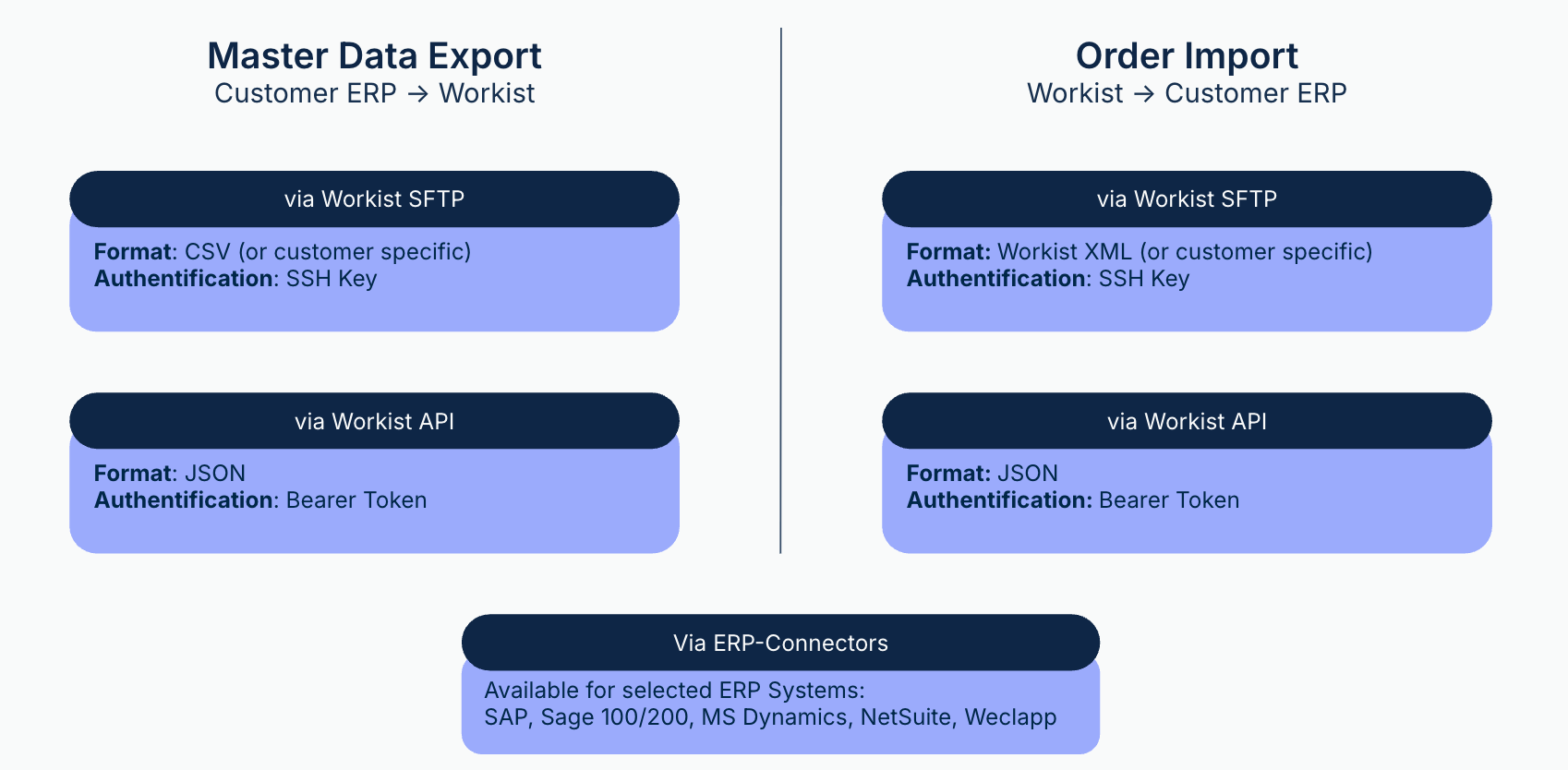
---
Source: https://docs.workist.com/en/docs/data-exchange/sftp.md
# Data Exchange via SFTP Server
Workist provides an SFTP server by default. Your system places master data there and picks up the results of document processing. The server is secured with public key authentication: you create an SSH key pair and add the public key in the Workbench.
Alternatively, Workist transfers the results to your own SFTP server, see [Your own SFTP server](#eigener-server).
## Connection Details {#verbindungsdetails}
| | |
|---|---|
| Host | `ftp.workist.com` |
| Port | `22` |
| User name | Short name of your organisation |
| Login | SSH key, no password |
| RSA fingerprint of the server | `LNe5eKZc2plvysmcr+1sZjfhjn63/K+L+0FtLbGjpXM` (SHA256) |
| IP addresses of the server | `63.34.88.144`, `54.220.170.13`, `52.49.47.193` |
The Workbench shows the same details with a copy icon, including your user name, in the **SFTP Server Information** card at the top of the **SFTP Public Keys** page (**Settings** → **Integrations** → **SFTP Public Keys**). The details in the Workbench are authoritative.
When you connect for the first time, your SFTP client shows the server's fingerprint, e.g. as `SHA256:LNe5eK…`. Compare it with the value above before you confirm the connection.
## Set up access {#zugang}
1. [Create an SSH key pair](#erstellen-eines-ssh-key-pairs).
2. Add the public key in the Workbench under **SFTP Public Keys**. Users with the IT or Admin role can do this (see [Users and roles](/en/docs/administration/users-and-roles.md)). The steps with screenshots are in [Step 1: Establish connection](/en/docs/implementation-guide/step-1-establish-connection.md#a2-oeffentlichen-schluessel-hinterlegen).
3. [Test the connection](#verbindung-testen).
You can add several keys, e.g. one per system. A deleted key stops working immediately.
## Directory Structure {#verzeichnisstruktur}
| Directory | Purpose |
|-------------|-----------------|
| `/export` | Master data that your system places for Workist (exported from the ERP) |
| `/incoming` | Results from Workist: output file (e.g. XML), original document and further files |
| `/archive` | For your own storage. Workist doesn't use the folder by default. |
## Place master data {#stammdaten}
- Workist imports files that you upload to `/export` or one of its subfolders immediately if the file name matches a file name pattern of a lookup definition. You set the patterns in the [Master Data Hub](/en/docs/master-data/master-data-hub.md) (see also [Transformer configuration](/en/docs/master-data/transformer-configuration.md)). Uploads to other folders don't trigger an import.
- Every import replaces the entire data set of the lookup definition. Always upload the complete list.
- Workist ignores files whose path contains `.PART`, `.partfile`, `.filepart`, `.ffs_tmp` or `/Testsystem/`. If your program uploads files under a temporary name and renames them afterwards, use one of these endings. That way Workist never reads a half-written file.
- If more than 12 imports were created for a lookup definition in the last hour, Workist skips further uploads without notice (see [Limits of the Master Data API](/en/docs/api-documentation/master-data-api.md#grenzen)).
## Pick up results {#ergebnisse}
When a channel transfers its results via SFTP, Workist places these files for every finished document:
| File | File name | When |
|---|---|---|
| Output file (e.g. XML) | `.` | always |
| Original document | `.pdf`, for e-invoices in XML format (XRechnung, CII) `.xml` | if **Upload original document** is on (default) |
| Original email | `.eml` | if **Upload original e-mail** is on and the document came by email |
| Additional files | `_file_1.`, `_file_2.` … | if **Additional Files** is on (orders only) |
`` is the name of the output file without its extension. Files with the same `` belong to the same document. The original document is the PDF that Workist created from the input; images and Office files therefore arrive as `.pdf`.
Folders: the default is `/incoming`. In the channel's **Upload** configuration you set your own folders: **Destination folder for generated files** (output file), **Destination folder for outgoing documents** (original document and email) and **Destination folder for additional files** (if empty: the folder for outgoing documents). Details: [Exported processed documents](/en/docs/channel-configuration/exported-documents.md).
### How Workist writes the files {#schreibweise}
- Workist first writes every file as `.PART` and renames it once the transfer is complete. **Ignore all files ending in `.PART` when picking up.**
- Order: original document, original email, additional files, and the output file last. Once the output file is there, all files of the document are complete. So trigger your import on the output file.
- If a file with the same name already exists in the folder, Workist overwrites it.
- Workist doesn't delete files that you have picked up. Move or delete them yourself, e.g. to `/archive`.
- If the transfer fails, the document shows an error message in the Workbench. After fixing the cause, choose **Retry** in the menu of the document row.
## Your own SFTP server {#eigener-server}
Instead of the Workist server, Workist can transfer the results to your SFTP server. Enter the connection in the channel under **Manage channel** → **SFTP** and choose the delivery method **SFTP** under **Upload**. You still place master data on the Workist server or transfer it via the [API](/en/docs/api-documentation/master-data-api.md).
- **Host** and **Username** of your server.
- **Port**: required, even if your server uses port 22.
- **Hostkey**: the public key of your server in the format ` `, without host name and without comment, e.g. `ssh-ed25519 AAAAC3NzaC1lZDI1NTE5AAAA…`. Supported: `ssh-rsa`, `ssh-ed25519`, `ecdsa-…` and `ssh-dss`. `ssh-keyscan -t ed25519 ` prints the key with the host name in front; only copy the last two parts. Without a host key, Workist doesn't verify your server's identity.
- **Password**: With a password, Workist logs in with the password. Without a password, Workist logs in with its own RSA key; your Workist contact provides the public key for it.
- **Destination folders** are paths on your server, default `/incoming`. The folders must exist.
Workist writes to your server the same way as to its own: first `.PART`, then rename, output file last.
## Testing the Connection {#verbindung-testen}
Use `sftp`. The Workist server only speaks the SFTP protocol, so older `scp` versions don't work.
```bash
sftp -i ~/.ssh/workist_sftp @ftp.workist.com
sftp> put masterdata.csv /export/masterdata.csv
sftp> ls /incoming
sftp> get /incoming/ .
sftp> bye
```
---
## Creating an SSH Key Pair {#erstellen-eines-ssh-key-pairs}
The Workbench expects an RSA key in OpenSSH format. The public key starts with `ssh-rsa`.
### Windows, Linux and Mac
```shell
ssh-keygen -t rsa -b 4096 -C "your_email@example.com" -f ~/.ssh/workist_sftp
```
Follow the prompts:
1. Enter an optional passphrase.
2. The key is generated: `~/.ssh/workist_sftp` (private) and `~/.ssh/workist_sftp.pub` (public).
> **Note:** `ssh-keygen` requires OpenSSH to be installed. On Windows 10 and 11 it is usually present.
### PuTTY (Windows)
1. Download PuTTY from the official website.
2. Open PuTTY Key Generator.
3. Select **RSA**, set **4096** bits, click "Generate" and move the mouse over the empty area.
4. Copy the public key from the field "Public key for pasting into OpenSSH authorized_keys file".
5. Save the private key: **Conversions → Export OpenSSH Key**.
### Using the Key Pair
- Add the **public key** (file extension `.pub`) in the Workbench under **SFTP Public Keys**.
- Store the **private key** (without file extension) on the system that communicates with the SFTP server. Don't share it, not even with Workist.
---
Source: https://docs.workist.com/en/docs/data-exchange/api.md
# Data Exchange via Workist API
Workist provides a REST API for data exchange. Through the API you:
- upload documents to a channel,
- retrieve processed documents and report the result of the import into your system,
- set sender and subject, assign documents to users or delete them,
- transfer master data.
The API works on a pull basis: your system asks Workist for new results. If Workist should notify your system about events, also set up [webhooks](/en/docs/data-exchange/webhooks.md).
For more information on using the API, see the [API Documentation](/en/docs/api-documentation.md).
## Retrieving Lookup IDs for the API {#lookup-ids}
Every master data import belongs to a lookup definition. Users with the Manager, IT or Admin role create lookup definitions themselves in the [Master Data Hub](/en/docs/master-data/master-data-hub.md) (see [Users and roles](/en/docs/administration/users-and-roles.md)).
You find the ID of a lookup definition in two places.
**In the Master Data Hub:** The overview lists all lookup definitions with their ID. The ID is also shown on the detail page of the lookup definition.
**In the channel:**
1. Open the Workist interface: [https://wb.workist.com/](https://wb.workist.com/)
2. Select a channel, open the three-dot menu in the top right, and click "Manage channel".
3. Select "Master Data" from the list.
4. The ID of each selected lookup definition is shown below it. Clicking the ID copies it to the clipboard.
---
Source: https://docs.workist.com/en/docs/data-exchange/webhooks.md
# Webhooks
A webhook calls an address in your system as soon as a certain event happens to a document, e.g. when it is finished. Your system then doesn't have to poll the [Document API](/en/docs/api-documentation/document-api.md) regularly.
Webhooks are available for orders, order confirmations, requests for quotation, invoices and delivery notes.
## Prerequisites {#voraussetzungen}
- A Workbench account with the IT or Admin role (see [Users and roles](/en/docs/administration/users-and-roles.md)).
- An address in your system that is reachable from the internet and accepts `POST` requests with JSON. Use HTTPS.
## Set up a webhook {#einrichten}
1. Click **Settings** in the left navigation bar and choose **Integrations**.
2. In the sub-navigation under **Workflow Tools**, choose **Webhooks**.
3. Click **Add Webhook**.
4. Fill in the fields (see table) and click **Create Webhook**.
| Field | Meaning |
|---|---|
| **Name** | Name to tell webhooks apart in the list. |
| **Enabled** | Only enabled webhooks are called. |
| **URL** | Address of your receiver. Workist sends `POST` requests with JSON. |
| **Auth Type** | Prefix of the header value, e.g. `Bearer`. Optional. |
| **Auth Credentials** | Secret value for the header, e.g. a token. |
| **Auth Header** | Header name. Default: `Authorization`. |
| **Username** | User name for HTTP Basic auth. When set, Basic auth replaces the header above. |
| **Password** | Password for HTTP Basic auth. |
| **Events** | Events that trigger the webhook. At least one. |
| **Show Unfinished Data** | `data` contains the document data before the document is finished. |
| **Channels** | Channels per document type. No selection: all channels of all types. |
The list shows all webhooks with their status, URL and number of events. Use the pencil icon to edit a webhook and the trash icon to delete it. **Auth Credentials** and **Password** stay hidden after saving; if you leave the fields empty while editing, the stored value is kept.
### Authentication {#authentifizierung}
Workist sends exactly one authentication header with every call:
- **Basic auth:** If **Username** is filled in, Workist sends `Authorization: Basic `.
- **Custom header:** Otherwise Workist sends the header from **Auth Header** (default `Authorization`) with the value ` `, e.g. `Authorization: Bearer abc123`. Without **Auth Type**, the header only contains the value from **Auth Credentials**.
Workist does not sign the requests. Check the header in your system and only accept requests over HTTPS.
### Channels {#kanaele}
- Without a selection, the webhook applies to all channels of all document types.
- If you select channels, the webhook only applies to those channels. Document types where you selected no channel then don't trigger it.
## Events {#ereignisse}
An event name combines the document type and the event, e.g. `order.finished` or `invoice.assistance_needed`.
| Event | Name | Meaning | Sent for |
|---|---|---|---|
| **Assistance Needed** | `assistance_needed` | The document is waiting for assistance in the Workbench. | all document types |
| **Assisted** | `assisted` | A user finished assisting the document or discarded it. | all document types |
| **Before Generate Output** | `before_generate_output` | Workist starts generating the output file. | all document types |
| **Output Generated** | `output_generated` | The output file has been generated. | all document types |
| **Before Send Output** | `before_send_output` | Workist starts the transfer. | Orders, Requests for quotation |
| **Output Sent** | `output_sent` | The transfer is complete. | currently never |
| **Finished** | `finished` | Processing has ended: finished, discarded or routed to another channel. | all document types |
| Document type | Prefix |
|---|---|
| Orders | `order.` |
| Order confirmations | `order_confirmation.` |
| Requests for quotation | `rfq.` |
| Invoices | `invoice.` |
| Delivery notes | `delivery_note.` |
Notes:
- **Output Sent** is currently not triggered. Use **Finished** and check `data.status`: `DELIVERED` means Workist transferred the result via SFTP, AS2 or ERP integration.
- **Finished** is also sent for discarded documents (`data.status` is then `DISCARDED`). If the transfer fails, Workist doesn't send **Finished**.
- For most integrations **Finished** is enough. **Assistance Needed** is useful to alert staff to open documents.
## Request content {#inhalt}
Workist sends a `POST` request with `Content-Type: application/json`:
| Field | Content |
|---|---|
| `timestamp` | Time of the event as a Unix timestamp in seconds. |
| `event` | Event name, `.`, e.g. `order.finished`. |
| `user` | Currently always an empty object. |
| `data` | The document in the same format as in the [Document API](/en/docs/api-documentation/document-api.md). For invoices only `{"id": ...}`. |
| `payload` | Always an empty object for the selectable events. |
Example (shortened):
```json
{
"timestamp": 1760000000,
"event": "order.finished",
"user": {},
"data": {
"id": "3f2a9c1e-7d1b-4c55-9a43-0e6f1b2c8d90",
"channel": "8b1d2f40-5c3e-4a7a-9e21-6d4c3b2a1f00",
"status": "FINISHED",
"subject": "Purchase order 4500012345",
"finished_at": "2026-10-09T08:15:42Z",
"workbench_url": "https://wb.workist.com/...",
"data": {
"order_number": "4500012345",
"line_items": []
}
},
"payload": {}
}
```
- `data.data` is empty (`{}`) as long as the document has been neither assisted nor finished. Enable **Show Unfinished Data** if you need the intermediate state for early events.
- For **invoices**, `data` only contains the ID. Retrieve the invoice with `GET /invoices/{id}` through the [Document API](/en/docs/api-documentation/document-api.md).
- File links in `data` are valid for at most 30 minutes.
## Delivery and errors {#zustellung}
- Workist sends webhooks in the background, shortly after the event. The order of several events is not guaranteed. Match events by `timestamp` and `data.id`.
- **Not reachable:** If no connection can be made, Workist retries up to ten times, with growing intervals of 1, 2, 4 up to 512 seconds (about 17 minutes in total). After that Workist drops the event.
- **Error response:** If your system answers with an error status (`4xx` or `5xx`), Workist does not repeat the call.
- The Workbench doesn't show a log of the calls. If your system missed an event, fetch the documents through the [Document API](/en/docs/api-documentation/document-api.md#ablauf), e.g. with `finished=true&imported=false`.
- Answer quickly with a `2xx` status and process the data afterwards. Handle events so that a duplicate call does no harm.
---
Source: https://docs.workist.com/en/docs/data-exchange/outlook-add-in.md
# Outlook add-in
With the Workist add-in for Microsoft Outlook, your employees send an open email to a Workist channel with one click instead of forwarding it. If an inbox agent works in your company, the add-in also shows its reply draft for the email.
## What users do in Outlook
- **Send an email to Workist:** the user opens an email, opens the add-in and picks a channel. Workist processes the email with its attachments as if it had been sent to the channel's email address, see [Incoming documents](/en/docs/channel-configuration/incoming-documents.md). If the email contains nothing Workist can process, Workist creates no document.
- **See the status:** for an email already handed over, the add-in shows the resulting documents with channel, status and a link into the Workbench.
Supported are channels for orders, invoices, order confirmations, price requests and delivery notes.
## Creating an add-in
Users with the **IT** and **Admin** roles create add-ins, see [Users, roles & teams](/en/docs/administration/users-and-roles.md#permissions).
1. Open **Settings** → **Integrations** and select **Outlook Add-Ins** under **Workflow Tools** on the left.
2. Click **Add Add-In** and fill in the form:
| Field | Meaning |
| --- | --- |
| **Name** | Name of the add-in as shown in Outlook. |
| **Channel Mode** | Which channels the add-in offers, see [Channel mode](#channel-mode). |
| **Order Channels** | Order channels the add-in offers. Only for the channel modes **Add-In** and **Manual**. |
| **Invoice Channels** | Invoice channels the add-in offers. Only for the channel modes **Add-In** and **Manual**. |
| **Order Confirmation Channels** | Order confirmation channels the add-in offers. Only for the channel modes **Add-In** and **Manual**. |
| **RFQ Channels** | Price request channels the add-in offers. Only for the channel modes **Add-In** and **Manual**. |
| **Delivery Note Channels** | Delivery note channels the add-in offers. Only for the channel modes **Add-In** and **Manual**. |
3. Click **Create Add-In**.
4. Download the manifest file (XML) via the download icon in the add-in's row.
### Channel mode {#channel-mode}
| Channel mode | What Outlook users see | New manifest needed? |
| --- | --- | --- |
| **All Channels** | All channels the Workist user with the Outlook mailbox's email address can see (by their teams). | No, channel changes apply immediately. |
| **Add-In** | The channels selected in the add-in. Workist loads them when the add-in opens. | No, channel changes apply immediately. |
| **Manual** | The channels selected in the add-in. They are written into the manifest file. | Yes, after every change of the channels. |
With **All Channels**, every Outlook user needs a Workist account with the same email address, see [Teams and visibility](/en/docs/administration/users-and-roles.md#teams).
:::warning Treat the manifest file as confidential
The manifest file contains an access key for your Workist account. Only pass it on to the people who roll out the add-in. If you delete the add-in, the key becomes invalid and the rolled-out add-in stops working.
:::
## Rolling out the add-in in Microsoft 365
An administrator of your Microsoft 365 tenant rolls out the add-in:
1. In the Microsoft 365 admin center, open **Settings** → **Integrated apps**.
2. Choose **Upload custom apps**, the Office add-in as app type, and upload the manifest file.
3. Select the users or groups that should get the add-in and complete the deployment.
It can take a few hours until the add-in appears in Outlook. Workist recommends deploying it to the whole organisation or to all teams concerned.
**Changes:** every time you save, Workist increases the add-in's version. If you change the name, the channel mode or, in **Manual** mode, the channels, download the new manifest file and update the app in the Microsoft 365 admin center.
## Inbox agents' reply drafts {#inbox-agents}
:::info Add-on
This feature is only available if your Workist plan includes it (**Inbox agents**). Your Workist contact can enable it for you.
:::
If an inbox agent handles the emails of a mailbox, the add-in shows the agent's result for the open email: a reply draft or an internal summary. The user can edit the draft and have it translated, attach or remove files, create a reply draft in Outlook from it or send the reply directly, rate the result and ask the agent follow-up questions about the email.
When a Manager or Admin creates an inbox agent, Workist automatically creates an add-in with the agent's name and the **Add-In** channel mode. Download its manifest file and roll it out as described above. If you delete this add-in, Workist also deletes the agent. More about agents under [Agents](/en/docs/agents.md).
---
Source: https://docs.workist.com/en/docs/data-exchange/connectors.md
# Connectors for ERP Systems
A connector links Workist directly to your ERP system. Workist takes master data from the ERP and creates processed documents there. For systems without a connector, you exchange master data and results via [SFTP](/en/docs/data-exchange/sftp.md) or the [API](/en/docs/data-exchange/api.md).
## Connectors installed in the ERP system
For these systems, an extension is installed in your ERP system.
- **[Sage 100](/en/docs/data-exchange/connectors/sage-100.md)**: You install the Workist API extension in Sage 100. Workist uses it to read master data and create sales documents. From version 8 of the extension also price check, open quotes and the ERP features of the agents.
- **[Microsoft Dynamics 365 Business Central](/en/docs/data-exchange/connectors/business-central.md)**: The "Workist Integrator" app sends master data to Workist and takes over completed documents, for example as sales orders.
- **[SAP ECC and SAP S/4HANA](/en/docs/data-exchange/connectors/sap.md)**: An ABAP package that our partner Syncwork AG installs in your SAP sends master data to Workist and creates completed orders as sales orders. Also for SAP R/3.
## Connectors without installation in the ERP system
For these systems, Workist connects to your ERP system's interface. Nothing is installed in your ERP. You set up the connection in the Workbench, see [What all connectors have in common](#common-behaviour).
- **[SAP Business One](/en/docs/data-exchange/connectors/sap-business-one.md)**: reads business partners and items, creates orders as sales orders.
- **[Microsoft Dynamics 365 Finance & Operations](/en/docs/data-exchange/connectors/dynamics-365-finance-operations.md)**: reads customers and released products, creates sales orders and sales quotations.
- **[microtech büro+](/en/docs/data-exchange/connectors/microtech-buero-plus.md)**: reads addresses, articles and open quotes, creates orders and requests for quotation as transactions.
- **[ORDAT.ERP](/en/docs/data-exchange/connectors/further-connectors.md#ordat-erp)**: reads customers, articles and units, creates sales orders and quotations.
- **[NetSuite](/en/docs/data-exchange/connectors/further-connectors.md#netsuite)**: reads customers and items, creates sales orders, estimates and vendor bills.
- **[QuickBooks Desktop](/en/docs/data-exchange/connectors/further-connectors.md#quickbooks-desktop)**: reads customers and items, creates sales orders. QuickBooks Online is not supported.
- **[OrderWise](/en/docs/data-exchange/connectors/further-connectors.md#orderwise)**: creates sales orders and quotes and checks unit prices against OrderWise.
- **[Weclapp](/en/docs/data-exchange/connectors/further-connectors.md#weclapp)**: reads customers and articles, creates sales orders and takes over emails from Weclapp tickets.
- **[Sage 200 Professional](/en/docs/data-exchange/connectors/further-connectors.md#sage-200-professional)**: Sage 200 for the United Kingdom.
## What all connectors have in common {#common-behaviour}
This section applies to the connectors without installation in the ERP system. For the other connectors, the process is described on their own pages.
**Setup in the Workbench**
Users with the IT or Admin role (see [Users and roles](/en/docs/administration/users-and-roles.md)) set up the connection under **Settings** → **Business Systems (ERP)** → **Integrations**: click **Connect** next to the system, enter the credentials and select the channels whose documents are transferred to the ERP system. For the selected channels, Workist switches the transfer to the ERP integration and turns off the output file. The "Push results automatically" option in the channel's upload configuration must stay on, otherwise Workist transfers nothing.
**Master data**
- Workist reads the master data from the ERP system once a day. The time is listed on each connector's page.
- **Trigger master data update** on the integration page starts a sync right away.
- Workist writes the master data into the master data lookups assigned to the connected channels (see [Master Data Hub](/en/docs/master-data/master-data-hub.md)). Each run replaces the previous data.
- Workist knows newly created customers and articles from the next run onwards.
**Documents**
- As soon as a document is completed, automatically or after you have edited it, Workist creates it in the ERP system.
- The document number from the ERP system is then shown as the reference on the document in the Workbench. You can search for it in the document list.
- Workist creates new documents. Workist only changes existing documents in the ERP system where the connector's page says so, for example when a quote is converted into an order.
**Errors**
If the ERP system rejects a document, it appears again among the open documents. The document shows "Your system rejected the document with the following response:" followed by the ERP system's message. Workist does not retry the transfer automatically. Fix the cause, for example missing master data in the ERP system, open the document with **Reopen for assistance**, correct it if needed and complete it again. Workist then transfers it again.
## Questions
For details on connecting your ERP system, contact your Workist contact person or write to [support@workist.com](mailto:support@workist.com).
---
Source: https://docs.workist.com/en/docs/data-exchange/connectors/sage-100.md
# Sage 100 Connector
## Overview
Setting up the connection requires a supported Sage 100 version. From there it takes two things:
you configure access inside your Sage 100, and you give us three details that we store on the
Workist side.
**[Prerequisite for your Sage 100](#supported-sage-100-versions)**
Sage 100 by Sage GmbH (Germany, Austria, Switzerland), version 9.0.8 and above, plus a
**3rd Party Gateway** licence.
**[To be set up in your Sage 100](/en/docs/data-exchange/connectors/sage-100-installation.md)**
| Step | Where |
| --- | --- |
| Connect the Sage Connectivity Gateway | Sage Server Manager → **External API** |
| Install the Workist API extension | AppDesigner (metadata import) |
| Apply permissions and Workist fields | AppDesigner or SQL Server Management Studio |
| Enable the databases for connectivity | Sage 100 Administrator |
| Add the Workist client ID as a user and grant permissions | Sage 100 Administrator |
| Restart the application server | Sage Server Manager |
The complete step-by-step guide with downloads, client ID, permissions and troubleshooting is at
[Sage 100 – Installation](/en/docs/data-exchange/connectors/sage-100-installation.md).
**[Details Workist needs from you](#details-for-the-workist-configuration)**
| Detail | Where you find it |
| --- | --- |
| **EntitlementID** | Sage Server Manager → **External API** → **Configuration** |
| **DataSet** | Sage 100 Administrator |
| **Document type** | Sage 100 Materials Management |
| **Version of the Workist API extension** | AppDesigner |
Version 8 of the extension adds the price check, open quotes, orders based on a quote and the ERP
features of the agents — see [Features from version 8](#features-from-version-8-of-the-extension).
## Supported Sage 100 versions
The connector works with **Sage 100 by Sage GmbH** — the edition for Germany, Austria and
Switzerland. These versions are supported:
| Sage 100 version | Supported |
| --- | --- |
| 9.0.11 | yes |
| 9.0.10 | yes |
| 9.0.9 | yes |
| 9.0.8 | yes |
| 9.0.7 and older | no |
The [Workist API extension](/en/docs/data-exchange/connectors/sage-100-installation.md#downloads) contains a separate package for each of these versions.
Only the package matching your Sage 100 version is installed — the packages are not
interchangeable. Your Sage 100 partner can tell you which version you are running.
If your Sage 100 runs on an older version, an update to at least 9.0.8 is a prerequisite for the
connection. If your version is not listed here, talk to us — we will check whether a matching
package is available.
:::note Permissions before version 9.0.9
From version 9.0.9 onwards, the permissions are created during the metadata import. In earlier
versions they have to be applied through a supplied SQL script — see
[Installation, step 4](/en/docs/data-exchange/connectors/sage-100-installation.md#step-4-apply-the-permissions).
:::
:::warning Other products named "Sage 100"
In other markets, Sage sells separate products under the same name — for example Sage 100 in the
US (formerly Sage MAS 90 and MAS 200) or Sage 100 Comptabilité and Gestion Commerciale in France.
These have a different data model and their own version numbering. The Workist Sage 100 connector
is **not** compatible with them.
:::
## Setup in your Sage 100
For Workist to read data from your Sage 100 and create documents in it, additional API endpoints
are installed in Sage 100. The setup is usually carried out by your IT or your Sage 100 partner,
mostly together with Workist. Plan a maintenance window for it: at the end, the application
server has to be restarted.
All steps, the downloads and troubleshooting are at
[Sage 100 – Installation](/en/docs/data-exchange/connectors/sage-100-installation.md).
## Details for the Workist configuration
For Workist to reach your Sage 100 we need three details from you. All three come from your
Sage 100 — there is nothing for you to set up on the interface itself. On top of that comes the
version of the installed Workist API extension.
| Detail | Where you find it | What it does |
| --- | --- | --- |
| **EntitlementID** | Server Manager → **External API** → **Configuration** | Identifies your installation in the Connectivity Gateway |
| **DataSet** | Sage 100 Administrator, status bar or login dialog | Database name, ";" and client number, e.g. `WAWI_DB;1` — determines database and client |
| **Document type** | Sage 100 Materials Management | Determines which document type Workist creates |
| **Version of the extension** | AppDesigner | Determines which fields and features Workist uses |
### EntitlementID
The EntitlementID identifies your Sage 100 installation to the Connectivity Gateway. It is created
when the 3rd Party Gateway is licensed and can be viewed in the Sage 100 Server Manager under
**External API** → **Configuration**. The same dialog is where you set which application server
requests are forwarded to, and configure a proxy if needed.
### DataSet
The DataSet determines which database and which client of your Sage 100 Workist reads from and
writes to. It consists of the database name, a semicolon and the client number — for example
`WAWI_DB;1`. Write the database name exactly as it appears in Sage 100, without spaces.
You find the database name and client number here:
- **Status bar** — at the very bottom of the main window of the open Sage 100
- **Login dialog** — when you select the client, the client number appears directly before the
company name
- **Sage 100 Administrator** — in the left tree under **Mandanten** (clients)
A connection works in exactly one client. That client's database must be explicitly enabled for
connectivity in the Sage 100 Administrator — see
[Installation, step 6](/en/docs/data-exchange/connectors/sage-100-installation.md#step-6-enable-the-databases). Workist creates a
separate connection for the test and the production database.
### Document type
You decide which document type Workist creates — usually your sales or order processing team.
Technically it is addressed through a key. Only **sales** initial document types can be created;
purchase documents such as an order to a supplier are not possible. In standard Sage 100 these
are:
| Key | Document type |
| --- | --- |
| `VFR` | Invoice |
| `VLL` | Delivery note |
| `VPA` | Quote |
| `VPM` | Sample document |
| `VSD` | Direct invoice |
| `VSL` | Immediate invoice |
| `VSS` | Immediate order |
| `VVA` | Order confirmation |
What counts is which document types are configured in your Sage 100 — initial document types you
have created yourself, with their own key, can be used as well. If you do not specify a document
type, Workist creates **immediate orders** (`VSS`).
You can also create a document type of your own — for example with the key `VVK` and the name
"Workist-Bestellung" — so that documents from Workist are recognisable in Sage 100 at a glance.
What is stored in Workist is always the **key**, not the name. If the key does not exist in the
client, Sage 100 rejects the document with a message that the value is not valid for the document
type key field (*Belegtyp-Kennzeichen*).
Instead of creating an order confirmation directly, a preliminary document without effect can
also be worthwhile: your order processing team checks it and then converts it into an order
confirmation. If you change the document type later, check on the next transferred document that
the change has taken effect.
One connection creates exactly one document type. If, say, orders and requests for quotation
should arrive as different document types, Workist sets up separate connections, each with its
own channels.
Sage publishes the full overview in its document API documentation:
Document API – Sage documentation ↗
### Version of the Workist API extension
The AppDesigner shows which version of the extension is installed. Workist stores it in the
connection (*Sage 100 API Version*: version 5, 7 or 8). Without a value, Workist works as with
version 5.
| Version | What Workist additionally uses |
| --- | --- |
| 5 | Base scope: reading master data, creating sales documents |
| 7 | The delivery terms from the document (Incoterm) are passed to the document |
| 8 | All [features from version 8](#features-from-version-8-of-the-extension) |
Workist does not read the version from your Sage 100 itself. Let us know after an update of the
extension so we can adjust the version in the connection.
:::note Delivery terms from version 7
With version 7, Workist passes the delivery terms from the document into the **Lieferbedingung**
(delivery terms) field of the document. Sage 100 only accepts delivery terms that exist in your
client there. Check this on a test document before the version is switched.
:::
### Quote document type
To match orders against [open quotes](#open-quotes), Workist reads the quotes of one document type,
`VPA` (quote) by default. If you use a key of your own for quotes, Workist stores it instead
(*Sage 100 Offer Document Type*). Requires version 8 of the extension.
## Features from version 8 of the extension
With version 8 of the [Workist API extension](/en/docs/data-exchange/connectors/sage-100-installation.md#downloads), Workist also
reads prices, stock levels and sales documents from your Sage 100. In Workist, the following
features are only available when the connection is set to version 8. With older versions, the
related settings are greyed out.
| Feature | Setting in the connection | Default |
| --- | --- | --- |
| [Price check against Sage pricing](#price-check-against-sage-pricing) | *Check order prices against Sage 100*, *Compare against* | off |
| [Open quotes](#open-quotes) | *Sage 100 Offer Document Type* | `VPA` |
| [Orders based on a quote](#orders-based-on-a-quote) | Quote number field in the channel | – |
| [Note text as document memo](#note-text-as-document-memo) | *Note Text* field in the channel | – |
| [Documents as drafts](#documents-as-drafts) | *Save documents in Sage 100 as drafts* | off |
| [ERP features of the agents](#erp-features-of-the-agents) | *Allow agentic writes* (for writing only) | writing off |
### Price check against Sage pricing
For every order line, Workist asks for the price Sage 100 determines for this customer, article,
quantity and unit of measure — with your price lists, quantity breaks and customer discounts.
Workist checks the ordered unit price against this price. If someone changes the quantity, unit,
article or customer in the Workbench, Workist asks for the price again.
- **Compare against** sets what is compared: the unit price before discount (default) or the net
price after the customer discount.
- The unit price check must be switched on in the channel.
- If Sage 100 cannot price a line, for example because the article is missing, Workist checks that
line without a target price.
### Open quotes
With the master data update, Workist reads all open quotes of the
[quote document type](#quote-document-type), across all customers. Each article line becomes an
entry for [quote matching](/en/docs/channel-configuration/document-processing/matching.md):
- Quote number as document year and number, e.g. `2026-30006`
- Customer, quote date
- Line, article, description, quantity and unit of measure
A quote is open as long as nothing has been created from it in Sage 100. Workist no longer reads a
quote that was converted into an order. Workist cannot recognise rejected or expired quotes,
because Sage 100 does not provide the quote status or the validity date through the interface. A
quote without an expiry date is valid in Workist from the quote date.
Workist only reads the quotes if a quote master data list is set up in a channel of the
connection.
### Orders based on a quote
If the **quote number** field is set up in the channel and an order names an open quote from
Sage 100, Workist creates the document with a reference to this quote. Sage 100 then keeps the
quote and the order in the same transaction (*Vorgang*) and sets the quote to **Angenommen**
(accepted).
- The lines come from the order, not from the quote.
- If the lines name different quotes or the quote is no longer open, Workist creates the document
without a reference.
- The **Beleg zu** field in the order stays empty: through the interface, Sage 100 only adds the
reference to the transaction.
### Note text as document memo
If the header field *Note Text* is set up in the channel, Workist puts its content into the
**Memo** of the document.
### Documents as drafts
With *Save documents in Sage 100 as drafts*, Workist creates documents **parked** instead of
saved. Parked documents get a number from the number range for parked documents and are completed
by your staff in Sage 100. The setting applies to every document Workist creates in Sage 100 —
from orders as well as from agents.
### ERP features of the agents
With version 8, [Worki](/en/docs/agents/worki.md), [inbox agents](/en/docs/agents/inbox-agents.md) and
[voice agents](/en/docs/agents/voice-agents.md) access your Sage 100 live:
| Feature | What the agent provides | Worki | Inbox agent | Voice agent |
| --- | --- | --- | --- | --- |
| Price | The customer's net price after discount, with quantity breaks | yes | yes | yes |
| Availability | Stock across all warehouses | yes | yes | yes |
| Delivery date | Delivery date of an order | yes | yes | – |
| Ship date | Date of the first follow-up document of an order, usually the delivery note | yes | – | – |
| Open quotes and documents | Open quotes and open documents of a document type, for one or all customers | yes | – | – |
| Order status | An order with the documents created from it | yes | – | – |
| Read a document | Any sales document with its lines and the documents of the same transaction | yes | – | – |
| Create a document | A sales document directly in Sage 100 | yes | – | – |
| Convert a quote into an order | An order with the quote's lines and prices, in the quote's transaction | yes | – | – |
| Create a customer | A customer directly in Sage 100, with the next free customer number of a number range | yes | – | – |
- **Writing is off by default.** Worki only creates documents, quote conversions and customers if
*Allow agentic writes* is switched on in the connection, and only after the user has confirmed.
Otherwise Worki answers that writing is switched off.
- **Prices are only available for a known customer.** Sage 100 only determines prices with a
customer number. The voice agent therefore gives no price to a caller it has not recognised.
- **Availability is the stock level.** The interface provides neither reservations nor incoming
goods. Stock in blocked warehouses is counted.
- **Open** means for documents: no follow-up document has been created from it yet. Workist does
not recognise partial deliveries.
- Document types are addressed by their key. The agent sees which keys exist in your client from
the documents it reads.
#### Setup in the agents
:::info Add-ons
Worki, inbox agents and voice agents are each licensed separately. Your contact at Workist
activates them — see [Availability](/en/docs/agents.md#availability).
:::
| Agent | How to connect it to your Sage 100 | Licence |
| --- | --- | --- |
| [Inbox agent](/en/docs/agents/inbox-agents.md) | In the agent under **Integrations** → **ERP**, choose Sage 100 and, if there are several, the connection. Under **Skills**, switch on price request, availability and delivery date. | Inbox agents |
| [Worki](/en/docs/agents/worki.md) | Hold the conversation in the [project of an inbox agent](/en/docs/agents/worki.md#inbox-agent-projects) that is connected to Sage 100. Worki then uses its connection, including the features for reading and creating documents. | Worki (chat agents) |
| [Voice agent](/en/docs/agents/voice-agents.md) | Under **Tools**, in the ERP Live Connection category, choose Sage 100 and the connection, and switch on the Article price and Article availability tools. | Voice agents |
For Worki to write to Sage 100, *Allow agentic writes* must also be switched on in the Sage 100
connection.
## What Workist touches in your Sage 100
What matters for a rollout is less the interface itself than the data model behind it: which
tables Workist reads, where it writes, and what the installation changes in your data.
### Data read
Workist reads in order to resolve details from the incoming document against your system —
customer, article, delivery address, project. From version 8 of the extension, Workist also reads
prices, stock levels and sales documents.
| Area | Sage 100 tables | Why Workist reads it |
| --- | --- | --- |
| Customer master | Customer master (Sage record `recKundenstamm`) | Customer recognition |
| Delivery addresses | `KHKAdressen`, `KHKAdressenverweise`, `KHKKontokorrent` | Resolving the delivery address |
| Contacts | `KHKAnsprechpartner` plus the same address tables | Contact on the document |
| Articles | `KHKArtikel`, `KHKArtikelVarianten` (plus `KHKArtikelgruppen`, `KHKVariantenAnzeigeTexte` and others) | Article recognition, units of measure |
| Projects | `KHKProjekte` | Framework contracts |
| Sales documents (from version 8) | `KHKVKBelege`, `KHKVKBelegePositionen` | Open quotes, orders based on a quote, agents |
| Prices (from version 8) | Sage 100 pricing | Price check, agents |
| Stock levels (from version 8) | Storage location stock and warehouses | Agents |
All read access is client-scoped — the queries filter on the client of the DataSet
being addressed.
### Data written
Workist does **not** write to your tables via SQL. Documents are created through Sage 100
document entry, customers through the customer master. Your number ranges, pricing,
tax logic and validations therefore all still apply.
| What Workist creates | Via | Result in Sage 100 |
| --- | --- | --- |
| Sales document with items | Document entry | Document in `KHKVKBelege` / `KHKVKBelegePositionen`, saved or parked |
| Order from a quote (from version 8) | Document entry | Document in the quote's transaction |
| Customer (from version 8, by Worki) | Customer master | Record in the customer master |
Existing documents are **not** changed or deleted — creation is the only operation. When Workist
creates an order with a reference to a quote, Sage 100 itself sets the quote to **Angenommen**
(accepted).
### Additional fields in your tables
The installation adds two user-defined fields. They are created by the supplied
`…-UpdateUserFields-Workist.sql` script and serve traceability.
| Field | Label in Sage 100 | Type | Tables |
| --- | --- | --- | --- |
| `USER_WorkistBearbeiter` | Edited by in Workist | varchar(200) | `KHKVKBelege`, `KHKArchivVKBelege`, `tKHKPrintBelegKopfVK` |
| `USER_WorkistReferenz` | Workist reference | varchar(200) | `KHKVKBelege`, `KHKArchivVKBelege`, `tKHKPrintBelegKopfVK` |
The fields are additionally registered in `USysClassFields` for the `VKBeleg` class so that they
are available inside Sage 100.
:::warning Not included in the metadata import
These two fields are **not** created by the metadata import. The `…-UpdateUserFields-Workist.sql`
script from the package's `SKRIPTE` folder has to be run against the affected databases — see
[Installation, step 5](/en/docs/data-exchange/connectors/sage-100-installation.md#step-5-create-the-workist-fields).
:::
## Field reference
Which fields Workist writes to the sales document in detail, and which master data fields it reads
from your Sage 100, is documented in the
[Sage 100 field reference](/en/docs/data-exchange/connectors/sage-100-fields.md).
---
Source: https://docs.workist.com/en/docs/data-exchange/connectors/sage-100-installation.md
# Sage 100 – Installation
This page walks you step by step through setting up the Workist connection in your Sage 100. What
the connector reads and writes, and which details Workist needs from you, is described under
[Sage 100 Connector](/en/docs/data-exchange/connectors/sage-100.md).
## Process at a glance
The setup is usually carried out by your IT or your Sage 100 partner — mostly together with
Workist in one session. Your partner can also run steps 1–9 alone and then send us the
[details from step 10](#step-10-create-the-connection-in-workist). Allow about an hour for the
installation, plus the application server restart. You do not need to set up any endpoints by
hand — they come with the Workist API extension.
Afterwards we check together that master data arrives and that a test document lands correctly in
your Sage 100.
| Phase | Steps | Who |
| --- | --- | --- |
| [Preparation](#preparation) | Licence, version, access, maintenance window | Your IT / your Sage 100 partner |
| [Setup in Sage 100](#setup-in-your-sage-100) | Steps 1–9 | Your IT / your Sage 100 partner |
| [Connection in Workist](#step-10-create-the-connection-in-workist) | Step 10 | Workist, together with you |
| [Test](#step-11-check-the-connection) | Master data and test document | Together |
:::tip Start with the test environment
Set up the connection on a test database of your Sage 100 first. Only once master data and test
documents run cleanly there is the production database connected — see
[Switching to production](#switching-to-production).
:::
## Preparation
Clarify these points before the setup session. If one of them is missing, the setup usually
stalls at exactly that point.
| Item | Why |
| --- | --- |
| **3rd Party Gateway licence** is in place | Without it the Sage 100 API cannot be reached from outside — see [Licence](#prerequisite-3rd-party-gateway-licence) |
| **Sage 100 version** is known (e.g. 9.0.9) | Determines which package of the Workist API extension is installed — see [Supported versions](/en/docs/data-exchange/connectors/sage-100.md#supported-sage-100-versions) |
| **Main contact's Sage ID** is at hand | Used to connect the Connectivity Gateway (step 1) and to allow Workist as an external API user (step 8). With two-factor authentication, the main contact must be available during the setup. |
| **Administrative access** to Server Manager, AppDesigner, Sage 100 Administrator and SQL Server Management Studio | All steps take place on the Sage 100 server |
| **Maintenance window** is scheduled | The application server must be restarted; no one can work in Sage 100 during that time (step 9) |
| **Document type** is decided | Determines which document Workist orders become in Sage 100 — see [Document type](/en/docs/data-exchange/connectors/sage-100.md#document-type). Your sales or order processing team makes this decision, not the partner. If Workist should use a document type of its own, such as a pre-document without effect, your partner must create it before the test. |
| **Other API integrations** are known | If another product already uses the External API, the installation affects that integration — see the note below. The existing setup does not cover Workist: every step is still needed, [step 8](#step-8-allow-workist-as-an-external-api-user) in particular. |
:::warning Plan the restart around daily operations
Restarting the application server (step 9) interrupts all Sage 100 users. In addition, a file of
the extension cannot be replaced while Sage 100 is using it. With more than a handful of users it
is advisable to run steps 2–9 in a maintenance window outside business hours.
:::
:::warning Other API integrations on the same server
If other integrations via the Sage 100 API are active, they may not work correctly between the
metadata import (step 3) and the restart (step 9). Run import and restart back to back in the same
maintenance window. Because only one connection to the Connectivity Gateway is possible per
installation, all integrations share that connection — talk to us beforehand if another product
already uses it.
:::
### Prerequisite: 3rd Party Gateway licence
Using the Sage 100 API externally requires a **3rd Party Gateway** licence — Sage recommends one
licence per customer. On licensing, Sage registers your main contact's email address together
with a customer ID — the [EntitlementID](/en/docs/data-exchange/connectors/sage-100.md#entitlementid) — in the Entitlement Service.
You obtain the licence through your Sage 100 partner.
Order the licence early — in our experience, activation by Sage takes a few days. For activation,
Sage asks about the application: Workist is a web application that communicates
**machine-to-machine** with your Sage 100. While you are at it, check which email address Sage has
registered for your entitlement — step 1 signs in with exactly that address.
## Setup in your Sage 100
The official guide to the Sage Connectivity Gateway can be found in the Sage documentation:
Setting up Sage 100 – Sage Documentation ↗
### Step 1: Connect the Connectivity Gateway
In the Sage 100 Server Manager under **External API** → **Establish connection**:
1. Sign in via Sage ID with the main contact's email address.
2. Select the entitlement.
3. Select the application server that requests are forwarded to. If needed, configure a proxy in
the same dialog.
Afterwards, **External API** → **Configuration** shows the
[EntitlementID](/en/docs/data-exchange/connectors/sage-100.md#entitlementid) — you need it in step 10.
:::note One connection per installation
Exactly **one** connection to the Connectivity Gateway is possible per customer installation.
:::
### Step 2: Pick the matching package
Download the [Workist API extension](#downloads) and unpack it. It contains a separate folder for
each supported Sage 100 version, each with the subfolders `METADATA`, `DLLS` and `SKRIPTE`. Use
**only** the folder that matches your Sage 100 version — the packages are not interchangeable and
not backward compatible.
What counts are the first three digits of the version (9.0.X). The folders are named, for example,
`Workist-170163136-9.0.10.3`; the last digit is the revision of the extension, not your patch
level. For Sage 100 9.0.10.4, use the folder for 9.0.10.
### Step 3: Import the metadata
In the AppDesigner under **Metadata** → **Import**:
1. Select the file `100096740.WorkistAPI.….metadata` from the `METADATA` folder of the matching
package.
2. From version 9.0.9: enable the option **Create permissions on import and apply them in the
current database**.
3. Confirm the dialog.
The import is only complete once the metadata index has finished building. In the overview, the
Workist extension appears under partner number **96740**.
### Step 4: Apply the permissions
How the extension's permissions get into your databases depends on the version:
| Sage 100 version | Procedure |
| --- | --- |
| 9.0.9 and later | Created during the metadata import (step 3). For further databases, apply them there as well after the import. From version 8 of the extension, also run the script — see below. |
| 9.0.8 | Run the script `…-Berechtigungen.sql` from the `SKRIPTE` folder in SQL Server Management Studio on every affected database. |
From version 8 of the extension, run the script `2026-10-06-Berechtigungen.sql` from the `SKRIPTE`
folder **on every Sage 100 version**: version 8 adds new endpoints for cost centres and cost units
(area `API.Rewe`). If permissions are set to **Detailed**, also authorise the Workist user for
this area — see [Required permissions](#required-permissions).
### Step 5: Create the Workist fields
Run the script `…-UpdateUserFields-Workist.sql` from the `SKRIPTE` folder in SQL Server Management
Studio on every database Workist should access. It creates the two fields that make Workist
documents traceable — see
[Additional fields in your tables](/en/docs/data-exchange/connectors/sage-100.md#additional-fields-in-your-tables).
After running it, it takes a moment until Sage 100 has rebuilt its cache and the fields are
available.
Both script names carry a date prefix, such as `2026-06-29-UpdateUserFields-Workist.sql`. If the
`SKRIPTE` folder is empty, contact us.
:::warning Not part of the metadata import
This script is **not** run by the metadata import and is not listed in Sage's installation guide.
Without this step the fields are missing.
:::
### Step 6: Enable the databases
In the Sage 100 Administrator, enable every database Workist should reach **explicitly** for
connectivity. A database that is not enabled is invisible to Workist — even when every other step
is done.
### Step 7: Create and authorise the Workist user
In the Sage 100 Administrator:
1. Create a Sage 100 user for Workist. Give it a recognisable name (such as "Workist") so it
stays clear which partner service the user belongs to — the name itself does not matter to
Workist.
2. Grant the user the [required permissions](#required-permissions) in the **API** area.
If permissions in your Sage 100 are set to **Detailed** rather than **All**, they must be set per
user or group. This user's permissions determine what Workist may read and create in your
Sage 100. If your **Public** group already denies the whole **API** area, grant the permissions
through a group of their own and assign the Workist user to it.
This user is a technical user — separate from the main contact's personal Sage ID from step 1.
Workist needs **no** password for it: do not send us any Sage login details.
:::tip Narrowing down missing permissions
If the connection check reports that access to sales documents is not allowed, it is almost
always down to this user's permissions. Check the areas in the
[Required permissions](#required-permissions) table first.
:::
### Step 8: Allow Workist as an external API user
Only this step links Workist to the user from step 7. Without it, Sage 100 rejects every request
from Workist with *access denied* (HTTP 401), even when every other step is done. Sage's guide
shows it only in a screenshot, so it is easy to miss.
In the Sage 100 Administrator:
1. Open the **Extras** menu at the top → **Externe API-Benutzer verwalten** (manage external API
users).
2. Sign in with the Sage account the Connectivity Gateway is connected with (step 1). If this
account uses two-factor authentication, the main contact must be available for it.
3. Add the [Workist client ID](#workist-client-id) as an external API user. Workist does not show
up by name in the list, but as this string.
4. Assign it to the Workist user from step 7.
5. Then restart the application server (step 9). The change only takes effect after that.
:::warning An existing API integration does not replace this step
Every product that uses the Sage 100 API signs in with its own client ID. If the list already
contains another external API user — for a web shop or another partner product, for example —
that entry does not cover Workist. The Workist client ID has to be added as well.
:::
### Step 9: Restart the application server
The extension's files are only distributed and the new endpoints only become active with the
restart.
1. In the Sage Server Manager under **Server** → **Administration** → **Services**, stop the
**Sage Application Server** service.
2. Check in Task Manager that all `Sagede.ApplicationServer.IsolationProcess.exe` processes have
ended. End any remaining processes manually.
3. Start the service again.
4. Check that these files are present in the Shared directory of your Sage 100 (default:
`C:\Program Files (x86)\Sage\Sage 100\9.0\Shared`):
| File | Check |
| --- | --- |
| `PSDev.Sage100.Workist.BusinessLogic.dll` | File version matches the Sage 100 version |
| `PSDev.Sage100.Workist.Core.dll` | File version matches the Sage 100 version |
| `PSDev.Sage100.Workist.DataAccess.dll` | File version matches the Sage 100 version |
| `PSDev.Sage100.Workist.RealTimeData.dll` | File version matches the Sage 100 version |
| `Newtonsoft.Json.dll` | Present |
The file version is made up of the major, minor and build of your Sage 100 plus the extension's
revision — for example `9.0.9173.1` for Sage 100 9.0.8:
| Sage 100 version | Major.Minor | Build |
| --- | --- | --- |
| 9.0.8 | 9.0 | 9173 |
| 9.0.9 | 9.0 | 9670 |
| 9.0.10 | 9.1 | 268 |
| 9.0.11 | 9.1 | 866 |
If the files are missing after the restart, copy them from the `DLLS` folder of the matching
package into the Shared directory. If a file — usually `Newtonsoft.Json.dll` — is in use, it can
only be replaced once Sage 100 and the application server have been stopped. Then start the
application server again.
### Checklist before handing over to Workist
Tick off these items before you send us the details for step 10:
- [ ] Connectivity Gateway connected, EntitlementID noted (step 1)
- [ ] Package for your Sage 100 version imported, permissions and Workist fields applied (steps 2–5)
- [ ] Every database enabled for Workist (step 6)
- [ ] Workist user created and authorised in the **API** area (step 7)
- [ ] Workist client ID entered under **Externe API-Benutzer verwalten** and assigned to the Workist user (step 8)
- [ ] Application server restarted **after** step 8, DLLs present (step 9)
- [ ] Document type created and its key known ([Document type](/en/docs/data-exchange/connectors/sage-100.md#document-type))
## Step 10: Create the connection in Workist
With the following details Workist creates the connection to your Sage 100 — in Workist under
**Settings** → **Integrations** → **Sage 100**:
| Detail | Example | Notes |
| --- | --- | --- |
| **Name** | `Sage 100 Test` | Free text. A name that tells test and production apart makes the later switch easier. |
| **EntitlementID** | – | From step 1 — see [EntitlementID](/en/docs/data-exchange/connectors/sage-100.md#entitlementid) |
| **DataSet** | `WAWI_DB;1` | Database name, semicolon, client number — see [DataSet](/en/docs/data-exchange/connectors/sage-100.md#dataset), which also says where to find both values |
| **Document type** | `VVA` | Key of the document type — see [Document type](/en/docs/data-exchange/connectors/sage-100.md#document-type) |
| **Channels** | – | The Workist channels whose orders are transferred into this Sage 100 |
| **Version of the extension** (*Sage 100 API Version*) | `8` | Installed version of the Workist API extension — see [Version](/en/docs/data-exchange/connectors/sage-100.md#version-of-the-workist-api-extension) |
| **Quote document type** (*Sage 100 Offer Document Type*) | `VPA` | Key of the quotes for quote matching, from version 8 — see [Quote document type](/en/docs/data-exchange/connectors/sage-100.md#quote-document-type) |
From version 8, you also set the price check, creating documents as drafts and writing by agents in
the same connection — see [Features from version 8](/en/docs/data-exchange/connectors/sage-100.md#features-from-version-8-of-the-extension).
All three are switched off by default.
:::warning Write the DataSet exactly as it appears in Sage 100
Database name and client number are separated by a **semicolon**, without spaces. A typo in the
database name or the wrong separator means Workist cannot connect to the database.
:::
## Step 11: Check the connection
### Master data
Once the connection has been created, Workist triggers the first master data import. After that,
Workist refreshes the master data automatically **once a day**. You can see the status in Workist
under **Settings** → **Integrations** → **Sage 100**: the connection status, the time of the last
master data update and — while an import is running — a notice that a data update is in progress.
Reload the page to see the current state. The same page also lets you trigger an update manually.
Depending on the amount of data, the first import can take a while. Afterwards, check under
**Manage master data** in the relevant channel that the number of customers, delivery addresses
and articles is plausible.
:::note Changes in Sage 100 reach Workist with the next import
Anything you change in Sage 100 during the day — such as a newly created article — is only
available in Workist after the next master data update.
:::
### Test document
Send a real order through Workist as a test and complete it. Then check in Sage 100:
- Was the document created with the configured document type?
- Are customer, order number, articles and quantities in the right fields?
- Was a delivery address carried over? If the order does not state one, Sage 100 applies the
customer's default delivery address.
Test documents are created in the **test database** — look for them there, not in the document
overview of your production database. Delete them after the test. A dedicated test document type
without further effect also makes test documents easy to spot.
Workist only creates a document once a **customer number** has been determined. If Sage 100
rejects the document, Workist shows the message from Sage 100 on the document. After the
correction, the transfer can be triggered again directly on the document — you do not need to
send the document to Workist again.
## Switching to production
Once master data and test documents run cleanly in the test environment, the production database
is connected. Plan a short session of its own with your Sage 100 partner and Workist for this.
1. Run steps 4–7 on the production database, if not already done: the database must be enabled,
and the Workist user needs the same permissions there as in the test database.
2. Send us the DataSet of the production database. The EntitlementID stays the same.
3. Workist creates a connection with the production database's DataSet or switches the existing
one over. We make this switch in Workist — nothing further is needed in Sage 100.
4. From now on, your staff forward orders to the address of the **production** channel, no longer
to the test channel.
If you have no separate test system, a copy of the database on the production application server
is sufficient — provided steps 4–7 were run on the copy as well.
## New version of the Workist API extension
When Workist extends the connector, you receive a new version of the extension. Install it the
same way as the first version — steps 2–5 and 9, including the scripts and the restart in a maintenance
window. The AppDesigner shows which version is installed. Let us know once the new version is
installed.
Version 8 adds the document fields save status, document date, matchcode, memo, cost centre and
cost unit — see [Field reference](/en/docs/data-exchange/connectors/sage-100-fields.md#further-fields-from-version-8-of-the-extension).
When updating to version 8, run the permissions script
([step 4](#step-4-apply-the-permissions)). Workist then switches the connection to version 8; only
then are the [features from version 8](/en/docs/data-exchange/connectors/sage-100.md#features-from-version-8-of-the-extension)
available.
## After a Sage 100 update
The extension is tied to your Sage 100 version. If you plan a Sage 100 update, the extension is
part of it: after the update, install the package for the **new** version again (steps 2–5 and 9). If
no package is available yet for the new version, talk to us before the update.
## Troubleshooting
| Message or behaviour | Cause | Fix |
| --- | --- | --- |
| *Es konnte kein Handler für ENDPUNKT ermittelt werden.* (No handler could be determined for ENDPOINT) | The extension's endpoints or the change from step 8 are not yet active in the application server. | Restart the application server — [step 9](#step-9-restart-the-application-server). |
| *Websocket client 'NUMMER' has not been connected to the WebSocket Server.* | The **Sage Cloud Connectivity Client** service is not running, or the External API is not configured. | Start the service; check the External API in the Server Manager — [step 1](#step-1-connect-the-connectivity-gateway). |
| No access to sales documents | The Workist user lacks permissions. | Check permissions — [step 7](#step-7-create-and-authorise-the-workist-user). |
| *Der Wert … ist für das Feld Belegtyp-Kennzeichen nicht gültig.* (The value … is not valid for the document type key field) | The configured document type does not exist in this client. | Check the document type key — [Document type](/en/docs/data-exchange/connectors/sage-100.md#document-type). |
| *Der Wert … ist für das Feld … nicht gültig.* (The value … is not valid for the field …, e.g. for the delivery terms) | Sage 100 only accepts values stored in your client — in exactly that spelling. | Create the value in Sage 100 or align the spelling. |
| Access denied (HTTP 401 or 403), on first connecting or after switching to the production database | Workist's sign-in is rejected — with HTTP 401, usually because Workist is not allowed as an external API user. | Check first: client ID entered under **Externe API-Benutzer verwalten** and assigned to the Workist user, application server restarted afterwards ([step 8](#step-8-allow-workist-as-an-external-api-user)). Then: that user's permissions in **this** database, database enabled ([step 6](#step-6-enable-the-databases)), **Sage Cloud Connectivity Client** service running, entitlement and application server selected ([step 1](#step-1-connect-the-connectivity-gateway)), other products on the same gateway. |
| Database access error for contacts only, all other data arrives | Bug in older versions of the extension with user-defined fields of the address table | Install the current version of the extension — see [New version](#new-version-of-the-workist-api-extension). Customers, articles and documents are not affected. |
| Document rejected because a value is too long | Sage 100 limits field lengths — the name of a delivery address, for example, is limited to 50 characters. | Shorten the value in the document and trigger the transfer again. |
| A different delivery address does not arrive in Sage 100 | Without a name, Sage 100 does not take over a different delivery address. | Add the delivery address name in the document. |
| Documents are rejected, or the last master data update is several days old | The API service on your Sage 100 server has stopped responding. | Restart the **Sage Application Server** and **Sage Cloud Connectivity Client** services. Keep an eye on the time of the last master data update in Workist — it shows early when the connection is stuck. |
| Connection fails although every step is done | DataSet misspelled, database not enabled, Workist not allowed as an external API user, or application server not restarted yet. | Check the [DataSet](/en/docs/data-exchange/connectors/sage-100.md#dataset), [step 6](#step-6-enable-the-databases), [step 8](#step-8-allow-workist-as-an-external-api-user) and [step 9](#step-9-restart-the-application-server). |
| A file in the Shared directory cannot be replaced | The file is in use. | Stop Sage 100 and the application server, replace the file, start the application server. |
### Logs for support
The Sage 100 API does not pass the exact cause of an error to the outside — it is in your
Sage 100's TraceLog. If we or Sage need a log for the analysis:
1. Zip the entire log folder (default: `C:\SageLog\Default`).
2. Tell us the approximate time of the error.
If no log file has been written on the day in question yet, restart the **Sage Logging Service**
first. This is also possible during normal operation.
## Reference
### Downloads
| File | Contents |
| --- | --- |
| [Workist API Extension version 8 (ZIP)](/files/sage-100/workist-api-erweiterung.zip) | One package per supported Sage 100 version |
| [Workist API Installation Guide (PDF)](/files/sage-100/workist-api-installationsanleitung.pdf) | Sage's guide: metadata import, file distribution, troubleshooting |
### Workist Client ID
Workist authenticates against your Sage 100 system via **Sage ID** using OpenID Connect, in
machine-to-machine (M2M) mode.
The Workist client ID is: `WPw9RlvT5I5XCX25kAsOKB3REYv98FRq`
:::note The client ID is not a password
The client ID is a public application identifier and is identical for all Workist customers. There
is no password and no client secret for you to enter.
In M2M mode, the client ID takes **the place of the Sage ID email address** as the identity of the
calling system. It therefore goes where the Sage account is entered for an interactive user – not
as a password, not as a licence key, and not as an entry in the Server Manager. Where exactly is described in
[step 8](#step-8-allow-workist-as-an-external-api-user).
:::
### Required permissions
The permissions relevant to the API are listed in the Sage 100 Administrator under the **API**
area:
| Area | Permissions |
| --- | --- |
| `API.VK` | Sales document, sales document item, sales document item stock, sales article pricing |
| `API.EK` | Purchase document, purchase document item, purchase document item stock |
| `API.Artikel` | Articles, storage location stock |
| `API.Kunden` | Customers |
| `API.Ansprechpartner` | Contacts |
| `API.Lager` | Warehouse search |
| `API.Lieferanschriften` | Delivery addresses |
| `API.Projekte` | Projects |
| `API.Rewe` | Search cost centre, search cost unit (from version 8) |
The API extension additionally creates permissions under the **SData services** area — master
data, transaction data and real-time data.
---
Source: https://docs.workist.com/en/docs/data-exchange/connectors/sage-100-fields.md
# Sage 100 – Field reference
This page lists in detail which fields Workist writes to the sales document and which master data
fields Workist reads from your Sage 100. For the overview of setup and configuration, see
[Sage 100 connector](/en/docs/data-exchange/connectors/sage-100.md).
## What Workist writes to the sales document
Workist sends the document as a single object: header fields, containing the items. Only the
fields **Workist populates itself** are listed. Whatever Sage 100 sets on creation — document
number, document year, net and gross amount, and the item total — is deliberately
not shown here.
### Document header
| Field | Sage 100 | Notes |
| --- | --- | --- |
| `belegdatum` | Document date | Order date from the document. Applied from version 8 of the [extension](/en/docs/data-exchange/connectors/sage-100-installation.md#downloads); older versions set the current date |
| `kennzeichen` | Document type | Key of the document type — from the [document types](/en/docs/data-exchange/connectors/sage-100.md#document-type) |
| `a0Konto` | Customer | The customer number is mandatory for creating the document |
| `ansprechpartnerHandle` | Contact number | Contact number of the A0 account |
| `referenznummer` | Your document number | Reference number / your document number |
| `referenzzeichen` | Your reference | Your reference |
| `liefertermin` | Delivery date | Delivery date for the document |
| `zKDBezeichnung` | Payment term | Name of the payment term — from the payment terms |
| `projektnummer` | Project number | Project number |
| `referenzBelegHandle` | Reference document handle | For an [order based on a quote](/en/docs/data-exchange/connectors/sage-100.md#orders-based-on-a-quote), the quote (from version 8). Sage 100 then keeps both documents in the same transaction |
| `lieferbedingung` | Delivery terms | Delivery terms (Incoterm) from the document, from [version 7](/en/docs/data-exchange/connectors/sage-100.md#version-of-the-workist-api-extension). Must exist in your client |
### Address fields
Sage 100 keeps three address roles on a sales document, identified by the field prefix:
| Role | Prefix | Where the data comes from |
| --- | --- | --- |
| Customer (ordering party) | `a0` | Customer master, via `a0Konto` |
| Delivery address | `a1` | The customer's delivery address — or free text |
| Invoice address | `a2` | Only when it differs: an existing account — or free text |
An existing account is referenced through these fields:
| Field | Sage 100 | Notes |
| --- | --- | --- |
| `a1AdressNummer` | Delivery address | Delivery address of the A0 account |
| `a1AnsprechpartnerHandle` | Contact | Contact number of the A0 account — from the contacts of the delivery address |
| `a2Konto` | Invoice address | Mandatory for a differing invoice address |
| `a2AnsprechpartnerHandle` | Contact | from the contacts of the invoice address |
All remaining address fields are identical in both blocks and land in the `A1*` and `A2*` columns
of `KHKVKBelege`:
| Field (delivery / invoice address) | Sage 100 | Notes |
| --- | --- | --- |
| `a1Anrede` / `a2Anrede` | Salutation | |
| `a1Name1` / `a2Name1` | Name | Mandatory when the delivery address is supplied as free text; controls whether the other A1 fields are applied; only when `a1AdressNummer` is not used |
| `a1Name2` / `a2Name2` | Name addition | |
| `a1Zusatz` / `a2Zusatz` | Additional line | |
| `a1Strasse` / `a2Strasse` | Street / PO box | |
| `a1Postleitzahl` / `a2Postleitzahl` | Postcode | |
| `a1Ort` / `a2Ort` | City | from the cities for the country and postcode |
| `a1Land` / `a2Land` | Country | |
### Items
| Field | Sage 100 | Notes |
| --- | --- | --- |
| `artikelnummer` | Article | The article number is mandatory for an article item. `auspraegungsHandle` forms part of the article key (see below) |
| `auspraegungsHandle` | – | For an article variant, this carries the variant key from the article's variant ID field. If no article variant is used, the field is optional or can be set to 0 |
| `bezeichnung` | Description | Article description |
| `menge` | Quantity | The quantity. Articles with a calculated quantity (e.g. length × width × height) are currently not supported. For accessory articles, the associated articles are not added automatically |
| `mengeneinheit` | Unit of measure | Either the base unit or the sales unit — from the units of measure |
| `einzelpreis` | Unit price | If the field is not supplied, the value is determined automatically by pricing |
| `rabatt` | Discount (%) | The item discount, in percent |
| `liefertermin` | Delivery date | Delivery date |
| `memo` | Memo | Internal description field |
### Further fields from version 8 of the extension
With version 8 of the [Workist API extension](/en/docs/data-exchange/connectors/sage-100-installation.md#downloads), Sage 100
also accepts the following fields. Workist fills the save status and the memo when the connection
is set to version 8. Workist does **not** populate the others by default — they can be used as a
customer-specific adjustment. Older versions of the extension do not have them.
| Field | Level | Sage 100 | Notes |
| --- | --- | --- | --- |
| `speicherstatus` | Header | Save status | `0` = saved (default), `1` = parked when [documents as drafts](/en/docs/data-exchange/connectors/sage-100.md#documents-as-drafts) is switched on |
| `matchcode` | Header | Matchcode | Up to 50 characters. Not filled by Workist |
| `memo` | Header | Memo | The [note text](/en/docs/data-exchange/connectors/sage-100.md#note-text-as-document-memo) from the document, when the field is set up in the channel. The item-level `memo` (see above) is separate |
| `kostenstelle` | Header and item | Cost centre | Empty, or a cost centre set up in your Sage 100. Not filled by Workist |
| `kostentraeger` | Header and item | Cost unit | Empty, or a cost unit set up in your Sage 100. Not filled by Workist |
## Master data Workist reads
Workist reads master data to resolve details from the incoming document against your system. This
data is **only read**, never modified. Listed here is what Workist actually evaluates by default.
| Master data in Sage 100 | Becomes in Workist | Fields used |
| --- | --- | --- |
| Customers | Customers | `kto`, `matchcode`, `name1`, `name2`, `lieferStrasse`, `lieferPLZ`, `lieferOrt`, `lieferLand` |
| Contacts | Contacts | `kto`, `nummer`, `vorname`, `nachname`, `telefon`, `eMail` |
| Delivery addresses | Delivery addresses | `kto`, `adresse`, `matchcode`, `name1`, `name2`, `strasse`, `pLZ`, `ort`, `land` |
| Projects | Framework contracts | `kto`, `projektnummer`, `matchcode` |
| Open quotes (from version 8) | [Quotes](/en/docs/master-data/quotes.md), one per article line | Header: `belegjahr`, `belegnummer`, `belegdatum`, `a0Empfaenger`; line: `artikelnummer`, `bezeichnung1`, `menge`, `mengeneinheit` — see [Open quotes](/en/docs/data-exchange/connectors/sage-100.md#open-quotes) |
| Articles | Articles and conversion factors | see below |
### Articles
From the article master, Workist reads these fields specifically:
| Field in Sage 100 | Use in Workist |
| --- | --- |
| `Artikelnummer` | Article number — the leading identifier for matching |
| `EANNummer` | Second article identifier for recognition |
| `Bezeichnung1` | Article description |
| `Langtext`, `Bezeichnung2` | Additional text, improves match quality during recognition |
| `IstVerkaufsartikel` | Determines whether the article is treated as active or inactive |
| `KalkulatorischerEK` | Price on the article |
| `Basismengeneinheit`, `Lagermengeneinheit`, `Verkaufsmengeneinheit`, `VerpackungseinheitVK` | The article's permitted order units; the sales unit additionally as the selling unit |
| `UmrechnungsFaktorLME`, `UmrechnungsfaktorVK`, `UmrechnungsfaktorVPVK`, `UmrechnungsfaktorGP` | Convert the remaining units into the base unit |
The four units of measure are evaluated together: they yield the list of units an article can be
ordered in, and the conversion factors give the quantity in the base unit. That is how a quantity
from the document — say "2 pallets" — is translated into your base unit.
:::note Further fields on request
The interface additionally provides many more article and customer fields, such as article groups,
weights, tax classes or the manufacturer's article number. These are not evaluated by default —
doing so would be a customer-specific adaptation.
:::
---
Source: https://docs.workist.com/en/docs/data-exchange/connectors/business-central.md
# Microsoft Dynamics 365 Business Central
The **Workist Integrator** is an app for Microsoft Dynamics 365 Business Central that connects your Business Central system to the Workist platform. It synchronizes the necessary master data from Business Central to Workist and automatically creates completed documents — for example sales orders — in Business Central.
It moves from a general **overview** through **installation** and **configuration** to **operation**, **troubleshooting**, and a **technical reference**.
## Overview
The Workist Integrator is installed as a **per-tenant extension (PTE)** in your Business Central environment. It fulfills two main tasks:
- **Send master data from Business Central to Workist** so that Workist can read and match your documents correctly.
- **Create completed documents from Workist in Business Central** — such as sales orders — and report the created document number back to Workist.
### How it works
- The app is installed as a PTE in your Business Central.
- The master data to be synchronized is selected in the app and transferred to Workist via a **REST API** — by default once a day (nightly job, configurable).
- The app regularly checks whether completed documents are available in Workist and imports them via the REST API.
- To minimize system load, the required master data is collected in **buffer tables** in your Business Central system before being transferred to Workist.
- The app keeps **API logs** that can be used to analyze error messages.
- After a sales order has been created in Business Central, the **Business Central document number is reported back to Workist** — keeping the document traceable end to end.
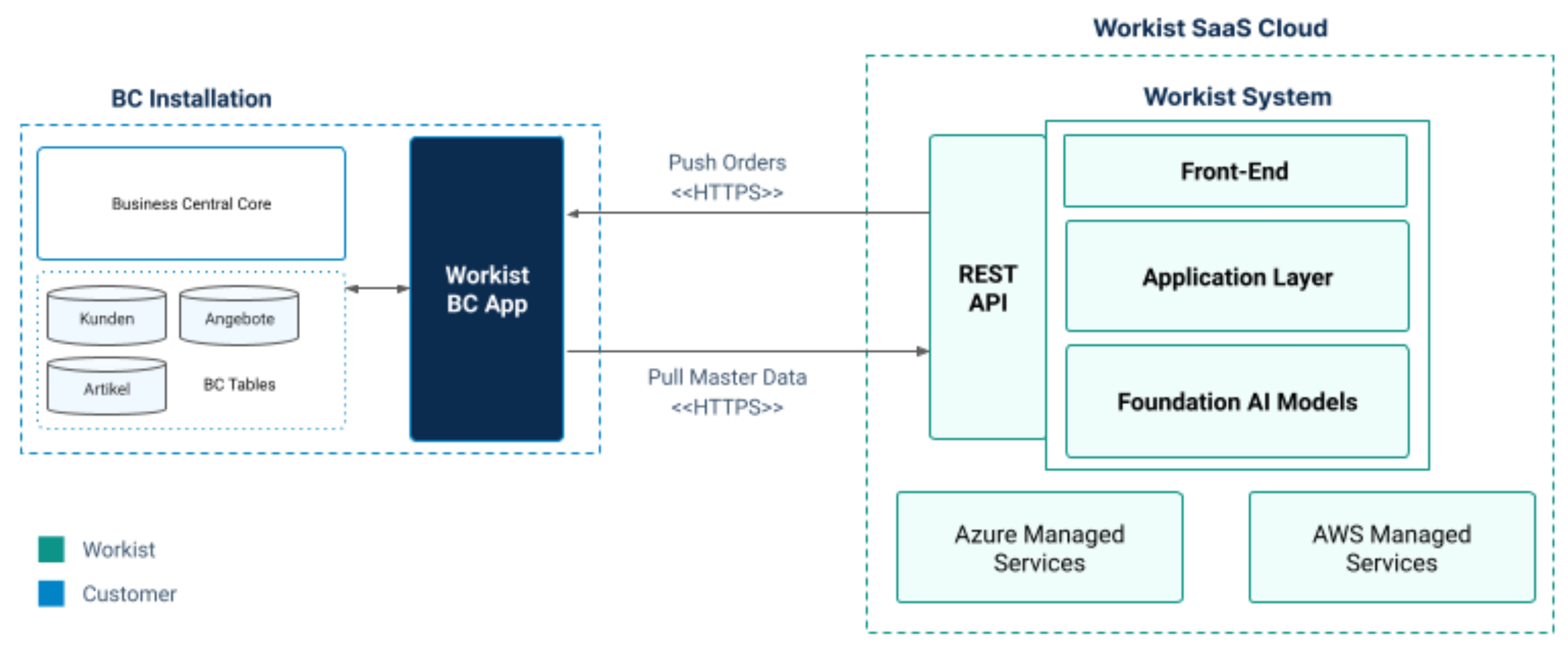
### Key functionalities
The Workist Integrator covers, among others, the following operations:
- Sync customers to Workist
- Sync items including vendor items to Workist
- Sync customer items (item references for customers) to Workist
- Sync customer delivery addresses to Workist
- Sync purchase order lines to Workist
- Import sales orders from Workist and create them in Business Central
- Report the order creation back to Workist
- Import purchase orders from Workist
- Sync sales quotes to Workist as offer-matching master data
- Sync invoice addresses (customers' billing addresses) to Workist
All synchronization processes run as **job queue entries** and can be adapted to your processes (see [Operation](#operation)).
### Compatibility and prerequisites
- **Business Central 23.2 or higher** (the app is built against application 23.2).
- **Administrative privileges** for installing the per-tenant extension.
- **REST API communication** (HttpClient). In sandbox environments, the option *"Allow HttpClient Requests"* must be enabled in the extension settings.
- A **Business Central integration in the Workbench** (see [Create the integration in the Workbench](#create-the-integration-in-the-workbench)). The **Show Setup Data** dialog of this integration holds the **API key** and the required **lookup IDs**.
### Data flow
The app sends master data to Workist. For this master data, Workist shows one lookup ID per connected channel in the **Show Setup Data** dialog. You decide in the app which of them it fills (see [Configuration](#configuration)).
| Master data in Workist | Lookup ID in the “Show Setup Data” dialog |
| --- | --- |
| [Customers](/en/docs/master-data/customers.md) | “Client Lookup ID” |
| [Customer contacts](/en/docs/master-data/customer-contacts.md) | “Contact Lookup ID” |
| [Articles](/en/docs/master-data/articles.md) | “Article Lookup ID” |
| [Customer-specific item numbers](/en/docs/master-data/articles.md) | “Debtor Article Lookup ID” |
| [Unit conversion](/en/docs/master-data/unit-conversion.md) | “Conversion Factor Lookup ID” |
| [Framework agreements](/en/docs/master-data/framework-agreements.md) | “Framework Contract Lookup ID” |
| [Invoice addresses](/en/docs/master-data/delivery-and-invoice-recipients.md) | “Invoice Address Lookup ID” |
| [Delivery addresses](/en/docs/master-data/delivery-and-invoice-recipients.md) | “Delivery Address Lookup ID” |
The lookup ID for offer matching is not in this dialog but in the channel's master data configuration ("Offer Matching Lookup ID").
The app takes over completed documents from the channels you connected in the integration:
| Documents from channels for | Selected in the integration as | “Open in external application” opens |
| --- | --- | --- |
| Orders | “Order Channels” | Sales order |
| Order confirmations | “Order Confirmation Channels” | Purchase order |
## Installation
Installation is usually straightforward and typically takes only a few minutes. There are no additional costs for implementation.
### Prerequisites
- You need **administrative privileges** in your Business Central environment.
- You receive the app package as a **`*.app` file** from Workist. Save this file to a local drive — network-mounted or shared drives do not work in every case.
### Install the app as a per-tenant extension
1. In Business Central, navigate to the **"Extension Management"** page.
2. In the **"Manage"** menu, use the **"Upload extension"** action and select the `*.app` file you received from Workist.
3. Usually you deploy the app package to the current version. As the schema sync mode, **always choose "Add"** — unless you are explicitly asked to do otherwise.
4. Accept the privacy policy and disclaimer, then click **"Deploy"**.
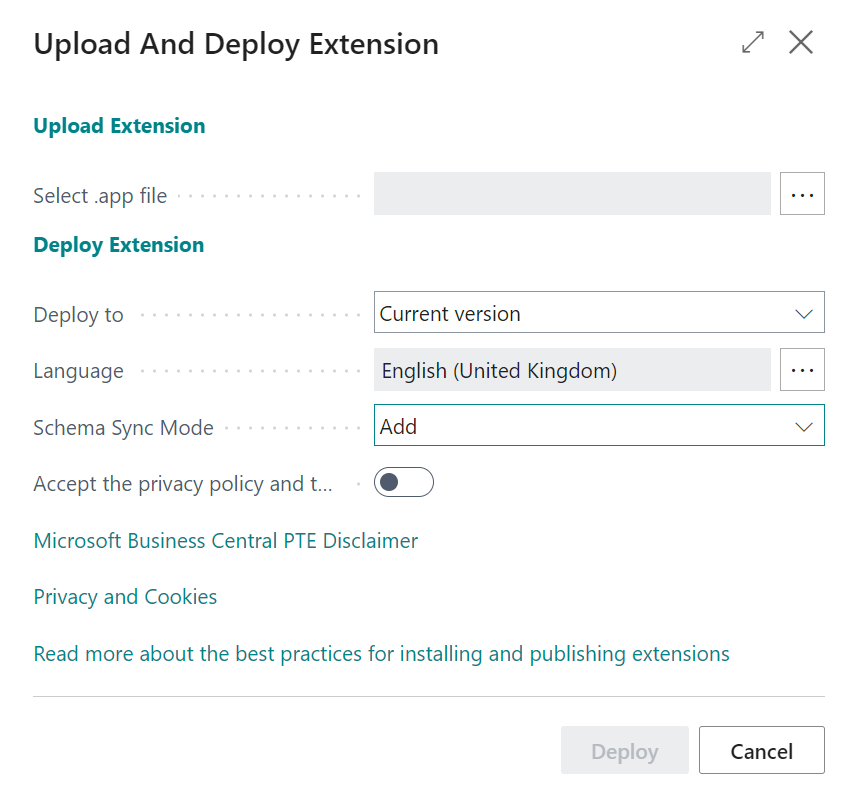
On the **"Extension Installation Status"** page you can follow the progress. In case of errors, you will also find detailed information here.
:::warning No downgrade possible
An extension cannot be "downgraded". On deployment, Microsoft validates the version number of the chosen `*.app` package against the already-installed version. The version number of the package you want to upload **must be higher** than the already-installed extension.
:::
:::note Sandbox environments
In sandbox environments you must enable the *"Allow HttpClient Requests"* option in the extension settings. Without it, the extension cannot communicate via the REST API.
:::
If you encounter problems during the PTE installation whose solution is not described here — such as an object ID range already used by another extension — please contact your Workist associate.
### Maintenance and updates
App updates during Business Central updates are handled by Workist. Continuous troubleshooting and ongoing platform development are included in your Workist package.
## Configuration
Before you can use the Workist Integrator, you create a Business Central integration in the Workbench and then set up the app in Business Central.
### Create the integration in the Workbench
Users with the IT or Admin role (see [Users and roles](/en/docs/administration/users-and-roles.md)) create the integration:
1. Open **Settings** → **Business Systems (ERP)** → **Integrations** and click **Connect** next to Microsoft Business Central.
2. Enter:
| Field | Content |
| --- | --- |
| Name of the Integration | any name |
| Business Central URL | address of your Business Central environment in the browser |
| Order Channels | channels whose orders the app takes over as sales orders |
| Order Confirmation Channels | channels whose order confirmations the app takes over |
3. Click **Create**.
For the connected channels, Workist turns off the output file and the upload, because the app fetches the documents itself.
**Show Setup Data** in the integration's row opens the values for the app: the API keys under **Auth Tokens**, below them the channel ID and the lookup IDs for each connected channel. Clicking a value copies it. **Manage Auth Tokens** leads to the API integrations, where you create keys.
On every transferred document, **Open in external application** takes you straight to the sales order, or for order confirmations to the purchase order, in Business Central. Workist uses the Business Central URL you entered for this.
### Set up the Workist Integrator in Business Central
In Business Central, search for **"Workist Integrator Setup"**. There you will find all relevant settings for the Workist integration. Copy the values you enter there from the **Show Setup Data** dialog in the Workbench.
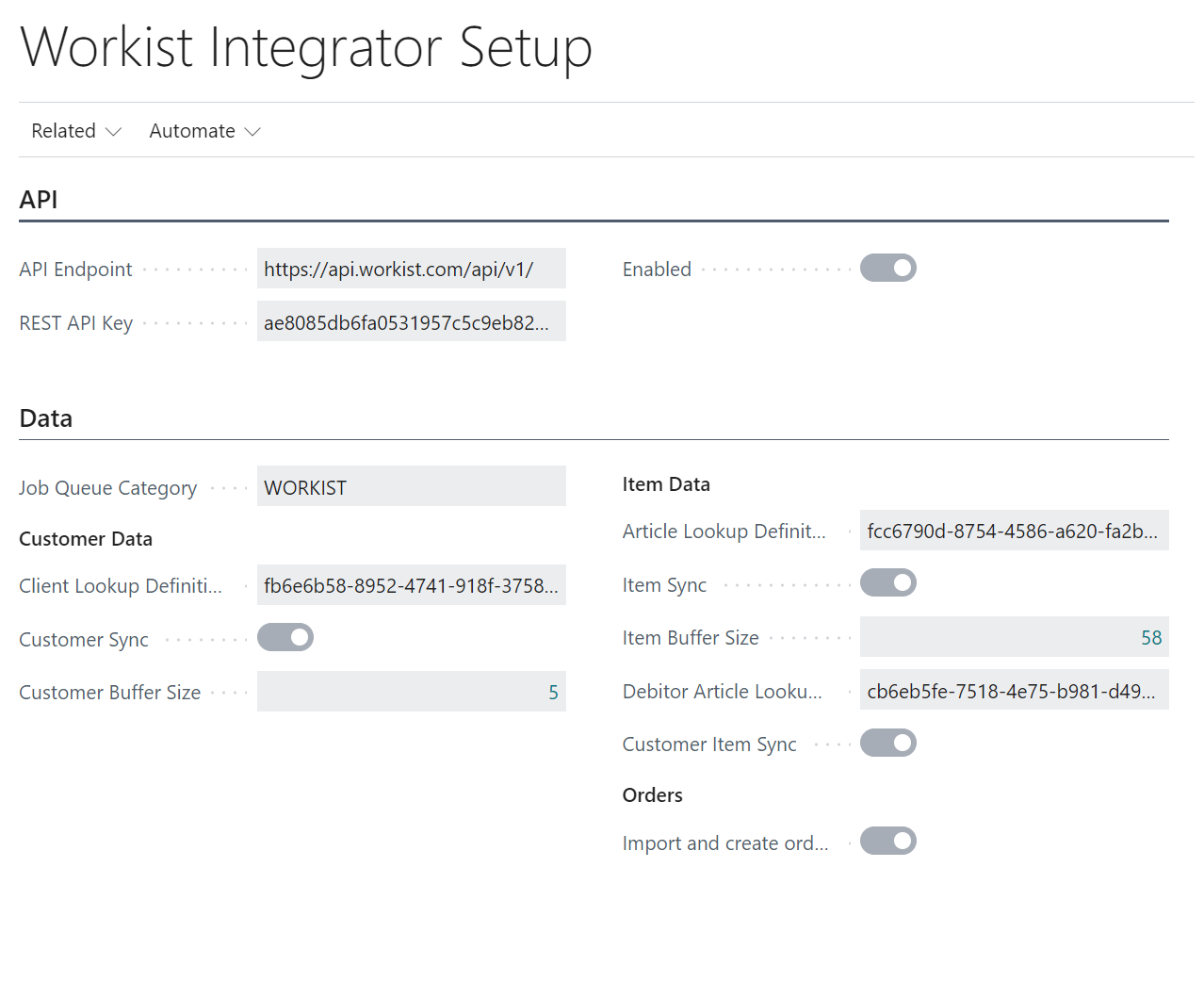
### API key and connection
The **API endpoint** field is for reference only; it is not editable and can only be changed by Workist via an app update.
The **REST API key** is the basis of all communication with the Workist API and the first setting you configure. Without the API key, none of the synchronization operations work. Existing keys are listed under **Auth Tokens** in the **Show Setup Data** dialog. See [Create an API key](/en/docs/api-documentation/quickstart.md#api-schluessel) in the API documentation Quickstart for how to create one, then paste it here using copy & paste.
When you **enable** the Workist Integrator, the API key and the connection are checked. If an error occurs, the *"Enabled"* status automatically switches back to *off*. After a successful activation, the API key can no longer be changed while the connection is enabled — disable the connection first.
### Job queue category
On installation, a unique **job queue category** is created. It separates Workist's tasks from other regularly running tasks. You can change the category for Workist's entries, **but it must not be blank**.
### Failed task retries
Sets how often a failed task is retried. If an API task results in an error, it is repeated this number of times every 5 minutes.
### API log detail level
The **API log detail level** controls the verbosity of logging for all API interactions between Business Central and Workist. It was introduced to address performance and storage concerns in high-volume environments, where excessive logging can quickly create millions of database entries per month and thus degrade database performance.
| Detail level | Description |
| --- | --- |
| **None** | Completely disables API logging. Use with extreme caution, as it provides no visibility into API operations or errors. |
| **Errors Only** *(default)* | Logs only HTTP errors, critical failures, and failed tasks. Recommended setting for production: essential error visibility with minimal database overhead. |
| **Warnings** | Additionally logs warnings such as retry attempts and non-critical issues. Useful for monitoring or investigating intermittent problems. |
| **Verbose** | Logs everything, including successful API calls and request/response details. Highest log volume — use only temporarily during troubleshooting or initial setup. |
**Recommendations:**
- **Production environments:** "Errors Only" for optimal performance while maintaining visibility of critical issues.
- **Testing/staging environments:** "Warnings" or "Verbose" to capture detailed information during testing.
- **Troubleshooting:** temporarily switch to "Verbose", then return to "Errors Only" once resolved.
- **Initial setup:** use "Verbose" during the first synchronization runs to validate the configuration, then switch to "Errors Only".
Changing the detail level takes effect immediately and applies to all subsequent API operations. Existing log entries are not affected.
### Customer data
In the **Customer data** group you enter the *Client Lookup Definition ID*, shown as "Client Lookup ID" in the **Show Setup Data** dialog. Once the ID is entered, you can enable the customer sync. Without the Lookup Definition ID, activation fails.
On activation, a job queue entry is created that runs the sync regularly and executes once immediately. By default it runs every 1,440 minutes (24 hours). You can adjust the interval and days manually in the job queue entries.
As with the API key, the Lookup Definition ID cannot be changed while the sync is enabled — disable it first. The **Customer Buffer Size** shows the number of customers synchronized in the last run.
### Item data
In the **Item data** group you enter the *Article Lookup Definition ID* ("Article Lookup ID" in the **Show Setup Data** dialog) and then enable the item sync. Schedule and locking rules match the customer sync (by default every 1,440 minutes, adjustable; ID only changeable while the sync is disabled). The **Item Buffer Size** shows the number of items synchronized in the last run.
**Customer-specific items:** If you want to sync customer-specific items (item references), enter the *Debtor Article Lookup Definition ID* ("Debtor Article Lookup ID" in the **Show Setup Data** dialog) and enable *"Customer Item Sync"*. This is not a separate routine; it simply adds the customer item references to the item list used by the item sync job.
**Vendor items:** Items with a populated *Vendor Item No.* generate an additional entry during each item run. It carries the same BC item number and the vendor item number as the second item number, so that Workist recognizes the vendor's item identifier as an alternative lookup key. During order or invoice creation, if an item number from Workist cannot be matched to the BC item number, the integration automatically retries the lookup using the vendor item number before falling back to the item reference.
### Order import
To enable the order import from Workist, switch on the **"Import and create orders"** option. The order import job initially runs every minute; you can adjust the job queue entry settings as needed.
When an incoming Workist order contains an offer reference, the integration automatically converts the matching sales quote into a sales order using Business Central's built-in conversion. The standard header fields (customer, address, dates, etc.) are taken from the quote. Two fields are always taken from the incoming order: the **External Document No.** (the customer's PO number) and **"Your Reference"** (the commission number) — these are expected to differ between quote and confirmed order. The auto-generated lines from the conversion are deleted and replaced with the line data from Workist. The sales quote is archived automatically according to the archiving settings in *Sales & Receivables Setup*.
### Offer matching
In the **Offer matching** group you enter the *Offer Matching Lookup ID*. It is not in the **Show Setup Data** dialog but in the channel's master data configuration as "Offer Matching Lookup ID". Then enable the offer sync. The job runs every 60 minutes by default (adjustable); the ID can only be changed while the sync is disabled. The **Sent Offers** counter shows the number of offer lines synchronized in the last run.
### Invoice addresses
In the **Invoice addresses** group you enter the *Invoice Address Lookup Definition ID* ("Invoice Address Lookup ID" in the **Show Setup Data** dialog) and then enable the invoice address sync (by default every 1,440 minutes, adjustable).
The sync sends all non-blocked customers to Workist as invoice addresses. Each customer's number (`No.`) is used both to link the address to the customer and as the address identifier — so the customer's master data record serves directly as their invoice address. The ID can only be changed while the sync is disabled. The **Sent Invoice Addresses** counter shows the number of addresses synchronized in the last run.
## Operation
All synchronization processes run as **job queue entries** under the Workist category. If you feel that a synchronization is not running as intended, the job queue entries are a good starting point for analysis. An erroneous Workist entry carries an error message directly on the job queue entry.
### Manage synchronization jobs
**Deactivate and activate jobs**
Deactivate or activate the respective job on the **"Workist Integrator Setup"** page using the associated toggle buttons.
**Delete deactivated jobs**
A job can be deleted in the detail view. This is **only possible when the job previously has the status "On Hold" ("Abwarten").**
### Address field splitting
Workist combines street and number in one field of arbitrary length. The Business Central address fields are limited, however: 100 characters for the primary address line ("Address") and 50 characters for the secondary line ("Address 2").
When an address is written directly from Workist's data (i.e. when no BC record code or ID takes precedence), the integrator automatically splits a street and number longer than 100 characters:
1. **Smart split at word boundary:** The integrator searches backwards from position 100 for the nearest space within a 15-character window (positions 86–100). If a space is found, the split happens there — the part before goes into "Address", the part after into "Address 2" (truncated to 50 characters).
2. **Hard split fallback:** If no space is found within the window, the string is split at exactly position 100.
3. **Short addresses:** If street and number are 100 characters or shorter, they are written to "Address" unchanged and "Address 2" is left empty.
The splitting is applied consistently across all document import processes (sales orders, RFQ/sales quotes, purchase invoices).
### Ship-to address handling
When syncing orders, ship-to addresses are processed as follows:
1. **Address code matching:** If the address number of the delivery address from Workist matches an existing ship-to address in Business Central, the code is applied to the sales order.
2. **Name and additional address line:** The delivery address's name and additional address line are always transferred to the sales order, even when an address code is used. They override the stored delivery address information — but **not** when they are empty in Workist.
| Delivery address in Workist | BC field | Always transferred |
| --- | --- | --- |
| Address number | Ship-to Code | if a match is found |
| Name | Ship-to Contact | ✓ yes |
| Additional address line | Ship-to Name 2 | ✓ yes |
| Street and number | Ship-to Address | if no code matches |
| Postal code | Ship-to Post Code | if no code matches |
| City | Ship-to City | if no code matches |
Notes: Empty values from Workist are ignored — existing BC values are preserved. Addresses longer than 100 characters are split across "Address" and "Address 2" per [Address field splitting](#address-field-splitting). Existing orders are not affected (only new syncs).
## Troubleshooting
### Order import failures and retry behavior
When an order import fails in Business Central (e.g. due to validation errors, missing master data, or system issues), the Workist Integrator reports the error back to Workist. The order then appears again among the open documents in the Workbench, with the message from Business Central. The app does not fetch it again.
- **Automatic retry:** If reporting back to Workist fails, the app retries **up to five times**. Delays use linear backoff (1 s, 2 s, 3 s, 4 s); maximum additional time approximately 10 seconds per failed order.
- **Retry triggers:** error responses from Workist, network errors or timeouts, and temporary unavailability of Workist.
If all retries are exhausted after five attempts:
1. **Status in Workist:** The order stays ready for pickup in Workist and does not appear among the open documents.
2. **Logging:** A **critical error** is created in the Business Central API log (`CRITICAL: Failed to mark order [Order ID] as FAILED after 5 attempts.`).
3. **Consequence:** The order is fetched again in subsequent synchronization runs (every minute by default), which can create many log entries.
4. **Required action:** Manual intervention is necessary.
### Correct the order in Workist
Open a rejected order in the Workbench with **Reopen for assistance**. Workist resets the transfer status. Correct the order if needed and complete it again. The next run of the order import in Business Central then takes it over again. If the order is no longer needed, discard it.
### Workist API log
You will find detailed error information on the **"Workist API Log"** page in Business Central:
- Filter by Status = *"Error"* to find failed operations.
- Look for entries containing *"CRITICAL"* or *"Failed to mark order"*.
- Check the HTTP status code and Response fields for detailed error information.
- Use the *Task Entry No.* to correlate errors with specific synchronization runs.
### Recommendations
- **Monitor the API log regularly** (daily or weekly) to catch stuck orders early, before they create excessive log entries.
- **Investigate the root cause:** Determine from the Business Central logs why the order import originally failed.
- **Manual resolution options:** correct master data issues in Business Central (missing customers, items, etc.); correct the order in Workist and complete it again (see [Correct the order in Workist](#correct-the-order-in-workist)); contact Workist support if connectivity issues persist.
- Adjust the order import job interval if repeated failures occur.
## Technical reference
### Permissions
The Workist Integrator ships with a single **permission set**. It includes `RMID`/`X` permissions on all objects of the app. For more granular permissions, you need to create a custom permission set. The object range of the Workist Integrator is **`56000` through `56499`**.
### Field mappings
For each process, the Workist Integrator maps the Workist API fields to specific Business Central tables and fields — with direction (incoming/outgoing) and affected objects. Coverage includes sales orders, RFQ/sales quotes, customers, items and customer items, delivery and invoice addresses, purchase orders, purchase order confirmations, delivery notes, and purchase invoices. A complete, field-level reference is available on request from your Workist contact.
### Integration events
The Workist Integrator raises numerous **integration events** that let developers hook their own business logic into the import and synchronization processes — for the sales order, delivery note, purchase invoice, and RFQ imports, as well as job queue and API task handling (e.g. `OnBeforeFinalizeSalesHeader` or `OnAfterFinalizeSalesLine`). The full list with AL code samples is available on request from your Workist contact.
### App version
This documentation describes the Workist Integrator from version **24.0.4.68**. You can obtain the full change log from your Workist associate.
:::info Notes and feedback
Occasionally, field captions or tooltips may be incompletely or imprecisely translated. We appreciate any pointers — as well as suggestions, ideas, and bug reports. If you have any questions, reach us at [support@workist.com](mailto:support@workist.com).
:::
---
Source: https://docs.workist.com/en/docs/data-exchange/connectors/sap.md
# SAP Connector
The Workist SAP connector for SAP R/3, SAP ECC and SAP S/4HANA is an ABAP development package that our partner **Syncwork AG** installs and configures in your SAP system on behalf of Workist. It transfers the required master data from SAP to Workist and creates the orders completed in the Workbench as sales orders in SAP.
SAP Business One has its own connector without installation in SAP, see [SAP Business One](/en/docs/data-exchange/connectors/sap-business-one.md).
## Overview
**Requirements for your SAP system**
- SAP R/3, SAP ECC or SAP S/4HANA (on-premise or Private Cloud Edition) in which custom ABAP developments can be installed. SAP S/4HANA Cloud Public Edition is not supported. For SAP R/3, clarify with Syncwork before the project starts whether your system's kernel and cryptographic library support TLS 1.2 and SNI.
- Outbound HTTPS connections with TLS 1.2 or higher and Server Name Indication (SNI), see [Communication](#communication).
**What you provide**
| Item | Purpose |
| --- | --- |
| [Access for Syncwork](#access-for-syncwork) to the development and test systems | Installation, setup and maintenance |
| [Approval for outbound HTTPS connections](#communication) to `api.workist.com` and `documents.workist.com` | Data exchange with Workist |
| [Values for order creation](#order-creation-customizing) | Sales document type, sales organization, distribution channel, division and more |
| [Technical user for the background jobs](#background-jobs) | Creation of the sales orders |
| [Transfer frequency](#background-jobs) | Scheduling of the background jobs |
| Technical contact | Notice of [certificate](#certificates-strust) renewals |
**What is set up in your SAP system**
| Step | Transaction |
| --- | --- |
| Install and transport the development package | SE80, SE01, STMS |
| Import the Workist certificates | STRUST |
| Create the connections to Workist | SM59 |
| Maintain the order creation customizing | SM30 |
| Schedule the background jobs | SM36, SM37 |
## How it works
The package's two programs run as background jobs in your SAP system and open every connection themselves. The Workist platform never connects to your SAP system. Workist and Syncwork work in your SAP system only through the access you provide for installation, setup and maintenance, see [Access for Syncwork](#access-for-syncwork).
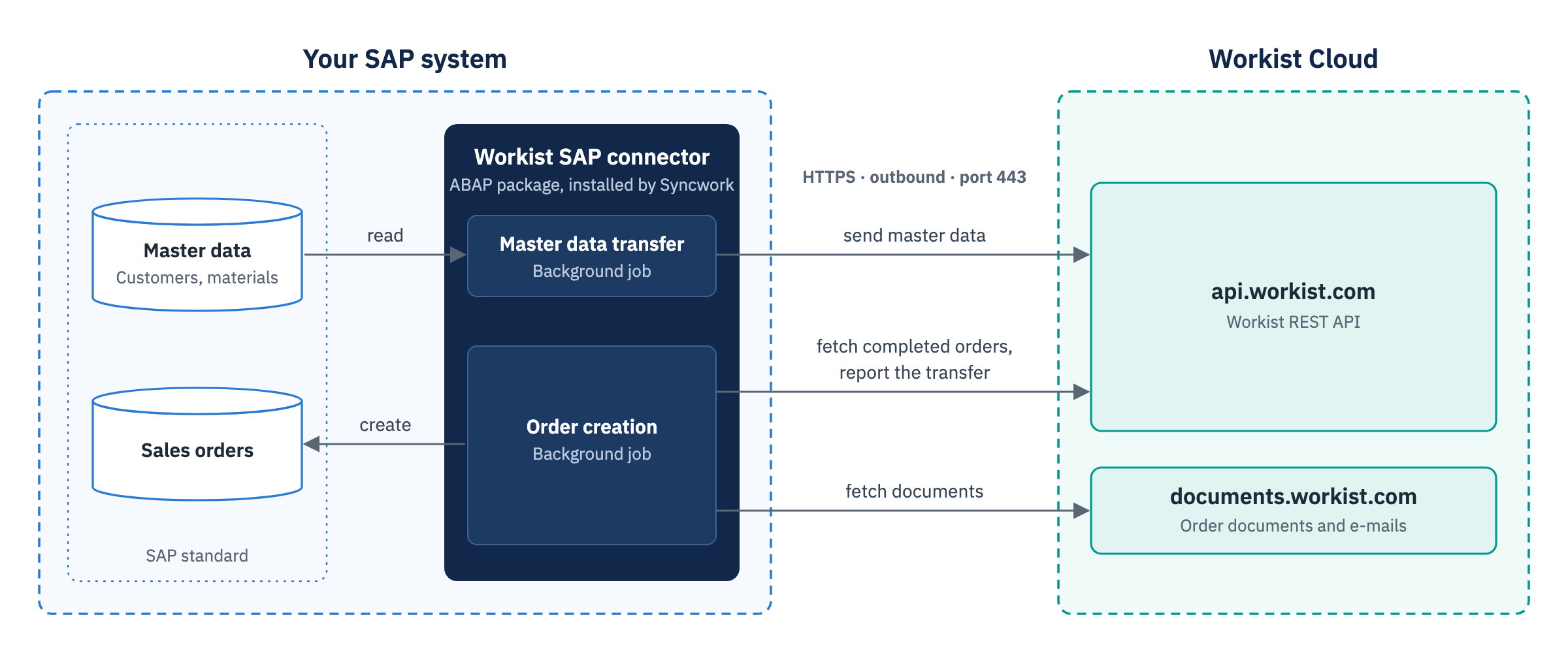
- **Master data:** The master data transfer reads the master data from SAP and sends it to Workist via the Workist REST API. Each run transfers the complete selection. Prices are not transferred.
- **Orders:** Order creation fetches the orders completed in the Workbench and creates sales orders from them. By default it uses the standard SAP BAPI `BAPI_SALESORDER_CREATEFROMDAT2` and does not write the sales order directly to SAP standard tables. The sales order therefore goes through SAP standard processing as for entry in VA01, including number assignment and the incompletion check. Your own enhancements of order processing apply insofar as they also run without a dialog.
- **Documents:** The order document (PDF) and the original e-mail are attached to the sales order. Syncwork agrees with you during setup where the attachments are stored in SAP.
- **Feedback:** Once the sales order is created, the connector marks the order as transferred in Workist. If SAP rejects the order, the order reappears in the Workbench, usually with the SAP message, see [Messages from SAP](#messages-from-sap).
In some installations Workist also provides the order as an [SAP IDoc ORDERS05](/en/docs/output-formats/orders.md#sap-idoc), and the connector processes it in that form. Workist and Syncwork agree with you during setup which variant is used.
## What we read from SAP
| Master data | Purpose in Workist |
| --- | --- |
| Sold-to party | Identify the customer |
| Ship-to party | Match the delivery address |
| Bill-to party | Match the invoice address |
| Contact person (by agreement) | Match the orderer |
| Material | Identify and match items |
| Customer-material info record | Translate your customers' item numbers |
| Alternative units of measure | Convert order units into sales units |
Syncwork agrees with you during setup which records are transferred, for example only certain sales organizations or material types, and whether contact persons are transferred. The selection can be [adjusted](#adjustments) later. Workist recognizes newly created customers and materials after the next master data run.
## What we write to SAP
| Object | Content |
| --- | --- |
| Sales order | Header data, partners and items from the processed order; sales data from the [customizing](#order-creation-customizing) |
| Attachments to the sales order | Order document (PDF) and original e-mail |
| Log table `ZWI_ORDER_DOC` | For each created order: customer, Workist channel, Workist ID of the order, sales document, date, time, user |
The connector only creates new sales orders. It does not transfer changes or cancellations of existing purchase orders: if a change is completed as an order, manually or automatically, another sales order is created. Therefore discard changes and cancellations in the Workbench and process them directly in SAP. If another sales order has already been created, cancel it there.
## What the installation creates
Syncwork installs a dedicated development package in the customer namespace. By default it contains:
- two programs, one for the master data transfer and one for order creation
- a class with the logic for order creation and attaching the documents
- the customizing table `ZWI_SALES_ORDER`
- the log table `ZWI_ORDER_DOC` with the created orders
- the related dictionary objects
Depending on the project, further customizing tables are added, for example for the master data selection. The package is created in the development system and moved to the test and production systems through your transport landscape.
## Setup
Syncwork sets up the connector in the development and test systems. Your SAP Basis team performs any step for which Syncwork is not given authorization, for example in STRUST or SM59. Who sets up the production system is agreed in the project.
Certificates and connections are client-independent and are set up in each system. Customizing and background jobs are client-specific.
:::warning Separate Workist channels per system and client
Every SAP system and every client that fetches orders needs its own Workist channels. If two systems fetch the same channel, production orders end up in the test system or are created twice. If two systems send master data to the same master data IDs, each run replaces the other system's master data. After a copy of the production system, change the channel IDs and master data IDs in the copy before the jobs run there again.
:::
### Access for Syncwork
For installation and setup, and later for maintenance and adjustments, the Syncwork consultants need:
- VPN access to your development and test systems, or a provided computer with this access
- one SAP user each with development authorization, on SAP R/3 and ECC also with a developer key
- access to these transactions:
| Transaction | Purpose | Need |
| --- | --- | --- |
| SE80 | Development | required |
| SE16 | Check table contents | required |
| SM59 | Create connections | recommended |
| SE01 | Create transport requests | recommended |
| STMS | Transport from the development to the test system | recommended |
| STRUST | Import certificates | recommended |
| SM30 | Maintain the order creation customizing | recommended |
| SM36, SM37 | Schedule and check background jobs | recommended |
| VA05 | Check the created sales orders | recommended |
In the test system, the Syncwork consultants also need a debugger authorization, if possible including the authorization to change field values. If Syncwork sets up the production system, Syncwork also needs access there. For setup and support, the Syncwork consultants also receive a user in your Workist account. We will name the consultants in the kick-off.
### Communication
The connector only connects outbound over HTTPS:
| Host | Port | Purpose |
| --- | --- | --- |
| `api.workist.com` | 443 | Send master data, fetch orders and report back |
| `documents.workist.com` | 443 | Fetch the order document, the e-mail and, where used, the IDoc |
- The data exchange needs no inbound connections to your SAP system.
- Allow the hosts in your firewall by name, not by IP address, because the addresses can change. This applies to all application servers that can run the background jobs. Without a proxy, these must be able to resolve the names via DNS.
- If your SAP system reaches the internet only through a proxy, the proxy is entered in the connections or centrally via **Global Configuration** in SM59. If your proxy inspects TLS traffic, exclude the two Workist hosts from inspection.
- Both hosts require TLS 1.2 or higher and Server Name Indication (SNI). Without SNI, `documents.workist.com` returns a different certificate and `api.workist.com` does not accept the connection. SNI is active by default from kernel release 7.77. On older kernels your SAP Basis team enables it, usually with the profile parameter `icm/HTTPS/client_sni_enabled = TRUE` (SAP Note 2124480), on kernels 7.21 and 7.22 where applicable with `ssl/client_sni_enabled = TRUE` (SAP Note 2384290). The two notes state which parameter and which patch level are needed.
- Older systems may need a current CommonCryptoLib and adjusted values in the profile parameter `ssl/client_ciphersuites` for TLS 1.2 (SAP Note 510007). `documents.workist.com` only accepts ECDHE cipher suites.
### Certificates (STRUST)
For SAP to trust the Workist servers, the certificates of both Workist hosts are added in transaction STRUST to the certificate list of the PSE **SSL Client (Standard)**: select the PSE node itself, not a single application server, then **Import Certificate**, **Add to Certificate List** and **Save**. Up to SAP NetWeaver 7.01, the change takes effect only after restarting the ICM (SMICM).
| Certificate | Valid until |
| --- | --- |
| [api.workist.com](/files/sap/api-workist-com.crt) | 2027-03-28 |
| [documents.workist.com](/files/sap/documents-workist-com.crt) | 2027-03-28 |
SHA-256 fingerprints for verification:
```text
api.workist.com 1A:51:8E:DD:1E:20:1D:1C:1F:21:1D:F7:29:34:6A:10:38:C8:EB:54:31:EE:5E:59:7B:B0:42:74:40:A2:4E:3A
documents.workist.com F0:A3:10:E7:E6:C1:4A:B8:F1:6D:88:A6:40:69:54:D1:B3:DB:E9:E8:C2:C0:3D:A6:19:A2:77:FE:5B:0C:5C:0A
```
:::warning Renew the certificates in time
The server certificates are valid for only a few months, and their lifetime drops step by step to 47 days by 2029. Before each planned renewal we notify the technical contact you name in the project and provide the new certificates. If the certificate authority revokes a certificate early, the notice can be short. Import the new certificates before the announced changeover and keep the previous ones in the list until then; otherwise your SAP system cannot connect to Workist.
:::
### Connections (SM59)
Under **HTTP Connections to External Server**, the connections to both Workist hosts are created with these settings:
| Setting | Value |
| --- | --- |
| Connection type | G – HTTP connection to external server |
| Host | `api.workist.com` or `documents.workist.com` |
| Port | 443 |
| Logon with user | Do not use a user |
| SSL | active, SSL certificate **DFAULT SSL Client (Standard)** |
| HTTP version | HTTP 1.1 |
Check each connection with **Connection Test**. Any HTTP status code from Workist, including 400 or 404, shows that certificate and TLS are correct. If the connection runs through a proxy, the status code can also come from the proxy, for example 407 when the proxy logon is missing. An SSL error points to a missing certificate, missing SNI, missing support for TLS 1.2 or the required cipher suites, or a proxy that breaks up TLS connections.
### API key
The connector authenticates to `api.workist.com` with an API key that it sends with every request. It fetches documents from `documents.workist.com` through time-limited signed links. No user is therefore stored in the connections.
The key belongs to your Workist account. In the Workbench under **API Integrations**, users with permission for integrations see the connector's integration. If it is limited to specific channels, the connector only fetches their orders. If the key is renewed there or the integration is deleted, the connector transfers nothing until a new key is entered in the connector. Agree either step with Workist in advance. Do not set an expiry date for this integration; otherwise the transfer stops on that day.
### Order creation customizing
The table `ZWI_SALES_ORDER` (maintained via SM30) defines the sales data used to create the sales orders. You provide the values; Syncwork creates the entries during setup. The key of an entry is the sold-to party and the Workist channel. One Workist channel usually corresponds to one sales organization.
| Field | Meaning | Note |
| --- | --- | --- |
| `KUNNR` | Customer | Key, customer number of the sold-to party |
| `CHANNEL` | Workist channel | Key, channel ID from Workist |
| `AUART` | Sales document type | required for every order |
| `VKORG` | Sales organization | required for every order |
| `VTWEG` | Distribution channel | required for every order |
| `SPART` | Division | required for every order |
| `WAERS` | Currency | |
| `ISOCD` | ISO currency code | |
| `WERKS` | Plant | maintain if possible so that the order is consistent |
| `PROFIT_CTR` | Profit center | |
| `LIFSK` | Delivery block | |
`ZWI_SALES_ORDER` is a client-specific customizing table. Whether the entries are moved with a customizing request or maintained directly in each system is agreed with you by Syncwork during setup. In each client it holds the Workist channels that this client fetches.
### Background jobs
The two programs run as background jobs with program variants that Syncwork creates during setup. They are scheduled in SM36, and you can see the runs in SM37.
The jobs run under the SAP user entered in the job step when they are scheduled. You usually provide a technical user (user type System) for this. It creates the sales orders, appears in them as the creator and therefore needs the authorization to create sales orders for the configured sales document types and sales areas (sales organization, distribution channel, division). Syncwork agrees any further authorizations with your SAP Basis team during setup.
You decide how often master data and orders are transferred. A daily master data run and an order run every 5 to 15 minutes have proven useful. SM36 does not by itself prevent a periodic job from starting while the previous run is still active. Choose an interval well above the runtimes SM37 shows for the order job.
## Operation
### Messages from SAP
If SAP cannot create an order, the connector reports this back to Workist. The order then reappears among the open orders in the Workbench, usually with the SAP message, and is not transferred again automatically. If the cause lies in SAP, for example in the master data, fix it there. Then reopen the order for assistance, correct it if needed and complete it again. The next run transfers it again. If the order is no longer needed, discard it.
The messages come from your SAP system: from the SAP standard or from checks your IT has set up. Your SAP IT is therefore the first point of contact. If a message cannot be classified, write to [support@workist.com](mailto:support@workist.com). We involve Syncwork.
If completed orders do not arrive in SAP and the Workbench shows no message, check the job runs in SM37. Possible causes are a job that is not running or a connection that fails, for example because of a certificate or an invalid API key.
### Maintenance
Syncwork maintains the package on behalf of Workist. You import new Workist server certificates yourself before the announced changeover, see [Certificates (STRUST)](#certificates-strust). If you plan an upgrade of your SAP system or a conversion to SAP S/4HANA, inform your Workist representative in good time so that Syncwork can check the package beforehand.
For an additional Workist channel, Workist creates the channel, enables it for the connector's API integration and gives you its channel ID. You enter it in your SAP system yourself or with Syncwork.
### Adjustments
Additional fields or different logic for order creation are possible. Depending on the request, Workist adjusts the processing in Workist or Syncwork adjusts the package in your SAP system; often both are needed. Also agree changes to the fields of a Workist channel with Workist in advance, because the connector expects the order data in a fixed structure. Contact your Workist representative or write to [support@workist.com](mailto:support@workist.com). We will agree the implementation and effort with you.
---
Source: https://docs.workist.com/en/docs/data-exchange/connectors/sap-business-one.md
# SAP Business One
Workist connects to your company database through the SAP Business One Service Layer. Workist reads business partners and items as master data and creates completed orders as sales orders. Nothing is installed in SAP Business One.
This page covers SAP Business One. For SAP ECC and SAP S/4HANA, see [SAP Connector](/en/docs/data-exchange/connectors/sap.md).
## Overview
**Prerequisites**
- SAP Business One with the Service Layer. Workist must be able to reach the Service Layer over the internet.
- A Service Layer user that may read business partners, items and catalog numbers and create sales orders and attachments.
- Order creation is currently tailored to a specific field structure in SAP Business One. Agree the setup with your Workist contact person beforehand.
**Data flow**
| Direction | Content | When |
| --- | --- | --- |
| SAP Business One → Workist | Business partners, contact persons, addresses, items, catalog numbers | daily at 01:30 UTC and on demand |
| Workist → SAP Business One | Sales order with lines and attachments | as soon as an order is completed |
## What we read from SAP Business One
| Master data in Workist | Source in SAP Business One |
| --- | --- |
| [Customers](/en/docs/master-data/customers.md) | Business partners (customers) |
| [Customer contacts](/en/docs/master-data/customer-contacts.md) | Business partner contact persons |
| [Delivery addresses](/en/docs/master-data/delivery-and-invoice-recipients.md) | Business partner addresses of type ship-to (`bo_ShipTo`) |
| [Invoice addresses](/en/docs/master-data/delivery-and-invoice-recipients.md) | Business partner addresses of type bill-to (`bo_BillTo`) |
| [Articles](/en/docs/master-data/articles.md) | Items |
| [Customer-specific item numbers](/en/docs/master-data/articles.md) | Business partner catalog numbers (`AlternateCatNum`) |
- The integration's filter queries limit which business partners and items Workist reads. Without a filter, Workist reads all of them.
- Workist does not read prices, unit conversions, framework agreements or quotes from SAP Business One.
- Business partners without an automation flag: enter a business partner property (for example `Properties50`) and a text in the integration. Business partners that do not have this property get the text as an internal note in the Workist master data. If the "Customer internal note" check is active in the channel, their orders go to manual processing, see [Validation checks](/en/docs/channel-configuration/document-processing/validation-checks.md).
The [field reference](#field-reference) lists every field Workist takes over.
## What we write to SAP Business One
For every completed order, Workist creates a sales order:
- **Header**: client, order number, order date, delivery date, customer contact, note text, and the delivery and billing address.
- **Lines**: item number and quantity. SAP Business One sets the price. Exceptions: if the business partner has property 51, Workist takes the unit price from the document. If "Calculate Prices with the API on order create?" is on, Workist asks SAP Business One's price determination for price and discount and writes them to the line.
- **Addresses**: if Workist matched the address to an address ID from master data, the order refers to that address. Otherwise Workist writes the address into the order as text. If the document has no address, Workist uses the business partner's default address.
- **Attachments**: on request, Workist attaches the order document to the order. Workist attaches the original email and an enclosed delivery note if you enter a document name for them.
- The order is created as not confirmed.
As the reference on the document in the Workbench, Workist stores the sales order's internal key (`DocEntry`), not the document number SAP Business One displays.
Workist only creates new sales orders and does not change existing documents.
## Setup in the Workbench
1. Open **Settings** → **Business Systems (ERP)** → **Integrations** and click **Connect** next to SAP Business One.
2. Enter the connection:
| Field | Content |
| --- | --- |
| Integration Name | any name |
| Service Layer URL | address of your Service Layer |
| SAP Business One Company DB | name of the company database |
| Service Layer User, Service Layer Password | credentials of the Service Layer user |
| Order Channels | channels whose orders are created as sales orders |
3. Optional:
| Field | Effect |
| --- | --- |
| Filter Query to filter the client entries to be synced to Workist | filter for the business partners Workist reads |
| Filter Query to filter the item entries to be synced to Workist | filter for the items Workist reads |
| Avoid delivery dates in the past | if the delivery date is missing or in the past, Workist sets the next day |
| Calculate Prices with the API on order create? | when creating the order, Workist asks SAP Business One's price determination for each line's price and discount |
| Overwrite value for the Default Shipping Method on the Line Item | shipping method Workist writes into every line |
| Business partner property and text for non-automated business partners | see [What we read from SAP Business One](#what-we-read-from-sap-business-one) |
| Upload original order to Business One? | attaches the order document to the order |
| Custom document name for emails or for delivery notes to upload | also attaches the original email or an enclosed delivery note |
| Custom document type field in Business One | writes the matching document name (order, email, delivery note) into this field of the attachment |
4. Click **Create**. **Trigger master data update** loads the master data right away.
How the master data reaches the channels and how Workist switches the channels over is described under [What all connectors have in common](/en/docs/data-exchange/connectors.md#common-behaviour).
## Error handling
If SAP Business One rejects the sales order, the order appears again among the open documents, with the Service Layer's message. Workist does not retry automatically. Fix the cause and complete the order again after **Reopen for assistance**.
If Workist cannot query the price determination while creating the order, Workist still creates the order. SAP Business One then sets the price.
## Limitations
- Workist only transfers orders. The connector does not support requests for quotation, invoices or other document types.
- Workist does not check whether a sales order already exists for the order before creating one. If an order is completed again, another sales order is created.
## Field reference
### Fields read
#### Customers
| Workist column | From SAP Business One |
| --- | --- |
| `client_id1` | `CardCode` |
| `internal_note` | Text from the setting for non-automated business partners, when the business partner does not have the property named there |
| `client_contact_person1` | `MailAddress` |
| `company_name` | `CardName` |
| `address1` | `Address` |
| `address2` | `MailAddress` |
| `zip_code` | `ZipCode` |
| `city` | `City` |
| `country_subdivision` | `County` |
| `country` | `Country` |
| `extra_data` | user-defined fields (`U_…`), default bill-to address (`BilltoDefault`), default ship-to address (`ShipToDefault`), properties 11, 51 and 52 |
#### Customer contacts
| Workist column | From SAP Business One |
| --- | --- |
| `partition_id` | `CardCode` |
| `contact_id` | `InternalCode` |
| `first_name` | `FirstName` |
| `last_name` | `LastName` |
| `phone` | `Phone1` |
| `email` | `E_Mail` |
#### Delivery and invoice addresses
Both address types have the same fields.
| Workist column | From SAP Business One |
| --- | --- |
| `partition_id` | `BPCode` |
| `address_id1` | `AddressName` |
| `address_id2` | `GlobalLocationNumber` |
| `name` | `AddressName2` |
| `address1` | `Street` + `StreetNo` |
| `zip_code` | `ZipCode` |
| `city` | `City` |
| `country_subdivision` | `County` |
| `country` | `Country` |
| `misc` | `BuildingFloorRoom` |
#### Articles
| Workist column | From SAP Business One |
| --- | --- |
| `article_id1` | `ItemCode` |
| `description` | `ItemName` + `User_Text` |
| `description_boosted` | `User_Text` – else `ItemName` |
| `order_units` | `SalesUnit` |
| `sales_units` | `SalesUnit` |
| `extra_data` | user-defined fields (`U_…`), property 12 |
#### Customer-specific item numbers
| Workist column | From SAP Business One |
| --- | --- |
| `partition_id` | `CardCode` |
| `article_id1` | `ItemCode` |
| `article_id2` | `Substitute` |
| `description` | `ItemName` + `User_Text` |
| `description_boosted` | `ItemName` |
| `order_units` | `SalesUnit` |
| `sales_units` | `SalesUnit` |
| `extra_data` | user-defined fields (`U_…`), property 12 |
### Fields written
Listed are the fields Workist fills. SAP Business One sets the document number, prices without price determination, totals and taxes itself.
#### Sales order – header
| Sales order field | Content |
| --- | --- |
| `AttachmentEntry` | Attachment with the order document (only when “Upload original order to Business One?” is on); original email and an enclosed delivery note when a document name is set for them |
| `DocDate` | Order date |
| `TaxDate` | Date the document arrived in Workist |
| `DocDueDate` | Delivery date. With “Avoid delivery dates in the past”: the next day when the delivery date is missing or in the past |
| `CardCode` | Client (customer number) |
| `NumAtCard` | Order number |
| `ContactPersonCode` | Customer contact, if matched |
| `Confirmed` | fixed: `N` (not confirmed) |
| `Comments` | Note text, if present |
| `BillToCode` | The business partner's default bill-to address when the document has no billing address |
| `PayToCode` | Billing address (address ID from master data) – else the business partner's default bill-to address |
| `ShipToCode` | Delivery address (address ID from master data) – else the business partner's default ship-to address |
#### Sales order – lines
| Line field | Content |
| --- | --- |
| `LineNum` | Position (counting from 0) |
| `ItemCode` | Item number |
| `Quantity` | Quantity |
| `UnitPrice` | Unit price from the document when the business partner has property 51 – else the price from SAP Business One's price determination (only with “Calculate Prices with the API on order create?”) – else SAP Business One sets the price |
| `DiscountPercent` | Discount from the same price determination |
| `ShippingMethod` | Value from “Overwrite value for the Default Shipping Method on the Line Item”, if set |
#### Sales order – address as text
Only when the address in the document is not matched to an address ID from master data.
| Field | Content |
| --- | --- |
| `BillToStreet` / `ShipToStreet` | Street and number |
| `BillToCity` / `ShipToCity` | City |
| `BillToZipCode` / `ShipToZipCode` | Postal code |
| `BillToCountry` / `ShipToCountry` | Country |
| `BillToAddress2` / `ShipToAddress2` | Company name |
| `BillToAddress3` / `ShipToAddress3` | Name |
---
Source: https://docs.workist.com/en/docs/data-exchange/connectors/dynamics-365-finance-operations.md
# Microsoft Dynamics 365 Finance & Operations
Workist connects to your environment through the data entities of Dynamics 365 Finance & Operations (F&O). Workist reads customers and released products as master data, creates completed orders as sales orders and requests for quotation as sales quotations. Nothing is installed in F&O.
## Overview
**Prerequisites**
- An app registration in Microsoft Entra ID with a client secret. Workist uses it to sign in without user interaction.
- The app is enabled as an application in F&O and mapped to a user that may use these data entities:
- read: `CustomersV3`, `ContactPersons`, `CDSCustomerContactPersons`, `CustomerPostalAddresses`, `CDSReleasedDistinctProducts`, `CustomerProductDescriptionsV2`
- create: `SalesOrderHeadersV2` or `SalesOrderHeadersV4`, `SalesOrderLines`, `SalesOrderHeaderDocumentAttachmentsV2`, `SalesQuotationHeaders`, `SalesQuotationLines`
- delete: `SalesOrderHeadersV2` or `SalesOrderHeadersV4`, so that Workist can roll back an incomplete order
- Workist must be able to reach your F&O environment over the internet, directly or through an API gateway.
**Data flow**
| Direction | Content | When |
| --- | --- | --- |
| F&O → Workist | Customers, contact persons, postal addresses, released products, external item numbers | daily at 06:00 German time and on demand |
| Workist → F&O | Sales order with lines, order document (PDF) and original email | as soon as an order is completed |
| Workist → F&O | Sales quotation with lines | as soon as a request for quotation is completed |
## What we read from Finance & Operations
| Master data in Workist | Source in Finance & Operations | Data entities |
| --- | --- | --- |
| [Customers](/en/docs/master-data/customers.md) | Customers | `CustomersV3`, `ContactPersons`, `CDSCustomerContactPersons` |
| [Customer contacts](/en/docs/master-data/customer-contacts.md) | Customer contact persons | `ContactPersons`, `CDSCustomerContactPersons` |
| [Delivery addresses](/en/docs/master-data/delivery-and-invoice-recipients.md) | Customer postal addresses | `CustomerPostalAddresses` |
| [Articles](/en/docs/master-data/articles.md) | Released products | `CDSReleasedDistinctProducts` |
| [Customer-specific item numbers](/en/docs/master-data/articles.md) | Customer external item numbers (assigned to a single customer, not to customer groups) | `CustomerProductDescriptionsV2` |
- If a data area ID is set in the integration, Workist only reads that legal entity. Without a data area ID, Workist reads all of them.
- The integration's options narrow down the products: only stocked products (`IsStockedProduct` = Yes) and only products with both a sales and an inventory unit.
- Workist does not read invoice addresses, unit conversions, framework agreements or quotes from F&O.
The [field reference](#field-reference) lists every field Workist takes over.
## What we write to Finance & Operations
**Sales order** (from orders)
1. Workist creates the order header: customer, order number as the customer requisition, delivery address, customer contact and delivery date.
2. Workist creates the lines: item number, quantity, unit, product dimensions from the article master data and delivery date. F&O determines the prices itself.
3. Workist attaches the order document (PDF) and, for documents received by email, the original email (.eml) to the order.
On request, Workist puts every order on hold in F&O (`IsSalesProcessingStopped`) so it is reviewed before further processing.
**Sales quotation** (from requests for quotation)
Workist creates the quotation header with the customer and then the lines with item number, quantity, unit and product dimensions.
**Data in detail**
- Workist only transfers delivery dates when the field is enabled in the channel. If a delivery date is in the past, Workist sets today's date, because F&O rejects dates in the past.
- Workist takes the legal entity (data area ID) from the customer master data, else from the integration.
- As the reference on the document in the Workbench, Workist stores the order or quotation number from F&O. **Open in external application** takes you straight to the order or quotation in F&O.
## Setup in the Workbench
1. Create the app registration in Microsoft Entra ID and enable the app in F&O (see [Prerequisites](#overview)).
2. In the Workbench, open **Settings** → **Business Systems (ERP)** → **Integrations** and click **Connect** next to Microsoft Dynamics 365 Finance and Operations.
3. Enter the connection:
| Field | Content |
| --- | --- |
| Integration Name | any name |
| Tenant ID | ID of your Entra ID tenant |
| Environment URL | URL of your F&O environment |
| API Data URL (optional) | address of an API gateway in front of F&O; leave empty if Workist accesses the environment directly |
| Client ID (Application ID), Client Secret | from the app registration |
| Data Area ID | legal entity, for example `usmf` |
| Order Channels | channels whose orders are created as sales orders |
| RFQ Channels | channels whose requests for quotation are created as sales quotations |
4. Optional:
| Option | Effect |
| --- | --- |
| Only import articles where IsStockedProduct is 'Yes' | reads stocked products only |
| Only import articles that have both SalesUnitSymbol and InventoryUnitSymbol set | reads products with a sales and an inventory unit only |
| Articles have multiple versions | for products with several versions: Workist uses the versioned product number as the item number and transfers part number 2 |
| Sales order header entity | V2 (default) or V4; V4 also knows the order taker and the retail channel |
| Order taker personnel number, Retail channel RecId | order taker's personnel number or retail channel for every order (V4 only) |
| Put every pushed sales order on hold in F&O | puts every order on hold |
| Delete the sales order again if creating its lines fails | default: on. See [Error handling](#error-handling) |
| Delete the whole sales order if uploading an attachment (PDF/email) fails | default: off. See [Error handling](#error-handling) |
| Disable master data transfer | Workist reads no master data from F&O, neither scheduled nor on demand |
5. Click **Create**. **Trigger master data update** loads the master data right away.
How the master data reaches the channels and how Workist switches the channels over is described under [What all connectors have in common](/en/docs/data-exchange/connectors.md#common-behaviour).
## Error handling
If F&O rejects a document, it appears again among the open documents, with the message from F&O. Workist does not retry automatically. Fix the cause and complete the document again after **Reopen for assistance**.
- **Order without a customer number**: Workist does not transfer it and reports the error on the document.
- **Error creating a line**: Workist tries all lines and reports every failed line with its item number. Workist then deletes the order again. If "Delete the sales order again if creating its lines fails" is off, the incomplete order stays in F&O and its number is shown on the document. Complete or delete it in F&O before you complete the order again.
- **Error attaching the PDF or email**: by default, the order stays and the document counts as transferred; the message is shown on the document. If "Delete the whole sales order if uploading an attachment (PDF/email) fails" is on, Workist deletes the order and marks the document as failed.
- If Workist cannot delete an order again, a note with the order number is shown on the document. Remove the order manually.
- **Missing permission**: if F&O reports missing rights, the document says so. A new attempt only helps once the app's user has the rights.
## Limitations
- Workist currently creates sales quotations with currency `USD` and language `en-US`.
- If a quotation line fails, Workist does not delete the sales quotation it already created. It stays incomplete in F&O.
- Workist does not check whether an order already exists for the document before creating one. If an order is completed again, another order is created.
## Field reference
### Fields read
#### Customers
| Workist column | From Finance & Operations |
| --- | --- |
| `client_id1` | `CustomerAccount` |
| `client_id2` | `PartyNumber` |
| `client_contact_person1` | `FirstName` + `LastName` of the customer's first contact person |
| `company_name` | `OrganizationName` |
| `address1` | `AddressStreet` |
| `zip_code` | `AddressZipCode` |
| `city` | `AddressCity` |
| `country` | `AddressCountryRegionId` |
| `extra_data` | `dataAreaId`, `EmployeeResponsibleNumber` |
#### Customer contacts
| Workist column | From Finance & Operations |
| --- | --- |
| `partition_id` | Customer account the contact person belongs to (`CustomerAccountNumber`) |
| `contact_id` | `ContactPersonId` – else `ContactPersonPartyNumber` |
| `first_name` | `FirstName` |
| `last_name` | `LastName` |
| `phone` | `PrimaryPhoneNumber` |
| `email` | `PrimaryEmailAddress` |
#### Delivery addresses
| Workist column | From Finance & Operations |
| --- | --- |
| `partition_id` | `CustomerAccountNumber` |
| `address_id1` | `AddressLocationId` |
| `name` | `AddressDescription` |
| `address1` | `AddressStreet` |
| `zip_code` | `AddressZipCode` |
| `city` | `AddressCity` |
| `country` | `AddressCountryRegionId` |
#### Articles
| Workist column | From Finance & Operations |
| --- | --- |
| `article_id1` | `ItemNumber`; with “Articles have multiple versions”: `ProductNumber` |
| `article_id2` | `ProductNumber`; with “Articles have multiple versions”: `ItemNumber` |
| `description` | `ProductName`, extended by size, colour, style and version if present |
| `description_boosted` | `ProductDescription` |
| `gross_price` | `SalesPrice` |
| `order_units` | `SalesUnitSymbol` |
| `sales_units` | `SalesUnitSymbol` |
| `extra_data` | Product dimensions `ProductSizeId`, `ProductColorId`, `ProductStyleId`, `ProductVersionId`, `ProductConfigurationId` (passed on to the order line) plus `CurrencyCode`, `SalesUnitSymbol`, `SalesPrice`, `InventoryUnitSymbol`, `UnitCost`, `IsStockedProduct` |
#### Customer-specific item numbers
| Workist column | From Finance & Operations |
| --- | --- |
| `partition_id` | `CustomerAccountNumber` |
| `article_id1` | `ItemNumber` |
| `article_id2` | `CustomerProductNumber` |
| `description` | `CustomerProductDescription` |
| `extra_data` | `ProductSizeId`, `ProductColorId`, `ProductVersionId`, `ProductStyleId`, `ProductConfigurationId`, `dataAreaId` |
### Fields written
Listed are the fields Workist fills. F&O sets the order and quotation number, prices, totals and all other fields itself.
#### Sales order – header
| Field | Content |
| --- | --- |
| `OrderingCustomerAccountNumber` | Client (customer number) |
| `dataAreaId` | Data area ID from the customer master data – else the integration's “Data Area ID” |
| `DeliveryAddressLocationId` | Delivery address (address ID from master data) |
| `RequestedShippingDate` | Delivery date (header); a date in the past is replaced by today |
| `ContactPersonId` | Customer contact, if matched |
| `CustomerRequisitionNumber` | Order number |
| `IsSalesProcessingStopped` | `Yes` when “Put every pushed sales order on hold” is on – else not sent |
| `OrderTakerPersonnelNumber` | “Order taker personnel number” (only with header entity V4) |
| `RetailChannelTable` | “Retail channel RecId” (only with header entity V4) |
#### Sales order – lines
| Field | Content |
| --- | --- |
| `ItemNumber` | Item number (with “Articles have multiple versions”: part number 2) |
| `OrderedSalesQuantity` | Quantity |
| `SalesUnitSymbol` | Unit |
| `ProductSizeId` `ProductColorId` `ProductStyleId` `ProductVersionId` `ProductConfigurationId` | Product dimension from the article master data |
| `RequestedShippingDate` | Line delivery date – else the header delivery date |
#### Sales quotation – header
| Field | Content |
| --- | --- |
| `dataAreaId` | Data area ID from the customer master data – else the integration's “Data Area ID” |
| `RequestingCustomerAccountNumber` | Client (customer number) |
| `CurrencyCode` | fixed: `USD` |
| `LanguageId` | fixed: `en-US` |
#### Sales quotation – lines
| Field | Content |
| --- | --- |
| `LineCreationSequenceNumber` | Position (counting from 1) |
| `ItemNumber` | Item number (with “Articles have multiple versions”: part number 2) |
| `RequestedSalesQuantity` | Quantity |
| `SalesUnitSymbol` | Unit |
| `ProductColorId` `ProductSizeId` `ProductStyleId` `ProductVersionId` `ProductConfigurationId` | Product dimension from the article master data |
---
Source: https://docs.workist.com/en/docs/data-exchange/connectors/microtech-buero-plus.md
# microtech büro+
Workist connects to your installation through the GraphQL interface of microtech büro+. Workist reads addresses, articles and open quotes as master data and creates completed orders and requests for quotation as transactions (Vorgänge). Nothing is installed in büro+.
## Overview
**Prerequisites**
- microtech büro+ with the GraphQL interface enabled and a client (client ID and client secret) for Workist's access.
- Workist must be able to reach your installation's interface. Agree with your Workist contact person how the connection is established.
- The transaction types Workist should create, for example "Auftragsbestätigung" and "Anfrage", are set up in büro+.
**Data flow**
| Direction | Content | When |
| --- | --- | --- |
| büro+ → Workist | Customers, contact people, postal addresses, articles, open quotes | daily at 04:00 German time and on demand |
| Workist → büro+ | Transaction of the configured type with lines, order document (PDF) and original email | as soon as an order or request for quotation is completed |
## What we read from microtech büro+
| Master data in Workist | Source in microtech büro+ |
| --- | --- |
| [Customers](/en/docs/master-data/customers.md) | Addresses flagged as customer (`fnIsCustomer`) |
| [Customer contacts](/en/docs/master-data/customer-contacts.md) | Contact people |
| [Delivery addresses](/en/docs/master-data/delivery-and-invoice-recipients.md) | Postal addresses (every postal address of each address) |
| [Invoice addresses](/en/docs/master-data/delivery-and-invoice-recipients.md) | Postal addresses (the same as for delivery addresses) |
| [Articles](/en/docs/master-data/articles.md) | Articles |
| [Open quotes](/en/docs/master-data/quotes.md) | Open transactions of the type set in “Offer Sync Vorgangsart”, one row per line |
- Workist reads all articles, including those flagged as historical.
- Workist only reads open quotes when a quote transaction type is set. Workist does not read transactions marked as done.
- Workist does not read customer-specific item numbers, unit conversions, framework agreements or prices from büro+.
The [field reference](#field-reference) lists every field Workist takes over.
## What we write to microtech büro+
**New transaction**
For every completed order, Workist creates a transaction of the "Order Vorgangsart", for every request for quotation one of the "RFQ Vorgangsart":
- **Header**: customer, document date, order or inquiry number as origin and order number, a description such as "Workist Order #4711", and the delivery date.
- **Addresses**: invoice and delivery address from the document. Every value present in the document overrides the default address büro+ fills in from the customer's address.
- **Lines**: item number, quantity, unit and delivery date. büro+ calculates the prices.
- **Documents**: if a document system type is set, Workist attaches the order document (PDF) and, for documents received by email, the original email to the transaction.
**Converting a quote**
If an order's offer reference matches an open quote from büro+, Workist does not create a new transaction. Instead, Workist converts the quote into the "Order Vorgangsart" using büro+'s process chain and attaches the documents. How Workist matches offer references is described under [Matching](/en/docs/channel-configuration/document-processing/matching.md).
As the reference on the document in the Workbench, Workist stores the transaction's document number from büro+.
## Setup in the Workbench
1. Open **Settings** → **Business Systems (ERP)** → **Integrations** and click **Connect** next to microtech büro+.
2. Enter the connection:
| Field | Content |
| --- | --- |
| Integration Name | any name |
| Installation Base URL | address of your installation up to and including the instance ID |
| Client ID, Client Secret | Workist's credentials from büro+ |
| Order Vorgangsart | name of the transaction type for orders, for example "Auftragsbestätigung" |
| RFQ Vorgangsart | name of the transaction type for requests for quotation, for example "Anfrage" |
| Offer Sync Vorgangsart | name of the transaction type whose open transactions Workist reads as quotes, for example "Angebot" |
| Order Document System Art, RFQ Document System Art | document system type for the attached documents; leave empty if Workist should attach nothing |
| Order Channels, RFQ Channels | channels whose documents Workist transfers to büro+ |
3. Click **Create**. Workist checks the credentials with büro+. If büro+ rejects them, the integration is not saved. The integration state shows the sign-in status.
4. **Trigger master data update** loads the master data right away.
When you edit the integration later, Workist checks on saving that the transaction types and document system types you entered exist in büro+. Leave client ID and client secret empty if they stay the same. Workist checks new credentials on saving.
How the master data reaches the channels and how Workist switches the channels over is described under [What all connectors have in common](/en/docs/data-exchange/connectors.md#common-behaviour).
## Error handling
If büro+ rejects a transaction, the document appears again among the open documents, with the message from büro+. Workist does not retry automatically. Fix the cause and complete the document again after **Reopen for assistance**.
- If a configured transaction type no longer exists in büro+, Workist transfers nothing and reports this on the document.
- If attaching the documents fails, the transaction already exists in büro+. Workist still marks the document as failed and shows the document number. Do not complete the document again, or a second transaction is created. Attach the documents in büro+ or discard the document in Workist.
- If converting a quote fails, Workist does not create a new transaction, so that no duplicates arise in büro+.
## Limitations
- When converting a quote, büro+ takes the lines from the quote. Workist does not transfer differing quantities or additional lines of the order in this case.
- Workist does not transfer lines without an item number.
- Workist does not check whether a transaction already exists for the order before creating one. If an order is completed again, another transaction is created.
## Field reference
### Fields read
#### Customers
| Workist column | From microtech büro+ |
| --- | --- |
| `client_id1` | `fldAdrNr` |
| `company_name` | `fldSuchBeg` – else `fldNa1` + `fldNa2` + `fldNa3` of the postal address |
| `address1` | `fldStr` of the default invoice address – else of the default delivery address |
| `zip_code` | `fldPLZ` (as above) |
| `city` | `fldOrt` (as above) |
| `po_box` | `fldPostf` (as above) |
| `country` | `fldLandKennz` – else `fldLand` (as above) |
#### Customer contacts
| Workist column | From microtech büro+ |
| --- | --- |
| `partition_id` | `fldAdrNr` |
| `contact_id` | `fldID` – else `fldAspNr` |
| `first_name` | `fldVNa` |
| `last_name` | `fldNNa` |
| `phone` | `fldTel1` – else `fldMTel` |
| `email` | `fldEMail1` |
#### Delivery and invoice addresses
Both address types have the same fields.
| Workist column | From microtech büro+ |
| --- | --- |
| `partition_id` | `fldAdrNr` |
| `address_id1` | `fldAnsNr` |
| `name` | `fldNa1` + `fldNa2` + `fldNa3` |
| `address1` | `fldStr` |
| `zip_code` | `fldPLZ` |
| `city` | `fldOrt` |
| `po_box` | `fldPostf` |
| `country` | `fldLandKennz` – else `fldLand` |
| `phone` | `fldTel` |
#### Articles
| Workist column | From microtech büro+ |
| --- | --- |
| `article_id1` | `fldArtNr` |
| `article_id3` | `fldBarCd` |
| `description` | `fldKuBez1` |
| `order_units` | `fldEinh` |
#### Open quotes
| Workist column | From microtech büro+ |
| --- | --- |
| `partition_id` | `fldAdrNr` |
| `offer_number` | `fldBelegNr` |
| `valid_from` | `fldDat` (document date) |
| `position_number` | `fldPosNr` |
| `article_id1` | `fldArtNr` |
| `article_description` | `fldBez` of the line (text without RTF formatting) |
| `quantity` | `fldMge` |
| `unit` | `fldEinh` |
Workist does not take lines without an item number into the quotes.
### Fields written
Listed are the fields Workist fills. büro+ sets the document number, prices, totals and all other fields itself.
#### Transaction – header
| Field | Content |
| --- | --- |
| `fldArt` | Transaction type from “Order Vorgangsart” or “RFQ Vorgangsart” |
| `fldAdrNr` | Client (customer number) |
| `fldDat` | Order date or inquiry date – else today |
| `fldHerkBelegNr` | Order number or inquiry number |
| `fldAuftrNr` | Order number or inquiry number |
| `fldBez` | `Workist Order #` or `Workist RFQ #` |
| `fldLiefDat` | Delivery date, if present |
#### Transaction – invoice and delivery address
Only fields that are filled in the document.
| Field | Content |
| --- | --- |
| `fldReNa1` / `fldLiNa1` | Name – else company name |
| `fldReNa2` / `fldLiNa2` | Company name 2 |
| `fldReNa3` / `fldLiNa3` | Company name 3 |
| `fldReStr` / `fldLiStr` | Street and number |
| `fldRePLZ` / `fldLiPLZ` | Postal code |
| `fldReOrt` / `fldLiOrt` | City |
| `fldReLandKennz` / `fldLiLandKennz` | Country |
#### Transaction – lines
| Field | Content |
| --- | --- |
| `fldArtNr` | Item number (lines without an item number are not transferred) |
| `fldMge` | Quantity |
| `fldEinh` | Unit |
| `fldLiefDat` | Line delivery date |
---
Source: https://docs.workist.com/en/docs/data-exchange/connectors/further-connectors.md
# Further Connectors
These connectors run at Workist and connect to your ERP system's interface. Nothing is installed in your ERP. You set them up in the Workbench under **Settings** → **Business Systems (ERP)** → **Integrations**. Master data sync, transfer and error handling work as described under [What all connectors have in common](/en/docs/data-exchange/connectors.md#common-behaviour).
The tables show which master data Workist reads from the ERP system and which documents Workist creates there. For a detailed field mapping, contact your Workist contact person.
## ORDAT.ERP {#ordat-erp}
Workist connects to the ORDAT.ERP (FOSS) web service.
| | |
| --- | --- |
| Reads | Customers, customer contacts, delivery addresses, invoice addresses, articles, customer-specific item numbers, unit conversion |
| Writes | Orders → sales order; requests for quotation → quotation |
| Master data sync | daily at 04:00 German time |
| Channels | Orders, requests for quotation |
- Workist creates sales orders as web shop orders or, depending on the setting, as pre-orders.
- Before creating a document, Workist searches ORDAT for an order of the same customer with the same order number from the last 30 days, for requests for quotation for a quotation with the same inquiry number. If it already exists, Workist does not create a second one and takes over its number as the reference.
- Workist writes the document's note text as the header text and line texts as item texts. Both can be turned off.
- Workist only transfers lines without an item number if a fallback part number is set. Otherwise Workist does not transfer the document.
- With lower and upper thresholds, Workist compares the price from ORDAT with the price in the document after creating the order. Deviations are shown as a note on the document; the order stays.
- On request, Workist attaches the order document and the original email to the document in ORDAT.
**Setup**: you enter the web service URL, username and password of a technical ORDAT user, and the company, business line and sub-line. In the advanced settings, you can add a proxy and your own CA certificate if the web service is only reachable through your network or uses its own certificate. The connection test checks whether Workist reaches the web service and which functions the user may use.
## NetSuite {#netsuite}
Workist connects to the Oracle NetSuite REST interface.
| | |
| --- | --- |
| Reads | Customers, customer contacts, delivery addresses, articles |
| Writes | Orders → sales order; requests for quotation → estimate; invoices → vendor bill; universal documents → nothing new: the PDF is attached to an existing sales order |
| Master data sync | daily at 11:30 and 23:30 New York time |
| Channels | Orders, requests for quotation, universal documents, invoices |
- In the "Invoice" master data mode, Workist reads vendors instead of customers. If you need both, create two NetSuite integrations.
- Workist attaches universal documents as a PDF to the sales order whose number is in the document.
- The field mapping for vendor bills is set up in the integration's Output Studio. Agree it with your Workist contact person.
- Workist stores attachments in the File Cabinet if you enter a folder ID for them.
**Setup**: you enter the account ID, REST service URL, instance URL, and the client ID, client secret, token ID and token secret of a token-based authentication. Optionally, you set a custom form and a File Cabinet folder per document type.
## QuickBooks Desktop {#quickbooks-desktop}
Workist connects to QuickBooks Desktop through the Conductor service. QuickBooks Online is not supported.
| | |
| --- | --- |
| Reads | Customers, delivery addresses, articles, unit conversion |
| Writes | Orders → sales order |
| Master data sync | daily at 19:30 UTC |
| Channels | Orders |
- Workist reads active customers and active inventory and assembly items that have a unit of measure set.
- During processing, Workist queries QuickBooks directly: Workist calculates the expected price from the customer's price level and compares it with the unit price, flags order quantities above the stock level, and blocks automation if the customer's credit limit is 0.00.
- Workist checks the connection every 15 minutes and shows the status on the integration.
**Setup**: you enter the API key and the end user ID of the Conductor connection. Optionally, you select a template for the sales order.
## OrderWise {#orderwise}
Workist connects to the OrderWise API.
| | |
| --- | --- |
| Reads | – (not in the standard) |
| Writes | Orders → sales order; requests for quotation → quote |
| Master data sync | daily at 05:00 German time |
| Channels | Orders, requests for quotation |
- In the standard, Workist reads no master data from OrderWise. The master data comes via [SFTP](/en/docs/data-exchange/sftp.md), the [API](/en/docs/data-exchange/api.md) or an export that Workist sets up for your installation.
- During processing, Workist compares each line's unit price with the customer price from OrderWise. If it is outside the configured thresholds, the document goes to manual processing. This requires the OrderWise IDs of customer and article in the master data.
- On request, Workist passes the attachments along with the order.
**Setup**: you enter the OrderWise base URL, username, password and session ID. Agree the proxy through which Workist reaches your OrderWise installation with your Workist contact person.
## Weclapp {#weclapp}
Workist connects to the API of your Weclapp tenant.
| | |
| --- | --- |
| Reads | Articles, customers, customer-specific item numbers |
| Writes | Orders → sales order (from a matching quotation, else new) |
| Master data sync | daily at 10:00 UTC |
| Channels | Orders |
- If an order's offer reference matches a quotation of the same customer in Weclapp, Workist accepts the quotation and adds the remaining lines to the resulting order. Otherwise Workist creates a new sales order.
- Workist can take over orders from Weclapp tickets: once a day at 00:00 UTC, Workist takes over tickets with the configured category and one of the configured statuses as documents and sets them to the configured status for tickets in progress. After creating the order, Workist sets the ticket's status and category to the values for finished tickets.
- Workist does not transfer an order without a customer number.
**Setup**: you enter your Weclapp tenant and an API key and select the order channels. To take over tickets, you enter the IDs of the ticket category and ticket statuses.
## Sage 200 Professional {#sage-200-professional}
For Sage 200 Professional (United Kingdom), Workist reads customers, articles and delivery addresses and creates orders as sales orders; agree the setup with your Workist contact person.
---
Source: https://docs.workist.com/en/docs/agents.md
# AI Agents
Besides document processing, Workist offers three AI agents. They work with the same channels, master data and ERP connections as the rest of the Workbench and never see more data than their setup allows.
| Agent | What it does | Who uses it | Who sets it up |
| --- | --- | --- | --- |
| [Worki](/en/docs/agents/worki.md) | Chat assistant in the Workbench. Answers questions about documents, orders, master data and analytics, creates documents, generates Excel, Word and PDF files and runs tasks on a schedule. | Users with the **Chat user** role and **Admins** | **Admins** switch Worki on or off for the company. |
| [Voice agents](/en/docs/agents/voice-agents.md) | Answer calls on a dedicated phone number. Answer questions from your master data and your ERP, connect callers to colleagues, book meetings and create orders or RFQs in your channels. | Your callers | **Managers** and **Admins** |
| [Inbox agents](/en/docs/agents/inbox-agents.md) | Handle customer emails that are not a document, such as price, availability or delivery date requests. Create a draft reply or an internal summary, shown in the Workist add-in for Outlook. | Employees whose mailbox is connected through the Smart Inbox | **Managers** and **Admins** |
The roles are described under [Users, roles & teams](/en/docs/administration/users-and-roles.md).
## Availability
| Agent | Plan requirement |
| --- | --- |
| Worki | Add-on **Worki** (chat agents). Without it, the Workbench shows a notice with a link to sales under **Worki**. |
| Voice agents | Add-on **Voice agents**. |
| Inbox agents | No separate activation in the Workbench: **Managers** and **Admins** can create inbox agents. Your Workist contact can tell you whether inbox agents are part of your plan. |
Your Workist contact enables add-ons for your company.
## How the agents work together
- **Documents land in your channels.** Orders, RFQs and other documents an agent creates go through the same processing as a document received by email: extraction, checks and, if needed, assistance by your team.
- **Worki uses inbox agents.** If you pick an inbox agent's project in Worki, Worki also uses that agent's ERP connection and knowledge. Automations in Worki are also run by an inbox agent.
- **Shared connections.** A Microsoft SharePoint connection provides knowledge for Worki projects and inbox agents. Voice agents use the Microsoft Teams connection for forwarding, Teams messages and call summaries.
## AI notice and data protection
The agents generate answers with AI. Answers can contain mistakes; check important information before you pass it on. Actions that change something in Worki only run after you confirm them.
Where Workist processes your data is described under [General information](/en/docs/faq/general-information.md). Voice agents involve additional providers, see [Voice agents](/en/docs/faq/general-information.md#sprachagenten).
---
Source: https://docs.workist.com/en/docs/agents/worki.md
# Worki
:::info Add-on
This feature is only available if your Workist plan includes it (**Worki**). Your Workist contact can enable it for you.
:::
Worki is the AI assistant in the Workbench. You write a question or a task in plain language. Worki looks up the data it needs, answers and takes care of tasks such as creating an order or generating an Excel file.
Worki only accesses the channels of your teams, with their documents and master data. For **Admins**, that is every channel of the company.
## Who can use Worki
A user can use Worki when all three conditions are met:
1. Your plan includes Worki.
2. The user has the **Chat user** or **Admin** role. The **Member**, **Manager** and **IT** roles do not include Worki. If needed, assign **Chat user** in addition, see [Users, roles & teams](/en/docs/administration/users-and-roles.md).
3. No Admin has switched Worki off for the company, see [Switch Worki on or off for the company](#worki-ein-ausschalten).
If a condition is not met, the **Worki** navigation entry shows a notice instead of the chat. If an Admin switched Worki off, the notice says so (**Worki is deactivated**); your conversations are kept.
Users who only have the **Chat user** role see nothing in the Workbench but Worki and their own settings.
## Open Worki
Click **Worki** at the bottom of the left navigation. Your conversations are on the left, the current conversation with the input field in the middle.
Use the plus icon in the input field to attach files and, before the first message, to choose a [project](#projects). In a conversation with a project, you can also switch individual tools off there (**Tools**).
## What Worki can do
Which tools Worki has depends on what is set up in your account.
| Area | Examples | Requires |
| --- | --- | --- |
| Documents in Workist | "Which orders currently need my assistance?" · Read a document in full by its case ID · Show the original document · Discard a document or move it to another channel | Your teams' channels |
| Creating documents | Create an order, RFQ, order confirmation, invoice or delivery note from a message, email or file · Create one document per document when a file contains several · Submit an uploaded file, an email from your inbox or the original of an existing document unchanged as a new document | A channel of that document type that you can see. If you see several, Worki asks which one. |
| Analytics | Number and value of processed documents · Automation rate · Top customers · Month-by-month comparison · Reasons for assistance · Charts | Finished documents in your channels |
| Master data | Find the article number for a description · Search a customer and its customer number · Open offers · Open orders | Master data configured in your channels |
| Email | Search the inbox by sender or subject · Send a reply or save it as a draft · Mark an email as read | Your own connected Personal [Smart Inbox](/en/docs/smart-inbox.md) |
| Live ERP data | Price, availability, delivery date and shipment tracking · With microtech büro+, also read, create, change and convert documents and maintain customers, addresses and contact persons · With [Sage 100](/en/docs/data-exchange/connectors/sage-100.md#erp-features-of-the-agents), also open quotes and documents, order status, read and create documents, convert quotes into orders and create customers | A project of an [inbox agent](/en/docs/agents/inbox-agents.md) with an ERP connection, see [Projects](#projects) |
| Creating files | Excel sheet, Word document or PDF, for example from an analysis | – |
| Memory | "Remember that I mainly work in the channel Orders South." Worki remembers up to 50 such notes per user. | – |
Documents Worki creates go through the channel's normal processing, like a document received by email.
## Confirming actions
Before Worki changes anything, it shows a card with all details of the action. Worki only carries it out once you confirm. This applies to:
- creating documents and submitting files as documents,
- discarding documents or moving them to another channel,
- sending emails or marking them as read (the card shows whether the email is sent right away or saved as a draft),
- changes made directly in the ERP.
## Attaching files
Drag files into the input field or attach them with the plus icon. Worki reads:
- PDF, CSV and emails (.eml),
- Excel (.xlsx, .xls),
- images (PNG, JPEG, GIF, WebP).
A file can be at most 5 MB.
## Examples
The example library (**Examples**) holds ready-made prompts, sorted by topic such as cases and documents, analytics, file creation, data, email and live ERP data. Replace the placeholders in square brackets with your values. Examples that need a mailbox or an ERP are marked accordingly.
## Managing conversations
- **Search and pin:** The conversation list is searchable. Pinned conversations stay at the top.
- **Change a message:** Edit one of your messages and send it again (**Edit & resend**). Worki answers again from that point.
- **Feedback:** Rate a conversation as helpful or not helpful.
- **Share:** You share a whole conversation or a single question and answer. Recipients are people or teams from your own teams who can use Worki. They get a read-only snapshot; later messages are not included. You can add a note. Recipients can continue the snapshot in a conversation of their own. You can revoke access at any time.
## Projects
A project bundles instructions and knowledge for conversations on one topic, for example "Inside sales". Every conversation you hold in a project uses its instructions and knowledge files. A project never widens data access: every member still sees only the documents and analytics they may see without the project.
A project has three sections:
| Section | Content |
| --- | --- |
| Basics | Name and description. The description appears on the project card and in the project picker. |
| Knowledge | Instructions telling Worki how to answer in this project, plus knowledge files, web pages and the SharePoint connection, see below. |
| Sharing | Only me, everyone in a team, or specific people. You can only choose your own teams and their members (Admins: all teams). The company's default team is not offered. |
Knowledge in a project:
- **Knowledge files:** .c, .cpp, .cs, .css, .csv, .doc, .docx, .go, .html, .java, .js, .json, .md, .pdf, .php, .pptx, .py, .rb, .sh, .tex, .ts, .txt. Every member may add files and delete their own.
- **Web pages:** up to 10 addresses starting with `https://`, for example product catalogues or data sheets on your website. Workist refreshes the content every few hours.
- **SharePoint connection:** folders and files from Microsoft SharePoint, for example price lists or technical documentation. Synced files appear in the file list. Only users who may also configure agents or integrations (**Manager**, **IT**, **Admin**) set up the connection in a project; everyone else sees what is synced.
The project owner or an Admin changes name, instructions and sharing. Deleting a project also removes its knowledge files; conversations that used it continue without it.
To use a project, choose it with the plus icon in the input field before the first message. A running conversation cannot be moved to another project.
### Connecting SharePoint
A user with the **IT** or **Admin** role creates the SharePoint connection once for the company:
1. Open **Settings** › **Integrations** › **Microsoft SharePoint**.
2. Click **Connect SharePoint**, enter an **Integration Name** and click **Connect with Microsoft**.
3. Sign in with your Microsoft account.
Then, in the project, choose the **SharePoint connection**, the **Site**, the **Document library** and the folders or files Worki should know.
### Inbox agent projects
Every [inbox agent](/en/docs/agents/inbox-agents.md) has its own project. Worki marks it with the agent's name, and it is read-only there; you set it up on the agent. In a conversation in this project, Worki also uses the agent's ERP connection.
## Schedules
With a schedule, Worki runs a prompt regularly, for example an analysis of the previous week every Monday.
1. Hover over one of your messages and click the clock icon. Alternatively, create a new schedule in the scheduled section of the conversation list.
2. Enter a name and check the prompt.
3. Choose the frequency: daily at a time, weekly on a weekday, hourly, or every X minutes (at least every 5 minutes). Times are in your company's time zone.
4. Choose the tools for this schedule (**Tools for this run**).
The result appears in the conversation. Each user can have up to 10 active schedules.
:::warning No confirmation
A scheduled run does not ask for confirmation. Worki runs the tools you select for the schedule directly, including those that need a confirmation in the chat, such as sending an email.
:::
If a run fails, the conversation shows the error; the schedule stays active. If your usage limit is reached or Worki is switched off, the run is skipped.
## Automations
An automation lets an [inbox agent](/en/docs/agents/inbox-agents.md) handle emails from specific senders instead of processing them normally. Worki users who may also configure agents can create automations (**Admin**, or **Manager** with the additional **Chat user** role). At least one active inbox agent must exist. Open the automations with the lightning icon in the conversation list (**Automations**).
For each automation you set:
| Setting | Meaning |
| --- | --- |
| Name | Free text. |
| Agent | The inbox agent that carries out the instruction (only if there are several). |
| Trigger | Incoming email. |
| Channel | The channel the automation watches. You can choose the channels you see. |
| Sender | One or more email addresses or domains. An exact address match takes precedence over a domain. |
| Instruction | What the agent should do with the email (**Do this**). |
| Active | Switch the automation off to pause it without deleting it. |
:::warning Normal processing is skipped
When an email from one of the senders arrives in the watched channel, Workist does not process it as a document. Workist discards the document and hands the email to the inbox agent, which carries out your instruction without asking. The result appears in the inbox agent's history.
:::
## Usage limit
Each user has a monthly budget for Worki. The conversation list shows how much of it is used, in percent (**Worki usage this month**).
- At 100 %, Worki answers no new messages and your schedules do not run. From the first day of the next month, Worki is available again. Your conversations are kept.
- A single conversation also has a limit. Once it is reached, start a new conversation.
## AI notice
Worki generates answers with AI. That is why the input field shows the note that the answers are AI generated and can contain mistakes. Check figures and details before you pass them on.
## Switch Worki on or off for the company {#worki-ein-ausschalten}
Worki is switched on for the company as soon as your plan includes it. An **Admin** can switch Worki off for all users:
1. Open **Settings** › **Agents** in the company section.
2. Switch **Worki is enabled for your organization** off or on.
3. Click **Save**.
While Worki is switched off, nobody in the company can use Worki, and schedules do not run. Conversations are kept and are available again once Worki is switched back on.
---
Source: https://docs.workist.com/en/docs/agents/voice-agents.md
# Voice Agents
:::info Add-on
This feature is only available if your Workist plan includes it (**Voice agents**). Your Workist contact can enable it for you.
:::
A voice agent answers calls on a dedicated phone number and holds the conversation with AI. It answers questions from your master data and your ERP, connects callers to colleagues, books meetings and creates orders or RFQs in your channels. After each call, the call history holds the recording, transcript and summary; if you want, the summary is also sent to your team by email or Microsoft Teams.
Voice agents are a separate area of the Workbench and not part of the channel configuration. A company can have several voice agents, for example one for sales and one for customer service.
:::note English interface
The voice agent interface is currently only available in English. The German version of this page quotes the English labels in brackets.
:::
## Who sets up voice agents
Users with the **Manager** or **Admin** role can create and change voice agents and see the call history, see [Users, roles & teams](/en/docs/administration/users-and-roles.md). You find the area in the left navigation (**Voice Agents**).
## How a call works
1. The caller dials the voice agent's number.
2. If caller identification is set up, Workist looks up the caller's phone number in your [customer contacts](/en/docs/master-data/customer-contacts.md). Both the landline and the mobile number are checked.
3. The agent greets the caller. If the caller is identified, it uses the personalized greeting.
4. The agent asks the recording consent question. If the caller does not agree, the agent ends the call or forwards the caller to the transfer number.
5. If a second factor is set up, the agent asks for it before sharing customer data or taking orders.
6. The agent holds the conversation according to your prompt and uses the enabled tools.
7. The agent ends the call, connects the caller to a human on request, or the call ends after the maximum call duration.
8. After the call: recording, transcript and summary are in the call history. Orders and RFQs created during the call go into processing in your channels. The summary goes to the configured recipients.
## Create a voice agent
In the voice agents area, click **Create voice agent**. A wizard guides you through seven steps. You can skip the Call summaries and Knowledge steps and fill them in later.
While creating the agent, Workist sets up the agent and its phone number. This takes up to a minute; keep the window open.
You change all settings later on the agent's configuration page. It has the same sections as the wizard; save there with **Save**.
### Step 1: Details (**Details**)
| Setting | Meaning |
| --- | --- |
| **Name** | Required, for example "Sales hotline". |
| **Team** | The team this voice agent belongs to. |
| **Language** | German or English. The agent only speaks and understands this language. Default: German. |
### Step 2: Voice and call (**Voice & call**)
| Setting | Meaning |
| --- | --- |
| **Greeting** | The first sentence the agent says. |
| **Personalized greeting** (optional) | Replaces the greeting when the caller is identified. The only placeholder available is the caller's name: `{{caller_name}}`. Insert it from the list below the field or by typing `/`. The company name cannot be used in the greeting. With a second factor, the agent always uses the normal greeting. |
| **Recording consent question** | Required. The agent asks it at the start of the call and only continues if the caller agrees. |
| **Forward callers who deny consent** | Callers who do not agree to the recording are put through to the transfer number instead of the agent hanging up. Only available when a transfer number is set. |
| **Phone number** | The number callers dial, in the format `+49…`. Workist provides the number; enter the number you received from your Workist contact. |
| **Transfer number** | Where the agent connects the caller when they ask for a human. Leave empty if the agent should not forward calls. |
| **Caller identification lookup** | The [customer contacts](/en/docs/master-data/customer-contacts.md) in which Workist looks up the caller's phone number. Without it, the agent identifies nobody. |
| **Only allow identified callers** | Callers whose number is not in the customer contacts hear the **Caller rejection message**, then the call ends. Requires caller identification. |
| Second factor (**Verify identified callers**) | See [Second factor](#second-factor). Requires caller identification. |
| **Background voice detection** | The agent ignores background speech that is not directed at it. On by default. |
| **Voice** | **Conversational voice**: more expressive. **Fast voice**: answers faster; only this voice lets you set the **Voice speed** between 0.7 and 1.2. |
| **Maximum call duration** | The call ends automatically after this time. 1 to 60 minutes, default 20 minutes. |
| **Website call requests** | See [Callback from your website](#callback-from-your-website). |
#### Second factor
A phone number alone does not prove who is calling. With the second factor, an identified caller also states something only they should know. Only then does the agent share customer data or take orders.
| Setting | Meaning |
| --- | --- |
| **Verification attribute** | The customer number or an attribute from the extra data (`extra_data`) of the customer contact. For an attribute, enter its key (**Extra data key**). |
| **Verification question** | The exact wording of the question. For the customer number, "Please tell me your customer number." is used when empty; for an attribute, the question is required. |
| **Attempts per call** | 1 to 5, default 3. |
| **Message after failed verification** | What the agent says before hanging up. When empty, the agent words it itself. |
The agent never knows the correct answer; Workist checks it. If a phone number has used up all attempts three times within 24 hours, the agent rejects further calls from that number. The second factor is not suitable for agents that field sales staff use to look up data of different customers.
### Step 3: Tools (**Tools**)
Here you decide what the agent may do during a call. The tools are grouped into categories. Tools whose requirement is missing cannot be switched on.
| Category | Tool | What the agent does | Requires | On by default |
| --- | --- | --- | --- | --- |
| Product & Master Data | **Article search** | Search the product catalog by article number or description. | Article master data of the order channel, or a dedicated article lookup | yes |
| Product & Master Data | **Order history** | Look up the customer's past orders. | Identified customer. Source: a dedicated order matching lookup, otherwise the orders Workist processed | yes |
| Product & Master Data | **Order lookup (unidentified callers)** | Look up a single order by the order number a caller states, without identifying their company. Only the order date and the ordered articles (including the extra data maintained for them) are returned — no company name, no prices and no delivery address — and the agent has the caller confirm the last three digits of the customer number before saying anything about the order. | A dedicated order matching lookup (required) | no |
| Product & Master Data | **Open offers** | Look up open quotes / offers for the customer. | Identified customer; offer master data in the order channel | yes |
| Product & Master Data | **Delivery address lookup** | Retrieve known delivery addresses for the customer. | Identified customer; delivery address master data in the order channel | yes |
| Product & Master Data | **Client search** | Find a client by company name or client ID (customer number) and return its client ID and full address, e.g. to use as the delivery address. Without caller verification, any caller can look up any of your customers this way. | Confirming the risk when switching it on | no |
| Contacts & Handoff | **Internal contact lookup** | Look up an internal contact (e.g. the field sales person) by name, email or phone. | Internal contact master data in the order channel | no |
| Contacts & Handoff | **Forward to internal contact** | Forward the caller to the internal contact found via the internal contact lookup. If the Teams status check is enabled, callers are only forwarded when the contact's status is green or yellow — otherwise the caller is forwarded directly. | Internal contact lookup | no |
| Contacts & Handoff | **Teams status check** | Check the Microsoft Teams status (green, yellow, red or offline) of an internal contact before forwarding a call. | Connected Microsoft Teams account | no |
| Contacts & Handoff | **Send Teams message** | Send a Microsoft Teams chat message to the internal contact found via the internal contact lookup, e.g. to notify them about a call when they cannot be forwarded to. | Connected Microsoft Teams account | no |
| Contacts & Handoff | **Send email** | Send an email notification (from Workist) to an internal contact, e.g. to inform them about the call and the caller's request. | Fallback notification email; optional allowed recipient domains | no |
| Meetings · Calendly | **Meeting availability** | Look up free meeting slots from the configured Calendly meeting link so the agent can offer appointment options. | Calendly meeting link and Calendly API token | no |
| Meetings · Calendly | **Book meeting** | Book a Calendly meeting for the caller (name and email are collected in the call). Calendly sends the invite and confirmation email. | Calendly meeting link and Calendly API token | no |
| Document Creation | **Create order** | Submit the collected order to create an order record. | Order channel | yes |
| Document Creation | **Create RFQ** | Submit the collected information to create a price-quote (RFQ) record. | RFQ channel | no |
| ERP Live Connection | **Article price** | Quote the caller's own price for an article — their price list, quantity discount and any special price, straight from the ERP. | Connected ERP system (selected in the ERP category) | no |
| ERP Live Connection | **Article availability** | Say how many units can actually be shipped: stock on hand minus what is already promised to other orders. | Connected ERP system (selected in the ERP category) | no |
Regardless of this selection, the agent can always end the call. If a transfer number is set or forwarding to internal contacts is enabled, it can also put callers through.
**Document channels.** For **Create order**, pick an **Order channel**; for **Create RFQ**, an **RFQ channel**. The order channel also provides the master data for the tools in the Product & Master Data category and for the internal contact lookup. For each document type, you choose which header and line item fields the agent asks for. Customer, contact and delivery address are always collected.
**Send email.** The **Fallback notification email** receives callback requests and notes when the agent finds no internal contact with an email address. The agent only reaches other recipients if their domain is listed under **Allowed recipient domains**; list subdomains separately.
**Calendly.** Enter the public link of the event type (**Calendly meeting link**) and a personal access token of the Calendly account (**Calendly API token**). The token cannot be displayed again after saving. Optionally, name a question of your Calendly event type (**Call summary question**); the agent writes a short summary of the call into it when booking.
**ERP.** In the ERP Live Connection category, first pick the ERP system and, if there are several connections, the connection. What the connected ERP systems provide:
| ERP system | Price | Availability |
| --- | --- | --- |
| Oracle NetSuite | yes | yes |
| SAP Business One | yes | – |
| microtech büro+ | yes | yes |
| Sage 100 | yes | yes |
If an ERP does not provide a value, the agent gets no data for it. With the second factor switched on, the agent gives a caller who is not verified yet only general prices and stock, and a verified caller those of their customer. Sage 100 (from version 8 of the Workist API extension) only determines prices for a known customer; there the agent gives no price to an unknown caller.
### Step 4: Call summaries (**Call summaries**)
After every call in which the caller said something, the agent compiles a summary: caller, customer, time, duration, outcome, content, created documents and a link to the call in the Workbench. The summary is in the agent's language.
| Channel | Setting |
| --- | --- |
| **Email** | **Recipients**. All recipients get one shared email from Workist. |
| **Microsoft Teams** | A **Channel** of a team the connected Teams account is a member of. Requires the [Teams connection](#connect-microsoft-teams). |
If delivery fails, Workist retries after 1, 5 and 15 minutes. You see the delivery status per channel in the call details.
### Step 5: Prompt (**Prompt**)
In the **System prompt** you describe how the agent behaves: role, tone, flow and when to use which tool. The wizard pre-fills a template in the agent's language; **Reset to template** brings it back.
- Type `/` or use the lists below the editor to insert variables and tools. Variables are written in double curly braces; the agent fills them in during the call.
- With **Edit with AI**, describe a change in your own words, for example "Always read article numbers and addresses back for confirmation". The prompt is rewritten and appears in the editor; review and save it.
- Workist adds fixed rules to your prompt, for example on ending the call, on the second factor and on the order lookup for unidentified callers. You cannot change these rules.
Available variables:
| Variable | Content | In the greeting |
| --- | --- | --- |
| `{{caller_name}}` | The caller's name, resolved from the contact lookup | yes |
| `{{caller_phone_number}}` | The caller's phone number, set at the start of the call | – |
| `{{client_name}}` | The matched customer / company name | – |
| `{{client_id}}` | The caller's customer number | – |
| `{{contact_id}}` | The contact person id | – |
| `{{client_street}}` | The client's street address | – |
| `{{client_zip_code}}` | The client's postal code | – |
| `{{client_city}}` | The client's city | – |
| `{{client_country}}` | The client's country | – |
| `{{internal_contact_id}}` | ID of the internal contact the caller was identified as (e.g. a field sales person) | – |
| `{{internal_contact_name}}` | Name of the internal contact the caller was identified as | – |
| `{{internal_contact_email}}` | Email of the internal contact the caller was identified as | – |
| `{{internal_contact_phone}}` | Phone number of the internal contact the caller was identified as | – |
| `{{system__conversation_id}}` | Conversation ID (set by the voice service) | – |
| `{{system__caller_id}}` | The caller's phone number (set by the voice service) | – |
| `{{system__call_sid}}` | Call ID at the telephony provider | – |
The customer's company name and address are only filled once the agent has found the customer with the client search during the call.
### Step 6: Knowledge (**Knowledge**)
Optionally upload files the agent draws on during the call, for example delivery terms or product range lists. Supported formats: .txt, .html, .md, .pdf, .doc, .docx.
:::warning Content can be heard by callers
The agent passes on the content of knowledge files to callers. Do not upload internal or confidential documents.
:::
### Step 7: Summary (**Summary**)
Review the settings and create the agent.
## Test a voice agent
In the overview, open the agent's menu and choose **Open test link**. Optionally enter details of a caller to simulate an identified caller. Then generate the link and hold the test conversation in your browser.
## Manage voice agents
The overview shows each agent with its status, **Active** or **Paused**. In an agent's menu:
- **Configuration**: change all settings.
- **Open test link**: see above.
- **Pause** and **Resume**: a paused agent does not accept callback requests from your website.
- **Delete**: deletes the agent, deactivates it and releases its phone number.
## Call history
Click an agent to see its calls: caller, created documents, outcome, sentiment, duration and time. Click a call to open the details:
- outcome, the caller's sentiment, how the call ended and the number that was called,
- created documents with a link,
- delivery status of the summary per channel (pending, sent, failed),
- the summary,
- recording and transcript.
Possible outcomes: Consent denied, Hung up, Meeting booked, Forwarded, Order booked, RFQ booked, Note sent, Question answered.
## Where orders and RFQs land
A voice agent creates orders in the order channel and RFQs in the RFQ channel you picked in the Tools step. Workist creates a document with the details collected during the call. It goes through the channel's processing like a document received by email. In the channel, you recognize it by its subject: a number starting with `WVO-`, followed by the customer name.
The channel's email inbox is not affected; emails and calls arrive as separate documents.
## Callback from your website
With **Website call requests**, a visitor of your website enters their phone number in a call-me widget, and the agent calls them back.
| Setting | Meaning | Default |
| --- | --- | --- |
| **Allowed country prefixes** | Only numbers with these prefixes are called. Blocks premium-rate numbers and other markets. | +49, +43, +41 |
| **Daily call cap** | Maximum number of website call requests per day. | 50 |
| **Cooldown per number (seconds)** | Seconds before the same number can request another call. 0 disables the cooldown. | 3600 |
| **Ask for recording consent on website calls** | The visitor already consented by requesting the call, so the question is normally skipped. Switch it back on here. | off |
If more requests arrive within one minute than a tenth of the daily cap, Workist switches the agent's website call requests off to prevent abuse. You switch them back on in the configuration.
The Workbench does not show an embed code for the widget. Ask your Workist contact about it.
## Connect Microsoft Teams
The Teams status check, Teams messages and summaries in a Teams channel need the Teams connection. Your company has exactly one Teams connection. The agent acts on behalf of the connected account: Teams messages and channel posts appear as messages of this account.
A user with the **Manager** or **Admin** role sets it up:
1. Open **Settings** › **Profile**. On the **Microsoft Teams** card, copy the admin consent link (**Copy link**).
2. Send the link to your Microsoft 365 administrator. They approve the permissions for your organization.
3. Then connect the account on the same card (**Connect to Teams**) and sign in with the Microsoft account on whose behalf the agent should act.
The app requests these Microsoft Graph permissions:
| Permission | Used for |
| --- | --- |
| `User.Read` | Sign-in of the connected account |
| `User.ReadBasic.All` | Find internal contacts by email address |
| `Presence.Read.All` | Read the Teams status of internal contacts |
| `Chat.Create` | Start a chat with an internal contact |
| `Chat.ReadWrite` | Post the message into that chat |
| `offline_access` | Keep the connection without signing in again |
| `Team.ReadBasic.All` | List teams for the channel picker (Teams call summaries only) |
| `Channel.ReadBasic.All` | List channels for the channel picker (Teams call summaries only) |
| `ChannelMessage.Send` | Post call summaries into the channel (Teams call summaries only) |
If the account was connected before summaries could be posted into Teams channels, the card shows a notice. Have the extended permissions approved again via the link and reconnect the account (**Reconnect to Teams**). **Disconnect** removes the connection; the Teams tools and Teams summaries then stop working.
## Data protection
- The agent only records calls after consent. Users with access to voice agents see recording and transcript in the call history.
- By default, voice agents run in the EU environment of the voice service provider. Which providers are involved is listed under [General information › Voice agents](/en/docs/faq/general-information.md#sprachagenten).
- The agent's answers are AI generated and can contain mistakes. Check documents from calls like any other document in processing.
## FAQ
**Can I use the email inbox and a voice agent in parallel?**
Yes. The voice agent creates its documents in the channel you picked in the Tools step. The channel's email inbox keeps working independently.
**Why does the agent not greet a caller by name?**
The caller was not identified: either no caller identification is set up, or their phone number is missing from the customer contacts. With a second factor, the agent always uses the normal greeting.
**Which languages does a voice agent speak?**
German or English, one language per agent. For both languages, create two agents.
**What do I do if there is a problem with a call?**
Have the agent's name, the number that was called and the approximate time of the call at hand and contact your Workist contact.
---
Source: https://docs.workist.com/en/docs/agents/inbox-agents.md
# Inbox Agents
An inbox agent handles customer emails that are not a document: questions about prices, availability, delivery dates, shipment tracking or product data. It recognizes the request, looks up the answer in your ERP, your master data and your knowledge files, and creates a draft reply or an internal summary. Your employees see the result in the [Workist add-in for Outlook](/en/docs/data-exchange/outlook-add-in.md) next to the email.
**Managers** and **Admins** set up inbox agents. Your Workist contact can tell you whether inbox agents are part of your plan.
## How it works
1. A mailbox is connected to Workist through the [Smart Inbox](/en/docs/smart-inbox.md), usually an employee's Personal Smart Inbox, and linked to an inbox agent.
2. The Smart Inbox classifies every incoming email. Orders, RFQs, invoices and order confirmations go to your channels as usual.
3. All other emails go to the inbox agent, including those you excluded from document processing with Smart Inbox exclusion rules.
4. The agent recognizes the requests in the email, retrieves the data it needs and writes its answer.
5. When the employee opens the email in Outlook, the add-in shows the result. They can create a draft reply from it, have the agent adjust it in the chat and rate the result.
The agent matches the sender's email address to a customer and contact person in your master data. Prices and information then apply to that customer.
## Prerequisites
- **Manager** or **Admin** role to create and change agents, see [Users, roles & teams](/en/docs/administration/users-and-roles.md).
- At least one mailbox connected through the Smart Inbox. A mailbox can only be linked to one agent.
- The [Workist add-in for Outlook](/en/docs/data-exchange/outlook-add-in.md) for the employees who should use the results, ideally deployed company-wide.
- For price, availability, delivery date and tracking requests, a connected ERP, see [Skills](#step-2-skills).
## Create an inbox agent
In the left navigation, open **Agents** and click **Create Agent**. A wizard guides you through seven steps.
### Step 1: Basics
| Setting | Meaning |
| --- | --- |
| **Name** | Required. |
| **Purpose** | For orientation only, for example "Price requests sales south". |
| **Team** | Controls who sees the agent: members of this team; **Admins** see all agents. |
### Step 2: Skills
Choose which requests the agent handles:
| Skill | What the agent provides | Requires |
| --- | --- | --- |
| **Price Request** | Price of an article for the customer | ERP with price lookup |
| **Availability** | Whether an article is available | ERP with stock lookup |
| **Delivery Date** | Expected delivery date for an order | ERP with delivery date lookup |
| **Tracking Link** | Tracking link or number for an order | ERP with shipment tracking |
| **Product Specification** | Technical details from your knowledge files; the agent attaches the matching file to the reply | Knowledge files and enabled file attachments (Knowledge step) |
If your ERP cannot serve a skill, the wizard shows the notice that your ERP does not provide the required functionalities. What the ERP systems provide:
| ERP system | Price | Availability | Delivery date | Tracking link |
| --- | --- | --- | --- | --- |
| Oracle NetSuite | yes | yes | yes | yes |
| SAP Business One | yes | – | – | yes |
| microtech büro+ | yes | yes | yes | yes |
| Sage 100 | yes | yes | yes | – |
With microtech büro+, shipment tracking only returns results if Workist has set up the tracking link field in your integration. Sage 100 requires version 8 of the Workist API extension, see [Sage 100](/en/docs/data-exchange/connectors/sage-100.md#erp-features-of-the-agents).
### Step 3: Integrations
| Integration | Meaning |
| --- | --- |
| ERP | The ERP system and, if there are several, the connection. You can choose from your company's ERP integrations. |
| **Master Data (Email automation)** | A channel whose master data the agent uses to find senders, articles, contacts and addresses. |
| **Order History** | Past orders from the same sender as context for the answer. |
| **Microsoft SharePoint** | Syncs folders and files from SharePoint as knowledge, for example price lists or technical documentation. Choose the **SharePoint connection**, **Site**, **Document library** and the knowledge sources. An **Admin** or a user with the **IT** role creates the connection under **Settings** › **Integrations** › **Microsoft SharePoint**. |
| **Document creation (Email automation)** | Default channels for orders, order confirmations, RFQs, invoices and delivery notes. The agent submits documents here: in the add-in, when an email turns out to be an order or RFQ after all, and in [automations in Worki](/en/docs/agents/worki.md#automations). |
Without integrations, the agent relies only on knowledge files and expert knowledge; results are then less accurate.
### Step 4: Knowledge
| Setting | Meaning |
| --- | --- |
| **Expert knowledge** | Rules that are not in your data, in separate sections. For example "Customer ABC always gets 15 % discount" or "Products starting with A need a handling fee of €5". |
| **Knowledge Files** | Supported formats: .c, .cpp, .cs, .css, .csv, .doc, .docx, .go, .html, .java, .js, .json, .md, .pdf, .php, .pptx, .py, .rb, .sh, .tex, .ts, .txt. |
| **Knowledge URLs** | Up to 10 addresses starting with `https://`, for example product catalogues or data sheets. Workist refreshes the content every few hours. |
| **File Attachments** | The agent may attach matching knowledge files to replies. This only works if the mailbox's Smart Inbox has the latest admin consent. |
### Step 5: Response
| Setting | Meaning |
| --- | --- |
| **Response** | **Auto**: the agent decides per email; a draft when it could answer the request, an internal summary otherwise. **Draft Email**: always a draft reply to the customer. **Summary**: always an internal summary for review. |
| **Output Instructions** | Tone, style and things to avoid, for example "Use a formal tone" or "Respond in the same language as the customer". |
### Step 6: Users
Choose the mailboxes whose emails the agent handles. Only mailboxes connected through the Smart Inbox appear here. Employees with a Personal Smart Inbox can also connect themselves to an agent of their team, or disconnect, on their profile page. If a mailbox is already linked to another agent, connecting it moves it to this agent.
### Step 7: Summary
Review the settings and create the agent. The summary points to the Outlook add-in settings, where you deploy the add-in in your company.
## Manage agents
Under **Agents** you see all agents of your teams with their status, **Active** or **Paused**. In an agent's menu:
- **Manage** (in the agent's history: **Manage agent**): change all sections from the wizard; save with **Save**.
- **Pause** and **Resume**: a paused agent does not handle new emails.
- **Delete**: removes the agent permanently.
The agent's project with instructions and knowledge is also available in [Worki](/en/docs/agents/worki.md#inbox-agent-projects).
## History
Click an agent to open its **History**: all handled emails with sender, subject, status and duration. Filter by status, sender, creator and time range, or search by subject.
| Status | Meaning |
| --- | --- |
| **Thinking** | The agent is still working. |
| **Response ready** | The result is available. |
| **No actions identified** | The email contained no request the agent can handle. |
| **Failed** | Processing failed. |
Click an entry to see **Received data**, **Identified actions**, **Generated response text**, the **Agent reasoning** and the employees' **Feedback**. In an entry's menu, choose **Retry** (after a failure), **Reprocess** (with the current settings) or **Delete**.
## AI notice
The agent's answers are AI generated and can contain mistakes. The agent does not reply to incoming emails by itself: your employees review the draft in the add-in and send it. The exception is [automations in Worki](/en/docs/agents/worki.md#automations), where the agent carries out your instruction without asking.
---
Source: https://docs.workist.com/en/docs/master-data.md
# Master Data
Master data forms the basis for correct automated processing. Workist matches all extracted document information against your master data.
You manage your master data in the [Master Data Hub](/en/docs/master-data/master-data-hub.md): there you create master data lists, assign them to channels, configure the import and check the imported data. [Step 2 of the implementation guide](/en/docs/implementation-guide/step-2-configure-and-upload-master-data.md) describes how to set up the first delivery.
## Master Data Types
| Type | Description |
|------|-------------|
| [Customers & Suppliers](/en/docs/master-data/customers.md) | Master data for recognising customers or suppliers |
| [Customer Contacts](/en/docs/master-data/customer-contacts.md) | Master data for recognising contact persons |
| [Delivery and Invoice Recipients](/en/docs/master-data/delivery-and-invoice-recipients.md) | Addresses for delivery and invoicing |
| [(Customer-specific) Articles](/en/docs/master-data/articles.md) | Article lists (at least one is required) |
| [Unit Conversion](/en/docs/master-data/unit-conversion.md) | Conversion quotients for units |
| [Framework Agreements](/en/docs/master-data/framework-agreements.md) | Master data for validating framework agreement numbers |
| [Quotes](/en/docs/master-data/quotes.md) | Master data for matching orders against your quotes |
| [Orders to Be Matched](/en/docs/master-data/orders-to-be-matched.md) | Master data for matching order confirmations and invoices against your orders |
:::warning
Even though customer data is treated as a type of address in many systems, Workist uses its own format for customers!
:::
## Which Document Type Uses Which List {#listen-pro-dokumenttyp}
In its configuration, a channel points to one master data list per field. The same list can be used in several channels. Delivery and invoice addresses have the same structure, and so do general and customer-specific articles; the channel field determines the role a list plays. You make the assignment in the [Master Data Hub](/en/docs/master-data/master-data-hub.md#kanaele-zuordnen).
| Master data list | Channel field | RFQs | Orders | Order confirmations | Invoices | Delivery notes | Lists of services |
| --- | --- | --- | --- | --- | --- | --- | --- |
| [Customers](/en/docs/master-data/customers.md) | Client Lookup ID | ✓ | ✓ | ✓ | ✓ | ✓ | ✓ |
| [Receivers (customer list)](/en/docs/master-data/customers.md) | Receiver Lookup ID | | | ✓ | | ✓ | |
| [Customer contacts](/en/docs/master-data/customer-contacts.md) | Contact Lookup ID | ✓ | ✓ | | ✓ | | ✓ |
| [Internal contacts (contact list)](/en/docs/master-data/customer-contacts.md) | Internal Contact Lookup ID | ✓ | ✓ | | | | |
| [Framework agreements](/en/docs/master-data/framework-agreements.md) | Framework Contract Lookup ID | ✓ | ✓ | | | | |
| [Invoice addresses](/en/docs/master-data/delivery-and-invoice-recipients.md) | Invoice Address Lookup ID | ✓ | ✓ | | ✓ | | ✓ |
| [Delivery addresses](/en/docs/master-data/delivery-and-invoice-recipients.md) | Delivery Address Lookup ID | ✓ | ✓ | ✓ | | ✓ | ✓ |
| [Articles (general list)](/en/docs/master-data/articles.md) | Article Lookup ID | ✓ | ✓ | ✓ | ✓ | ✓ | ✓ |
| [Customer-specific articles](/en/docs/master-data/articles.md) | Debtor Article Lookup ID | ✓ | ✓ | ✓ | ✓ | ✓ | ✓ |
| [Unit conversion](/en/docs/master-data/unit-conversion.md) | Conversion Factor Lookup ID | ✓ | ✓ | | | ✓ | |
| [Orders to be matched](/en/docs/master-data/orders-to-be-matched.md) | Order Matching Lookup ID | | | ✓ | ✓ | | |
| [Quotes](/en/docs/master-data/quotes.md) | Offer Matching Lookup ID | | ✓ | | | | |
There are also fields for learned assignments (mappings). Workist fills these lists itself, see [Learned data](/en/docs/master-data/master-data-hub.md#gelernte-daten).
## File Format {#dateiformat}
Workist imports CSV files. Files delivered via SFTP can also be Excel files (`.xls`, `.xlsx`). The first row contains the column names.
You set the delimiter and encoding in the list's [import configuration](/en/docs/master-data/transformer-configuration.md). Without a setting, Workist reads the file comma-separated and as UTF-8. Workist does not detect the delimiter automatically during the import; the [dry run](/en/docs/master-data/master-data-hub.md#probelauf) suggests suitable values, though.
Workist recommendation:
| Parameter | Value |
|-----------|-------|
| Delimiter | `;` or `,` |
| Escape character | `\` |
| Quote character | `"` |
| Encoding | UTF-8 |
## How Workist Normalises Values During the Import {#werte-vereinheitlichen}
- **Spaces and line breaks:** Workist removes leading and trailing spaces from values and column names. It replaces line breaks within a cell with spaces.
- **Duplicate rows:** Workist imports identical rows only once.
- **Numbers** (prices, quantities): both comma and point are allowed as decimal separator. If a value contains both, the last one is the decimal separator: `1.234,56` and `1,234.56` both result in 1234.56. Workist always reads a single separator as the decimal separator: `1.000` results in 1. Exception: the `conversion_quotient` of the [unit conversion](/en/docs/master-data/unit-conversion.md) requires a point as decimal separator.
- **Dates:** `YYYY-MM-DD` (e.g. `2024-12-31`) or with the day first (e.g. `31.12.2024`). Dates that Workist cannot read are left empty.
- **Countries** (`country`): Workist converts country names and country codes to the two-letter ISO code (e.g. `Germany` → `DE`). Values it does not recognise are left empty.
- **Domains** (`domain`): Workist lowercases domains and drops free-mail domains such as `gmail.com`.
- **Unit lists** (`order_units`, `sales_units`): as a list in one cell, e.g. `["BOX","PCE"]` or `['BOX','PCE']`. A single value becomes a list with one entry; `BOX,PCE` without square brackets is a single unit. An empty cell is imported as `["ST"]`.
- **`partition_id`:** Workist stores an empty `partition_id` as `main`, see the next section.
## Assignment to Customers: `partition_id` {#partition-id}
Many lists have a `partition_id` column. It contains the `client_id1` of the customer (or business partner) a row belongs to. Workist then only searches the rows of the recognised customer, which significantly improves recognition.
- **Empty `partition_id`:** Workist stores the row with the partition `main`. Workist offers contacts, addresses, framework agreements, quotes and orders with `main` for every customer, in addition to the rows of the recognised customer.
- **Articles:** There is no fallback to `main` here. Rows with a `partition_id` only apply to this customer. Maintain the general article list without a `partition_id`.
- **Unit conversion:** The `partition_id` only takes effect if partition-specific unit conversion is enabled in the channel. If Workist finds no conversion for the customer, it uses the conversions without a `partition_id`.
- **No check:** During the import, Workist does not check whether a customer exists for the `partition_id`.
## How an Import Replaces Your Data {#importverhalten}
- **Full import (default):** Every successful import replaces the entire content of the list. Workist removes rows that are missing from the new file. The new version is active immediately; there is no draft or approval mode.
- **Delta import (on request):** On request, Workist sets up delta imports for a list. Your file then only contains changed rows and a status column: Workist creates or updates rows with the status `A`, deletes rows with any other status (e.g. `X`), and leaves rows that are not in the file unchanged. Workist agrees with you during setup which columns uniquely identify a row and what the status column is called. If a file has no status column or the column is empty, Workist treats the file as a full import.
- **Empty file:** If a file contains no data rows after reading, Workist cancels the import and keeps the previous data.
- **Unchanged file:** If neither the file nor the import configuration has changed since the last successful import, Workist takes over its result without processing the file again.
- **Newer delivery:** If a new file arrives for a list while an older import is still waiting, Workist cancels the older import and imports the new file.
- **At most about 12 imports per hour:** Per list, Workist starts at most about 12 imports per hour. Workist skips files delivered via SFTP beyond that; via the API and when importing from the SFTP folder in the Master Data Hub, you get an error message.
## Data Model
The lists are linked to each other by numbers. These are loose references: during the import, Workist does not check whether a referenced number exists. `client_id1` and `article_id1` do not have to be unique; an article can, for example, appear several times per customer or per sales organisation. Delivery and invoice addresses (`DeliveryAddress`, `InvoiceAddress`) have the same structure, and so do general and customer-specific articles (`Article`, `ClientArticle`). The `extra_data` column is not shown, for clarity.
```mermaid
classDiagram
class Client{
client_id1
client_id2
client_id3
company_name
address1
street_name
street_number
address2
zip_code
city
country_subdivision
country
po_box
misc
client_type
client_contact_person1
domain
iln
vat
iban
swift
locale_numeric
locale
internal_note
partition_id
}
class Contact{
contact_id
first_name
last_name
phone
mobile_phone
email
partition_id
}
class DeliveryAddress{
partition_id
address_id1
address_id2
address_id3
name
address1
street_name
street_number
address2
zip_code
city
country_subdivision
country
po_box
misc
contact_person
phone
}
class InvoiceAddress{
partition_id
address_id1
address_id2
address_id3
name
address1
street_name
street_number
address2
zip_code
city
country_subdivision
country
po_box
misc
contact_person
phone
}
class FrameworkContract{
partition_id
client_id
client_name
contract_id1
contract_id2
contract_name
}
class Article{
partition_id
article_id1
article_id2
article_id3
description
article_status
gross_price
order_units
sales_units
sales_organisation
variants
}
class ClientArticle{
partition_id
article_id1
article_id2
article_id3
description
article_status
gross_price
order_units
sales_units
sales_organisation
variants
}
class ConversionFactor{
partition_id
article_id
source_unit
target_unit
conversion_quotient
}
class Order{
partition_id
order_number
external_reference
order_date
delivery_address
receiver_number
order_total_price
iban
swift
account
payment_terms_type
payment_terms_discount
payment_terms_due_days
position_number
article_id1
article_id2
article_id3
article_description
article_price
price_unit
quantity
unit
total_price
delivery_date
}
class Offer{
partition_id
offer_number
valid_from
valid_until
position_number
article_id1
article_id2
article_id3
article_description
quantity
unit
}
Client "0..1" -- "*" Contact : partition_id
Client "0..1" -- "*" DeliveryAddress : partition_id
Client "0..1" -- "*" InvoiceAddress : partition_id
Client "0..1" -- "*" FrameworkContract : partition_id
Client "1" -- "*" ClientArticle : partition_id
ClientArticle "*" --> "1" Article : article_id1
Client "0..1" -- "*" ConversionFactor : partition_id
ConversionFactor "*" --> "1" Article : article_id
Client "0..1" -- "*" Order : partition_id
Order "*" --> "0..1" Article : article_id1
Order "*" --> "0..1" DeliveryAddress : delivery_address
Order "*" --> "0..1" Client : receiver_number
Client "0..1" -- "*" Offer : partition_id
Offer "*" --> "0..1" Article : article_id1
```
---
Source: https://docs.workist.com/en/docs/master-data/master-data-hub.md
# Master Data Hub
In the Master Data Hub you manage all master data lists of your organisation in one place. You create lists, assign them to channels, configure the import, upload files, search the imported data and check whether imports succeeded.
Users with the **Manager**, **IT** or **Admin** role can use the Master Data Hub (see [Users and roles](/en/docs/administration/users-and-roles.md)). Other users don't see it.
## Opening the Master Data Hub
- Click **Settings** at the bottom of the left navigation bar and select **Master data**.
- From a channel: open the channel menu and select **Manage master data**. You see the **Master data imports** of all lists of the channel. The gear at the end of a row (**Manage lookup**) opens the list in the Master Data Hub in a new tab.
- From the channel configuration: under **Master Data**, a gear next to each field opens the assigned list in the Master Data Hub.
## Overview
The overview has two tabs: **Provided data** (your imported master data lists) and **[Learned data](#gelernte-daten)**.
For each list, the table shows the **Name**, **Type**, **ID**, number of **Entries**, number of **Channels** that use the list, and the time of the **Last update**. You can filter by type and by channel and sort by name or last update. Clicking a name opens the list's detail page.
You need a list's ID when you deliver data via the [master data API](/en/docs/api-documentation/master-data-api.md).
## Creating a List {#liste-anlegen}
1. In the overview, click **Add lookup** at the top right.
2. Select the **Type**: **Articles**, **Customers**, **Customer contacts**, **Address**, **Unit conversions**, **Framework contracts**, **Orders** or **Offers**.
3. Enter a **Name** and click **Create**. Workist opens the detail page of the new list.
You need a separate list for each role in the channel. Delivery and invoice addresses are two lists of the type **Address**; the general and the customer-specific article list are two lists of the type **Articles**. The table under [Which document type uses which list](/en/docs/master-data.md#listen-pro-dokumenttyp) shows which list a document type uses.
:::tip
When a new channel is created, Workist already creates empty lists for the most important fields and assigns them to the channel. Before you create new lists, use the channel filter in the overview to check which lists a channel already has.
:::
## Detail Page of a List
The detail page has up to four tabs:
| Tab | What you do there |
| --- | --- |
| **General** | Change the name; view type, ID, number of entries and last update; [assign channels](#kanaele-zuordnen); [delete the list](#liste-loeschen) |
| **Data** | Search the imported records in the [data explorer](#datenexplorer) |
| **Imports** | View the [import history](#importhistorie), [import from SFTP](#import-aus-sftp), [upload a file](#datei-hochladen) |
| **Configuration** | Edit the [import configuration](/en/docs/master-data/transformer-configuration.md) and test it with a [dry run](#probelauf) |
Lists with learned data only have the first two tabs.
### Assigning Channels {#kanaele-zuordnen}
In the **Used by channels** card on the **General** tab, you see, for each document type, the fields in which this list type can be used, e.g. **Client Lookup ID** or **Article Lookup ID**.
1. Click the field (**Add channel…**) and select a channel. Workist immediately enters the list in the channel configuration.
2. If the field in the channel already points to another list, Workist shows a warning. Click **Replace** to replace the previous list, or **Cancel**.
3. To remove an assignment, remove the channel from the field.
Alternatively, select the list in the respective field of the channel configuration under **Master Data**.
### Renaming a List
Change the **Name** on the **General** tab and click **Save**. The name is for your overview only; channels refer to the list by its ID.
### Deleting a List {#liste-loeschen}
In the **Danger zone** at the end of the **General** tab, **Delete lookup** deletes the list with all its data. This cannot be undone. As long as the list is assigned to a channel, you cannot delete it: remove all assignments first.
## Configuring the Import
On the **Configuration** tab, you define which file Workist reads, how it reads it, and how the columns of your file are mapped to Workist's columns. The configuration applies to all delivery methods: SFTP, API and upload in the Workbench. The step-by-step guide is under [Transformer configuration](/en/docs/master-data/transformer-configuration.md).
Workist marks changes as **Unsaved changes**. Dry runs already use unsaved changes; imports only use them after you save.
### Dry Run {#probelauf}
A dry run tests the current configuration, including unsaved changes. Workist reads and transforms the file as in a real import, but imports and saves nothing.
1. Select the **Input files**:
- **Latest imported files**: the latest imported file for each file name pattern, like a regular import,
- **SFTP files**: the newest file in the SFTP folder for each file name pattern, including files that have not been imported yet, or
- **Upload files**: a file from your computer (CSV or Excel, at most 25 MB in total). The file is not stored.
2. Click **Run dry run**.
Result:
- On success, Workist shows the number of transformed rows and a **Sample of the transformed result** as it would be imported. The dry run processes at most 100 rows; it does not detect errors in later rows.
- On failure, Workist shows the error message. The collapsible **Logs** show the individual processing steps.
- **Detected configuration:** Workist reads the delimiter, encoding and quote character from the file and maps columns whose names exactly match a Workist column. If this differs from your configuration, Workist shows the differences, and **Apply to form** takes them over into the form. File columns without a matching Workist column are added as **Not mapped** rows that you map yourself. Workist removes rows that are not mapped when you save. For lists with a custom import script, the dry run does not detect a configuration.
Only save the configuration once the dry run has succeeded.
## Importing Data
Workist imports a file automatically as soon as it arrives in the SFTP folder or is delivered via the API. On the **Imports** tab, you can also start an import yourself.
### Import from SFTP {#import-aus-sftp}
The **Import from SFTP** card shows, for each file name pattern, the newest matching file in your SFTP folder with name, pattern, size and modification date. **Import** imports these files immediately. For patterns without a file in the SFTP folder, Workist uses the last imported file.
This way you apply a changed configuration without uploading the file again. If no matching file is in the SFTP folder, the button is disabled.
### Uploading a File {#datei-hochladen}
1. Drop a CSV file onto the **Import file** card or click to select one. The card shows the columns that a file for this list type can contain.
2. Click **Import**.
Workist processes the file with the list's import configuration and replaces the previous data after a successful import (see [How an import replaces your data](/en/docs/master-data.md#importverhalten)). The confirmation in the browser only means that the file was accepted; you see the result in the import history. Deliver Excel files via SFTP.
### Import History {#importhistorie}
The **Import history** shows all import runs of the list with status, **Imported at**, **Duration**, **Started via** (Workbench, SFTP, API or Workist Support), **Input file** and **Output file**, each with rows and size. The output file contains the data as Workist imported it after the transformation; use it to check your column mapping. A check mark marks the import whose data is currently in use. **Only show master data in use** hides all other runs.
You see the same table for all lists of a channel under **Manage master data** in the channel.
| Status | Meaning |
| --- | --- |
| **Pending** | The import is waiting to start. |
| **Processing** | Workist is processing the file. With very many new rows, an import stays in this status longer. |
| **Successful** | The data is active. |
| **Failed** | The import failed. If reading or transforming the file fails, the previous data remains active. |
| **Canceled** | A newer import for the same list replaced this one, or the file contained no data rows. The previous data remains active. |
### Error Messages {#fehlermeldungen}
For a failed import, Workist shows an explanation on the status. The question mark next to it (**Show error details**) opens the full error message.
| Error | Cause | What you can do | Notification |
| --- | --- | --- | --- |
| **Unexpected file encoding** | The file does not have the encoding from the import configuration. | Deliver the file in the expected encoding or adjust the encoding in the configuration. | Email to the IT role |
| **Unexpected delimiter** | The file uses a different delimiter than set in the configuration. | Deliver the file with the expected delimiter or adjust the delimiter in the configuration. | Email to the IT role |
| **Unexpected file format** | A column from the column mapping is missing in the file. | Add the column to the file or adjust the column mapping. | Email to the IT role |
| **Unprocessable value** | A value cannot be converted, e.g. text in a price column, or the file is empty. | Correct the value in the row and column named. | Email to the IT role |
| **Unprocessable row** | A row has too many or too few delimiters or incorrect quotes. | Check and correct the row. | Email to the IT role |
| **Unknown input file** | The file does not match any list. | – | Workist |
| **Missing input file** | The list needs several files and one of them is missing. | Deliver the file named. | Workist |
| **Non-standard file format** | The transformed file does not match the Workist format. | – | Workist |
| **Temporary unavailable service** | Workist was temporarily unavailable. | Deliver the file again. | Workist |
| Other errors | e.g. a faulty import configuration | Check the configuration with a [dry run](#probelauf). | Workist |
### Email on a Failed Import
For the errors you can fix yourself (marked "Email to the IT role" in the table), all users with the **IT** role receive an email with the error message and a link to the channel's master data imports. This requires the list to be assigned to at least one channel. The system reports all other errors to Workist.
## Searching the Data {#datenexplorer}
The **Data explorer** on the **Data** tab shows the records of the active version as a table. Use the search fields in the column headers to filter by individual columns. **Load more** at the end of the table loads further records. Workist shows additional information from `extra_data` in a separate **Extra data** column.
## Learned Data {#gelernte-daten}
The **Learned data** tab of the overview lists mappings that Workist learns from your corrections in the assistance, e.g. which customer, contact, article or address belongs to a value on the document. Workist maintains these lists itself; you don't import anything.
The detail page shows the learned entries. In the **Danger zone**, **Reset data** deletes all entries created before a selected date, e.g. after your master data has changed fundamentally. This cannot be undone.
## Master Data Status in the Document
In the document, the master data button at the top of the assistance (**See master data status**) shows the **Master data status**: which state of each list Workist used to process the document (**Imported on**), and whether this is still the **Latest version** or an **Outdated version**. **See details** opens the master data imports.
If newer master data exists, Workist points this out. **Reprocess document** reprocesses the document with the current master data.
---
Source: https://docs.workist.com/en/docs/master-data/customers.md
# Customer and Supplier Master Data
Master data for identifying customers or suppliers. For order confirmations (OC) and invoices, the business partner is usually treated as a customer; for delivery notes, they may appear as either a customer or a supplier depending on the use case. The output typically only returns the `client_id1`. The other information helps the AI identify the correct customer or supplier.
A list of this type can also serve as the receiver list in a channel (field **Receiver Lookup ID**). Workist uses it to recognise the buyer or receiver on order confirmations and delivery notes. Which document type uses which list is described under [Which document type uses which list](/en/docs/master-data.md#listen-pro-dokumenttyp).
## Column Description
> **Required:** Workist cannot use the record without this column. **Recommended:** significantly improves recognition. The import itself does not check columns: if a column is missing, the field stays empty.
| # | Field Name | Status | Description |
|---|----------|--------|--------------|
| 1 | `client_id1` | Required | Primary customer or supplier number. Workist returns this number in the output. |
| 2 | `client_id2` | Optional | Secondary customer or supplier number |
| 3 | `client_id3` | Optional | Tertiary customer or supplier number |
| 4 | `company_name` | Recommended | Name of the customer or supplier |
| 5 | `address1` | Recommended | Street and house number in one column (e.g. Musterstraße 1) |
| 6 | `street_name` | Optional | Street name, if street and house number are separate. Alternative to `address1`. |
| 7 | `street_number` | Optional | House number, if separate from `street_name` |
| 8 | `address2` | Optional | Additional address line |
| 9 | `zip_code` | Recommended | Postal code |
| 10 | `city` | Recommended | City |
| 11 | `country_subdivision` | Optional | State or region |
| 12 | `country` | Recommended | Country. Workist converts country names and three- or one-letter country codes to the two-letter ISO code (e.g. `Germany` → `DE`). Values it does not recognise are left empty. |
| 13 | `po_box` | Optional | PO box |
| 14 | `misc` | Optional | Additional information about the address |
| 15 | `client_type` | Optional | Category or type of the customer or supplier |
| 16 | `client_contact_person1` | Optional | Contact person as a single text field. If customers have several contacts, provide a separate [contact list](/en/docs/master-data/customer-contacts.md) instead. |
| 17 | `domain` | Optional | The customer's internet domain, e.g. `example.com`. Workist lowercases it and drops free-mail domains such as `gmail.com` during the import. |
| 18 | `iln` | Optional | Global location number (GLN/ILN) |
| 19 | `vat` | Optional | VAT identification number |
| 20 | `iban` | Optional | IBAN of the customer or supplier |
| 21 | `swift` | Optional | BIC of the customer or supplier |
| 22 | `locale_numeric` | Optional | Number format on this customer's documents: `de` (1.234,56) or `en` (1,234.56). Helps Workist read quantities and prices correctly. |
| 23 | `locale` | Optional | Language and region of this customer's documents, e.g. `de_DE`. Workist uses it to read dates, and as the number format if `locale_numeric` is empty. |
| 24 | `internal_note` | Optional | Internal comments or notes |
| 25 | `partition_id` | Optional | Usually left empty in the customer list. |
| 26 | `extra_data` | Optional | Additional information as a JSON object, e.g. `{"Brand": "Sample"}`. Workist stores it with the record and shows it in the data explorer. By default, Workist does not use it for recognition. |
## Format
> Columns that are not needed can be omitted from the data export.
Example file name: `client_list.csv`
```csv
client_id1;client_id2;company_name;address1;zip_code;city;country
K001;10001;Muster GmbH;Musterstraße 1;12345;Berlin;DE
K002;10002;Beispiel AG;Beispielweg 5;20099;Hamburg;DE
K003;;Test & Co. KG;Testplatz 3;80331;München;DE
```
The example uses `;` as delimiter. Set the delimiter in the [import configuration](/en/docs/master-data/transformer-configuration.md); without a setting, Workist expects a comma.
Via the API you send the same columns as a CSV file or as JSON. Endpoint: [Swagger](https://api.workist.com/v1/swagger/#/Master%20Data/clients_imports_create), basics: [Using the Master Data API](/en/docs/api-documentation/master-data-api.md).
---
Source: https://docs.workist.com/en/docs/master-data/customer-contacts.md
# Customer Contacts
Master data for identifying and matching customer contacts or contact persons on a document.
For RFQs and orders, the channel can use a second contact list: the internal contacts, i.e. your own employees whom customers name as contact person on the document (e.g. from internal sales). Both lists have the same structure. Which document type uses which list is described under [Which document type uses which list](/en/docs/master-data.md#listen-pro-dokumenttyp).
## Column Description
> **Required:** Workist cannot use the record without this column. **Recommended:** significantly improves recognition. The import itself does not check columns: if a column is missing, the field stays empty.
| # | Field Name | Status | Description |
|---|----------|--------|--------------|
| 1 | `contact_id` | Required | Primary contact number |
| 2 | `first_name` | Recommended | First name. Workist recognises contacts mainly by their name. |
| 3 | `last_name` | Recommended | Last name |
| 4 | `phone` | Optional | Landline phone number |
| 5 | `mobile_phone` | Optional | Mobile phone number |
| 6 | `email` | Optional | Email address |
| 7 | `partition_id` | Optional | `client_id1` of the customer the contact belongs to. Workist then only chooses among this customer's contacts, which significantly increases the recognition rate. Workist offers contacts without a `partition_id` for every customer. |
| 8 | `extra_data` | Optional | Additional information as a JSON object, e.g. `{"Brand": "Sample"}`. Workist stores it with the record and shows it in the data explorer. By default, Workist does not use it for recognition. |
The import configuration always shows `partition_id`, `first_name` and `last_name` as rows marked with `*`. The import does not check these columns; without a `partition_id`, the contact applies to all customers.
## Format
> Columns that are not needed can be omitted from the data export.
Example file name: `contact_list.csv`
```csv
contact_id;first_name;last_name;phone;mobile_phone;email;partition_id
C001;Max;Mustermann;0123/456789-89;+49 151 23456789;max.mustermann@muster.de;K001
C002;Erika;Beispiel;0321/689371-56;+49 160 7654321;erika.beispiel@beispiel.de;K002
C003;Hans;Test;;;hans.test@test.de;K003
```
The example uses `;` as delimiter. Set the delimiter in the [import configuration](/en/docs/master-data/transformer-configuration.md); without a setting, Workist expects a comma.
Via the API you send the same columns as a CSV file or as JSON. Endpoint: [Swagger](https://api.workist.com/v1/swagger/#/Master%20Data/contacts_imports_create), basics: [Using the Master Data API](/en/docs/api-documentation/master-data-api.md).
---
Source: https://docs.workist.com/en/docs/master-data/delivery-and-invoice-recipients.md
# Delivery and Invoice Recipients
Master data for identifying addresses. At Workist, addresses always refer to delivery and invoice addresses. We use the same data structure in Workist for both address types.
Workist typically requires **2 separate files** if both delivery and invoice addresses are to be provided. In the [Master Data Hub](/en/docs/master-data/master-data-hub.md), these are two lists of the type **Address**; the channel field determines the role a list plays (**Delivery Address Lookup ID** or **Invoice Address Lookup ID**).
:::warning
Even though customer data is treated as a type of address in many systems, Workist uses a separate format for customers! See [Customer Master Data](/en/docs/master-data/customers.md).
:::
## Column Description
> **Required:** Workist cannot use the record without this column. **Recommended:** significantly improves recognition. The import itself does not check columns: if a column is missing, the field stays empty.
| # | Field Name | Status | Description |
|---|----------|--------|--------------|
| 1 | `partition_id` | Optional | `client_id1` of the customer the address belongs to. Limits the choice to this customer's addresses and significantly increases the recognition rate. Workist offers addresses without a `partition_id` for every customer. |
| 2 | `address_id1` | Required | Primary address number. Workist returns this number in the output. |
| 3 | `address_id2` | Optional | Secondary address number (e.g. GLN) |
| 4 | `address_id3` | Optional | Tertiary address number |
| 5 | `name` | Recommended | First address line (e.g. Muster GmbH) |
| 6 | `address1` | Recommended | Street and house number (e.g. Musterstraße 1) |
| 7 | `street_name` | Optional | Street name, if street and house number are separate. Alternative to `address1`. |
| 8 | `street_number` | Optional | House number, if separate from `street_name` |
| 9 | `address2` | Optional | Additional address line |
| 10 | `zip_code` | Recommended | Postal code |
| 11 | `city` | Recommended | City |
| 12 | `country_subdivision` | Optional | State or region |
| 13 | `country` | Recommended | Country. Workist converts country names and three- or one-letter country codes to the two-letter ISO code (e.g. `Germany` → `DE`). Values it does not recognise are left empty. |
| 14 | `po_box` | Optional | PO box for delivery |
| 15 | `misc` | Optional | Additional information about the address (in some systems also called unloading point, e.g. Gate 4) |
| 16 | `contact_person` | Optional | Contact person for the address (e.g. Attn.: Sample Person) |
| 17 | `phone` | Optional | Phone number associated with the address |
| 18 | `extra_data` | Optional | Additional information as a JSON object, e.g. `{"Brand": "Sample"}`. Workist stores it with the record and shows it in the data explorer. By default, Workist does not use it for recognition. |
## Format
> Columns that are not needed can be omitted from the data export.
Example file name: `address_list.csv`
```csv
partition_id;address_id1;name;address1;zip_code;city;country;misc
K001;A001;Muster GmbH - Lager;Lagerstraße 10;12345;Berlin;DE;Tor 2
K001;A002;Muster GmbH - Büro;Musterstraße 1;12345;Berlin;DE;
K002;A003;Beispiel AG;Beispielweg 5;20099;Hamburg;DE;
```
The example uses `;` as delimiter. Set the delimiter in the [import configuration](/en/docs/master-data/transformer-configuration.md); without a setting, Workist expects a comma.
Via the API you send the same columns as a CSV file or as JSON. Endpoint: [Swagger](https://api.workist.com/v1/swagger/#/Master%20Data/addresses_imports_create), basics: [Using the Master Data API](/en/docs/api-documentation/master-data-api.md).
---
Source: https://docs.workist.com/en/docs/master-data/articles.md
# (Customer-Specific) Articles
Master data for identifying articles. At Workist we distinguish between a *customer-specific article list* and a *general article list*. We use the same data structure in Workist for both article lists.
Workist typically requires **2 separate files** if both a general and a customer-specific article list are to be provided. In the [Master Data Hub](/en/docs/master-data/master-data-hub.md), these are two lists of the type **Articles**; in the channel, the general list goes into the **Article Lookup ID** field and the customer-specific list into the **Debtor Article Lookup ID** field.
:::warning
**Workist always requires at least one article list!**
:::
:::info
When providing a customer-specific article list **in addition to the general article list**, the following columns are usually sufficient: `partition_id`, `article_id1`, `article_id2`, (optional) `article_id3`
:::
:::note
If unit conversion is to be implemented in Workist, the `order_units` and `sales_units` must be provided. See: [Unit Conversion](/en/docs/master-data/unit-conversion.md)
:::
## General and Customer-Specific List
- **General list:** all articles, without a `partition_id`. `article_id2` and `article_id3` are additional numbers under which Workist finds the article.
- **Customer-specific list:** one row per customer and article. `partition_id` contains the customer's `client_id1`, `article_id1` your article number, and `article_id2` the article number this customer uses on its documents. Workist then finds the article by the customer's number and outputs your `article_id1`. Workist shows the customer's number on the line item as the external article number.
- Rows with a `partition_id` only apply to this customer; unlike other lists, Workist does not offer them for any other customer (see [Assignment to customers](/en/docs/master-data.md#partition-id)).
**Several sales organisations:** If the same `article_id1` appears with different `sales_organisation` values in your article lists, as several rows or in several article lists, Workist offers the sales organisations as a choice on the line item. For orders, the **Multiple sales organizations** check flags such line items so that a user picks the right one (see [validation checks](/en/docs/channel-configuration/document-processing/validation-checks.md)).
## Column Description
> **Required:** Workist cannot use the record without this column. **Recommended:** significantly improves recognition. The import itself does not check columns: if a column is missing, the field stays empty.
| # | Field Name | Status | Description |
|---|----------|--------|--------------|
| 1 | `partition_id` | Optional | Customer-specific list only: `client_id1` of the customer the row applies to. Leave empty in the general list. |
| 2 | `article_id1` | Required | Your article number. Workist returns this number in the output. In the customer-specific list, use the same number as in the general list. |
| 3 | `article_id2` | Optional | General list: an additional article number under which the article should be found. Customer-specific list: the article number this customer uses. Workist shows it on the line item as the external article number. |
| 4 | `article_id3` | Optional | Additional article number, e.g. the EAN |
| 5 | `description` | Required | Article description. Workist also recognises articles by their description when the document has no article number. In the additional customer-specific list, the column can stay empty. |
| 6 | `article_status` | Optional | Status of the article, e.g. `blocked` or `discontinued`. With the channel's article status rules, Workist flags line items with this status for review, see [validation checks](/en/docs/channel-configuration/document-processing/validation-checks.md). |
| 7 | `gross_price` | Optional | List price of the article before deductions or discounts. Workist shows it on the line item for information. |
| 8 | `order_units` | Recommended | Units in which the article can be ordered, as a list in one cell, e.g. `["BOX","PCE"]`. Controls which units are available in the Workbench. An empty cell is imported as `["ST"]`. |
| 9 | `sales_units` | Optional / Required for conversion | Units in which the article is sold, as a list in one cell. Required if Workist should convert units: if a customer orders in another unit, Workist converts the quantity to a sales unit. |
| 10 | `sales_organisation` | Optional | The sales organisation that sells the article. If the same `article_id1` appears with several sales organisations in your article lists, Workist offers a choice on the line item. |
| 11 | `variants` | Optional | Configurable dimensions of the article (e.g. colour, size), format: `{'dimensions': [{'name': 'colour', 'values': ['red', 'blue']}]}`. Not used for recognition; serves as information for downstream systems. |
| 12 | `extra_data` | Optional | Additional information as a JSON object, e.g. `{"Brand": "Sample"}`. Workist stores it with the record and shows it in the data explorer. By default, Workist does not use it for recognition. |
Always provide several order or sales units as a list in **one** cell. Workist does not merge duplicate rows with different units: each row becomes a separate record.
## Format
> Columns that are not needed can be omitted from the data export.
Example file name: `article_list.csv`
```csv
article_id1;article_id2;description;gross_price;order_units
ART001;4001234;Schrauben M8x20 100er Pack;12.50;["Packung","Karton"]
ART002;4005678;Dübel 8mm 50er Pack;5.90;["Packung"]
ART003;4009999;Bohrmaschine XL Pro;149.99;["Stück"]
```
The example uses `;` as delimiter. Set the delimiter in the [import configuration](/en/docs/master-data/transformer-configuration.md); without a setting, Workist expects a comma.
Via the API you send the same columns as a CSV file or as JSON. Endpoint: [Swagger](https://api.workist.com/v1/swagger/#/Master%20Data/articles_imports_create), basics: [Using the Master Data API](/en/docs/api-documentation/master-data-api.md).
---
Source: https://docs.workist.com/en/docs/master-data/unit-conversion.md
# Unit Conversion
Master data for converting units. Workist can recognise units and automatically convert them to other quantities. To do this, Workist requires a list of conversion quotients.
:::warning
If unit conversion is to be used in Workist, the `sales_units` and `order_units` in the article list become mandatory! → [Article Master Data](/en/docs/master-data/articles.md)
:::
## Column Description
> **Required:** Workist cannot use the record without this column. **Recommended:** significantly improves recognition. The import itself does not check columns: if a column is missing, the field stays empty.
| # | Field Name | Status | Description |
|---|----------|--------|--------------|
| 1 | `partition_id` | Optional | `client_id1` of the customer the conversion applies to. Only takes effect if partition-specific unit conversion is enabled in the channel. If Workist finds no conversion for the customer, it uses the conversions without a `partition_id`. |
| 2 | `article_id` | Required | Article number. Must be the same number as `article_id1` in the article master data. Workist always looks up conversions for a specific article number. |
| 3 | `source_unit` | Required | Source unit of the conversion (the order unit) |
| 4 | `target_unit` | Required | Target unit of the conversion (the sales unit) |
| 5 | `conversion_quotient` | Required | Conversion quotient (often specified as a factor in other systems — here it must be 1/factor) |
| 6 | `extra_data` | Optional | Additional information as a JSON object, e.g. `{"Brand": "Sample"}`. Workist stores it with the record and shows it in the data explorer. By default, Workist does not use it for recognition. |
The import configuration does not show `article_id` as a row marked with `*`. Map the column anyway: Workist does not find conversions without an article number.
Keep in mind for the `conversion_quotient`:
- Every row needs a value, and the value needs a **point** as decimal separator (`0.125`, not `0,125`). Otherwise the import fails.
- If your system has a factor instead of a quotient, Workist can do the conversion during the import. Talk to your contact at Workist about it.
There may only be **one** row per article and source unit (and customer, if used). If Workist finds several conversions for the same combination, it cannot convert the line item.
## Format
> Columns that are not needed can be omitted from the data export.
Example file name: `conversion_factor_list.csv`
```csv
partition_id;article_id;source_unit;target_unit;conversion_quotient
;ART001;Karton;Packung;0.1
;ART002;Karton;Packung;0.05
K001;ART001;Karton;Packung;0.125
```
The example uses `;` as delimiter. Set the delimiter in the [import configuration](/en/docs/master-data/transformer-configuration.md); without a setting, Workist expects a comma.
In the example, a carton of `ART001` holds 10 packs (`0.1`), for customer `K001` 8 packs (`0.125`).
Via the API you send the same columns as a CSV file or as JSON. Endpoint: [Swagger](https://api.workist.com/v1/swagger/#/Master%20Data/conversion_factors_imports_create), basics: [Using the Master Data API](/en/docs/api-documentation/master-data-api.md).
## Details on Unit Conversion
For unit conversions, Workist first needs to be configured for each available article to specify in which units it can be ordered and in which units it can be sold. At Workist we call these the available `order_units` and `sales_units` in the article master data.
### Adjustments in the Article Master Data
Example: configuring `order_units` and `sales_units` for a beer:
- `sales_units` is set to `["Flaschen"]` — Workist always converts this article to bottles in the output.
- `order_units` must be a list of all units in which customers can place orders, e.g. `["Kisten", "Sixpacks", "Flaschen"]`.
```csv
article_id1;description;article_id2;order_units;sales_units
123;Bier;000123;["Kisten","Sixpacks","Flaschen"];["Flaschen"]
abc;Orangensmoothie;000abc;["Flaschen"];["Flaschen"]
1234;Blaubeerwein;0001234;["Kisten","Flaschen"];["Flaschen"]
1122;Sprudelwasser;0001122;["Kisten","Flaschen"];["Flaschen"]
```
### Configuring the Conversion Master Data
The conversion is stored as a quotient. The `conversion_quotient` must contain:
- 1 bottle = 1/6 sixpack → `0.16666...`
- 1 bottle = 1/24 crate → `0.04166...`
```csv
article_id;source_unit;target_unit;conversion_quotient
123;Sixpacks;Flaschen;0.16666666666
123;Kisten;Flaschen;0.04166666666
1234;Kisten;Flaschen;0.125
1122;Kisten;Flaschen;0.08333333333
```
One entry in the master data is required for each article and `order_unit` combination (not for units that do not need to be converted, e.g. bottles to bottles).
When a customer orders 1 sixpack, Workist converts the output quantity to **6 bottles**.
### When No Conversion Fits
If a customer already orders in a sales unit, Workist does not convert. If Workist finds no matching conversion for another unit, it sets the article's first sales unit and flags quantity and unit for review in the assistance. You set how Workist rounds the result of a conversion in the channel configuration (see [unit conversion](/en/docs/channel-configuration/document-processing/document.md)).
---
Source: https://docs.workist.com/en/docs/master-data/framework-agreements.md
# Framework Agreements
Master data for validating framework agreement numbers. Workist can recognise framework agreement numbers and validate them against the provided master data. Workist uses framework agreements for RFQs and orders.
## Column Description
> **Required:** Workist cannot use the record without this column. **Recommended:** significantly improves recognition. The import itself does not check columns: if a column is missing, the field stays empty.
| # | Field Name | Status | Description |
|---|----------|--------|--------------|
| 1 | `partition_id` | Required | `client_id1` of the customer the contract belongs to. Needed so that only this customer's framework agreements can be selected. If the field is empty, Workist offers the contract for every customer. |
| 2 | `client_id` | Optional | Alternative customer number if the contract belongs to a parent customer. Only relevant if the customer number of the contract in the output can differ from the customer recognised on the document. |
| 3 | `client_name` | Optional | Name of the customer |
| 4 | `contract_id1` | Required | Contract number to be found on the document, or the one that Workist includes in the output |
| 5 | `contract_id2` | Optional | Alternative contract number |
| 6 | `contract_name` | Recommended | Name of the contract used for display purposes |
| 7 | `extra_data` | Optional | Additional information as a JSON object, e.g. `{"Brand": "Sample"}`. Workist stores it with the record and shows it in the data explorer. By default, Workist does not use it for recognition. |
## Format
> Columns that are not needed can be omitted from the data export.
Example file name: `framework_contract_list.csv`
```csv
partition_id;contract_id1;contract_id2;contract_name
K001;RV-2024-001;FW001;Jahresvertrag Muster GmbH 2024
K002;RV-2024-002;;Rahmenvertrag Beispiel AG 2024
K001;RV-2024-003;;Sonderkonditionen Muster GmbH
```
The example uses `;` as delimiter. Set the delimiter in the [import configuration](/en/docs/master-data/transformer-configuration.md); without a setting, Workist expects a comma.
Via the API you send the same columns as a CSV file or as JSON. Endpoint: [Swagger](https://api.workist.com/v1/swagger/#/Master%20Data/framework_contracts_imports_create), basics: [Using the Master Data API](/en/docs/api-documentation/master-data-api.md).
---
Source: https://docs.workist.com/en/docs/master-data/quotes.md
# Quotes
Master data for validating quote numbers. Workist can recognise quote numbers and validate them against the provided master data. Workist uses quotes for orders: it matches orders against the referenced quote, takes over the customer from the quote, and prefills orders without line items from the quote. [Matching with order and quote data](/en/docs/channel-configuration/document-processing/matching.md) describes how this works in detail.
## Column Description
> **Required:** Workist cannot use the record without this column. **Recommended:** significantly improves recognition. The import itself does not check columns: if a column is missing, the field stays empty.
### Header Level
| # | Field Name | Status | Description |
|---|----------|--------|--------------|
| 1 | `partition_id` | Strongly recommended | `client_id1` of the customer. Not mandatory, but very strongly recommended so that only this customer's quotes can be selected. |
| 2 | `offer_number` | Required | Quote number |
| 3 | `valid_from` | Optional | Valid from. Not checked during matching. |
| 4 | `valid_until` | Optional | Valid until. Not checked during matching: expired quotes are found as well. |
### Line Item Level
Workist can also match quotes at line item level. For this purpose, the header fields must be repeated for each line item.
| # | Field Name | Status | Description |
|---|----------|--------|--------------|
| 1 | `position_number` | Recommended | Line item number in the quote |
| 2 | `article_id1` | Recommended | Article number |
| 3 | `article_id2` | Optional | Alternative article number 2 |
| 4 | `article_id3` | Optional | Alternative article number 3 |
| 5 | `article_description` | Recommended | Article description |
| 6 | `quantity` | Recommended | Quantity |
| 7 | `unit` | Recommended | Unit |
| 8 | `extra_data` | Optional | Additional information as a JSON object. Only importable if your file already uses the Workist column names and the import configuration has no column mapping. Workist uses the `higher_level_position` entry to recognise set components. |
:::note Expired quotes
Since Workist does not check validity during matching, only deliver quotes that are still valid. Remove expired quotes from your export; with the next full import they disappear from Workist.
:::
Workist stores quantities with at most two decimal places; further digits are rounded.
## Format
> Columns that are not needed can be omitted from the data export.
Example file name: `offer_list.csv`
```csv
partition_id;offer_number;valid_from;valid_until;position_number;article_id1;article_description;quantity;unit
K001;ANG-2024-001;2024-01-01;2024-12-31;1;ART001;Schrauben M8x20 100er Pack;500;Packung
K001;ANG-2024-001;2024-01-01;2024-12-31;2;ART002;Dübel 8mm 50er Pack;200;Packung
K002;ANG-2024-002;2024-01-01;2024-06-30;1;ART003;Bohrmaschine XL Pro;10;Stück
```
The example uses `;` as delimiter. Set the delimiter in the [import configuration](/en/docs/master-data/transformer-configuration.md); without a setting, Workist expects a comma.
Write dates as `YYYY-MM-DD` or with the day first (`31.12.2024`), see [How Workist normalises values during the import](/en/docs/master-data.md#werte-vereinheitlichen).
Via the API you send the same columns as a CSV file or as JSON. Endpoint: [Swagger](https://api.workist.com/v1/swagger/#/Master%20Data/offer_matching_imports_create), basics: [Using the Master Data API](/en/docs/api-documentation/master-data-api.md).
---
Source: https://docs.workist.com/en/docs/master-data/orders-to-be-matched.md
# Orders to Be Matched (for Order Confirmations and Invoices)
Master data for validating associated orders. Workist can recognise the order reference on order confirmations and invoices and match the document against the provided order data. Workist prefills order confirmations without line items from the order data, and after every successful import it matches open order confirmations again. [Matching with order and quote data](/en/docs/channel-configuration/document-processing/matching.md) describes which values Workist compares and what happens on deviations.
## Column Description
> **Required:** Workist cannot use the record without this column. **Recommended:** significantly improves recognition. The import itself does not check columns: if a column is missing, the field stays empty.
### Header Level
| # | Field Name | Status | Description |
|---|----------|--------|--------------|
| 1 | `partition_id` | Recommended | `client_id1` of the business partner (for order confirmations and invoices usually the supplier). Not mandatory, but very strongly recommended so that only this partner's orders can be selected. |
| 2 | `order_number` | Required | Order number that the document refers to |
| 3 | `external_reference` | Optional | Second reference of the order, e.g. your business partner's order number. Workist searches `order_number` and `external_reference` alike. |
| 4 | `order_date` | Optional | Order date |
| 5 | `delivery_address` | Optional | Delivery address number (`address_id1` from the [delivery and invoice recipients](/en/docs/master-data/delivery-and-invoice-recipients.md)) |
| 6 | `receiver_number` | Optional | Number of the buyer or invoice recipient (`client_id1` from the channel's receiver list) |
| 7 | `order_total_price` | Optional | Total net value of the order |
| 8 | `iban` | Optional | IBAN to be paid to. Invoices only. |
| 9 | `swift` | Optional | BIC. Invoices only. |
| 10 | `account` | Optional | Payment reference. Invoices only. |
| 11 | `payment_terms_type` | Optional | Payment terms. Invoices only. |
| 12 | `payment_terms_discount` | Optional | Cash discount. Invoices only. |
| 13 | `payment_terms_due_days` | Optional | Payment due in days. Invoices only. |
### Line Item Level
Workist can also match order confirmations and invoices at line item level. For this purpose, the header fields must be repeated for each line item.
| # | Field Name | Status | Description |
|---|----------|--------|--------------|
| 1 | `position_number` | Recommended | Line item number |
| 2 | `article_id1` | Optional | Article number. Leave empty for text items (items without a material). |
| 3 | `article_id2` | Optional | Alternative article number 2 |
| 4 | `article_id3` | Optional | Alternative article number 3 |
| 5 | `article_description` | Optional | Article description |
| 6 | `article_price` | Optional | Price, per price unit (`price_unit`) |
| 7 | `price_unit` | Optional | Price unit of the price, e.g. `1` or `100` (price per 100). Not to be confused with the quantity unit (`unit`, e.g. PCE or KG). |
| 8 | `quantity` | Recommended | Quantity |
| 9 | `unit` | Optional | Unit |
| 10 | `total_price` | Optional | Total price of the line item |
| 11 | `delivery_date` | Optional | Delivery date of the line item. For order confirmations, Workist also compares it with the delivery date in the header. |
| 12 | `extra_data` | Optional | Additional information as a JSON object, e.g. `{"Brand": "Sample"}`. Workist stores it with the record and shows it in the data explorer. By default, Workist does not use it for recognition. |
Workist stores prices, quantities and amounts (`article_price`, `quantity`, `total_price`, `order_total_price`) with at most two decimal places; further digits are rounded. For prices with more decimal places, give the price per 10, 100 or 1000 pieces and set `price_unit` accordingly.
## Format
> Columns that are not needed can be omitted from the data export.
Example file name: `20240315_order_list.csv`. So that Workist always imports the newest file, use the file name pattern `%Y%m%d_order_list.csv` in the [import configuration](/en/docs/master-data/transformer-configuration.md).
```csv
partition_id;order_number;order_date;position_number;article_id1;quantity
K001;ORD-2024-0042;2024-03-15;1;ART001;10
K001;ORD-2024-0042;2024-03-15;2;ART002;5
K002;ORD-2024-0043;2024-03-16;1;ART003;2
```
The example uses `;` as delimiter. Set the delimiter in the [import configuration](/en/docs/master-data/transformer-configuration.md); without a setting, Workist expects a comma.
Write dates as `YYYY-MM-DD` or with the day first (`31.12.2024`), see [How Workist normalises values during the import](/en/docs/master-data.md#werte-vereinheitlichen).
Via the API you send the same columns as a CSV file or as JSON. Endpoint: [Swagger](https://api.workist.com/v1/swagger/#/Master%20Data/order_matching_imports_create), basics: [Using the Master Data API](/en/docs/api-documentation/master-data-api.md).
---
Source: https://docs.workist.com/en/docs/master-data/transformer-configuration.md
# Transformer Configuration for Master Data Imports
This guide describes how to view and adjust the **import configuration** (Transformer Configuration) of a master data list in the [Master Data Hub](/en/docs/master-data/master-data-hub.md). It determines **which file** is read from the SFTP server, **how it is read** (encoding, delimiter, …), and **how the columns of your file** are mapped to the target schema expected by Workist. The same configuration applies to files you upload in the Workbench or deliver via the API.
Each master data list (articles, customers, customer contacts, addresses, unit conversions, framework contracts, orders, offers) has **its own** configuration.
---
## Prerequisites
- A Workbench account with the **Manager**, **IT** or **Admin** role (see [Users and roles](/en/docs/administration/users-and-roles.md)).
- A master data list in the Master Data Hub. [Creating a list](/en/docs/master-data/master-data-hub.md#liste-anlegen) describes how to create one.
- At least one sample file whose column names you know — otherwise you cannot map them to the target schema.
:::note Custom import scripts
For some lists, Workist sets up a custom import script, e.g. when several files are merged into one list. In that case, only the file name patterns and the file reader parameters take effect. Do not save column mappings in that case: the import fails otherwise.
:::
---
## Step 1 — Open the configuration
Open the list in the [Master Data Hub](/en/docs/master-data/master-data-hub.md) and switch to the **Configuration** tab. You can also get there from a channel:
- via the channel menu → **Manage master data** and the gear (**Manage lookup**) in the list's row, or
- via the channel configuration → **Master Data** and the gear next to the list's field.
Both gears open the list in a new tab.
---
## Step 2 — Page layout
The tab consists of three parts:
1. The **Import configuration** card with the sections **File Name Patterns**, **File Reader Parameters** and **Column Mappings**.
2. The **Dry Run** card, which tests the configuration without importing anything (see [Step 7](#schritt-7)).
3. A bar at the bottom that shows whether there are **Unsaved changes**. It contains the **Discard** and **Save** buttons.
---
## Step 3 — File name patterns
In the **File Name Patterns** section, you define which file in your SFTP folder `/export` counts as input for this list.
- **Fixed file name**, e.g. `customer_article_list.csv`.
- **Wildcard** `*`, e.g. `articles_*_full.csv`.
- **Date and time placeholders** `%Y`, `%m`, `%d`, `%H`, `%M` and `%S`, e.g. `%Y%m%d_Artikel.csv` for `20240315_Artikel.csv`. Wildcards and date placeholders cannot be combined in one pattern.
- **Regular expression** with the prefix `re:`, e.g. `re:Artikel_[0-9]+\.csv`.
If several files match the pattern, Workist imports the newest one. If a file matches the patterns of several lists, Workist imports it into each of these lists.
Enter **one** pattern per list. **Add pattern** lets you add further patterns, but the standard processing imports only one file per list; with several patterns, the import fails. Only a custom import script from Workist merges several files.
For files you upload in the Workbench or deliver via the API, the file name does not matter.
:::tip
Use patterns that are as restrictive as possible. A pattern that is too broad, such as `*.csv`, may cause non-article files to be mistakenly interpreted as an article list.
:::
---
## Step 4 — File reader parameters
In the **File Reader Parameters** section, you configure how Workist reads your file. Each parameter is initially **Not set**; the default value then applies.
| Parameter | Meaning | Example |
| --- | --- | --- |
| **Delimiter** | Column separator in CSV files. The default is the comma. Workist does not detect the delimiter automatically during the import: if the file uses a different delimiter than set, the import fails with **Unexpected delimiter**. | `;` or `,` |
| **Encoding** | Character set of the file. The default is UTF-8. For CSV files from Excel saved as "UTF-8 with BOM", select `utf-8-sig`. | `utf-8`, `utf-8-sig`, `utf-16`, `latin-1`, `cp1252`, `ascii` |
| **Quote Character** | Character used to enclose values in the CSV file. The default is `"`. | `"` or `'` |
| **Escape Character** | Character used to escape the quote character within a value. | `\` |
The [dry run](/en/docs/master-data/master-data-hub.md#probelauf) suggests which values fit your file.
:::note
For **Excel files** (`.xls`, `.xlsx`), leave all parameters **Not set**. Workist detects the format from the file extension; parameters that are set make the import of Excel files fail.
:::
---
## Step 5 — Column mappings
In the **Column Mappings** section, you map the columns of your input file to the columns of the Workist target schema.
Each row consists of two fields:
- **Column Name** — the target column, selected from the columns of the master data type (see [Target columns per master data type](#zielspalten)).
- **Column Expression** — where the value comes from. Five types of expression are possible:
| Expression | Meaning |
| --- | --- |
| `Artikelnummer` | **Direct column reference** — the value is taken 1:1 from the column of the same name. |
| `{Bezeichnung1} {Bezeichnung2}` | **Template expression** — placeholders in curly braces are replaced by column values. |
| `'STK'` | **String literal** — the value is hardcoded (e.g. a constant unit). |
| `PASS` | **Keep if present** — the column of the same name is passed through; if it is not there, the mapping is ignored. |
| *(empty)* | **No mapping** — the row is removed on save. |
Example for an article list:
| Column Name | Column Expression |
| --- | --- |
| `article_id1` * | `Artikelnummer` |
| `description` * | `{Bezeichnung_DE} {Farbe}` |
| `gross_price` | `Listenpreis` |
| `order_units` | `Bestelleinheit` |
What to keep in mind:
- **Only mapped columns are imported.** As soon as a mapping is saved, Workist only takes over the mapped columns and ignores all other columns of the file. Without mappings, Workist takes over the file's columns unchanged. They must then already be named like the Workist columns.
- **Rows marked with `*`** (**Required column**) are always shown in the form for each master data type; you cannot remove them. Leave the column expression empty if you don't need a mapping for such a column. The import does not check whether these columns are filled. Which columns Workist actually needs for recognition is described on the pages of the individual [master data types](/en/docs/master-data.md).
- **`partition_id`** is prefilled with `'main'` in the form. `main` means: the row applies to all customers (see [Assignment to customers](/en/docs/master-data.md#partition-id)). If your file contains a column with the customer number, replace `'main'` with its name.
- **Not mapped** rows are added by the dry run for columns of your file that don't correspond to a Workist column. Select a target column for them; otherwise Workist removes the row on save.
- **An orange `!`** (**Column not part of the target schema**) marks a target column that does not exist for this master data type. Such a mapping makes the import fail; remove the row.
Use **Add column mapping** to add further mappings until all columns of the target schema are used. Each optional mapping can be removed again via the trash icon.
---
## Step 6 — "Raw JSON" tab for advanced fields
Via the **Raw JSON** tab, you see the complete Transformer Configuration as a JSON document and can edit it directly.
In the JSON tab, fields that are not shown in the form are available in particular:
- `apply_common_functions` — a list of predefined transformations that are applied to the file in the specified order, e.g.:
- `query` — filter out rows based on a condition (`"query": "source_unit != target_unit"`).
- `strip` — remove leading and trailing whitespace.
- `drop_column` — remove a column from the result.
- `remove_duplicated_rows` — remove duplicate rows.
- `remove_leading_zeros` — strip leading zeros from a column (common for article numbers).
- `set_default_order_unit` / `set_default_order_unit_to_sales_unit` / `ensure_sales_unit_in_order_unit` — standardize order units.
- `eval_expression` — evaluate an expression to compute a new column value (e.g. a composite customer description).
- `add_incremental_id` — add a sequential ID as a column.
- `filter_by_length` / `detect_chars` — filter rows based on the length or a pattern in a column.
- `replace_nan` — replace empty values of a column with a default value.
- `query` — global filter condition that is evaluated immediately after reading the file.
Example JSON for an article list with mandatory handling:
```json
{
"file_name_patterns": ["customer_article_list.csv"],
"file_reader_kwargs": {
"encoding": "utf-8",
"delimiter": ";"
},
"columns": {
"article_id1": "Artikelnummer",
"description": "{Bezeichnung_DE} {Farbe}",
"partition_id": "'main'",
"gross_price": "Listenpreis",
"order_units": "Bestelleinheit",
"sales_units": "Verkaufseinheit"
},
"apply_common_functions": [
{ "strip": "description" },
{ "remove_leading_zeros": "article_id1" },
{ "remove_duplicated_rows": ["article_id1"] }
]
}
```
As soon as you change something in the JSON, a red notice appears at the bottom if the JSON is not syntactically valid. Use **Format JSON** to indent and tidy the text without changing its content.
:::warning
The column names on the **left** side of `"columns"` must come from the target schema of the respective lookup type — otherwise the configuration is rejected on save.
:::
---
## Step 7 — Test and save {#schritt-7}
1. Test the configuration with a [dry run](/en/docs/master-data/master-data-hub.md#probelauf). It also uses unsaved changes and shows how Workist transforms your file. A mapping to an unknown target column or a column missing in the file shows up here, before a real import fails.
2. Click **Save** in the bar at the bottom. Workist then reloads the saved configuration. **Discard** removes unsaved changes.
:::info When does the new configuration take effect?
From the **next** import. Workist does not automatically reprocess data that has already been imported. To apply the new configuration immediately, start an [import from SFTP](/en/docs/master-data/master-data-hub.md#import-aus-sftp) in the Master Data Hub, upload the file again, or deliver it again via SFTP. After a configuration change, Workist also reprocesses an unchanged file.
:::
---
## Target columns per master data type {#zielspalten}
Which columns are available in the **Column Name** field depends on the master data type. What each column means and what Workist needs it for is described on the linked page.
| Master data type | Always shown in the form (`*`) | Other target columns |
| --- | --- | --- |
| [Articles](/en/docs/master-data/articles.md) | `article_id1`, `description` | `partition_id`, `article_id2`, `article_id3`, `article_status`, `gross_price`, `order_units`, `sales_units`, `sales_organisation`, `variants`, `extra_data` |
| [Customers](/en/docs/master-data/customers.md) | `client_id1` | `client_id2`, `client_id3`, `company_name`, `address1`, `street_name`, `street_number`, `address2`, `zip_code`, `city`, `country_subdivision`, `country`, `po_box`, `misc`, `client_type`, `client_contact_person1`, `domain`, `iln`, `vat`, `iban`, `swift`, `locale_numeric`, `locale`, `internal_note`, `partition_id`, `extra_data` |
| [Customer contacts](/en/docs/master-data/customer-contacts.md) | `contact_id`, `first_name`, `last_name`, `partition_id` | `phone`, `mobile_phone`, `email`, `extra_data` |
| [Address](/en/docs/master-data/delivery-and-invoice-recipients.md) | `address_id1` | `partition_id`, `address_id2`, `address_id3`, `name`, `address1`, `street_name`, `street_number`, `address2`, `zip_code`, `city`, `country_subdivision`, `country`, `po_box`, `misc`, `contact_person`, `phone`, `extra_data` |
| [Unit conversions](/en/docs/master-data/unit-conversion.md) | `source_unit`, `target_unit`, `conversion_quotient` | `partition_id`, `article_id`, `extra_data` |
| [Framework contracts](/en/docs/master-data/framework-agreements.md) | `partition_id`, `contract_id1` | `client_id`, `client_name`, `contract_id2`, `contract_name`, `extra_data` |
| [Orders](/en/docs/master-data/orders-to-be-matched.md) | `order_number` | `partition_id`, `external_reference`, `order_date`, `delivery_address`, `receiver_number`, `order_total_price`, `iban`, `swift`, `account`, `payment_terms_type`, `payment_terms_discount`, `payment_terms_due_days`, `position_number`, `article_id1`, `article_id2`, `article_id3`, `article_description`, `article_price`, `price_unit`, `quantity`, `unit`, `total_price`, `delivery_date`, `extra_data` |
| [Offers](/en/docs/master-data/quotes.md) | `offer_number` | `partition_id`, `valid_from`, `valid_until`, `position_number`, `article_id1`, `article_id2`, `article_id3`, `article_description`, `quantity`, `unit` |
The form always shows the columns marked with `*`; they are not mandatory in the sense of an import check. For articles, the selection also contains `description_boosted` and the `order_unit_conversion_*` columns. These are internal or deprecated; for units, use the [unit conversion](/en/docs/master-data/unit-conversion.md). Only use the target columns from this table.
---
## Help and support
If the import continues to fail after a change, or the desired values do not end up in the Workist schema, contact your point of contact at Workist and have the following information ready:
- the **name of the list** in the Master Data Hub and the **master data type** (e.g. "Articles"),
- the **time** of the failed import (column **Imported at**),
- the **input file** of the import (linked in the import history),
- the **error message** of the import or the result of a dry run.
---
Source: https://docs.workist.com/en/docs/administration.md
# Administration
This section is for everyone who sets up and looks after Workist for their company.
| Page | Contents | For whom |
| --- | --- | --- |
| [Users, roles & teams](/en/docs/administration/users-and-roles.md) | Roles and their permissions, inviting and managing employees, teams and channel visibility, turning Worki on or off for the company | **Manager**, **Admin** |
| [Sign-in & security](/en/docs/administration/login-and-security.md) | Password, two-factor authentication, company-wide MFA requirement, single sign-on with Microsoft Entra ID or SAML, API keys | all users; company settings: **Admin**, API keys: **IT**, **Admin** |
| [Notifications](/en/docs/administration/notifications.md) | Email summaries and browser notifications about documents that need assistance | all users; company schedule: **Admin** |
| [Analytics](/en/docs/administration/analytics.md) | Automation rate, time saved, top assistance reasons, Excel export | **Manager**, **Admin** |
## Where to find the settings
Users with management rights click **Settings** at the bottom of the left navigation and pick an entry, e.g. **Company**, **Teams** or **Employees**. Everyone else reaches their personal settings via their name at the bottom left → **Your profile**.
Inside the settings, the bar on the left switches between pages. It only shows the entries your roles grant a permission for:
| Section | Entry | Visible to |
| --- | --- | --- |
| Personal (your name) | **Profile** | all users |
| Personal (your name) | **Notifications** | all users |
| Personal (your name) | **Password and authentication** | all users |
| Company (company name) | **Company Profile** | Admin |
| Company (company name) | **Company Notifications** | Admin |
| Company (company name) | **Agents** | Admin |
| Company (company name) | **Teams** | Manager, Admin |
| Company (company name) | **Employees** | Manager, Admin |
| Company (company name) | **Single Sign On** | Admin |
| Company (company name) | **Multi-Factor Authentication** | Admin |
| Company (company name) | **SAML** | Admin |
| Company (company name) | **Master data** | Manager, IT, Admin |
| Developer Tools | **API Integrations** | IT, Admin |
| Developer Tools | **SFTP Public Keys** | IT, Admin |
| Workflow Tools | **Smart Inbox** | Manager, Admin |
| Workflow Tools | **Outlook Add-Ins** | IT, Admin |
| Workflow Tools | **Webhooks** | IT, Admin |
| Business Systems (ERP) | ERP integrations | IT, Admin |
What each role may do is described under [Users, roles & teams](/en/docs/administration/users-and-roles.md#roles). Setting up the Outlook add-in is described in [Outlook add-in](/en/docs/data-exchange/outlook-add-in.md).
---
Source: https://docs.workist.com/en/docs/administration/users-and-roles.md
# Users, roles & teams
What a user sees and may do in Workist depends on two things:
- Their **roles** define what they may do, e.g. process documents, configure channels or set up SSO.
- Their **teams** define which channels and documents they see.
## Roles {#roles}
Workist has five roles. A user can hold several roles; they then get every permission of each of these roles.
| Role | Intended for |
| --- | --- |
| **Chat user** | Employees who only work with [Worki](/en/docs/agents/worki.md). They see nothing but Worki and their own settings. |
| **Member** | Clerks: review, correct and complete documents. |
| **Manager** | Business owners: channels, employees, teams, master data, Smart Inbox and analytics. |
| **IT** | Technical integration: integrations, API keys, SFTP keys, webhooks and master data. |
| **Admin** | Everything, plus company settings and sign-in security. Sees all channels of the company. |
### Permissions per role {#permissions}
Workist shows the same overview when you invite or edit an employee.
| Permission | Chat user | Member | Manager | IT | Admin |
| --- | :---: | :---: | :---: | :---: | :---: |
| **Use** | | | | | |
| Chat with Worki | ✓ | | | | ✓ |
| Process documents | | ✓ | ✓ | ✓ | ✓ |
| Use Personal Smart Inbox | | ✓ | ✓ | ✓ | ✓ |
| View analytics | | | ✓ | | ✓ |
| **Manage** | | | | | |
| Configure channels | | | ✓ | | ✓ |
| Manage employees and teams | | | ✓ | | ✓ |
| Configure shared Smart Inbox | | | ✓ | | ✓ |
| Configure agents and voice agents | | | ✓ | | ✓ |
| Set up self-service forms | | | ✓ | | ✓ |
| Manage master data | | | ✓ | ✓ | ✓ |
| Configure integrations | | | | ✓ | ✓ |
| Configure SSO and MFA | | | | | ✓ |
| Manage company settings | | | | | ✓ |
What the permissions cover:
- **Chat with Worki:** hold conversations with Worki, attach files, schedule automations. Worki must be included in your plan and turned on for the company, see [Worki](/en/docs/agents/worki.md). **Member**, **Manager** and **IT** do not include Worki; add **Chat user** where needed.
- **Process documents:** view, upload, edit and complete documents in the channels of the user's own [teams](#teams).
- **Use Personal Smart Inbox:** connect the user's own Outlook mailbox to Workist, see [Smart Inbox](/en/docs/smart-inbox.md).
- **View analytics:** open [Analytics](/en/docs/administration/analytics.md) and download it as an Excel file.
- **Configure channels:** create channels and set them up via **Manage channel**, see [Channel configuration](/en/docs/channel-configuration.md).
- **Manage employees and teams:** invite, edit and delete employees, reset passwords, assign roles and maintain [teams](#teams).
- **Configure shared Smart Inbox:** connect shared mailboxes and maintain email categories.
- **Configure agents and voice agents:** create and set up [agents](/en/docs/agents.md), if your plan includes them.
- **Set up self-service forms:** order forms your customers fill in instead of sending an email.
- **Manage master data:** upload and configure master data, view import logs, see [Master Data Hub](/en/docs/master-data/master-data-hub.md).
- **Configure integrations:** ERP integrations, API keys, webhooks, [Outlook add-ins](/en/docs/data-exchange/outlook-add-in.md) and SFTP keys.
- **Configure SSO and MFA:** single sign-on, SAML and the company-wide MFA requirement, see [Sign-in & security](/en/docs/administration/login-and-security.md).
- **Manage company settings:** company profile and logo, [company notifications](/en/docs/administration/notifications.md) and [Worki for the company](#worki). Users with this permission see the channels and documents of **all** teams.
### Who may assign roles {#grant-roles}
| Role | May assign these roles |
| --- | --- |
| Chat user | none |
| Member | none |
| Manager | Member, Manager |
| IT | none |
| Admin | Chat user, Member, Manager, IT, Admin |
In addition:
- A **Manager** can only edit or delete employees whose roles they may assign themselves. For everyone else the ⋮ menu is greyed out.
- You can always edit your own account, but not delete it.
- An **Admin** cannot remove the **Admin** role from themselves.
- The company's last **Admin** can neither lose the role nor be deleted.
## Managing employees {#employees}
Users with the **Manager** and **Admin** roles manage employees under **Settings** → **Employees**. The list shows name, roles, teams and the status of the Personal Smart Inbox. You can search and filter by role or team. **Copy … email addresses** copies the addresses of all employees that match the role and team filter.
### Inviting employees {#invite}
1. Click **Invite employee**.
2. Fill in the form:
| Field | Meaning |
| --- | --- |
| **First name** | Required. |
| **Last name** | Required. |
| **Email** | Required. The address the person signs in with. With SSO it must match the address at the identity provider exactly. |
| **Email aliases** | Further addresses the person sends documents from. Workist assigns documents from these addresses to the person. |
| **Language** | Required. Language of the interface and of Workist's emails to this person. |
| **Roles** | One or more [roles](#roles); without a role the person has no permissions. Roles you may not assign are greyed out. |
| **Teams** | Teams whose channels the person sees. The default team is always selected. |
3. Click **Create**.
Workist sends the person an invitation by email:
- **Without SSO** the email contains a link for setting a password. The link is valid for 7 days. If it has expired, choose ⋮ → **Reset password** for the person.
- **With SSO** (Microsoft Entra ID or SAML is set up) the person signs in via SSO and gets no Workist password, see [Single sign-on](/en/docs/administration/login-and-security.md#sso).
With self-registration enabled for Microsoft Entra ID, Workist also creates accounts itself when someone signs in via SSO for the first time. These accounts get the **Member** role and the default team; assign further roles and teams here.
### Edit, reset password, delete
Via the ⋮ menu in a person's row:
- **Edit:** change name, email address, email aliases, language, roles and teams, then **Save**.
- **Reset password:** Workist sends the person an email with a link for setting a new password. People without a Workist password, because they sign in via SSO, get no email.
- **Manage Smart Inbox:** appears when the person has connected a Personal Smart Inbox.
- **Delete:** the person can no longer sign in. Their email address becomes free again; you can invite them again later.
You cannot reset a person's two-factor authentication yourself, see [Lost access](/en/docs/administration/login-and-security.md#2fa-lost).
## Teams and visibility {#teams}
Every channel belongs to exactly one team. A user sees the channels of their teams and the documents in them, in the document overview as well as in [Analytics](/en/docs/administration/analytics.md) and in the [Outlook add-in](/en/docs/data-exchange/outlook-add-in.md). Users with the **Admin** role see all channels of all teams.
:::tip Manager without access to a channel
A **Manager** also only sees the channels of their teams. If they should see all channels, add them to all teams or assign the **Admin** role.
:::
You set a channel's team in the channel configuration, see [Channel configuration — General](/en/docs/channel-configuration/general.md). A team change applies to all documents of the channel immediately.
### The default team
Every company has a default team named after the company. All employees are always members; new employees are added automatically. The default team can be neither edited nor deleted. Assign channels that everyone should see to the default team.
### Creating and maintaining teams
Users with the **Manager** and **Admin** roles manage teams under **Settings** → **Teams**.
1. Click **Create team**.
2. Enter a **Name** and optionally a **Description** and select the **Employees**.
3. Click **Create**.
Use ⋮ → **Manage** to change a team and **Delete** to remove it. A team that still has channels assigned cannot be deleted; assign the channels to another team first. You can also change a single person's teams when [editing the person](#employees).
## Turning Worki on or off for the company {#worki}
An **Admin** can turn Worki off for all users of the company:
1. Open **Settings** → **Company**.
2. Select **Agents** on the left.
3. Turn off **Worki is enabled for your organization** and save.
After that, nobody in the company can use Worki. More under [Worki](/en/docs/agents/worki.md).
---
Source: https://docs.workist.com/en/docs/administration/login-and-security.md
# Sign-in & security
| Topic | Who | Where |
| --- | --- | --- |
| [Password](#password) and [two-factor authentication](#2fa) | every user for themselves | name at the bottom left → **Your profile** → **Password and authentication** |
| [MFA requirement for the company](#mfa) | **Admin** | **Settings** → **Company** → **Multi-Factor Authentication** |
| [Single sign-on with Microsoft Entra ID](#entra-id) | **Admin** | **Settings** → **Company** → **Single Sign On** |
| [Single sign-on with SAML](#saml) | **Admin** | **Settings** → **Company** → **SAML** |
| [API keys](#api-keys) | **IT**, **Admin** | **Settings** → **Integrations** → **API Integrations** |
## Signing in {#sign-in}
On the sign-in page you sign in with **Email address** and **Password**. If single sign-on is set up for your company, click **Login without password (SSO)** instead, see [Signing in via SSO](#sso-sign-in).
- After 10 sign-in attempts within 2 minutes, Workist briefly blocks further attempts for this email address ("Too many attempts, try again later.").
- If you have forgotten your password, click **Forgot your Password?**. Workist sends you a link for setting a new password. The link is valid for 7 days.
## Password {#password}
To change your password:
1. Click your name at the bottom left → **Your profile** and select **Password and authentication** on the left.
2. Under **Change password**, enter your **Current password**, then the new password twice (**New password**, **Confirm new password**).
3. Click **Change password**.
A password must be at least 12 characters long, must not consist of digits only, must not be a commonly used password and must not be too similar to your name or email address.
Users with the **Manager** and **Admin** roles can send employees an email to reset their password, see [Managing employees](/en/docs/administration/users-and-roles.md#employees). People who sign in via SSO usually have no Workist password and cannot reset one either, see [Single sign-on](#sso).
## Two-factor authentication {#2fa}
With two-factor authentication (2FA), Workist asks for a second factor in addition to the password at sign-in. You set it up under **Password and authentication** in the **Two-factor authentication** section:
| Method | How it works |
| --- | --- |
| **Passkeys** | You confirm the sign-in by fingerprint, face recognition, device PIN or security key. Click **Add** → **Setup passkey**, follow your browser and click **Save**. Your browser must support passkeys. |
| **Authenticator apps** | An app or browser extension generates one-time codes. Click **Add**, scan the QR code or enter the setup key, enter the current code under **Enter the verification code** and click **Save**. |
| **Recovery codes** | Six emergency codes in case you have no access to your other methods. Each code works once. Keep the codes in a safe place. |
To add or remove a method, Workist asks for your Workist password (**Register device** or **Unregister device**). You can give every method a device name so you recognise it later.
**First setup:** as long as you have not set up a method, Workist shows the **Two-Factor Authentication** page after every sign-in with password. There you set up a passkey or an authenticator app, click **Continue**, create your recovery codes and finish with **I saved the codes and want to continue**. Without the MFA requirement you can skip the step with **Continue without two-factor authentication**.
**Sign-in:** once you have set up a method, Workist asks for the second factor at every sign-in with password. **Use other device** lets you pick another method, e.g. a recovery code.
When you sign in via SSO, Workist does not ask for a second factor. Your identity provider takes care of that.
### Lost access {#2fa-lost}
If you no longer have access to your methods, sign in with a recovery code and then set up a new method. If you have no recovery codes left either, contact Workist support. An Admin of your company cannot reset two-factor authentication.
## Requiring MFA for the whole company {#mfa}
An **Admin** can make multi-factor authentication mandatory for all employees:
1. Open **Settings** → **Company** and select **Multi-Factor Authentication** on the left.
2. Turn on **Multi-Factor Authentication (MFA) is required for every employee**.
3. Click **Save**.
Employees without a method are asked to set one up after their next sign-in. Until they have set up a method, they cannot use Workist; the step can no longer be skipped.
:::warning MFA requirement and SSO
The MFA requirement also applies to users who sign in via SSO. To set up a method, Workist asks for the Workist password, and users who sign in via SSO usually have none. They then cannot set up a method and can no longer use Workist. If you use SSO, leave the MFA requirement in Workist turned off and require multi-factor authentication in your identity provider.
:::
## Single sign-on {#sso}
With single sign-on (SSO), your employees sign in with their company account instead of a Workist password. Workist supports two methods:
- **Microsoft Entra ID** (formerly Azure AD), set up on the **Single Sign On** page
- **SAML 2.0** with any identity provider, set up on the **SAML** page
Only users with the **Admin** role set up SSO. Use only one of the two methods for your company: Workist always signs existing users in through the same configuration of your company, regardless of the domain of their email address.
### Signing in via SSO {#sso-sign-in}
1. The user clicks **Login without password (SSO)** on the sign-in page.
2. They enter their email address and click **Sign in**.
3. Workist forwards them to your identity provider and back after sign-in.
The email address entered must exactly match the address the identity provider reports for this user; for Microsoft Entra ID this is the user principal name (UPN). If the addresses differ, sign-in fails. If there is no matching configuration or Workist account for the address, Workist shows: "SSO is not enabled for your company or your user account isn't enabled for SSO."
### Setting up Microsoft Entra ID {#entra-id}
**Step 1: register an app in Microsoft Entra ID**
1. In the Microsoft Entra admin center, create a new registration under **App registrations**. Accounts in your organizational directory are sufficient as the account type.
2. Enter this redirect URI for the **Web** platform: `https://wb.workist.com/login/providers/azure/authorized`
3. Under **Certificates & secrets**, create a client secret and copy its **Value**. Note the expiry date.
4. Under **API permissions**, check that the delegated Microsoft Graph permission `User.Read` is present. Workist uses it to read the signed-in user's name and user principal name.
5. In the **Overview**, note the **Application (client) ID** and the **Directory (tenant) ID**.
**Step 2: create the configuration in Workist**
1. Open **Settings** → **Company** and select **Single Sign On** on the left. The page lists the existing configurations.
2. Click **Add SSO Configuration** and fill in the form:
| Field | What to enter |
| --- | --- |
| **SSO is required for every employee** | **Yes:** employees can only sign in via SSO. Sign-in with email and password is rejected. |
| **Provider Name** | Enter `azure` (Microsoft Entra ID). |
| **Domain** | Domain of the email addresses, e.g. `company.com`. Workist uses it to assign new users to your company during self-registration. |
| **Allow Self Registration** | **Yes:** anyone with an email address of this domain who has no Workist account yet gets one automatically at their first SSO sign-in (role **Member**, default team). **No:** only existing users can sign in. |
| **Tenant ID** | **Directory (tenant) ID** from the app registration in Microsoft Entra ID. |
| **Client ID** | **Application (client) ID** of the app registration. |
| **Client Secret** | **Value** of the client secret. Workist hides it after saving. If you leave the field empty, the stored value is kept. |
3. Click **Create**.
Use a row's pencil icon to edit a configuration and the trash icon to delete it.
**Step 3: test.** Sign in via SSO with a test user before you turn on **SSO is required for every employee**.
**Several domains:** each configuration applies to one domain. If your employees have email addresses with different domains, create one configuration per domain, all with the same app registration (same tenant ID, client ID and client secret) and the same setting for **SSO is required for every employee**.
**What changes for users:**
- After the first sign-in via Microsoft Entra ID, Workist disables the user's Workist password. From then on they only sign in via SSO; **Forgot your Password?** no longer helps them either.
- Employees you invite while SSO is set up get no Workist password, but an invitation to sign in via SSO.
:::warning The client secret expires
A client secret in Microsoft Entra ID has an expiry date. After it, nobody can sign in via SSO. Create a new secret in time and enter its value in Workist under **Client Secret**.
:::
### Setting up SAML {#saml}
**Step 1: get Workist's addresses**
1. Open **Settings** → **Company** and select **SAML** on the left.
2. Enter the **Domain** and click **Save**. The page then shows, after a reload if needed, the **SP Metadata URL** and the **Assertion Consumer Service (ACS) URL**.
**Step 2: create an application in your identity provider**
Create a SAML application in your identity provider. Many identity providers import the values directly from the **SP Metadata URL**. Otherwise enter:
- the **SP Entity ID** from the Workist page as entity ID or audience,
- the **Assertion Consumer Service (ACS) URL** as reply URL (ACS),
- the user's email address as NameID in the `emailAddress` format.
The email address must exactly match the user's email address in Workist.
**Step 3: enter your identity provider's details in Workist**
| Field | What to enter |
| --- | --- |
| **SAML is required for every employee** | **Yes:** employees can only sign in via SAML. Sign-in with email and password is rejected. |
| **Domain** | Domain of your employees' email addresses, e.g. `company.com`. |
| **Allow Self Registration** | Has no effect for SAML. Only users who already exist in Workist can sign in. |
| **IdP Entity ID** | Entity ID (issuer) of your identity provider. |
| **IdP SSO URL** | Single sign-on URL of your identity provider for the HTTP-Redirect binding. |
| **IdP SLO URL (Single Logout)** | Optional. |
| **IdP X.509 Certificate** | Signing certificate of your identity provider (Base64). Workist hides it after saving. If you leave the field empty, the stored certificate is kept. |
| **SP Entity ID** | Read-only. Workist's identifier. Enter it at your identity provider as entity ID or audience. |
| **SP Name ID Format** | Read-only. Workist expects the email address as NameID (`emailAddress`). |
| **SP Metadata URL** | Read-only, shown after the first save. Workist's metadata; many identity providers can import the settings from this address. |
| **Assertion Consumer Service (ACS) URL** | Read-only, shown after the first save. Reply URL that you enter at your identity provider. |
| **Require Signed Assertions** | **Yes:** Workist only accepts signed assertions. Recommended. |
| **Require Signed Messages** | **Yes:** Workist also requires the whole SAML response to be signed. |
| **Attribute Mapping (JSON)** | Optional. Only needed if your identity provider sends the email address neither as NameID nor in the attribute `http://schemas.xmlsoap.org/ws/2005/05/identity/claims/emailaddress`. Example: `{"email": "mail"}`. Workist only reads the email address from the response. |
Click **Save**.
**Step 4: create users and test.** Only users who already exist in Workist can sign in via SAML. Invite your employees, see [Inviting employees](/en/docs/administration/users-and-roles.md#invite), and test the sign-in before you turn on **SAML is required for every employee**.
Keep in mind:
- Always start the sign-in on the Workist sign-in page via **Login without password (SSO)**. Workist does not support signing in from your identity provider's portal.
- Signing in via SAML does not disable the Workist password. If nobody should use the password any more, turn on **SAML is required for every employee**.
### Allowing sign-in via SSO only {#sso-required}
With **SSO is required for every employee** (Microsoft Entra ID) or **SAML is required for every employee**, Workist rejects sign-in with email and password for all users of your company, including Admins. They get the message "Login via SSO is required for this account." Only turn the option on once sign-in via SSO works.
## API keys {#api-keys}
With an API key, your systems access Workist via the [Workist API](/en/docs/api-documentation.md). A key belongs to the company, not to a person. Users with the **IT** and **Admin** roles manage keys under **Settings** → **Integrations** → **API Integrations**:
- **Create:** **Add Integration** → enter an **Integration name**, optionally pick an **Expiration Date** and decide which channels the key applies to: **Grant access to all channels** or individual channels per document type. Then **Create Integration**.
- **Copy the key:** Workist shows the key only once. Copy it right away and store it securely.
- **Expiration date:** after the expiration date, Workist rejects requests with this key. Extend the date via **Edit integration**.
- **Renew:** **Renew API key** generates a new key. The old one stops working immediately.
- **Delete:** **Delete integration** invalidates the key immediately.
Keys that Workist creates for an [Outlook add-in](/en/docs/data-exchange/outlook-add-in.md) do not appear in this list.
---
Source: https://docs.workist.com/en/docs/administration/notifications.md
# Notifications
Workist informs you in two ways about documents that need your assistance:
- **Email summaries** at fixed times. An Admin sets the schedule for the whole company. Each user can unsubscribe from the emails for themselves.
- **Browser notifications** for individual documents that Workist is currently processing.
## Company Notifications: Schedule for the Company
Users with the Admin role set the schedule of the email summaries (see [Users and roles](/en/docs/administration/users-and-roles.md)). It applies to all users of the company.
1. Open "Settings" → "Company".
2. Select "Company Notifications" in the navigation on the left.
3. Choose an option under "Email Notification Option", add the day of the week and time if needed, and click "Save".
| Option | Effect |
|---|---|
| "Never" | Workist sends no summaries. |
| "Whenever an assistance is needed" | Email notifications are switched on, but without a schedule. With this option, Workist currently sends no summaries. If you want to receive emails, choose one of the two schedules below. |
| "Every working day (Mon-Fri)" | One summary Monday to Friday at the selected "Time". Under "Additional Time" you can choose a second time on the same day. |
| "Once in a week" | One summary per week on the selected "Day of the week" (Monday to Friday) at the selected "Time". |
As the time, you choose a full hour between 06:00 and 20:00. The time zone from the "Company Profile" applies. New companies start with summaries every working day at 08:00 and 13:00.
### Content of the Summary
The email lists every channel you are responsible for through your teams. For each channel it shows:
- how many documents are waiting for assistance, and
- how many documents were completed since the last summary.
Workist sends a separate email for each document type (orders, price requests, order confirmations, invoices, delivery notes). A button in the email takes you straight to the Workbench.
Workist sends the summary to all active members of the team a channel is assigned to. You do not receive a summary for channels of other teams, not even as an Admin.
## Personal Email Notifications
Each user can switch the emails on or off for themselves:
1. Click your name in the bottom left and select "Your profile".
2. Select "Notifications" in the navigation on the left.
3. Set "Receive email notifications" to "Yes, if enabled for organization" or "No" and click "Save".
New users start with "Yes, if enabled for organization".
Besides the summaries, the setting also applies to these emails:
- notices about failed master data imports (sent to users with the IT role)
- the notice that your [Personal Smart Inbox](/en/docs/smart-inbox.md) has lost its connection to Outlook
You receive emails about invitations and password resets regardless of this setting.
## How the Company and Personal Settings Interact
You only receive a summary if all three conditions are met:
1. Company notifications are set to "Every working day (Mon-Fri)" or "Once in a week".
2. Your personal setting is "Yes, if enabled for organization".
3. You are a member of the team the channel is assigned to.
| Company notifications | Personal "Yes, if enabled for organization" | Personal "No" |
|---|---|---|
| "Every working day (Mon-Fri)" or "Once in a week" | Summaries according to the schedule | no summaries |
| "Never" or "Whenever an assistance is needed" | no summaries | no summaries |
## Browser Notifications for Individual Documents
If you open a document that Workist is still processing (status "Pending"), the Workbench shows the hint "Tip: Enable processing notifications".
1. Click "Subscribe to notifications".
2. Allow notifications when your browser asks.
If the document needs your assistance after processing, your browser shows a notification. Clicking it opens the document. If Workist processes the document fully automatically, no notification is shown.
- The subscription applies only to this one document and only to the browser in which you enabled it.
- Use "Unsubscribe from notifications" to cancel the subscription.
- If your browser does not support push notifications, the hint does not appear.
- Browser notifications are independent of the email settings.
---
Source: https://docs.workist.com/en/docs/administration/analytics.md
# Analytics
Analytics shows how many documents Workist has processed, how many of them went through without intervention, how much time your team saves and why documents need assistance.
## Who sees analytics
Users with the **Manager** and **Admin** roles open analytics, see [Users, roles & teams](/en/docs/administration/users-and-roles.md#permissions). They reach it via **Analytics** in the left navigation or via the ⋮ menu in the document overview: **Show analytics** shows all channels of the document type, **Show channel analytics** only the open channel.
The figures only cover the channels of your teams. Admins see the figures of all channels.
## Filters
At the top you pick the tab, the document type, the channels and the period:
- **Tab:** **Workbench** shows document processing, **Inbox** the [Smart Inbox](/en/docs/smart-inbox.md).
- **Document type:** Requests for Quotation, Orders, Order Confirmations, Invoices, Delivery Notes or Universal. Document types that are not enabled are greyed out. Within the active document type you pick individual channels, grouped into **Automated channels** and **Non-automated channels**.
- **Period:** **Last 7 Days**, **Last 30 Days** (default), **Last 3 Months**, **Last 6 Months**, **Last 12 Months** or **Custom...**. If a shorter data retention period is agreed for your company, you can only pick days within that period.
Workist assigns each document to the day it was completed, discarded or deleted. The time zone from the **Company Profile** applies.
## Workbench tab {#workbench}
| Metric | What it shows |
| --- | --- |
| **Time Spent Processing Documents** | Duration of processing documents with Workist compared to before using Workist. |
| **Total documents processed** | Number of documents processed via Workist. |
| **Time saved per finished document** | Amount of time saved per document using Workist compared to manual processing. |
| **Total time saved** | Total amount of time saved using Workist compared to manual processing. |
| **Assistance time per document** | Average time users spend assisting a document that Workist didn’t finish automatically. |
| **Document Processing** | Breakdown of all documents processed via Workist by type of processing. |
| **Field Extraction** | Ratio of unassisted vs. assisted fields. Header fields may include subfields and are grouped as one data point; each line item is counted as one. |
| **Top 5 Assistance Reasons** | Top fields marked by the AI agent for assistance - with percentage of all support reasons. |
**Document Processing** splits the documents into **Automated**, **Assisted**, **Discarded** and **Deleted**. A completed document counts as assisted as soon as a user has worked on it in assistance, otherwise as automated. **Total documents processed** counts the completed documents without discarded and deleted ones.
### How Workist calculates the times {#times}
- **Assistance time:** Workist measures how long users actively have a document that waits for assistance open in assistance, and adds up these times per document. The **Assistance time per document** metric shows the median across all assisted documents, not the average, so individual outliers do not distort the value.
- **Without Workist:** **Time per document before Workist** × number of processed documents. You set the value per channel, see [Channel configuration — General](/en/docs/channel-configuration/general.md); the default is 270 seconds. With several channels, Workist uses the average of the channels.
- **With Workist:** assistance time per document × number of assisted documents. Automatically processed documents count with zero seconds.
- **Total time saved:** without Workist minus with Workist, at least zero. **Time saved per finished document** divides the total time saved by the number of processed documents.
:::note Retention of assistance times
Workist keeps assistance times for 12 months. For older periods, the time metrics show **N/A**.
:::
### Top 5 assistance reasons {#assistance-reasons}
The list shows the five most frequent reasons why documents needed assistance in the period, each with the affected field or check and its share of all reasons. A document can have several reasons. Click a reason and Workist shows up to five affected documents with a link.
| Reason in the list | Meaning |
| --- | --- |
| Unconfident field *field* | The field's confidence is below the threshold. |
| Invalid field *field* | A required field is empty or its value is invalid. |
| Validation check *check* failed | A validation check failed. |
| *field* deviates from the order | The value deviates from the matched order. |
| No line items | Workist found no line items. |
Which checks exist and how to reduce assistance reasons is described under [Validation checks](/en/docs/channel-configuration/document-processing/validation-checks.md).
## Inbox tab {#inbox}
The **Inbox** tab evaluates emails in mailboxes with [Smart Inbox](/en/docs/smart-inbox.md) and compares them with the previous period of the same length.
| Metric | What it shows |
| --- | --- |
| **Email Distribution** | Compares email volume in Smart Inbox enabled mailboxes vs. all other mailboxes. |
| **Total Inbox Volume** | The total number of all incoming emails across all mailboxes. |
| **Smart Inbox Share** | The percentage of your total email volume that was received in mailboxes with Smart Inbox active. |
| **Automation End-to-End** | The percentage of Smart Inbox emails that were processed and routed end-to-end without any manual user action. |
| **Recognition Rate** | The percentage of Smart Inbox emails that were correctly classified and kept for processing, rather than being discarded or deleted by the user. |
| **Manual Forwarding** | The percentage of emails that Smart Inbox missed or misclassified, requiring the user to forward them manually. |
| **Email Categories** | Shows the share of each email category across all emails. |
| **Top N Email Categories** | The N most common email categories ranked by share of total volume, with growth trends. |
## Exporting to Excel {#export}
**Export to Excel** downloads the figures of the active tab with the selected filters as an Excel file. Times are in seconds.
| Export | Sheet | Columns |
| --- | --- | --- |
| **Workbench** tab | Assistance Times | Time, MedianAssistanceTime (seconds), AssistedDocuments |
| **Workbench** tab | Extraction Rate | Time, ExtractionRate |
| **Workbench** tab | Top Assistance Reasons | Reason, FieldName, Percentage |
| **Workbench** tab | Metrics | Metric, Value |
| **Workbench** tab | Daily Metrics | Time, Metric, Value |
| **Inbox** tab | Smart Inbox Share | Date, SmartInboxCount, NonSmartInboxCount |
| **Inbox** tab | Performance Metrics | Metric, Total Documents, Rate (%) |
| **Inbox** tab | Email Categories | Date, Category, Count |
## Asking Worki
If you use [Worki](/en/docs/agents/worki.md), you can also ask Worki about your analytics, e.g. how automation has developed in a channel.
---
Source: https://docs.workist.com/en/docs/api-documentation.md
# API Documentation
The Workist API connects your systems directly to Workist. Through it you upload documents, retrieve processed data, report import results back and transfer master data.
- **Base URL:** `https://api.workist.com/v1` (equivalent: `https://api.workist.com/api/v1`)
- **Swagger UI:** [https://api.workist.com/v1/swagger/](https://api.workist.com/v1/swagger/), with all endpoints and schemas
- **Authentication:** API key in the header `Authorization: Bearer `
## Sections
- [Quickstart](/en/docs/api-documentation/quickstart.md): create an API key and send your first request
- [Document API](/en/docs/api-documentation/document-api.md): upload and retrieve documents and report the import result, for all document types
- [Master Data API](/en/docs/api-documentation/master-data-api.md): transfer master data via API
- [Webhooks](/en/docs/data-exchange/webhooks.md): notify your system automatically on events
For development with AI assistants: [AI Assistants](/en/docs/ai-assistants.md) — skill and Markdown versions of this documentation
---
Source: https://docs.workist.com/en/docs/api-documentation/quickstart.md
# Quickstart
Four steps to your first call of the Workist API.
## 1. Create an API key {#api-schluessel}
API keys are managed by users with the IT or Admin role (see [Users and roles](/en/docs/administration/users-and-roles.md)).
1. In the Workbench, click **Settings** in the left navigation bar and choose **Integrations**. The **API Integrations** page opens.
2. In the **Quick Create API Integration** card, enter an **Integration name**, e.g. the name of the system that uses the API, and click **Create Integration**.
3. The new integration appears in the table. Copy the key from the **API Key** column and store it securely. It is only shown once.
4. Optional: click **Edit integration** to restrict the key to individual channels per document type (instead of **Grant access to all channels**) or to set an **Expiration Date**. From that day on, the API rejects the key.
**Add Integration** creates an integration with channels and expiration date right away. The table then doesn't show the key. In that case, click **Renew API key** to generate and display a key.
Good to know:
- A key belongs to your organisation, not to a person. It keeps working when the user who created it leaves the company.
- **Renew API key** (icon in the table) generates a new key. The old one stops working immediately.
- An expired key works again as soon as you move or remove the expiration date via **Edit integration**.
## 2. Send your first request {#erster-aufruf}
Send the key in the `Authorization` header with the prefix `Bearer`:
```bash
curl -H "Authorization: Bearer " \
"https://api.workist.com/v1/orders?finished=true&imported=false"
```
Alternatively, test the API in the [Swagger UI](https://api.workist.com/v1/swagger/): click **Authorize**, enter your key and run `GET /orders`.
:::warning No trailing slash
Paths end without `/`. `GET /orders` works, `GET /orders/` returns `404`.
:::
## 3. Switch the channel to API {#kanal}
If your system pulls the results through the API, set the delivery method to **API** in the channel under **Manage channel** → **Upload**. Otherwise Workist also transfers the results via SFTP, and successfully transferred documents no longer appear under `imported=false`.
## 4. Set up the flow {#ablauf}
1. Documents reach the channel by email, through the Workbench or via `POST /orders` (see [Upload a document](/en/docs/api-documentation/document-api.md#hochladen)).
2. Workist processes the documents. Documents that Workist cannot finish automatically are assisted by your staff in the Workbench.
3. Your system requests all finished orders that have not been handed over yet:
```
GET /orders?finished=true&imported=false
```
The response contains at most 10 documents. Follow the link in `next` until it is `null` (see [Pages](/en/docs/api-documentation/document-api.md#seiten)).
4. For each order:
- a) Import into your system, e.g. as a sales order in the ERP.
- b) Report the result with `PUT /orders/{id}/mark_imported`:
```json
{"status": "SUCCEEDED", "external_reference": "SO-2026-0815"}
```
If your system rejects the order, report `"status": "FAILED"` with the cause in `external_message`. The order then goes back to the Workbench (see [What happens after `FAILED`](/en/docs/api-documentation/document-api.md#failed)).
The same steps apply to invoices, order confirmations, requests for quotation, delivery notes and lists of services, each with its own [resource](/en/docs/api-documentation/document-api.md#ressourcen). Instead of polling, you can have a [webhook](/en/docs/data-exchange/webhooks.md) notify you.
## Errors {#fehler}
On errors the API answers with JSON, e.g. `{"detail": "Invalid token"}`. The most common causes:
- `401`: key missing, wrong or expired (`Integration has expired`).
- `404`: path with a trailing `/`, or the document belongs to a channel the key cannot see.
- `400` on `mark_imported`: the document is not finished yet (`Record not finished yet`) or was already reported with `SUCCEEDED`.
All errors are described in the [Document API](/en/docs/api-documentation/document-api.md#fehler).
## Master Data API {#stammdaten-api}
For transferring master data via API, see [Using the Master Data API](/en/docs/api-documentation/master-data-api.md).
---
Source: https://docs.workist.com/en/docs/api-documentation/document-api.md
# Document API
With the Document API you upload documents to a channel, retrieve the processed data and tell Workist whether the import into your system worked. All document types offer the same operations.
The complete schemas of all requests and responses are in the [Swagger UI](https://api.workist.com/v1/swagger/). This page describes how to use the API.
## Basics {#grundlagen}
- **Base URL:** `https://api.workist.com/v1` (equivalent: `https://api.workist.com/api/v1`).
- **No trailing slash.** `GET /orders` works, `GET /orders/` returns `404`.
- **Authentication:** Every call carries the header `Authorization: Bearer `. The [Quickstart](/en/docs/api-documentation/quickstart.md#api-schluessel) explains how to create a key.
- **Channels:** An API key only sees the channels it has been granted. The API does not return documents of other channels.
- **Format:** Responses are JSON. Send uploads as `multipart/form-data` and all other requests as JSON.
- **Channel delivery method:** If your system pulls the results through the API, set the delivery method to **API** under **Upload** in the channel. Otherwise Workist also transfers the results via SFTP, and successfully transferred documents no longer appear under `imported=false`.
## Resources {#ressourcen}
| Document type | Resource |
|---|---|
| Orders | `/orders` |
| Invoices | `/invoices` |
| Order confirmations | `/order-confirmations` |
| Requests for quotation | `/rfq` |
| Delivery notes | `/delivery-notes` |
| Lists of services | `/list-of-services` |
## Operations {#operationen}
Every resource offers the same seven operations. Replace `{resource}` with the path from the table above, e.g. `/orders`.
| Method | Path | Purpose |
|---|---|---|
| `GET` | `/{resource}` | List documents (paginated, filterable) |
| `GET` | `/{resource}/{id}` | Get one document |
| `POST` | `/{resource}` | Upload a file to a channel |
| `DELETE` | `/{resource}/{id}` | Delete a document |
| `PATCH` | `/{resource}/{id}/meta` | Set sender and subject |
| `PUT` | `/{resource}/{id}/mark_imported` | Report the result of the import into your system |
| `PUT` | `/{resource}/{id}/assign_user` | Assign the document to a user |
| `POST` | `/list-of-services/{id}/generate-x94` | Generate a GAEB X94 offer file from an X83 list of services |
## Typical flow {#ablauf}
1. Documents reach the channel by email, through the Workbench or via `POST /{resource}`.
2. Your system regularly requests all finished documents that have not been handed over yet, e.g. `GET /orders?finished=true&imported=false`, and reads every page (see [Pages](#seiten)).
3. For each document your system imports the data and reports the result with `PUT /orders/{id}/mark_imported`: `SUCCEEDED` with your document number, or `FAILED` with the error message.
4. Reported documents no longer appear in the request from step 2. Documents reported as `FAILED` come back once a user has corrected and finished them in the Workbench (see [Report the import](#mark-imported)).
Instead of polling, you can have a [webhook](/en/docs/data-exchange/webhooks.md) notify you when a document is finished and then retrieve it.
## Retrieve documents {#abrufen}
### Filters {#filter}
`GET /{resource}` accepts these query parameters:
| Parameter | Meaning |
|---|---|
| `channel` | Channel ID. Only documents of this channel. |
| `assistance_needed` | `true`: only documents waiting for assistance in the Workbench. `false`: all others. |
| `finished` | `true`: finished documents that were not discarded. `false`: documents not finished yet. |
| `imported` | `true`: handed over successfully (feedback `SUCCEEDED` or a successful transfer via SFTP, AS2 or ERP integration). `false`: not handed over successfully yet. Unless you set `import_failed`, `import_failed=false` applies. |
| `import_failed` | `true`: handover failed (e.g. feedback `FAILED`). `false`: all others. |
| `created_by` | Email address or ID of the user who uploaded the document. |
| `assisted_by` | Email address or ID of the user who assisted the document. |
| `date_from` | Created at or after this time, ISO 8601 (`YYYY-MM-DDTHH:MM:SSZ`). |
| `date_to` | Created at or before this time, ISO 8601. |
| `show_unfinished_data` | `true`: fill `data` for documents that are still being processed. Default: `false`. |
| `page` | Page number, starting at 1. |
| `page_size` | Entries per page, at most 10. |
`GET /{resource}/{id}` also accepts `show_unfinished_data`.
### Pages {#seiten}
The list returns **at most 10 documents per page**, oldest first. The response has this shape:
```json
{
"total_count": 37,
"next": "https://api.workist.com/v1/orders?finished=true&imported=false&page=2",
"previous": null,
"items": [ ... ]
}
```
- Call `next` until it is `null`. If you only read the first page, you miss documents.
- If you report documents while paging, they drop out of the `imported=false` filter and the following pages shift. In that case, request the first page again and again until `items` is empty.
### Record {#datensatz}
Every document in `items` and every single request has these fields:
| Field | Content |
|---|---|
| `id` | Document ID (UUID). |
| `channel` | Channel ID. |
| `status` | Processing status, see [Status](#status). |
| `sender` | Sender, e.g. the sender of the email. |
| `subject` | Email subject or file name. |
| `created_at` | Time the document was received. |
| `updated_at` | Time of the last change. |
| `created_by` | User who uploaded the document (`first_name`, `last_name`, `email`). |
| `assigned_to` | Assigned user. |
| `assisted_by` | User who assisted the document. |
| `assisted_at` | Time of assistance. |
| `delivered_at` | Time of the successful transfer via SFTP, AS2 or ERP integration. |
| `finished_at` | Time the document was finished. |
| `imported_at` | Time your system confirmed the import with `SUCCEEDED`. |
| `email_file_url` | Link to the original email, if the document came by email. |
| `input_file_url` | Link to the processed file. |
| `input_file_name` | Original file name. |
| `classified_files` | Other attachments of the same email, with `file_name`, `classification` and `url`. |
| `additional_file_urls` | Links to additional files, if any. |
| `workbench_url` | Link to the document in the Workbench. |
| `external_reference` | Reference from the last feedback, e.g. your document number. |
| `external_status` | Status from the last feedback. |
| `external_message` | Message from the last feedback, e.g. an error message. |
| `data` | The extracted document data, see [Document data](#dokumentdaten). |
File links are valid for at most 30 minutes. Download the files right after the request, or request the document again to get new links.
### Status {#status}
| `status` | Meaning |
|---|---|
| `PENDING` | Being processed. |
| `ON_HOLD` | Put on hold in the Workbench. |
| `ASSISTANCE_NEEDED` | Waiting for assistance in the Workbench. |
| `ASSISTED` | Assisted, processing continues. |
| `FINISHED` | Finished. |
| `DELIVERED` | Transferred via SFTP, AS2 or ERP integration. |
| `IMPORTED` | Your system confirmed the import with `SUCCEEDED`. |
| `FAILED` | Processing or handover failed, including after feedback `FAILED`. |
| `REJECTED` | The file could not be read. |
| `DISCARDED` | Discarded. |
| `DELETED` | Deleted. The API does not return deleted documents. |
### Document data {#dokumentdaten}
`data` holds the header fields of the document and the line items under `line_items` (for lists of services under `positions`). The [Swagger UI](https://api.workist.com/v1/swagger/) shows the field names per document type.
- Only fields enabled in the channel carry values. All other fields are `null`.
- As long as a document has been neither assisted nor finished, `data` is empty (`{}`). With `show_unfinished_data=true` you get the current intermediate state.
- Quantities, prices and dates are text, as shown in the Workbench.
## Upload a document {#hochladen}
`POST /{resource}` with `multipart/form-data`:
| Field | Required | Content |
|---|---|---|
| `channel` | Yes | ID of the channel that processes the document. |
| `file` | Yes | The file. |
| `user` | No | Email address or ID of a user who is recorded as the uploader. |
- **Channel ID:** It is in the Workbench address bar when the channel is open (`…/channels/`), and in the `channel` field of every document of that channel. The channel must match the document type of the resource.
- **File types:** BMP, CSV, DOC, DOCX, EML, HTML, JPEG, ODS, PDF, PNG, RTF, TIFF, TXT, XLS, XLSM, XLSX and XML. Workist unpacks ZIP archives, Outlook messages (MSG) and `winmail.dat` and processes their content.
- **Response:** `201` with the new document. If one file results in several documents (e.g. an email with several attachments or a ZIP archive), the response only contains the first. Find the others with `GET /{resource}`.
## Report the import {#mark-imported}
With `PUT /{resource}/{id}/mark_imported` you report whether your system took over the document. All fields are optional; without a body, `SUCCEEDED` applies.
| Field | Content |
|---|---|
| `status` | `SUCCEEDED` (default): import succeeded, final. `FAILED`: import rejected, the document goes back to the Workbench. `PENDING`: handover still open. |
| `external_reference` | Reference of the document in your system, e.g. the sales order number. |
| `external_status` | Status of the document in your system. |
| `external_message` | Free text, e.g. your system's error message. |
```json
{
"status": "FAILED",
"external_reference": "",
"external_status": "rejected",
"external_message": "Article 4711 is blocked"
}
```
Rules:
- Only finished documents can be reported. Otherwise the API answers `400` with `Record not finished yet`.
- `SUCCEEDED` is final. The API rejects any further feedback for the same document with `400` and `Record already successfully delivered`.
- `PENDING` keeps the document in the `imported=false` request, e.g. when your system has accepted it but not booked it yet.
- Each feedback overwrites `external_reference`, `external_status` and `external_message` of the previous one.
### What happens after `FAILED` {#failed}
1. The document gets the status `FAILED` and no longer counts as finished. It appears in the list of open documents in the Workbench again.
2. When users open it, they see the notice "Your system rejected the document with the following response:" with the reference, status and message from your feedback.
3. A user clicks **Reopen for assistance**, corrects the data and finishes the document, or discards it with **Discard**.
4. Once finished again, the document reappears in `GET /{resource}?finished=true&imported=false`, and your system can import it again.
So write an understandable cause into `external_message`. It is what your colleagues read in the Workbench.
## More operations {#weitere}
### Set sender and subject {#meta}
`PATCH /{resource}/{id}/meta` sets sender and subject, e.g. when you upload files from your own mailbox. Only the fields you send are changed.
| Field | Content |
|---|---|
| `sender` | Sender, e.g. the sender of the original email. |
| `subject` | Subject, e.g. the subject of the original email. |
### Assign a user {#assign-user}
`PUT /{resource}/{id}/assign_user` with `{"user": ""}` assigns the document to a user of your organisation. The API rejects unknown users with `400` and `{"user": ["User does not exist."]}`.
### Delete a document {#loeschen}
`DELETE /{resource}/{id}` deletes the document and answers `204`. The API no longer returns the document afterwards.
### Generate GAEB X94 {#gaeb-x94}
For lists of services that arrived as a GAEB X83 file, `POST /list-of-services/{id}/generate-x94` generates an X94 offer file. You send your prices per position and your supplier data, and Workist returns the XML file.
- `items` (required): a list with one entry per position. `source_id` is the GAEB ID of the position and must match a position of the list of services. Optional: `article_number`, `article_characteristics` (`normal`, `alternate` or `provis`), `quantity`, `unit`, `vat`, `net_price`, `price_basis`, `offer_price`, `price_basis_unit`, `ean`, `article_description`.
- `supplier_info` (required): `id_no`, `tax_no`, `reg_no` and `address` with `name1`, `street`, `p_code`, `city`, `country`. All sub-fields are optional.
- **Response:** `200` with the X94 file (`application/xml`) as a download.
- **Errors:** `400` with `{"error": "...", "message": "..."}`, e.g. when the document is not a valid X83 file or a `source_id` does not match.
## Errors {#fehler}
| HTTP status | Cause | Response |
|---|---|---|
| `400` | Invalid request | `{"detail": ""}` or per field `{"": [""]}`, e.g. `{"channel": ["Channel does not exist"]}` or `{"file": ["Unsupported file type"]}` |
| `401` | API key missing, unknown or expired | `{"detail": "Authentication credentials were not provided."}`, `{"detail": "Invalid token"}` or `{"detail": "Integration has expired"}` |
| `404` | Document not found, channel not granted to the key, page out of range, or path with a trailing `/` | `{"detail": ""}` |
An expired key only works again after you change or remove its expiration date in the Workbench.
---
Source: https://docs.workist.com/en/docs/api-documentation/master-data-api.md
# Using the Master Data API
Workist requires the master data from your ERP system. Via the API you submit it:
- as a CSV file,
- as a link to a publicly reachable CSV file,
- as a list of objects in JSON format, in several batches for large volumes.
Every import replaces the entire data set of the lookup definition: Workist deletes rows that are missing from the new import. So always send the complete data set. Delta imports can be set up by Workist on request.
API Documentation (Swagger): [https://api.workist.com/v1/swagger/](https://api.workist.com/v1/swagger/)
## Basics {#grundlagen}
- **Base URL:** `https://api.workist.com/v1/master-data`
- **Authentication:** the same API key as for the Document API, in the header `Authorization: Bearer ` (see [Quickstart](/en/docs/api-documentation/quickstart.md#api-schluessel)).
- **Lookup definition:** Every import belongs to exactly one lookup definition, given as `lookup_definition_id`. Where to find the ID is described under [Lookup Definition IDs](#lookup-definition-ids).
- **No trailing slash** on paths.
## Endpoints {#endpunkte}
Each master data type has its own endpoint that creates an import. The lookup definition must match the type of the endpoint. Each path links to the endpoint in Swagger.
| Master data | Endpoint | Lookup type | Columns |
|---|---|---|---|
| Articles and customer-specific articles | [`POST /master-data/articles/imports`](https://api.workist.com/v1/swagger/#/Master%20Data/articles_imports_create) | `ARTICLE_LOOKUP` | [Description](/en/docs/master-data/articles.md) |
| Customers | [`POST /master-data/clients/imports`](https://api.workist.com/v1/swagger/#/Master%20Data/clients_imports_create) | `CLIENT_LOOKUP` | [Description](/en/docs/master-data/customers.md) |
| Customer contacts | [`POST /master-data/contacts/imports`](https://api.workist.com/v1/swagger/#/Master%20Data/contacts_imports_create) | `CONTACT_LOOKUP` | [Description](/en/docs/master-data/customer-contacts.md) |
| Delivery and invoice recipients | [`POST /master-data/addresses/imports`](https://api.workist.com/v1/swagger/#/Master%20Data/addresses_imports_create) | `ADDRESS_LOOKUP` | [Description](/en/docs/master-data/delivery-and-invoice-recipients.md) |
| Unit conversion | [`POST /master-data/conversion-factors/imports`](https://api.workist.com/v1/swagger/#/Master%20Data/conversion_factors_imports_create) | `CONVERSION_FACTOR_LOOKUP` | [Description](/en/docs/master-data/unit-conversion.md) |
| Framework agreements | [`POST /master-data/framework-contracts/imports`](https://api.workist.com/v1/swagger/#/Master%20Data/framework_contracts_imports_create) | `FRAMEWORK_CONTRACT_LOOKUP` | [Description](/en/docs/master-data/framework-agreements.md) |
| Orders to be matched | [`POST /master-data/order-matching/imports`](https://api.workist.com/v1/swagger/#/Master%20Data/order_matching_imports_create) | `ORDER_MATCHING_LOOKUP` | [Description](/en/docs/master-data/orders-to-be-matched.md) |
| Quotes | [`POST /master-data/offer-matching/imports`](https://api.workist.com/v1/swagger/#/Master%20Data/offer_matching_imports_create) | `OFFER_MATCHING_LOOKUP` | [Description](/en/docs/master-data/quotes.md) |
In addition there are general endpoints for all types:
| Method | Path | Purpose |
|---|---|---|
| `GET` | [`/master-data/imports`](https://api.workist.com/v1/swagger/#/Master%20Data/imports_list) | List imports (paginated, up to 1000 per page) |
| `POST` | [`/master-data/imports`](https://api.workist.com/v1/swagger/#/Master%20Data/imports_create) | Create an import, for any master data type |
| `GET` | [`/master-data/imports/{import_id}`](https://api.workist.com/v1/swagger/#/Master%20Data/imports_retrieve) | Get the status of an import |
| `POST` | [`/master-data/imports/{import_id}/data`](https://api.workist.com/v1/swagger/#/Master%20Data/imports_data_create) | Append a data batch to a batched import |
| `POST` | [`/master-data/imports/{import_id}/start`](https://api.workist.com/v1/swagger/#/Master%20Data/imports_start_create) | Start a batched import |
### Request fields {#anfragefelder}
An import contains exactly one of the fields `file`, `file_url` or `data`. Send the request as `multipart/form-data` or as JSON. With `multipart/form-data`, pass `data` as JSON text.
| Field | Content |
|---|---|
| `lookup_definition_id` | ID of the lookup definition (required). |
| `batched` | `true`: create a batched import that accepts more data batches. Default: `false` (import starts at once). |
| `file` | CSV file (extension `.csv`), at most 10 MB. |
| `file_url` | Publicly reachable `http`/`https` link to a CSV file. The path ends in `.csv`, the file has at most 10 MB. |
| `data` | List of objects (JSON), at most 10,000 rows. All objects need the same fields. |
The field names of the objects and CSV columns are the column names on the master data page of each type ("Columns" above). Workist converts JSON data into a comma-separated CSV file. If you have set up a [transformer configuration](/en/docs/master-data/transformer-configuration.md) for the lookup definition, e.g. column mappings or a different delimiter, it also applies to imports via the API.
## Response and import status {#import-status}
Workist processes imports in the background. Every call that creates an import, appends data or starts it answers `202` with the import ID:
```json
{"import_id": "0b7c6a52-5d0e-4f43-9a8e-3c2b1d0e9f11"}
```
The `Location` header holds the address of the status. Request it with `GET /master-data/imports/{import_id}` until `status` is `SUCCESS`, `FAILED` or `CANCELED`:
```python
import time
url = f"{base_url}/imports/{import_id}"
while True:
run = requests.request("GET", url, headers=headers).json()
if run["status"] in ("SUCCESS", "FAILED", "CANCELED"):
break
time.sleep(60)
# e.g. {"import_id": "...", "status": "SUCCESS", "lookup_type": "ARTICLE_LOOKUP", ...}
```
The response contains:
| Field | Content |
|---|---|
| `import_id` | Import ID. |
| `customer_id` | ID of your organisation. |
| `lookup_type` | Master data type, e.g. `ARTICLE_LOOKUP`. |
| `lookup_definition` | ID of the lookup definition. |
| `ingestion_file_url` | Location of the merged import file. |
| `ingestion_file_num_rows` | Number of imported rows. |
| `error_type` | Error type if the import failed. |
| `error_message` | Error message if the import failed. |
| `trigger` | Trigger, e.g. `PUBLIC_API`, `SFTP_FILE_UPLOAD` or `WORKBENCH_FILE_UPLOAD`. |
| `created_at` | Created at. |
| `updated_at` | Last changed at. |
| `started_at` | Processing started at. |
| `finished_at` | Processing finished at. |
| `status` | Status, see below. |
| `input_file_url` | Location of the first submitted file or data batch. |
| `input_file_num_rows` | Rows in that file. |
| `status` | Meaning |
|---|---|
| `PENDING` | Created, not started yet (a batched import is waiting for data or the start call). |
| `RUNNING` | Being processed. |
| `SUCCESS` | Finished successfully. |
| `FAILED` | Failed, see `error_type` and `error_message`. |
| `CANCELED` | Canceled. |
You also see all imports, including those via the API, in the [Master Data Hub](/en/docs/master-data/master-data-hub.md) of the Workbench.
## Limits {#grenzen}
- **Per request:** `data` with at most 10,000 rows, `file` and `file_url` with at most 10 MB. Transfer larger data sets as a [batched import](#massen-importe).
- **Per hour:** If more than 12 imports were created for a lookup definition in the last hour, the API rejects further ones with `400` (`Too many imports scheduled for this lookup definition recently`). Imports from all sources count, including SFTP uploads. An SFTP upload over the limit is skipped without notice.
- **`file_url`:** only `http` and `https`. The API rejects addresses that point to internal or private networks. Workist downloads the file during the request.
## Batched imports {#massen-importe}
For data sets over 10,000 rows or 10 MB, create a batched import and transfer the data in batches:
1. Create a batched import with `"batched": true`, e.g. via `POST /master-data/articles/imports`. The response contains the `import_id`.
2. Append data batches with `POST /master-data/imports/{import_id}/data`, as often as needed. CSV batches all need the same header row.
3. Start the import with `POST /master-data/imports/{import_id}/start`. After that the import accepts no more data.
```python
import requests
import json
def chunk(it, size):
from itertools import islice
it = iter(it)
return iter(lambda: tuple(islice(it, size)), ())
base_url = "https://api.workist.com/v1/master-data"
lookup_definition_id = ""
token = ""
headers = {"Authorization": f"Bearer {token}"}
articles = [
{"article_id1": "123", "description": "abc", "order_units": ["PCS", "KG"]},
{"article_id1": "456", "description": "def", "order_units": ["KG"]},
{"article_id1": "789", "description": "def", "order_units": ["M"]}
]
articles_chunked = list(chunk(articles, 10000))
url = f"{base_url}/articles/imports"
response = requests.request("POST", url, headers=headers, data={
"lookup_definition_id": lookup_definition_id,
"batched": True,
})
import_id = response.json().get("import_id")
for articles_batch in articles_chunked:
url = f"{base_url}/imports/{import_id}/data"
response = requests.request("POST", url, headers=headers, data={"data": json.dumps(articles_batch)})
url = f"{base_url}/imports/{import_id}/start"
response = requests.request("POST", url, headers=headers)
```
## Customers {#kunden}
```python
clients = [
{"client_id1": "C-001", "company_name": "Test SE", "address1": "Test street 1", ...},
{"client_id1": "C-002", "company_name": "Muster GmbH&Co. KG", ...}
]
url = f"{base_url}/clients/imports"
payload = {"lookup_definition_id": "", "data": json.dumps(clients)}
response = requests.request("POST", url, headers=headers, data=payload)
```
## Delivery Addresses {#lieferadressen}
Linked to customers via `partition_id`. The delivery address field should contain company names only.
```python
delivery_addresses = [
{"partition_id": "C-001", "address_id1": "L-001", "name": "Tester 2 GmbH", "address1": "Test street 2", ...}
]
url = f"{base_url}/addresses/imports"
payload = {"lookup_definition_id": "", "data": json.dumps(delivery_addresses)}
response = requests.request("POST", url, headers=headers, data=payload)
```
## Articles {#artikel}
`order_units` must be submitted as an array (e.g. `["KG", "STK"]`).
```python
articles = [
{"article_id1": "ART-001", "description": "Sensor Module", "order_units": ["PCE", "KG"]},
]
url = f"{base_url}/articles/imports"
payload = {"lookup_definition_id": "", "data": json.dumps(articles)}
response = requests.request("POST", url, headers=headers, data=payload)
```
## Customer-Specific Articles {#kundenspezifische-artikel}
Each entry requires `partition_id` (customer reference) and `article_id1` (internal article). `article_id2` contains the customer article number.
```python
client_articles = [
{"partition_id": "C-001", "article_id1": "ART-001", "article_id2": "CUST-ART-555"},
]
url = f"{base_url}/articles/imports"
payload = {"lookup_definition_id": "", "data": json.dumps(client_articles)}
response = requests.request("POST", url, headers=headers, data=payload)
```
## Errors {#fehler}
| HTTP status | Cause | Response |
|---|---|---|
| `400` | Invalid request, e.g. missing `lookup_definition_id`, file is not a CSV file, too many rows, lookup definition doesn't match the endpoint, import no longer in status `PENDING`, too many imports per hour | `{"detail": ""}` or `[""]` |
| `401` | API key missing | `{"detail": "Authentication credentials were not provided or invalid."}` |
| `503` | The request took longer than 30 seconds | `{"detail": "Please try again later"}` |
## Postman Collection {#postman-collection}
A Postman collection for the master data API is available on request. Contact your Workist representative or email [support@workist.com](mailto:support@workist.com).
## Lookup Definition IDs {#lookup-definition-ids}
Users with the Manager, IT or Admin role create lookup definitions in the [Master Data Hub](/en/docs/master-data/master-data-hub.md). You find the ID in two places:
- in the Master Data Hub: in the overview in the **ID** column and on the detail page of the lookup definition,
- in the channel under **Manage channel** → **Master Data**, below the selected lookup definition.
For more details: [Retrieve Lookup IDs](/en/docs/data-exchange/api.md#lookup-ids)
---
Source: https://docs.workist.com/en/docs/output-formats.md
# Output Formats
For every completed document Workist creates an output file and delivers it to your system. Workist agrees with you during setup which format your channel uses. The subpages show an example for every standard format and describe each element Workist writes. The examples were generated with the Workist serializers and indented for readability; delivered files are not indented by default.
## Available formats
| Document type | Standard formats |
|-------------|-----------------|
| [Orders](/en/docs/output-formats/orders.md) | Workist XML (default), SAP IDoc ORDERS05, openTRANS 2.1, cXML OrderRequest, ANSI X12 850 |
| [Requests for quotation](/en/docs/output-formats/requests-for-quotation.md) | Workist XML (default), SAP IDoc (message type REQOTE), openTRANS 2.1 |
| [Invoices](/en/docs/output-formats/invoices.md) | Workist XML |
| [Delivery notes](/en/docs/output-formats/delivery-notes.md) | openTRANS 2.1 |
| [Order confirmations](/en/docs/output-formats/order-confirmations.md) | openTRANS 2.1 |
| [Lists of services](/en/docs/output-formats/list-of-services.md) | SAP IDoc BOMMAT07 (default), GAEB DA XML X94 via the API |
You can also retrieve all document types as JSON through the [Document API](/en/docs/api-documentation/document-api.md). Workist builds other formats on request, see [Custom formats on request](#custom-formats).
## Which fields the file contains {#fields-in-the-file}
- **Workist XML** (orders, requests for quotation, invoices): The file contains the header and line item fields configured in your channel, plus the fields under **Additional header data fields** and **Additional position line fields** in the [output file configuration](/en/docs/channel-configuration/exported-documents.md). If a field name there is unknown to the format, Workist creates no file. For orders and requests for quotation Workist omits empty fields; for invoices it writes every configured field, even when it is empty.
- **All other formats** (SAP IDoc, openTRANS, cXML, X12) have a fixed structure. Your channel's field selection does not change it. The only exception: the SAP IDoc for orders and requests for quotation contains the bill-to party only if the invoice address is one of the header fields.
### Options in the output file configuration {#options}
| Option | Effect | Applies to |
|---|---|---|
| **Include reference to the analyzed file** (on by default) | Writes the file name of the original document delivered alongside (`External_Document_Link` or `MIME_INFO`) | Workist XML for orders and requests for quotation, openTRANS for order confirmations |
| **Include link to the Workbench** | Writes a link to the document in the Workbench (`Workist_URL` or `ALT_CUSTOMER_ORDER_ID`) | Workist XML for orders and requests for quotation, openTRANS for order confirmations |
| **Include email sender information** | Writes the sender address of the email in which the document arrived (`Received_By`) | Workist XML for orders and requests for quotation |
| **Use short external file name** | Uses a short ID instead of a UUID in the file name | Workist XML for orders and requests for quotation, openTRANS for delivery notes and order confirmations |
| **Overwrite position** | Uses the line number of the matched order line | openTRANS for order confirmations |
These options have no effect in any other format.
## File names {#file-names}
| Format | File name |
|---|---|
| Workist XML (orders, requests for quotation), openTRANS (delivery notes, order confirmations) | `.xml`; `` is a UUID or, with **Use short external file name**, a short ID |
| Workist XML (invoices), openTRANS (orders, requests for quotation), cXML | `.xml` |
| SAP IDoc ORDERS05 | `.xml` (16 digits, sequential) |
| SAP IDoc BOMMAT07 | `BOM_.xml` |
| ANSI X12 850 | `__.edi` in lower case, e.g. `cust-12345_po-2025-0001_9f8c2b7e-4d1a-4c3e-9b6f-2a7d5e1c0b34.edi`; without a customer or order number just `.edi` |
If **Upload original document** is active in the upload configuration (default), Workist delivers the original document with the same name as the output file, usually as `.pdf`. With **Upload original e-mail**, Workist also stores the email as `.eml` on SFTP. Attachments delivered through **Additional Files** are named `_file_.`.
## Date and number formats {#number-formats}
| Format | Date | Decimal numbers |
|---|---|---|
| Workist XML | `YYYY-MM-DD` | No thousands separator and no trailing zeros. Decimal comma by default (`1487,5`); on request Workist switches your channel to a decimal point (`1487.5`). |
| openTRANS | `YYYY-MM-DD` | Decimal point (`12.5`) |
| cXML | `YYYY-MM-DD` with time `T00:00:00+00:00` | Decimal point (`12.5`) |
| SAP IDoc, ANSI X12 | `YYYYMMDD` | – |
Some fields differ; the field tables of each format say so.
## When no file is created {#required-values}
If certain values are missing, Workist cannot create the file:
| Format | Required |
|---|---|
| Workist XML | Only field names the format knows in the output file configuration |
| SAP IDoc ORDERS05 (orders, requests for quotation) | Order or request date and delivery date |
| cXML, openTRANS (requests for quotation, delivery notes, order confirmations) | A quantity on every line that can be read as a number |
## Custom formats on request {#custom-formats}
If your system needs a format that is not listed here as standard, Workist builds it to your specification. For example:
- EDIFACT (e.g. ORDERS in the version your system expects)
- EDX
- proALPHA (PAI, pAX)
- Excel
- your own layouts in JSON, CSV, TXT (with a delimiter of your choice) or XLSX for orders and lists of services, with freely mapped fields, e.g. one row per line item
Agree on structure, field mapping and file names with your Workist contact. Workist can also extend the standard formats with fields or logic.
---
Source: https://docs.workist.com/en/docs/output-formats/orders.md
# Orders
These standard formats are available for orders: [Workist XML](#workist-xml) (default), [SAP IDoc ORDERS05](#sap-idoc), [openTRANS 2.1](#opentrans), [cXML OrderRequest](#cxml) and [ANSI X12 850](#x12). Workist builds formats such as EDIFACT, EDX, proALPHA or Excel on request, see [Custom formats on request](/en/docs/output-formats.md#custom-formats).
All examples on this page were generated with the Workist serializers from the same sample data. General rules on file names, date and number formats are in the [overview](/en/docs/output-formats.md).
---
## Workist XML {#workist-xml}
**File extension:** `.xml`
**File name:** `.xml`
The default format for orders. The file has four sections:
- `General`: order header data
- `Invoicing`: invoice address
- `Shipping`: delivery address and delivery dates
- `Line`: one element per line item
Which elements appear depends on your channel's header and line item fields. Workist omits empty fields. Dates have the format `YYYY-MM-DD`. Decimal numbers use a decimal comma without trailing zeros by default (`1487,5`).
### Full example
```xml
CUST-12345
Acme Corporation
CP-001
Max Mustermann
max@acme.de
+49 89 12345678
DE
BY
regular
CP-007
Erika Versand
shipping@acme.de
+49 89 12345679
2025-03-15
DE123456789
PO-2025-0001
QT-2025-100
PRJ-500
10
standard
DDP
express
net 30
1250
1487,5
FC-2025-200
08:00-16:00
Please deliver to loading dock B. Handle with care - fragile items, do
not stack pallets.
COM-999
DAP
forklift
9f8c2b7e-4d1a-4c3e-9b6f-2a7d5e1c0b34.pdf
https://wb.workist.com/orders/3f2b8c1e-5a7d-4e19-8c2f-6b0d9a4e7c15
max@acme.de
false
9f8c2b7e-4d1a-4c3e-9b6f-2a7d5e1c0b34_file_1.pdf
DELIVERY_NOTE
delivery-schedule.pdf
BILL-001
Accounts Payable
Acme Corporation GmbH
Billing Strasse 10
Building C, 3rd Floor
Munich
80331
DE
BY
+49 89 11111111
billing@acme.de
SHIP-002
Warehouse Team
Acme Corporation GmbH
Lager Strasse 5
Gate 3
Hamburg
20095
DE
HH
+49 40 22222222
warehouse@acme.de
2025-04-01
2025-04-05
08:00
16:00
2025-03-28
LOT-2025-A
Industrial Sensor Module Type A
PCE
100
12,5
1
1250
5
62,5
blue
ART-001-A
ART-001-A-ALT
4006381333931
CUST-ART-555
0,95
2025-04-01
08:00
12:00
2025-03-28
COM-LINE-01
1000
10
FC-2025-200
QT-2025-100
10
box
SUB-ORD-001
CUST-67890
Acme Branch North
Acme Branch North
Nordring 7
Hamburg
22303
DE
EUR
Pack individually
A1
B2
```
### General fields (`General`) {#general-fields}
| Element | Type | Description |
|---|---|---|
| `Sell_to_Customer` | Block | The ordering customer, filled from your customer master data |
| `Sell_to_Customer/Customer_Number` | Text | Customer number |
| `Sell_to_Customer/Name` | Text | Customer name |
| `Sell_to_Customer/Contact_Number` | Text | Number of the customer's contact person |
| `Sell_to_Customer/Contact` | Text | Name of the contact person |
| `Sell_to_Customer/Contact_Email` | Text | Contact person's email address |
| `Sell_to_Customer/Contact_Phone` | Text | Contact person's phone number |
| `Sell_to_Customer/Country` | Text | Country code of the customer address (e.g. `DE`) |
| `Sell_to_Customer/Country_Subdivision` | Text | State or region code of the customer address (e.g. `BY`) |
| `Sell_to_Customer/Customer_Type` | Text | Customer type from your master data |
| `Dispatch_Contact` | Block | Shipping contact at the customer. Only present if at least one value is filled |
| `Dispatch_Contact/Contact_Number` | Text | Number of the shipping contact |
| `Dispatch_Contact/Contact` | Text | Name of the shipping contact |
| `Dispatch_Contact/Contact_Email` | Text | Shipping contact's email address |
| `Dispatch_Contact/Contact_Phone` | Text | Shipping contact's phone number |
| `Order_Date` | Date | Order date |
| `VAT_Registration_Number` | Text | Customer's VAT ID |
| `Customer_Order_Number` | Text | Customer's order number |
| `Quote_Reference_Number` | Text | Number of the quote the order refers to |
| `Project_Number` | Text | Project number |
| `Distribution_Channel` | Text | Distribution channel or sales organisation |
| `Order_Type` | Text | Order type |
| `Delivery_Terms` | Text | Delivery terms |
| `Shipping_Terms` | Text | Shipping terms |
| `Payment_Terms` | Text | Payment terms |
| `Total_Amount_Net` | Decimal | Net total amount |
| `Total_Amount` | Decimal | Gross total amount |
| `Framework_Contract_Number` | Text | Framework contract number |
| `Goods_Receiving_Time` | Text | Goods receiving hours as stated on the order |
| `Info_Text` | Text | Free text. Workist splits it into chunks of 70 characters, one element per chunk, at most 5 elements; anything beyond is dropped |
| `Commission_Number` | Text | Commission number |
| `Incoterm` | Text | Incoterm (e.g. `DAP`) |
| `Delivery_Unload_Method` | Text | Unloading method at the delivery location |
| `External_Document_Link` | Text | File name of the original document Workist delivers next to the XML file (`.pdf`). Not a link |
| `Workist_URL` | Text | Link to the document in the Workbench |
| `Received_By` | Text | Sender address (*From*) of the email in which the document reached Workist |
| `ERP_Locked` | Boolean | `true` if a user marked the order as locked for downstream processing in the Workbench, otherwise `false` |
| `Additional_Files` | Block | Further attachments of the same email that Workist delivers with the order. Only present if additional files are enabled and matching attachments exist |
| `Additional_Files/Additional_File` | Block | One element per file |
| `Additional_Files/Additional_File/File_Name` | Text | File name under which Workist delivers the file (`_file_.`) |
| `Additional_Files/Additional_File/Classification` | Text | Document type of the attachment: `ORDER`, `ORDER_CONFIRMATION`, `REQUEST_FOR_QUOTATION`, `INVOICE`, `DELIVERY_NOTE`, `OFFER` or `OTHER` |
| `Additional_Files/Additional_File/File_Name_Original` | Text | Original file name of the attachment |
### Invoice address, delivery address and delivery dates
`Invoicing` and `Shipping` only appear if at least one of their fields is filled.
| Element | Type | Description |
|---|---|---|
| `Invoicing/Bill_to_Customer` | Block | Invoice address; fields see [Address fields](#address-fields) |
| `Shipping/Ship_to_Customer` | Block | Delivery address; fields see [Address fields](#address-fields) |
| `Shipping/Expected_Delivery_Date` | Date | Requested delivery date |
| `Shipping/Expected_Delivery_End_Date` | Date | End of the delivery period |
| `Shipping/Expected_Delivery_Time_From` | Text | Start of the delivery time window (`HH:MM`) |
| `Shipping/Expected_Delivery_Time_Until` | Text | End of the delivery time window (`HH:MM`) |
| `Shipping/Goods_Issue_Date` | Date | Goods issue date |
### Address fields {#address-fields}
`Bill_to_Customer`, `Ship_to_Customer` and `Customer_Address` (in `Line` for collective orders) share this structure. An address block only appears if a name, company, street or city is filled.
| Element | Type | Description |
|---|---|---|
| `Code` | Text | Address number from your master data |
| `Name` | Text | Recipient name; the company name if no name is filled |
| `Additional_Name_Info` | Text | Company name; only present if a name is filled as well |
| `Address` | Text | Street and house number. Always present, possibly empty |
| `Additional_Address_Info` | Text | Additional address line (e.g. building, gate) |
| `City` | Text | City. Always present, possibly empty |
| `Post_Code` | Text | Postcode. Always present, possibly empty |
| `Country` | Text | Country code (e.g. `DE`). Always present, possibly empty |
| `Country_Subdivision` | Text | State or region code (e.g. `BY`) |
| `Phone` | Text | Phone number |
| `Email` | Text | Email address |
### Line item fields (`Line`) {#line-fields}
Workist writes one `Line` element per line item, provided at least one line item field is configured. The article numbers come from your [article master data](/en/docs/master-data/articles.md).
| Element | Type | Description |
|---|---|---|
| `Batch_Number` | Text | Batch number |
| `Description` | Text | Article description |
| `Unit_of_Measure` | Text | Unit of measure |
| `Quantity` | Decimal | Ordered quantity |
| `Unit_Price` | Decimal | Unit price |
| `Price_Unit` | Decimal | Price unit: number of units the unit price refers to (e.g. `1` or `100`) |
| `Total_Price` | Decimal | Line total |
| `Line_Discount_Percent` | Text | Discount in percent, as stored in Workist |
| `Line_Discount_Amount` | Text | Discount amount, as stored in Workist |
| `Item_Variant` | Text | Article variant |
| `Common_Item_Number` | Text | Your article number (`article_id1` from your article master data) |
| `Common_Item_Number_2` | Text | Second article number (`article_id2`) |
| `Common_Item_Number_3` | Text | Third article number (`article_id3`, e.g. EAN) |
| `Customer_Item_Number` | Text | The customer's article number |
| `Item_Number_Confidence` | Decimal | Confidence of the automatic article match between 0 and 1, always with a decimal comma (e.g. `0,95`) |
| `Expected_Delivery_Date` | Date | Delivery date of the line |
| `Expected_Delivery_Time_From` | Text | Start of the line's delivery time window (`HH:MM`) |
| `Expected_Delivery_Time_Until` | Text | End of the line's delivery time window (`HH:MM`) |
| `Goods_Issue_Date` | Date | Goods issue date of the line |
| `Commission_Number` | Text | Commission number of the line |
| `Sales_Organisation` | Text | Sales organisation |
| `Pos` | Text | Line number |
| `Framework_Contract_Number` | Text | Framework contract number of the line |
| `Quote_Reference_Number` | Text | Quote number of the line |
| `Container_Quantity` | Text | Converted quantity (e.g. in containers), as stored in Workist |
| `Container_Type` | Text | Converted unit (e.g. `box`) |
| `Order_Number` | Text | Order number of the line (e.g. for collective orders) |
| `Sell_to_Customer` | Block | Customer of this line in collective orders |
| `Sell_to_Customer/Customer_Number` | Text | Customer number |
| `Sell_to_Customer/Name` | Text | Customer name |
| `Sell_to_Customer/Customer_Address` | Block | Address of this customer; fields see [Address fields](#address-fields) |
| `Currency` | Text | Currency of the line (e.g. `EUR`) |
| `Article_Comments` | Text | Comment on the line |
| `Article_Markings` | Text | Marking of the line; one element per marking |
### Optional elements
You switch some elements on in the channel configuration (see [Exported processed documents](/en/docs/channel-configuration/exported-documents.md)):
- `External_Document_Link`: **Include reference to the analyzed file** (on by default). The element contains the file name of the original document Workist stores next to the XML file.
- `Workist_URL`: **Include link to the Workbench**.
- `Received_By`: **Include email sender information**. If the document did not arrive by email, the element is missing.
- `ERP_Locked`: Enter `erp_locked` under **Additional header data fields**. Users can then flag an order in the Workbench with **Mark as locked for downstream processing**.
- `Additional_Files`: In the upload configuration, turn on **Additional Files** and pick the document types under **Additional File Types**. Workist then delivers matching attachments of the same email together with the order and lists them here.
---
## SAP IDoc ORDERS05 {#sap-idoc}
**File extension:** `.xml`
**File name:** `.xml`
The IDoc format for direct import into SAP. It consists of a control record (`EDI_DC40`) and data segments for header, dates, partners and line items. The same format exists for [requests for quotation](/en/docs/output-formats/requests-for-quotation.md#sap-idoc) with message type `REQOTE`.
### Full example
In this example the delivery and invoice addresses have an address number, so their address fields stay empty.
```xml
EDI_DC40
050
0000000000004711
30
2
ORDERS05
ORDERS
0
ORDERS
WORKIST
LS
WORKIST
XML_WKI
LS
SUPPLIER
20250315
143025
000
PO-2025-0001
SUPPLIER
012
20250315
002
20250401
AG
CUST-12345
Z1
CP-001
Max Mustermann
+49 89 12345678
max@acme.de
WE
SHIP-002
RE
BILL-001
001
PO-2025-0001
20250315
0
001
100
PCE
002
20250401
000000
002
ART-001-A
```
### Segments
| Element | Content |
|---|---|
| `EDI_DC40` | Control record. `TABNAM`, `STATUS` (`30`), `DIRECT` (`2`), `IDOCTYP` (`ORDERS05`), `STD` (`0`), `MESTYP` and `STDMES` (`ORDERS`) are fixed. `DOCNUM` is a sequential 16-digit IDoc number, `CREDAT`/`CRETIM` the creation time (UTC). Workist sets `MANDT`, `SNDPOR`, `SNDPRT`, `SNDPRN`, `RCVPOR`, `RCVPRT` and `RCVPRN` for you (see below). |
| `E1EDK01` | Document header: `ACTION` = `000`, `BELNR` = customer's order number (max. 35 characters), `RECIPNT_NO` = recipient number (configurable, max. 10). |
| `E1EDK03` (`IDDAT` = `012`) | `IDDAT` = `012`, `DATUM` = order date (`YYYYMMDD`). Required. |
| `E1EDK03` (`IDDAT` = `002`) | `IDDAT` = `002`, `DATUM` = requested delivery date (`YYYYMMDD`). Required. |
| `E1EDKA1` (`PARVW` = `AG`) | Sold-to party: `PARVW` = `AG`, `PARTN` = customer number (max. 17 characters). |
| `E1EDKA1` (`PARVW` = `Z1`) | Contact person: `PARVW` = `Z1`, `PARTN` = number (max. 30), `NAME1` = name (max. 35), `TELF1` = phone (max. 25), `TELBX` = email address (max. 25, longer addresses are cut off). Only present if at least one value is filled. |
| `E1EDKA1` (`PARVW` = `WE`) | Ship-to party, always present: `PARVW` = `WE`, `PARTN` = address number of the delivery address. `NAME1` = company, `NAME2` = name, `STRAS` = street, `ORT01` = city (max. 35 characters each), `PSTLZ` = postcode (max. 9), `LAND1` = country code (max. 3). If an address number exists, these fields stay empty. |
| `E1EDKA1` (`PARVW` = `RE`) | Bill-to party: `PARVW` = `RE`, `PARTN` = address number of the invoice address. `NAME1` = company, `NAME2` = name, `STRAS` = street, `ORT01` = city (max. 35 characters each), `PSTLZ` = postcode (max. 9), `LAND1` = country code (max. 3). If an address number exists, these fields stay empty. Only present if the invoice address is one of your channel's header fields. |
| `E1EDK02` (`QUALF` = `001`) | `QUALF` = `001`, `BELNR` = order number, `DATUM` = order date. |
| `E1EDP01` | One per line: `POSEX` = running number starting at `0` (not the order's line number), `ACTION` = `001`, `MENGE` = quantity (max. 15 characters), `MENEE` = unit of measure as stored in Workist. |
| `E1EDP03` (`IDDAT` = `002`) | Delivery date of the line: `IDDAT` = `002`, `DATUM` (`YYYYMMDD`), `UZEIT` = `000000`. Only if the line has a delivery date. |
| `E1EDP19` (`QUALF` = `002`) | `QUALF` = `002`, `IDTNR` = your article number (max. 35 characters). |
### Settings
Workist sets these values during setup to match your SAP system. Longer values are cut off.
| Field | Default | Max. characters |
|---|---|---|
| `MANDT` | `050` | – |
| `SNDPOR` | `WORKIST` | 10 |
| `SNDPRT` | `LS` | 2 |
| `SNDPRN` | `WORKIST` | 10 |
| `RCVPOR` | `XML_WKI` | 10 |
| `RCVPRT` | `LS` | 2 |
| `RCVPRN` | `SUPPLIER` | 10 |
| `RECIPNT_NO` | `SUPPLIER` | 10 |
### Notes
- Order date and delivery date are required. If either is missing, Workist creates no file.
- Per line the IDoc only carries quantity, unit, delivery date and your article number. Prices, article description and the customer's article number are not included.
- Workist sends the unit of measure as stored in Workist, without mapping it to ISO codes.
- Your channel's field selection does not change the structure. The only exception is the bill-to party (`RE`).
---
## openTRANS 2.1 {#opentrans}
**File extension:** `.xml`
**File name:** `.xml`
Order in openTRANS 2.1 format (`ORDER`). Business partners are listed in the `PARTIES` section and referenced by their `PARTY_ID`.
### Full example
In this example the line has a converted quantity (10 `box`), so `QUANTITY` and `ORDER_UNIT` carry the converted values.
```xml
Workist
2025-03-15T14:30:25.123456
QT-2025-100
PRJ-500
2025-03-15T14:30:25.123456
PO-2025-0001
2025-03-15
2025-04-01
2025-04-05
workist
document_creator
supplier
supplier
CUST-12345
buyer
Acme Corporation
CP-001
Mustermann
Max
+49 89 12345678
max@acme.de
Hauptstrasse 42
80331
Munich
DE
BY
SHIP-002
delivery
Acme Corporation GmbH
Warehouse Team
Gate 3
Lager Strasse 5
20095
Hamburg
DE
HH
+49 40 22222222
BILL-001
invoice_recipient
Acme Corporation GmbH
Accounts Payable
Billing Strasse 10
80331
Munich
DE
BY
+49 89 11111111
CUST-12345
supplier
BILL-001
SHIP-002
EUR
10
ART-001-A
CUST-ART-555
Industrial Sensor Module Type A
10
BOX
2025-04-01
2025-04-01
1
```
### Elements
| Element | Content |
|---|---|
| `CONTROL_INFO` | `GENERATOR_INFO` = `Workist`, `GENERATION_DATE` = creation time (UTC). |
| `SOURCING_INFO` | Only if a quote or project number is filled: `QUOTATION_ID` = quote number, `AGREEMENT_ID` = project number, `AGREEMENT_END_DATE` = creation time (required by the standard, no business meaning). |
| `ORDER_INFO` | `ORDER_ID` = order number, `ORDER_DATE` = order date, `CURRENCY` = always `EUR`. |
| `DELIVERY_DATE` | Only with a delivery date: `DELIVERY_START_DATE` = delivery date, `DELIVERY_END_DATE` = end of the delivery period (otherwise the delivery date). |
| `PARTY` `document_creator` | Workist as creator: `PARTY_ID` = `workist` (`type` = `party_specific`), `PARTY_ROLE` = `document_creator`. |
| `PARTY` `supplier` | You as the supplier, fixed placeholder: `PARTY_ID` = `supplier` (`type` = `party_specific`), `PARTY_ROLE` = `supplier`. |
| `PARTY` `buyer` | Ordering customer: `PARTY_ID` = customer number, `PARTY_ROLE` = `buyer`. Address: `NAME` = name from the customer address, `STREET`, `ZIP`, `CITY` (max. 35 characters), `COUNTRY_CODED`, `COUNTRY_SUBDIVISION`. `CONTACT_DETAILS` if a contact person is filled: `CONTACT_ID`, `FIRST_NAME` = first word of the name, `CONTACT_NAME` = rest of the name, `PHONE`, `EMAIL`. |
| `PARTY` `delivery` | Delivery address, if company, name or address number is filled: `PARTY_ID` = address number, `PARTY_ROLE` = `delivery`; `NAME` = company, `NAME2` = name, `NAME3` = additional address line, `STREET`, `ZIP`, `CITY` (max. 35 characters), `COUNTRY_CODED`, `COUNTRY_SUBDIVISION`, `PHONE`. |
| `PARTY` `invoice_recipient` | Invoice address, if company, name or address number is filled: `PARTY_ID` = address number, `PARTY_ROLE` = `invoice_recipient`; `NAME` = company, `NAME2` = name, `STREET`, `ZIP`, `CITY` (max. 35 characters), `COUNTRY_CODED`, `COUNTRY_SUBDIVISION`, `PHONE`. |
| `ORDER_PARTIES_REFERENCE` | `BUYER_IDREF` = customer number, `SUPPLIER_IDREF` = `supplier`, `INVOICE_RECIPIENT_IDREF` = address number of the invoice address, `DELIVERY_IDREF` = address number of the delivery address. |
| `ORDER_ITEM` | One per line: `LINE_ITEM_ID` = line number (otherwise a running number starting at 1), `QUANTITY` and `ORDER_UNIT` = quantity (with a decimal point) and unit (upper case). If a converted quantity and unit are filled, the converted values are used. |
| `PRODUCT_ID` | `SUPPLIER_PID` = your article number (`type` = `supplier_specific`), `BUYER_PID` = the customer's article number, `DESCRIPTION_LONG` = article description. |
| `DELIVERY_DATE` (line) | Delivery date of the line in `DELIVERY_START_DATE` and `DELIVERY_END_DATE`. |
| `ORDER_SUMMARY` | `TOTAL_ITEM_NUM` = number of lines. |
### Notes
- The format contains no prices, line totals or order totals.
- Your channel's field selection does not change the structure.
---
## cXML OrderRequest {#cxml}
**File extension:** `.xml`
**File name:** `.xml`
Order in cXML format (`OrderRequest`) with header, delivery address, ordering customer, contact person and line items with prices.
### Full example
```xml
CUST-12345
supplier
workist
Workist Platform
1250
Acme Corporation GmbH
warehouse@acme.de
Warehouse Team
Gate 3
Lager Strasse 5
Hamburg
HH
20095
DE
Acme Corp GmbH
Acme Corporation
Finance Department
Hauptstrasse 42
Munich
BY
80331
DE
Max Mustermann
CP-001
Max Mustermann
ART-001-A
12.5
Industrial Sensor Module Type A
PCE
PCE
```
### Elements
| Element | Content |
|---|---|
| `cXML` | `payloadID` = ID of the document in Workist, `timestamp` = creation time. |
| `From` | `Credential` (`domain` = `SystemId`) = customer number. |
| `To` | `Credential` (`domain` = `SystemId`) = recipient ID, `supplier` by default. |
| `Sender` | `Credential` (`domain` = `SystemId`) = `workist`, `UserAgent` = `Workist Platform`. |
| `Request`, `OrderRequest` | `deploymentMode` = `production` (or `test`, see below). |
| `OrderRequestHeader` | `orderID` = order number, `orderDate` = order date with time (`2025-03-15T00:00:00+00:00`), `orderType` = `regular`, `orderVersion` = `1`, `type` = `new`. |
| `Total` | `Money` = net total (`0.0` if none is filled), `currency` = currency of the order (otherwise `EUR`). |
| `ShipTo` | Delivery address, if company, name or address number is filled. `Address`: `addressID` = address number, `isoCountryCode` = country code, `Name` (`xml:lang` = `de`) = company, `Email`. `PostalAddress` (next to `Address`): `DeliverTo` = name, second `DeliverTo` = additional address line (if any), `Street`, `City`, `State` = state/region, `PostalCode`, `Country` with `isoCountryCode` (default `DE`). |
| `BillTo` | The ordering customer from your customer master data. `Address`: `addressID` = customer number, `isoCountryCode`, `Name` (`xml:lang` = `de`) = company name of the customer address. `PostalAddress`: `DeliverTo` = name, second `DeliverTo` = additional address line, `Street`, `City`, `State`, `PostalCode`, `Country` with `isoCountryCode`. `IdReference` with `domain` = `buyerID` and `identifier` = customer number. |
| `Contact` | Contact person, if name or number is filled: `role` = `buyerCorporate`, `Name` (`xml:lang` = `de`). `PostalAddress` (`name` = name): `DeliverTo` = number, second `DeliverTo` = name; `Street`, `City`, `State`, `PostalCode` and `Country` stay empty. |
| `ItemOut` | One per line, directly below `cXML`: `lineNumber` = line number (otherwise a running number starting at 1), `quantity` = quantity with a decimal point. `SupplierPartID` = your article number. `UnitPrice`: `Money` = unit price with a decimal point, `currency` = currency of the order (otherwise `EUR`). `Description` (`xml:lang` = `de`) = article description, `UnitOfMeasure` = unit of measure. `ScheduleLine` repeats `lineNumber`, `quantity` and `UnitOfMeasure`; `requestedDeliveryDate` = delivery date of the line. |
### Settings
Workist sets these values for you during setup:
| Setting | Default | Description |
|---|---|---|
| Recipient ID | `supplier` | Value of the `Credential` under `To` |
| Deployment mode | `production` | `deploymentMode` of `Request` and `OrderRequest`, e.g. `test` for test systems |
### Notes
- `BillTo` contains the ordering customer. cXML does not carry the order's invoice address.
- Every line needs a quantity that can be read as a number, otherwise Workist creates no file.
- Your channel's field selection does not change the structure.
---
## ANSI X12 850 {#x12}
**File extension:** `.edi`
**File name:** `__.edi` (see [File names](/en/docs/output-formats.md#file-names))
The EDI format for orders that is common in North America. Data elements are separated by `*`, every segment ends with `~` and is on its own line.
### Full example
```
ISA*00* *00* *ZZ*CUST-12345 *ZZ*musterlieferant*250315*0000*U*00401*212075055*0*P*>~
GS*PO*CUST-12345* *20250315*0000*2120*X*004010~
ST*850*212075055~
BEG*00**PO-2025-0001**20250315~
PER*BD*Max Mustermann*TE*+49 89 12345678*EM*max@acme.de~
DTM*002*20250401~
MSG*Please deliver to loading dock B. Handle with care - fragile items, do not stack pallets.~
N1*ST*Acme Corporation**CUST-12345~
PO1*10*100*PCE*12.5**VN*ART-001-A~
PID*F****Industrial Sensor Module Type A~
CTT*1~
SE*10*212075055~
GE*1*2120~
IEA*1*212075055~
```
### Segments
| Segment | Content |
|---|---|
| `ISA` | Interchange header: sender ID = customer number, receiver ID = your Workist short name (each padded to 15 characters), date (`YYMMDD`) = order date, time `0000`, version `00401`, control number |
| `GS` | Functional group `PO`, sender = customer number, date = order date, version `004010` |
| `ST` | Transaction `850` and control number |
| `BEG` | `00` (original), order number, order date (`YYYYMMDD`) |
| `PER` | Contact person (`BD`): name, phone (`TE`), email (`EM`) |
| `DTM` | `002` = delivery date (`YYYYMMDD`) |
| `MSG` | Free text of the order (only if any) |
| `N1` | `ST`, name and number of the ordering customer. No delivery address is sent |
| `PO1` | Line: line number, quantity, unit, unit price, `VN` and your article number |
| `PID` | `F` (free text) and article description |
| `CTT` | Number of lines |
| `SE` | Number of segments in the transaction and control number |
| `GE` | Number of transactions and control number |
| `IEA` | Number of functional groups and control number |
`PO1` and `PID` repeat for every line. Your channel's field selection does not change the structure.
---
Source: https://docs.workist.com/en/docs/output-formats/requests-for-quotation.md
# Requests for Quotation
These standard formats are available for requests for quotation: [Workist XML](#workist-xml) (default), [SAP IDoc](#sap-idoc) with message type `REQOTE` and [openTRANS 2.1](#opentrans). Workist builds other formats on request, see [Custom formats on request](/en/docs/output-formats.md#custom-formats).
All examples on this page were generated with the Workist serializers from the same sample data. General rules on file names, date and number formats are in the [overview](/en/docs/output-formats.md).
---
## Workist XML {#workist-xml}
**File extension:** `.xml`
**File name:** `.xml`
The default format for requests for quotation. It is structured like the [Workist XML for orders](/en/docs/output-formats/orders.md#workist-xml): `General` holds the header data, `Invoicing` and `Shipping` the addresses and delivery dates, followed by one `Line` element per line item.
Which elements appear depends on your channel's header and line item fields. Workist omits empty fields. Workist writes a `Line` element for every line item, even if it stays empty because no line item fields are configured.
### Full example
```xml
CUST-12345
Acme Corporation
CP-001
Max Mustermann
max@acme.de
+49 89 12345678
DE
BY
regular
2025-03-15
2025-03-31
RFQ-2025-0010
PRJ-500
Requesting quote for Q2 2025 order.
COM-999
9f8c2b7e-4d1a-4c3e-9b6f-2a7d5e1c0b34.pdf
https://wb.workist.com/rfqs/3f2b8c1e-5a7d-4e19-8c2f-6b0d9a4e7c15
max@acme.de
BILL-001
Accounts Payable
Acme Corporation GmbH
Billing Strasse 10
Building C, 3rd Floor
Munich
80331
DE
BY
+49 89 11111111
billing@acme.de
SHIP-002
Warehouse Team
Acme Corporation GmbH
Lager Strasse 5
Gate 3
Hamburg
20095
DE
HH
+49 40 22222222
warehouse@acme.de
2025-05-01
2025-05-15
forklift
Industrial Sensor Module Type A
PCE
500
box
50
ART-001-A
ART-001-A-ALT
4006381333931
CUST-ART-555
0,92
2025-05-01
COM-LINE-01
10
```
### General fields (`General`)
| Element | Type | Description |
|---|---|---|
| `Sell_to_Customer` | Block | The requesting customer, filled from your customer master data |
| `Sell_to_Customer/Customer_Number` | Text | Customer number |
| `Sell_to_Customer/Name` | Text | Customer name |
| `Sell_to_Customer/Contact_Number` | Text | Number of the customer's contact person |
| `Sell_to_Customer/Contact` | Text | Name of the contact person |
| `Sell_to_Customer/Contact_Email` | Text | Contact person's email address |
| `Sell_to_Customer/Contact_Phone` | Text | Contact person's phone number |
| `Sell_to_Customer/Country` | Text | Country code of the customer address (e.g. `DE`) |
| `Sell_to_Customer/Country_Subdivision` | Text | State or region code of the customer address (e.g. `BY`) |
| `Sell_to_Customer/Customer_Type` | Text | Customer type from your master data |
| `Request_Date` | Date | Request date |
| `Quote_Deadline` | Date | Deadline for submitting the quote |
| `Customer_Request_number` | Text | Customer's request number |
| `Project_Number` | Text | Project number |
| `Info_Text` | Text | Free text. Workist splits it into chunks of 70 characters, one element per chunk, at most 5 elements; anything beyond is dropped |
| `Commission_Number` | Text | Commission number |
| `External_Document_Link` | Text | File name of the original document Workist delivers next to the XML file (`.pdf`). Not a link |
| `Workist_URL` | Text | Link to the document in the Workbench |
| `Received_By` | Text | Sender address (*From*) of the email in which the document reached Workist |
You switch on `External_Document_Link`, `Workist_URL` and `Received_By` in the [output file configuration](/en/docs/channel-configuration/exported-documents.md), see [Options](/en/docs/output-formats.md#options).
### Invoice address, delivery address and delivery dates
| Element | Type | Description |
|---|---|---|
| `Invoicing/Bill_to_Customer` | Block | Invoice address; fields as for [orders](/en/docs/output-formats/orders.md#address-fields) |
| `Shipping/Ship_to_Customer` | Block | Delivery address; fields as for [orders](/en/docs/output-formats/orders.md#address-fields) |
| `Shipping/Expected_Delivery_Date` | Date | Requested delivery date |
| `Shipping/Expected_Delivery_End_Date` | Date | End of the delivery period |
| `Shipping/Delivery_Unload_Method` | Text | Unloading method at the delivery location |
### Line item fields (`Line`)
| Element | Type | Description |
|---|---|---|
| `Description` | Text | Article description |
| `Unit_of_Measure` | Text | Unit of measure |
| `Quantity` | Decimal | Requested quantity |
| `Converted_Unit_of_Measure` | Text | Converted unit (e.g. `box`) |
| `Converted_Quantity` | Decimal | Quantity in the converted unit |
| `Common_Item_Number` | Text | Your article number (`article_id1` from your article master data) |
| `Common_Item_Number_2` | Text | Second article number (`article_id2`) |
| `Common_Item_Number_3` | Text | Third article number (`article_id3`, e.g. EAN) |
| `Customer_Item_Number` | Text | The customer's article number |
| `Item_Number_Confidence` | Decimal | Confidence of the automatic article match between 0 and 1, always with a decimal comma (e.g. `0,92`) |
| `Expected_Delivery_Date` | Date | Delivery date of the line |
| `Commission_Number` | Text | Commission number of the line |
| `Pos` | Text | Line number |
---
## SAP IDoc (REQOTE) {#sap-idoc}
**File extension:** `.xml`
**File name:** `.xml`
Requests for quotation in IDoc basic type `ORDERS05` with message type `REQOTE`. Structure, segments and field lengths match the [SAP IDoc ORDERS05 for orders](/en/docs/output-formats/orders.md#sap-idoc). These points differ:
| Element | Order | Request for quotation |
|---|---|---|
| `EDI_DC40/MESTYP`, `EDI_DC40/STDMES` | `ORDERS` | `REQOTE` |
| `E1EDK01/BELNR`, `E1EDK02/BELNR` | Order number | Request number |
| `E1EDK03` (`IDDAT` = `012`), `E1EDK02/DATUM` | Order date | Request date |
| `EDI_DC40/SNDPOR`, `SNDPRT`, `SNDPRN` | configurable | fixed `WORKIST`, `LS`, `WORKIST` |
Request date and delivery date are required. If either is missing, Workist creates no file.
Workist sets these values for you during setup:
| Field | Default | Max. characters |
|---|---|---|
| `MANDT` | `050` | – |
| `RCVPOR` | `XML_WKI` | 10 |
| `RCVPRT` | `LS` | 2 |
| `RCVPRN` | `SUPPLIER` | 10 |
| `RECIPNT_NO` | `SUPPLIER` | 10 |
---
## openTRANS 2.1 {#opentrans}
**File extension:** `.xml`
**File name:** `.xml`
Request for quotation in openTRANS 2.1 format (`RFQ`). The format has a fixed structure: your channel's field selection and the options of the output file configuration do not change it. Invoice and delivery addresses are not included.
### Full example
```xml
Workist
2025-03-15T14:30:25.123456
RFQ-2025-0010
2025-03-15
2025-05-01
2025-05-15
forklift
workist
document_creator
supplier
supplier
CUST-12345
buyer
Acme Corporation
Hauptstrasse 42
80331
Munich
DE
CUST-12345
supplier
EUR
10
ART-001-A
CUST-ART-555
Industrial Sensor Module Type A
500.0
PCE
2025-05-01
2025-05-01
1
```
### Elements
| Element | Content |
|---|---|
| `CONTROL_INFO` | `GENERATOR_INFO` = `Workist`, `GENERATION_DATE` = creation time (UTC). |
| `RFQ_INFO` | `RFQ_ID` = customer's request number, `RFQ_DATE` = request date, `DELIVERY_UNLOAD_METHOD` = unloading method (additional element, not part of the openTRANS standard; only if filled), `CURRENCY` = always `EUR`. |
| `DELIVERY_DATE` | Only with a delivery date: `DELIVERY_START_DATE` = delivery date, `DELIVERY_END_DATE` = end of the delivery period (otherwise the delivery date). |
| `PARTY` `document_creator` | Workist as creator: `PARTY_ID` = `workist` (`type` = `party_specific`), `PARTY_ROLE` = `document_creator`. |
| `PARTY` `supplier` | You as the supplier, fixed placeholder: `PARTY_ID` = `supplier` (`type` = `party_specific`), `PARTY_ROLE` = `supplier`. |
| `PARTY` `buyer` | Requesting customer: `PARTY_ID` = customer number, `PARTY_ROLE` = `buyer`; `NAME` = name from the customer address, `STREET`, `ZIP`, `CITY`, `COUNTRY` (country code). |
| `ORDER_PARTIES_REFERENCE` | `BUYER_IDREF` = customer number, `SUPPLIER_IDREF` = `supplier`. |
| `RFQ_ITEM` | One per line: `LINE_ITEM_ID` = line number, `QUANTITY` = quantity with a decimal point (e.g. `500.0`), `ORDER_UNIT` = unit of measure. |
| `PRODUCT_ID` | `SUPPLIER_PID` = your article number (`type` = `supplier_specific`), `BUYER_PID` = the customer's article number, `DESCRIPTION_LONG` = article description. |
| `DELIVERY_DATE` (line) | Delivery date of the line in `DELIVERY_START_DATE` and `DELIVERY_END_DATE`. |
| `RFQ_SUMMARY` | `TOTAL_ITEM_NUM` = number of lines. |
Every line needs a quantity that can be read as a number, otherwise Workist creates no file.
---
Source: https://docs.workist.com/en/docs/output-formats/invoices.md
# Invoices
## Workist XML {#workist-xml}
**File extension:** `.xml`
**File name:** `.xml`
The default format for invoices. Header data sits directly below `invoice`, followed by `payment` (payment details), `summary` (amounts) and `line_items` (line items).
Unlike orders and requests for quotation, Workist writes every configured header, payment, summary and line item field, even when it is empty (e.g. ``). The `payment`, `summary` and `line_items` blocks are always present. Address and supplier blocks only contain filled fields.
Dates have the format `YYYY-MM-DD`. Decimal numbers use a decimal comma without trailing zeros by default (`1487,5`), see [Date and number formats](/en/docs/output-formats.md#number-formats). The options **Include reference to the analyzed file**, **Include link to the Workbench**, **Include email sender information** and **Use short external file name** have no effect for invoices.
### Full example
```xml
INV-2025-0042
PO-2025-0001
DN-2025-300
2025-03-20
2025-04-19
2025-03-15
Invoice
RCPT-001
Accounts Payable
Hauptstrasse 42
Building A
Acme Corp GmbH
80331
Munich
DE
BY
invoices@acme.de
+49 89 12345678
Best Supplier GmbH
Lieferantenweg 10
20095
Hamburg
DE
info@bestsupplier.de
+49 40 99999999
Best Supplier GmbH
Werk Nord
SUP-500
preferred
Hans Mueller
DE987654321
Pay only after goods receipt
DE987654321
143/123/45678
SC-001
Hans Mueller
hans@bestsupplier.de
+49 40 88888888
Payment due within 30 days.
Deutsche Bank AG
DEUTDEFF
DE89370400440532013000
SEPA credit transfer
INV-2025-0042
DEUTDEFF
2% within 10 days
30
net
Net 30 days
EUR
1250
19
237,5
1487,5
1487,5
10
ART-001-A
ART-001-A-ALT
4006381333931
SUP-ART-777
Industrial Sensor Module Type A
100
PCE
12,5
1250
1
19
237,5
```
### Header fields
| Element | Type | Description |
|---|---|---|
| `invoice_number` | Text | Invoice number |
| `order_number` | Text | Order number the invoice refers to |
| `contract_number` | Text | Contract number |
| `delivery_note_number` | Text | Delivery note number |
| `invoice_date` | Date | Invoice date |
| `invoice_due_date` | Date | Due date |
| `delivery_date` | Date | Delivery or service date |
| `document_type` | Text | Document type as free text, as recognised. For e-invoices (ZUGFeRD, XRechnung) `Invoice` or `Credit Note` |
| `recipient_address` | Block | Invoice recipient; fields see [Address fields](#address-fields) |
| `sender_supplier` | Block | Invoicing party, filled from your supplier master data |
| `sender_supplier/address` | Block | Supplier address; fields see [Address fields](#address-fields) |
| `sender_supplier/name` | Text | Supplier name |
| `sender_supplier/misc` | Text | Additional information from the supplier master data (`misc`) |
| `sender_supplier/customer_number` | Text | Supplier number |
| `sender_supplier/customer_type` | Text | Type from the master data |
| `sender_supplier/contact_person` | Text | Contact person from the master data |
| `sender_supplier/vat_id` | Text | VAT ID from the master data |
| `sender_supplier/internal_note` | Text | Internal note from your master data (`internal_note`) |
| `sender_vat_id` | Text | Supplier's VAT ID as stated on the invoice |
| `sender_tax_number` | Text | Supplier's tax number |
| `sender_contact` | Block | Contact person at the supplier |
| `sender_contact/contact_id` | Text | Number of the contact person |
| `sender_contact/name` | Text | Name of the contact person |
| `sender_contact/email` | Text | Contact person's email address |
| `sender_contact/phone` | Text | Contact person's phone number |
| `Info_Text` | Text | Free text. Workist splits it into chunks of 70 characters, one element per chunk, at most 5 elements; anything beyond is dropped |
### Address fields {#address-fields}
`recipient_address` and `sender_supplier/address` share this structure. Workist only writes filled fields.
| Element | Type | Description |
|---|---|---|
| `Code` | Text | Address number from your master data |
| `name` | Text | Name |
| `street_and_nr` | Text | Street and house number |
| `misc` | Text | Additional address line |
| `company_name` | Text | Company name |
| `postcode` | Text | Postcode |
| `city` | Text | City |
| `country` | Text | Country code (e.g. `DE`) |
| `country_subdivision` | Text | State or region code |
| `email` | Text | Email address |
| `phone` | Text | Phone number |
### Payment fields (`payment`)
| Element | Type | Description |
|---|---|---|
| `payment_bank` | Text | Bank name |
| `payment_bic` | Text | BIC |
| `payment_iban` | Text | IBAN |
| `payment_method` | Text | Payment method as free text; for e-invoices the label of the payment means code (e.g. `SEPA credit transfer`) |
| `payment_reference` | Text | Payment reference |
| `payment_swift` | Text | SWIFT code |
| `payment_terms_discount` | Text | Early payment discount terms |
| `payment_terms_due_days` | Text | Payment term in days |
| `payment_terms_type` | Text | Type of payment terms |
| `payment_terms` | Text | Payment terms as written |
### Summary fields (`summary`)
| Element | Type | Description |
|---|---|---|
| `currency` | Text | Currency code (e.g. `EUR`) |
| `net_amount` | Decimal | Net amount |
| `tax_rate` | Decimal | Tax rate in percent |
| `tax_amount` | Decimal | Tax amount |
| `total_amount` | Decimal | Gross amount |
| `total_due` | Decimal | Amount due |
### Line item fields (`line_items/line_item`)
Workist writes one `line_item` per line item, provided at least one line item field is configured.
| Element | Type | Description |
|---|---|---|
| `pos` | Text | Line number |
| `article_id1` | Text | Your article number (`article_id1` from your article master data) |
| `article_id2` | Text | Second article number (`article_id2`) |
| `article_id3` | Text | Third article number (`article_id3`, e.g. EAN) |
| `article_partition_specific_number` | Text | The supplier's article number |
| `article_description` | Text | Article description |
| `quantity` | Decimal | Quantity |
| `unit` | Text | Unit of measure |
| `unit_price` | Decimal | Unit price |
| `total_price` | Decimal | Line total |
| `gross_price` | Decimal | Gross price from your article master data (`gross_price`) |
| `price_unit` | Text | Price unit (e.g. `1` or `100`) |
| `tax_rate` | Decimal | Tax rate of the line |
| `tax_amount` | Decimal | Tax amount of the line |
---
Source: https://docs.workist.com/en/docs/output-formats/delivery-notes.md
# Delivery Notes
## openTRANS 2.1 {#opentrans}
**File extension:** `.xml`
**File name:** `.xml`
Workist delivers delivery notes in the openTRANS 2.1 format `ORDERRESPONSE`. For delivery notes you are the buyer: the document comes from your supplier and refers to your order.
The format has a fixed structure. Your channel's field selection does not change it. Prices and per-line delivery dates are not included. The delivery note number is in `SUPPLIER_ORDER_ID`, the delivery note date in `ORDERRESPONSE_DATE`. With **Use short external file name** the file gets a short ID instead of a UUID; the other options of the output file configuration have no effect for delivery notes.
Every line needs a quantity that can be read as a number, otherwise Workist creates no file.
### Full example
```xml
Workist
2025-03-15T14:30:25.123456
PO-2025-0001
2025-03-20
DN-2025-300
2025-03-20
2025-03-20
workist
document_creator
K-1001
buyer
SUP-500
supplier
Best Supplier GmbH
Lieferantenweg 10
20095
Hamburg
DE
HH
WH-01
delivery
Acme Corporation GmbH
Goods Receipt
Lager Strasse 5
20095
Hamburg
DE
HH
K-1001
SUP-500
10
SUP-ART-777
4006381333931
ART-001-A
Industrial Sensor Module Type A
100.0
PCE
1
```
### Elements
| Element | Content |
|---|---|
| `CONTROL_INFO` | `GENERATOR_INFO` = `Workist`, `GENERATION_DATE` = creation time (UTC). |
| `ORDERRESPONSE_INFO` | `ORDER_ID` = your order number the delivery note refers to; `ORDERRESPONSE_DATE` = delivery note date; `SUPPLIER_ORDER_ID` = delivery note number (if any). |
| `DELIVERY_DATE` | Only with a delivery date: `DELIVERY_START_DATE` and `DELIVERY_END_DATE` = delivery date. |
| `PARTY` `document_creator` | Workist as creator: `PARTY_ID` = `workist` (`type` = `party_specific`), `PARTY_ROLE` = `document_creator`. |
| `PARTY` `buyer` | You as the buyer: `PARTY_ID` (`type` = `party_specific`) = customer number of the buyer (you or your branch), otherwise `buyer`; `PARTY_ROLE` = `buyer`. No address. |
| `PARTY` `supplier` | Supplier, if recognised: `PARTY_ID` = supplier number from your master data, `PARTY_ROLE` = `supplier`; `NAME`, `STREET`, `ZIP`, `CITY`, `COUNTRY` (country code), `COUNTRY_SUBDIVISION`. |
| `PARTY` `delivery` | Delivery address: `PARTY_ID` = address number, `PARTY_ROLE` = `delivery`; `NAME` = company, `NAME2` = name, `STREET`, `ZIP`, `CITY`, `COUNTRY` (country code), `COUNTRY_SUBDIVISION`. |
| `ORDER_PARTIES_REFERENCE` | `BUYER_IDREF` = `PARTY_ID` of the buyer, `SUPPLIER_IDREF` = supplier number. |
| `ORDERRESPONSE_ITEM` | One per line: `LINE_ITEM_ID` = line number, `QUANTITY` = quantity with a decimal point (e.g. `100.0`), `ORDER_UNIT` = unit of measure. |
| `PRODUCT_ID` | `SUPPLIER_PID` (`type` = `supplier_specific`) = the supplier's article number as on the document; `INTERNATIONAL_PID` = third article number from your master data (`article_id3`, e.g. EAN); `BUYER_PID` = your article number (`article_id1`); `DESCRIPTION_LONG` = article description. |
| `ORDERRESPONSE_SUMMARY` | `TOTAL_ITEM_NUM` = number of lines. |
---
Source: https://docs.workist.com/en/docs/output-formats/order-confirmations.md
# Order Confirmations
## openTRANS 2.1 {#opentrans}
**File extension:** `.xml`
**File name:** `.xml`
Workist delivers order confirmations in the openTRANS 2.1 format `ORDERRESPONSE`. For order confirmations you are the buyer: the document comes from your supplier and confirms your order.
The basic structure matches that of the [delivery note](/en/docs/output-formats/delivery-notes.md#opentrans). In addition, the order confirmation contains unit prices, line totals, per-line delivery dates and the net total. The order confirmation number is in `SUPPLIER_ORDER_ID`, its date in `ORDERRESPONSE_DATE`.
The format has a fixed structure. Your channel's field selection does not change it. Every line needs a quantity that can be read as a number, otherwise Workist creates no file. Workist builds formats such as proALPHA on request, see [Custom formats on request](/en/docs/output-formats.md#custom-formats).
### Full example
```xml
Workist
2025-03-15T14:30:25.123456
PO-2025-0001
2025-03-18
https://wb.workist.com/order-confirmations/3f2b8c1e-5a7d-4e19-8c2f-6b0d9a4e7c15
OC-2025-0042
2025-04-01
2025-04-01
workist
document_creator
K-1001
buyer
SUP-500
supplier
Best Supplier GmbH
Lieferantenweg 10
20095
Hamburg
DE
HH
WH-01
delivery
Acme Corporation GmbH
Goods Receipt
Lager Strasse 5
20095
Hamburg
DE
HH
K-1001
SUP-500
application/pdf
9f8c2b7e-4d1a-4c3e-9b6f-2a7d5e1c0b34.pdf
original_document
10
SUP-ART-777
4006381333931
ART-001-A
Industrial Sensor Module Type A
100.0
PCE
12.5
1250.0
2025-04-01
2025-04-01
1
1250.0
```
### Elements
| Element | Content |
|---|---|
| `CONTROL_INFO` | `GENERATOR_INFO` = `Workist`, `GENERATION_DATE` = creation time (UTC). |
| `ORDERRESPONSE_INFO` | `ORDER_ID` = your order number being confirmed; `ORDERRESPONSE_DATE` = order confirmation date; `ALT_CUSTOMER_ORDER_ID` = link to the order confirmation in the Workbench (only with **Include link to the Workbench**); `SUPPLIER_ORDER_ID` = order confirmation number (if any). |
| `DELIVERY_DATE` | Only with a delivery date: `DELIVERY_START_DATE` and `DELIVERY_END_DATE` = confirmed delivery date. |
| `PARTY` `document_creator` | Workist as creator: `PARTY_ID` = `workist` (`type` = `party_specific`), `PARTY_ROLE` = `document_creator`. |
| `PARTY` `buyer` | You as the buyer: `PARTY_ID` (`type` = `party_specific`) = customer number of the buyer (you or your branch), otherwise `buyer`; `PARTY_ROLE` = `buyer`. No address. |
| `PARTY` `supplier` | Supplier, if recognised: `PARTY_ID` = supplier number from your master data, `PARTY_ROLE` = `supplier`; `NAME`, `STREET`, `ZIP`, `CITY`, `COUNTRY` (country code), `COUNTRY_SUBDIVISION`. |
| `PARTY` `delivery` | Delivery address: `PARTY_ID` = address number, `PARTY_ROLE` = `delivery`; `NAME` = company, `NAME2` = name, `STREET`, `ZIP`, `CITY`, `COUNTRY` (country code), `COUNTRY_SUBDIVISION`. |
| `ORDER_PARTIES_REFERENCE` | `BUYER_IDREF` = `PARTY_ID` of the buyer, `SUPPLIER_IDREF` = supplier number. |
| `MIME_INFO` | Only with **Include reference to the analyzed file**: `MIME_TYPE` = `application/pdf`, `MIME_SOURCE` = file name of the original document Workist delivers alongside (`.pdf`), `MIME_PURPOSE` = `original_document`. |
| `ORDERRESPONSE_ITEM` | One per line: `LINE_ITEM_ID` = line number (with **Overwrite position**, the line number of the matched order line), `QUANTITY` = quantity with a decimal point (e.g. `100.0`), `ORDER_UNIT` = unit of measure, `PRICE_LINE_AMOUNT` = line total (`0.0` if none is filled). |
| `PRODUCT_ID` | `SUPPLIER_PID` (`type` = `supplier_specific`) = the supplier's article number as on the document; `INTERNATIONAL_PID` = third article number from your master data (`article_id3`, e.g. EAN); `BUYER_PID` = your article number (`article_id1`); `DESCRIPTION_LONG` = article description. |
| `PRODUCT_PRICE_FIX` | `PRICE_AMOUNT` = unit price with a decimal point (`0.0` if none is filled). |
| `DELIVERY_DATE` (line) | Delivery date of the line in `DELIVERY_START_DATE` and `DELIVERY_END_DATE` (if any). |
| `ORDERRESPONSE_SUMMARY` | `TOTAL_ITEM_NUM` = number of lines, `TOTAL_AMOUNT` = net total (if any). |
### Options
These options of the [output file configuration](/en/docs/channel-configuration/exported-documents.md) apply to order confirmations:
| Option | Effect |
|---|---|
| **Include reference to the analyzed file** (on by default) | Writes `MIME_INFO` with the file name of the original document delivered alongside. |
| **Include link to the Workbench** | Writes the link to the order confirmation in the Workbench into `ALT_CUSTOMER_ORDER_ID`. |
| **Overwrite position** | If a line was assigned to an order line during [matching with your orders](/en/docs/channel-configuration/document-processing/matching.md), Workist writes that order line's number into `LINE_ITEM_ID`. Otherwise the order confirmation's own line number stays. |
| **Use short external file name** | Uses a short ID instead of a UUID in the file name. |
---
Source: https://docs.workist.com/en/docs/output-formats/list-of-services.md
# List of Services
These standard formats are available for lists of services: [SAP IDoc BOMMAT07](#sap-idoc) as the output file (default) and [GAEB DA XML X94](#gaeb-x94), which your system can have generated through the API. You can also retrieve header data, positions and suggested articles as JSON through the [Document API](/en/docs/api-documentation/document-api.md). Workist builds your own layouts in JSON, CSV, TXT or XLSX on request, e.g. with one row per suggested article, see [Custom formats on request](/en/docs/output-formats.md#custom-formats).
---
## SAP IDoc BOMMAT07 {#sap-idoc}
**File extension:** `.xml`
**File name:** `BOM_.xml`
The default format for lists of services: an SAP bill-of-materials IDoc (basic type `BOMMAT07`). Workist writes a BOM header and, for every article of a relevant position, a BOM item with text. Workist leaves out pre-texts, positions marked as not relevant and positions without an article number.
The format has a fixed structure. Your channel's field selection does not change it.
### Full example
In the example the list of services has a pre-text, two relevant positions and one position that is not relevant. Only the two relevant positions appear.
```xml
EDI_DC40
050
0000000000004711
30
1
2
BOMMAT07
BOMMAT
0
BOMMAT
SAPC11
LS
WORKIST
XML_WKI
LS
WORKIST
20250315
143025
OBJ-2025-17
CUST-12345
01
0000000001
1
01
1
0001
0000000000001
L
01.01.0010
ART-001-A
12
Stk
0001
L
ART-001-A
01.01.0010
Industrial Sensor Module Type A
L
01
0001
01.01.0020
ART-002-B
250
m
0001
L
ART-002-B
01.01.0020
Cable duct 60x40
L
01
0001
```
### Segments
| Element | Content |
|---|---|
| `EDI_DC40` | Control record. Fixed: `TABNAM`, `MANDT` (`050`), `STATUS` (`30`), `DIRECT` (`1`), `OUTMOD` (`2`), `IDOCTYP` (`BOMMAT07`), `MESTYP` and `STDMES` (`BOMMAT`), `STD` (`0`), `SNDPOR` (`SAPC11`), `SNDPRT` (`LS`), `SNDPRN` (`WORKIST`). `DOCNUM` = sequential 16-digit IDoc number, `CREDAT`/`CRETIM` = creation time (UTC). Workist sets `RCVPOR`, `RCVPRT` and `RCVPRN` for you (defaults `XML_WKI`, `LS`, `WORKIST`). |
| `E1CSUMHDR` | BOM header: `MATNR` = object number of the list of services, `WERKS` = customer number. Fixed: `STLAL` (`01`), `STLNR`, `STLAN` (`1`), `STLST` (`01`), `BOM_STATUS` (`1`), `AUTH_GROUP` (`0001`), `CHANGE_NO`, `ITEM_CAT` (`L`). `BASEQ`, `BASEU`, `DATUV` and `DATUB` stay empty. |
| `E1STPOM` | One BOM item per article of a relevant position: `POSNR` = position number from the list of services, `IDNRK` = article number (max. 35 characters), `MENGE` = quantity (max. 10 characters), `MEINS` = unit of measure. Fixed: `SORTF` (`0001`), `POSTP` (`L`); `DATUV` and `DATUB` stay empty. |
| `E1STKOM` | Text for the BOM item: `IDNRK` and `POSNR` as above, `TEXT1` = article description. Fixed: `POSTP` (`L`), `ALPGR` (`01`), `SORTF` (`0001`). |
### Settings
Workist sets these values during setup to match your SAP system. Longer values are cut off.
| Field | Default | Max. characters |
|---|---|---|
| `RCVPOR` | `XML_WKI` | 10 |
| `RCVPRT` | `LS` | 2 |
| `RCVPRN` | `WORKIST` | 10 |
---
## GAEB DA XML X94 {#gaeb-x94}
**File extension:** `.xml`
If the list of services arrived as a GAEB X83 file (GAEB DA XML 3.3), your system can have Workist generate a quote in X94 format through the Workist API. See the [Document API](/en/docs/api-documentation/document-api.md) for how to call it.
How it works:
1. For every position it wants to quote, your system sends the position's GAEB ID and your quote data: article number, position type (normal, alternative or contingency position), quantity, unit, net price, quote price, price basis and billing unit, VAT, EAN and long text.
2. It also sends your supplier data: supplier number, address, tax number and registration number.
3. Workist builds an X94 file from the original X83 file and your data, validates it against the GAEB schema and returns it.
Workist rejects the request if a GAEB ID does not belong to any position of the list of services, if the list of services did not arrive as an X83 file, or if the generated X94 file does not conform to the schema.
---
Source: https://docs.workist.com/en/docs/faq.md
# FAQ
Welcome to our technical FAQ page! Here you will find answers to frequently asked questions about our product.
- [General Information about Workist](/en/docs/faq/general-information.md)
- [General Questions about the Workist Workbench](/en/docs/faq/workbench.md)
- [Questions about the Business Central App](/en/docs/faq/business-central.md)
- [Features in Workist](/en/docs/faq/features.md)
- [Technical Configurations](/en/docs/faq/technical-configurations.md)
---
Source: https://docs.workist.com/en/docs/faq/general-information.md
# General Information about Workist
## Does the EU Artificial Intelligence Act affect Workist and companies using Workist?
The AI we use is part of a process automation software that automatically captures, extracts, and forwards data fields from transaction documents. It is classified as an "AI system with no risk or limited risk".
Following Article 50 of the AI Regulation, users can see which data is read out by AI.
---
## Information Security and Data Protection at Workist
Workist operates a **SOC2 Type II** audited ISMS. All productive systems are located exclusively in the EU/EEA. The only exception are voice agents that run in ElevenLabs' global environment at your request (see [Voice agents](#sprachagenten)). A GDPR-compliant DPA is in place.
### Storage Location and EU Exclusivity
- Exclusively in data centers within the EU/EEA
- Cloud providers: AWS (Ireland/Frankfurt) and Microsoft Azure (West Europe, North Europe, Germany West Central, Sweden Central)
- Sub-processors are listed in the DPA Annex IV
### Voice Agents {#sprachagenten}
For [voice agents](/en/docs/agents/voice-agents.md), Workist also uses these providers:
- **ElevenLabs** for speech recognition and speech output. By default, every voice agent runs in ElevenLabs' EU environment.
- **Twilio** for telephony. Calls are processed in Ireland.
At your request, Workist switches a voice agent to ElevenLabs' global environment. From then on, that voice agent's call data is also processed outside the EU. You cannot change this setting yourself.
### Storage Duration
- Transient data is discarded after processing
- Structured extraction results, manual corrections, and original documents are stored for the duration of the contract
- On request, Workist agrees a shorter retention period in days with you. Workist then deletes every day all documents older than this period, together with the original file, email, extraction results, corrections and generated output files. This also applies to emails from the Smart Inbox and to older master data import files.
- After contract termination: Workist deactivates all user accounts and deletes all data 30 days later
### Transmission and Protection
- TLS 1.2+ for transmission
- AES-256 for storage
- Logical tenant separation, role-based access controls, audit logs
### Processing at Multiple Locations
- Cross-zone replication and geo-redundant backups within EU regions
### Accuracy of Results (Quality Assurance)
- Automated validation against customer catalogs/plausibility rules
- Confidence score threshold system
- Manual review via Workist Workbench when the threshold is not met
---
Source: https://docs.workist.com/en/docs/faq/workbench.md
# General Questions about the Workist Workbench (WB)
## Master Data {#stammdaten}
### Checking Master Data in the WB
You manage your master data in the **Master Data Hub**. Open it from the "Settings" menu → "Master data". You need the Manager, IT or Admin role.
The Master Data Hub lists all master data lookups of your company, split into "Provided data" (imported via file upload, SFTP or the API) and "Learned data" (learned by Workist from your corrections in the assistance). For each lookup you see the channels that use it, the current data and all previous imports. You can also import a new file there. See [Master Data Hub](/en/docs/master-data/master-data-hub.md) for details.
You can also reach the imports for a specific channel directly from the channel: menu in the top right → "Manage master data". The "Master data imports" list shows each import with its status, the file transmitted to Workist ("Input file") and the file transformed by Workist ("Output file"). The filter "Only show master data in use" shows only the data Workist is currently using.
---
## Document Processing {#dokumentenverarbeitung}
### Reprocessing Documents with Updated Master Data
Documents in Workist are always frozen with the state of the active master data at the time of upload. If you want to use the latest master data, a document can be reprocessed. Workist then reads the document again, using the current master data and the current channel configuration.
This is only possible for documents in the "Inbox" tab that are waiting for assistance (status "Assistance needed").
:::warning
Reprocessing discards all manual changes to the document.
:::
**Procedure:**
- **Single document:** In the overview, open the document's 3-dot menu → "Reprocess" → confirm with "Reprocess document".
- **Several documents:** Select the documents in the overview → "Reprocess" in the bar above the list.
- **From within the document:** If a document was processed with outdated master data, the "Master data status" in the document points this out and offers the "Reprocess document" button.
---
## General / Settings {#einstellungen}
### Disabling Email Notifications
1. In the Workist Workbench, click your name in the bottom left and select "Your profile".
2. Select "Notifications" in the navigation on the left.
3. Set "Receive email notifications" to **No** and click "Save".
Which emails Workist sends and how your setting relates to the company notifications is described under [Notifications](/en/docs/administration/notifications.md).
---
## Position-Related Questions {#positionen}
### Inserting Positions
1. In the position list, click the ➕ symbol ("Add article").
2. Draw a box around the new position in the document.
3. Workist automatically inserts the position in the correct place.
### More Details on Article Positions
1. Click on the article description
2. Scroll to the end of the popup list → "See more results"
3. The new window shows all article data; use the search at the top to find the correct article. With "Switch to side panel view" you open the master data as a side panel next to the document instead. Workist remembers your choice in this browser.
---
Source: https://docs.workist.com/en/docs/faq/business-central.md
# Questions Regarding the Business Central App
The full Business Central integration documentation — overview, installation, configuration, operation, troubleshooting, and technical reference — is available in the connector guide:
➡️ **[Microsoft Dynamics 365 Business Central](/en/docs/data-exchange/connectors/business-central.md)**
## Managing the Workist Integrator in BC
Search for "Workist Integrator Setup" in Business Central. There you will find all relevant settings for the Workist integration. See [Configuration](/en/docs/data-exchange/connectors/business-central.md#configuration).
## Stopping / Deleting Sync Jobs (Job Queue Entries)
Disable the relevant job using the toggle buttons on the Workist Integrator Setup. A disabled job can be deleted in the detail view once it previously has the status "On Hold". See [Operation](/en/docs/data-exchange/connectors/business-central.md#manage-synchronization-jobs).
---
Source: https://docs.workist.com/en/docs/faq/features.md
# Features in Workist
## Duplicate Check in Workist
:::info
If a customer sends the same document twice, for example the same order to two recipients, Workist can detect the duplicate. In such a case, the document is not processed automatically but goes to assistance with a warning. The warning does not block: you can still complete the document.
:::
### How Workist checks
A document counts as a duplicate if there is another document that
- has the same document number (e.g. order number) and the same customer or supplier number,
- is in the same channel, and
- was received in the last 30 days.
Discarded, rejected and deleted documents do not count. The same document number may occur for different customers.
Workist only checks when both numbers are present. If the document number is missing, or Workist could not assign a customer or supplier number from the master data, the check is skipped. If a customer sends the same document to two mailboxes that belong to different channels, Workist does not detect the duplicate.
The check is available for orders, price requests, order confirmations, invoices and delivery notes. For orders and price requests, Workist compares the customer number; for order confirmations, invoices and delivery notes, the supplier number.
### Activating the Duplicate Check
The setting applies per channel. You need the Manager or Admin role.
1. Open the channel and click the menu in the top right → "Manage channel".
2. Select "Document" in the navigation.
3. In the "Validation" section, under "Validation checks", enable **"Unique document number"**.
4. Click "Save".
---
Source: https://docs.workist.com/en/docs/faq/technical-configurations.md
# Technical Configurations
## Setting Up SSO (Single Sign-On) {#sso}
With single sign-on (SSO), your employees sign in to Workist with their company account instead of a Workist password. Workist supports **Microsoft Entra ID** (formerly Azure AD) and **SAML 2.0**. The full guide is under [Sign-in & security → Single sign-on](/en/docs/administration/login-and-security.md#sso).
The essentials:
- **Who:** only users with the **Admin** role set up SSO, see [Users, roles & teams](/en/docs/administration/users-and-roles.md#roles).
- **Where:** **Settings** → **Company**, then **Single Sign On** (Microsoft Entra ID) or **SAML** on the left.
- **Configurations:** the **Single Sign On** page lists your configurations. Each applies to one domain. Admins create configurations themselves and enter tenant ID, client ID and client secret themselves. As **Provider Name**, enter `azure`.
- **Redirect URL** for the app registration in Microsoft Entra ID: `https://wb.workist.com/login/providers/azure/authorized`
- **SSO only:** with **SSO is required for every employee** or **SAML is required for every employee**, signing in with a password is no longer possible.
- **First sign-in via Microsoft Entra ID:** Workist then disables the user's Workist password.
- **Email address:** the address in Workist must exactly match the user principal name (UPN) in Microsoft Entra ID, otherwise sign-in fails.
- **Client secret:** renew it in Microsoft Entra ID before it expires and enter the new value in Workist. Otherwise nobody can sign in via SSO any more.