Step 1: Establish connection
Before data can be exchanged between your ERP system and Workist, a connection must be set up. Workist offers two options for this, and you can choose freely between them:
| Option | Recommended for |
|---|---|
| SFTP | File-based exchange (e.g. CSV/XML exports from the ERP), no own integration needed |
| API | Programmatic integration and own applications; event-driven too with webhooks |
Both options can also be combined, e.g. master data via SFTP and output via API.
For both options you need a Workbench account with the IT or Admin role (see Users and roles).
Option A: SFTP
By default, Workist provides an SFTP server secured with public key authentication. Details on the directory structure, file handling and test commands are in the SFTP documentation.
Setup takes three sub-steps:
A1 — Generate an SSH key pair
Generate a new SSH key pair on your system. On macOS or Linux, this command is enough:
ssh-keygen -t rsa -b 4096 -C "your-team@example.com" -f ~/.ssh/workist_sftp
This creates two files:
~/.ssh/workist_sftp— the private key. This file stays on your system only and must never be shared.~/.ssh/workist_sftp.pub— the public key. Its content is pasted into the Workbench in step A2.
Other platforms (e.g. Windows with PuTTY) are described in the SFTP documentation.
Only ever share the public key. The private key must not be sent to Workist or anyone else.
A2 — Add the public key in the Workbench
Once the public key is stored in your Workist account, the matching private key can log in to the SFTP server without a password. Keys can be added and deleted, but not edited.
Prerequisites
- A Workbench account with the IT or Admin role. Other roles don't see the Integrations area.
- A public SSH key in OpenSSH format (the key text starts with
ssh-rsa).
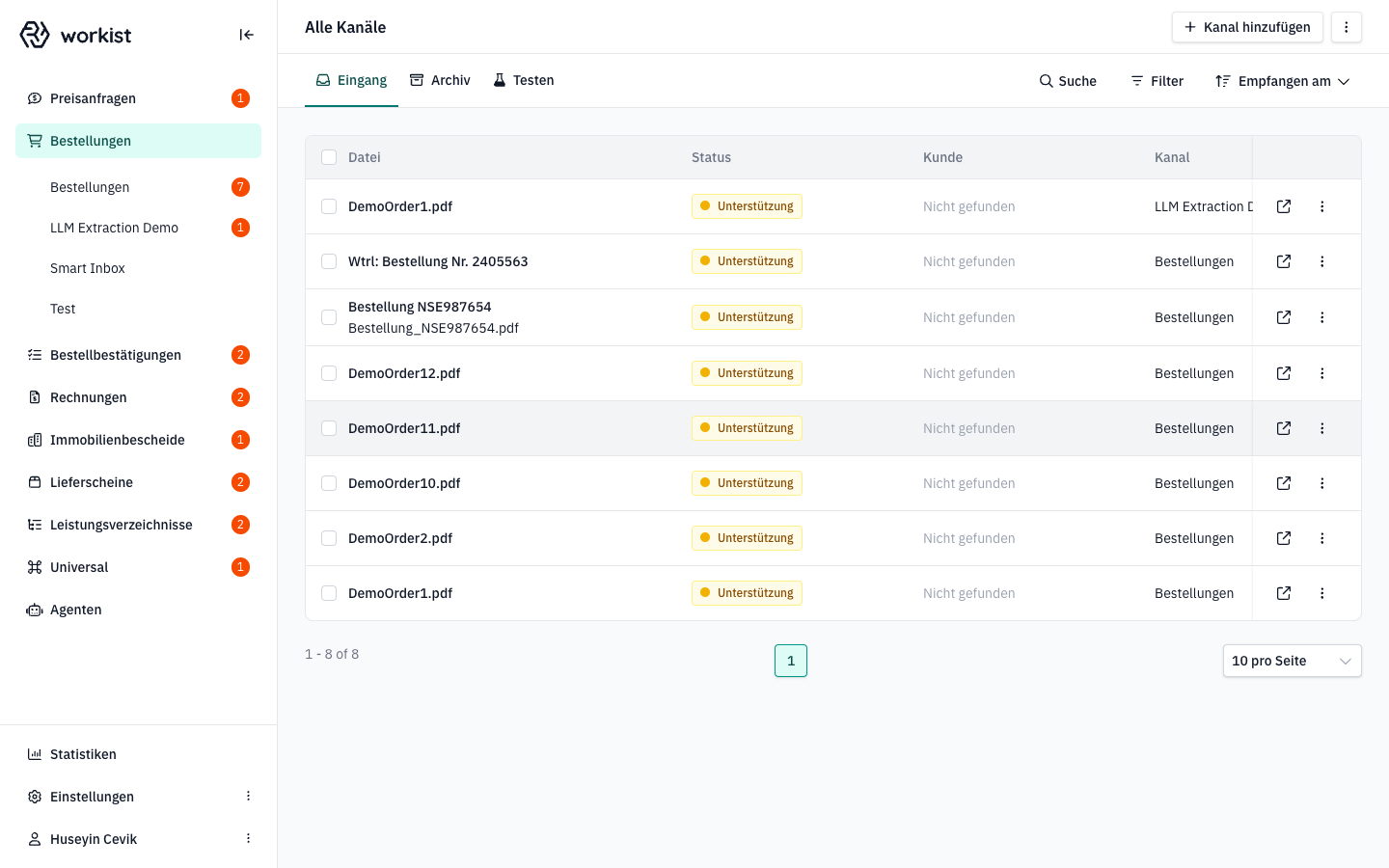
1. Log in to the Workbench
Open the Workbench in your browser and log in with your Workist account. After logging in you land on the overview page for incoming documents.
2. Open Settings
Click Settings at the bottom of the left navigation bar. A small menu appears, e.g. with the entries Company, Teams, Employees and Integrations. Which entries you see depends on your role.
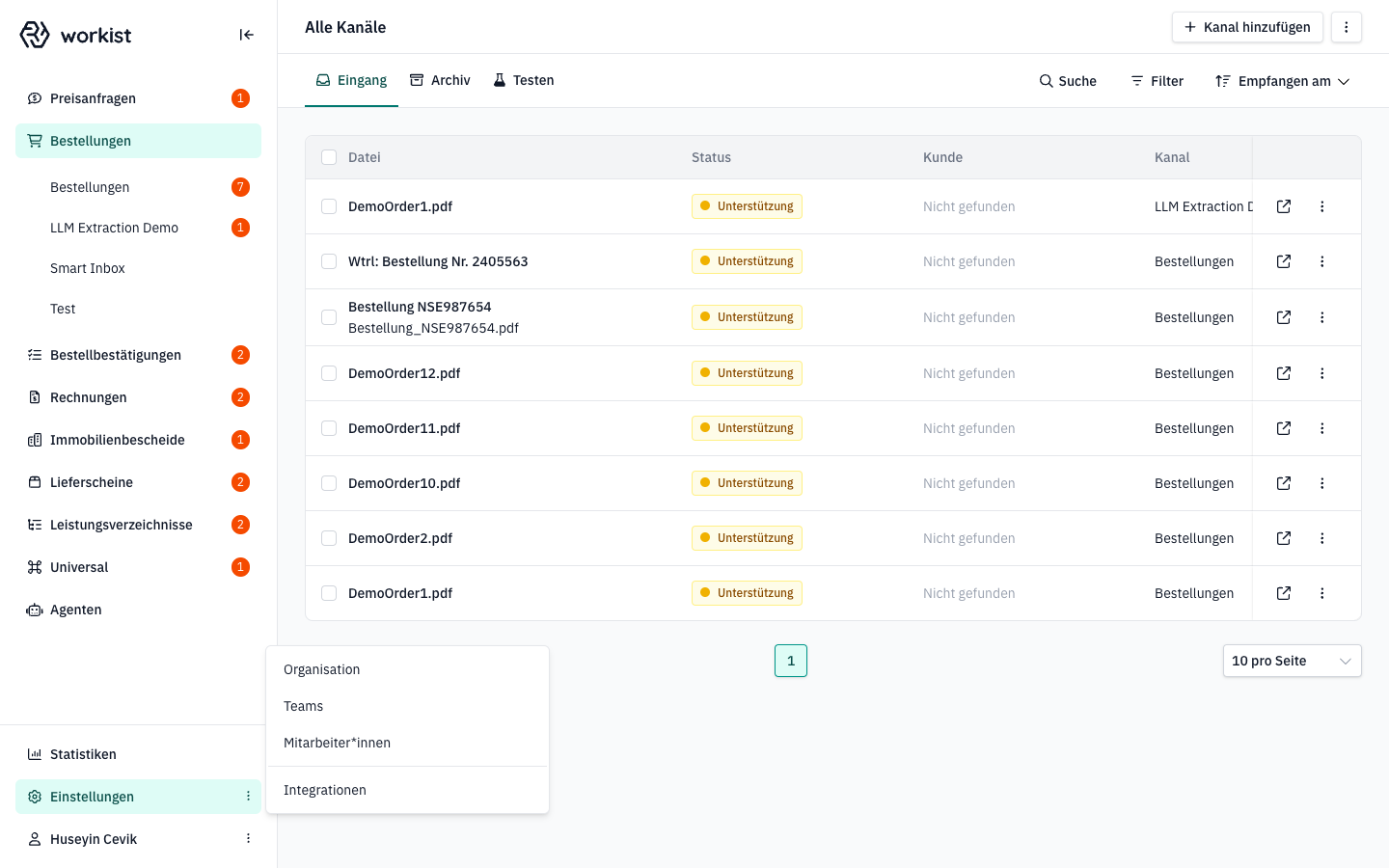
Choose Integrations.
3. Open the "Integrations" area
You are now in the settings area. On the left you see the sub-navigation with all settings categories. Under Developer Tools you find the entry SFTP Public Keys.
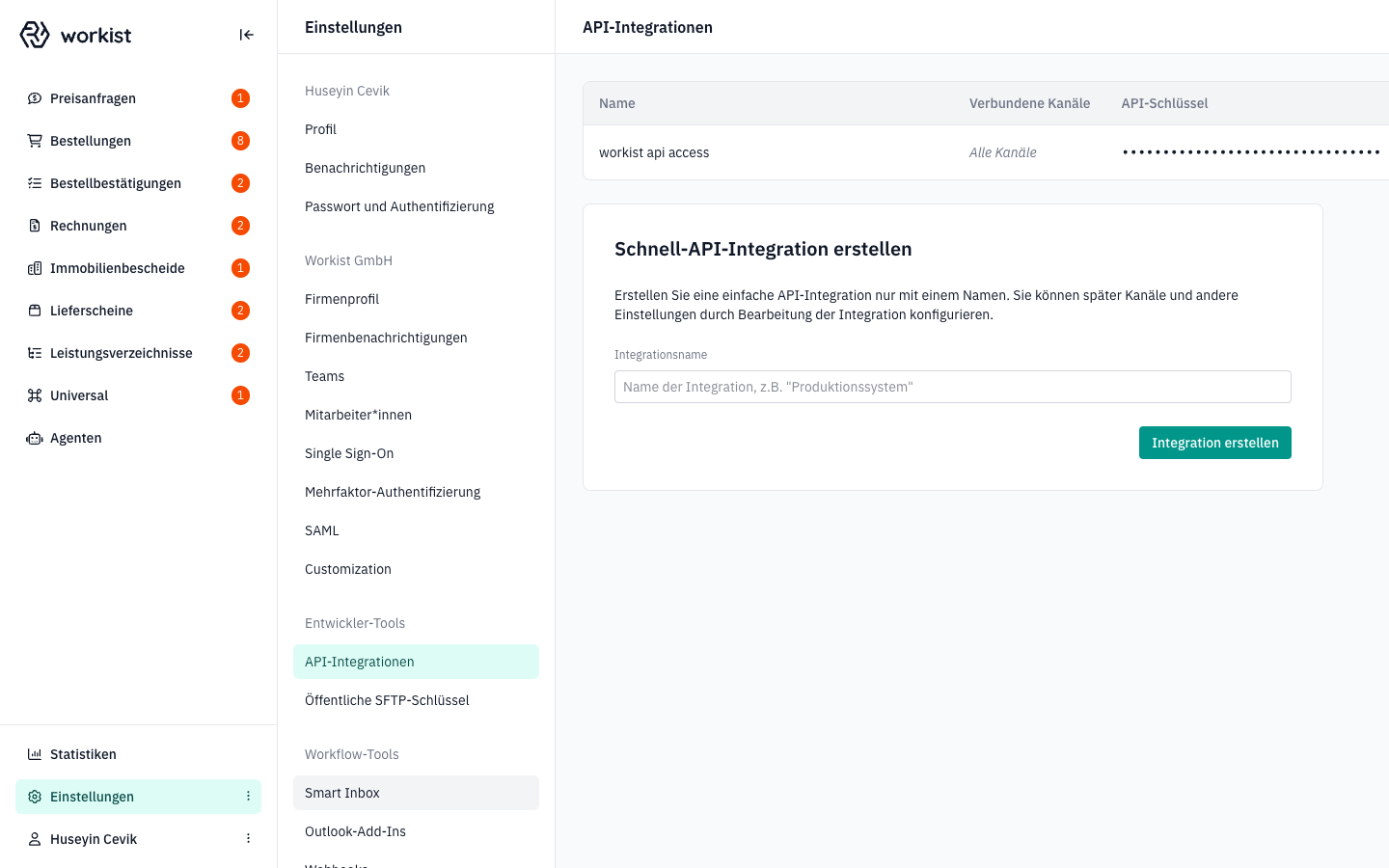
Click SFTP Public Keys.
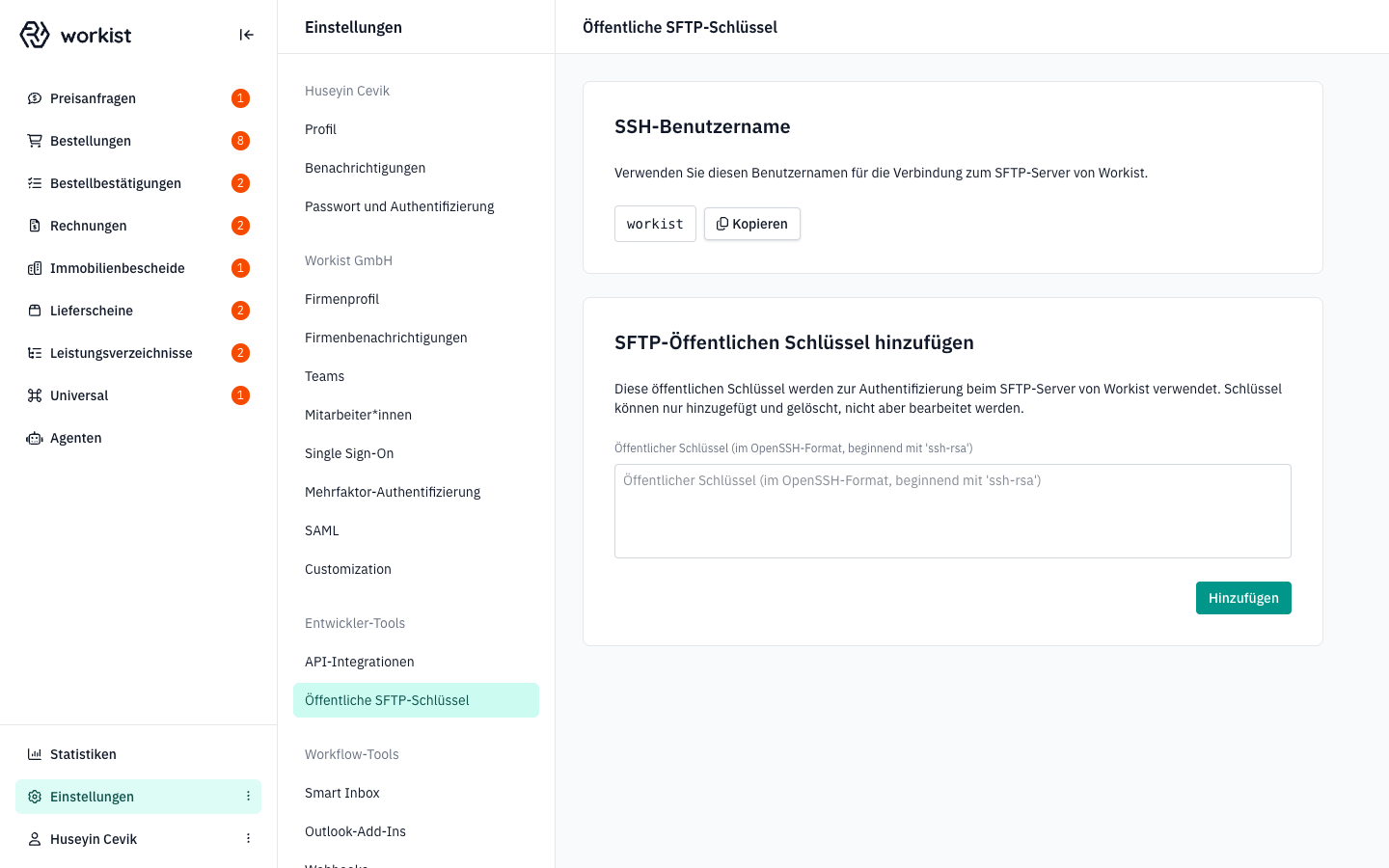
4. The "SFTP Public Keys" page
At the top of the page, the SFTP Server Information card shows the connection details of Workist's SFTP server: Host, Port, RSA key fingerprint, IP Addresses and your User. Use the copy icon in each row to copy a value to the clipboard. Below it follows the Add SFTP Public Key form. If keys are already stored, they are also shown in a table above the form. The trash icon in a row deletes an existing key.
5. Paste the public key
Open the file workist_sftp.pub (or your .pub file) in a text editor and copy the entire content. Then paste the key into the field Public Key body (OpenSSH Format, starting with 'ssh-rsa').
Example of a valid key:
ssh-rsa AAAAB3NzaC1yc2EAAAADAQABAAABAQC1zFZpL9a6bVQMWS20u3y3WzVCq6tbm... your-team@example.com
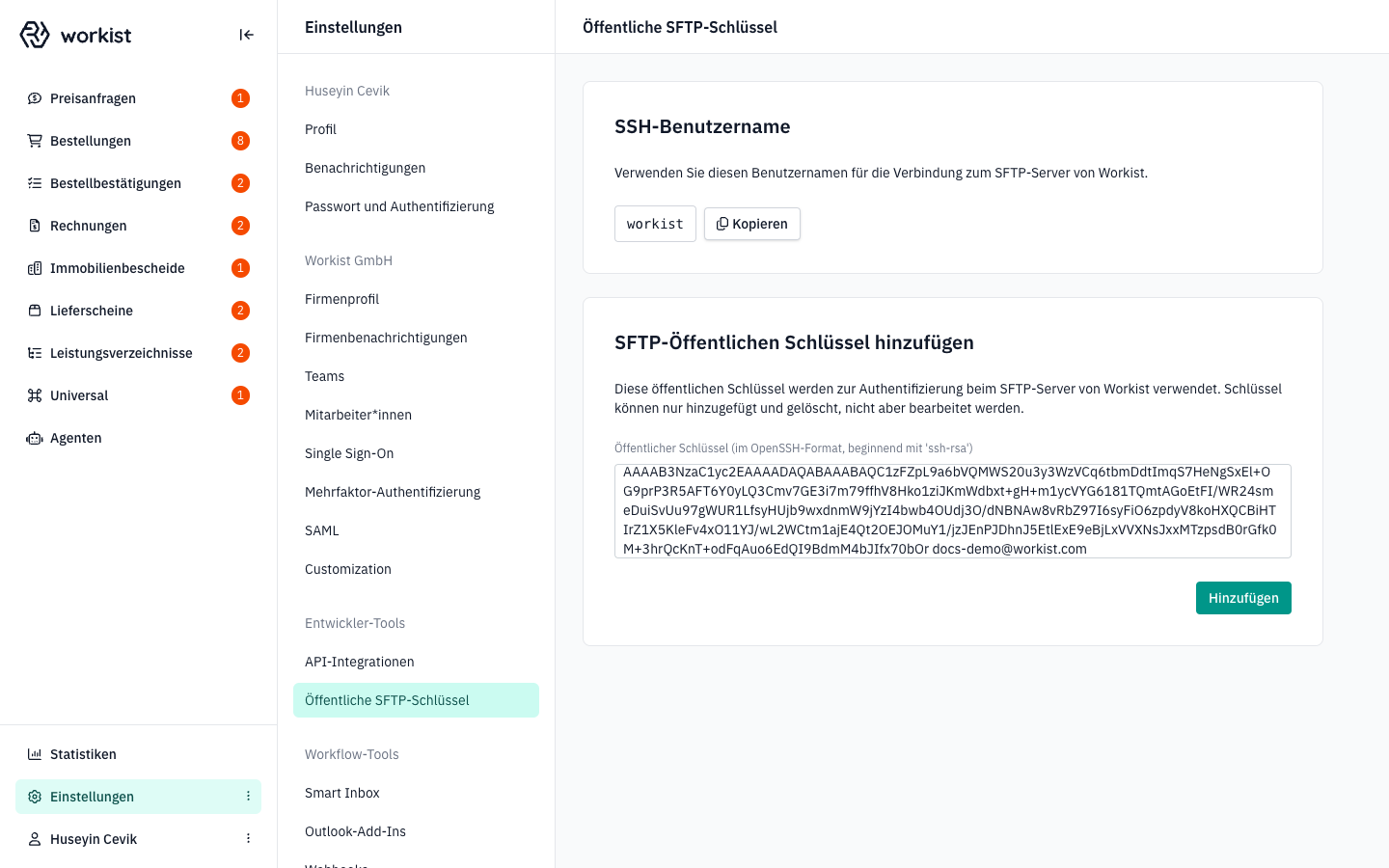
The key is a single long line. Make sure no extra line breaks are added when copying.
6. Add the key
Click Add at the bottom right of the card.
On success, a green confirmation message appears and the new key is shown in the table above the form with the time it was added.
Remove a key
On the same page, every row has a trash icon. Clicking it removes the key from the SFTP server immediately, without a confirmation prompt. So check that you selected the right key before deleting.
A3 — Test the connection
Host and user name are in the SFTP Server Information card at the top of the SFTP Public Keys page.
sftp -i ~/.ssh/workist_sftp <user name>@ftp.workist.com
When you connect for the first time, your client shows the server's fingerprint. Compare it with the RSA key fingerprint from the card before you confirm. More test commands and the directory structure are in the SFTP documentation.
Option B: API
Workist provides a REST API for data exchange. Through the API you upload documents, retrieve processed documents, report the result of the import and transfer master data.
You create the API key in the Workbench under Settings → Integrations → API Integrations. The Quickstart walks you through this step and your first call. The Document API describes all operations, and the Master Data API covers transferring master data.
The API works on a pull basis: your system asks Workist for new results. If Workist should notify your system about events, e.g. when a document is finished, also set up webhooks.
Help and support
If the connection fails even though the key is stored, or API access doesn't work as expected, contact your Workist representative and have the following information ready:
- the short name of your organisation
- for SFTP: the fingerprint of your key (
ssh-keygen -lf ~/.ssh/workist_sftp.pub) - the time of the last connection attempt and the error message from your client