SAP Connector
The Workist SAP connector for SAP R/3, SAP ECC and SAP S/4HANA is an ABAP development package that our partner Syncwork AG installs and configures in your SAP system on behalf of Workist. It transfers the required master data from SAP to Workist and creates the orders completed in the Workbench as sales orders in SAP.
SAP Business One has its own connector without installation in SAP, see SAP Business One.
Overview
Requirements for your SAP system
- SAP R/3, SAP ECC or SAP S/4HANA (on-premise or Private Cloud Edition) in which custom ABAP developments can be installed. SAP S/4HANA Cloud Public Edition is not supported. For SAP R/3, clarify with Syncwork before the project starts whether your system's kernel and cryptographic library support TLS 1.2 and SNI.
- Outbound HTTPS connections with TLS 1.2 or higher and Server Name Indication (SNI), see Communication.
What you provide
| Item | Purpose |
|---|---|
| Access for Syncwork to the development and test systems | Installation, setup and maintenance |
Approval for outbound HTTPS connections to api.workist.com and documents.workist.com | Data exchange with Workist |
| Values for order creation | Sales document type, sales organization, distribution channel, division and more |
| Technical user for the background jobs | Creation of the sales orders |
| Transfer frequency | Scheduling of the background jobs |
| Technical contact | Notice of certificate renewals |
What is set up in your SAP system
| Step | Transaction |
|---|---|
| Install and transport the development package | SE80, SE01, STMS |
| Import the Workist certificates | STRUST |
| Create the connections to Workist | SM59 |
| Maintain the order creation customizing | SM30 |
| Schedule the background jobs | SM36, SM37 |
How it works
The package's two programs run as background jobs in your SAP system and open every connection themselves. The Workist platform never connects to your SAP system. Workist and Syncwork work in your SAP system only through the access you provide for installation, setup and maintenance, see Access for Syncwork.
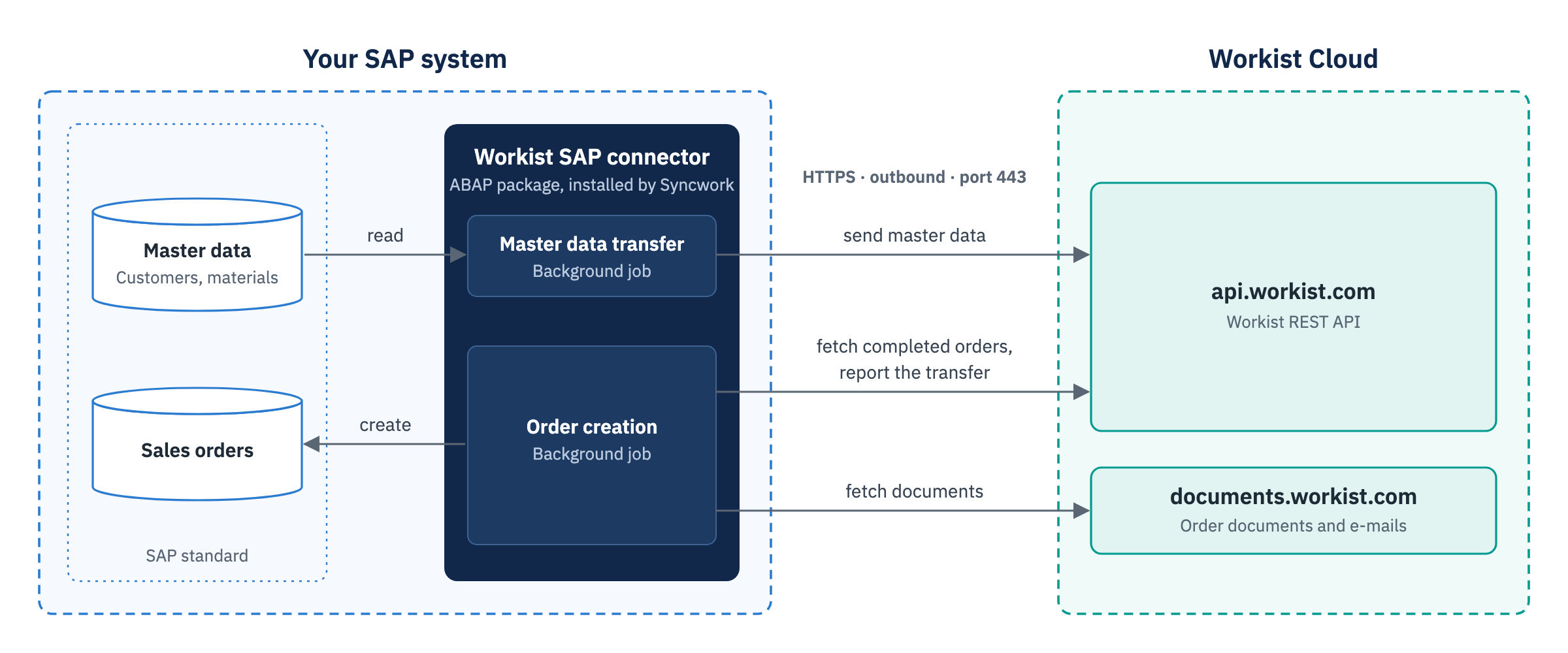
- Master data: The master data transfer reads the master data from SAP and sends it to Workist via the Workist REST API. Each run transfers the complete selection. Prices are not transferred.
- Orders: Order creation fetches the orders completed in the Workbench and creates sales orders from them. By default it uses the standard SAP BAPI
BAPI_SALESORDER_CREATEFROMDAT2and does not write the sales order directly to SAP standard tables. The sales order therefore goes through SAP standard processing as for entry in VA01, including number assignment and the incompletion check. Your own enhancements of order processing apply insofar as they also run without a dialog. - Documents: The order document (PDF) and the original e-mail are attached to the sales order. Syncwork agrees with you during setup where the attachments are stored in SAP.
- Feedback: Once the sales order is created, the connector marks the order as transferred in Workist. If SAP rejects the order, the order reappears in the Workbench, usually with the SAP message, see Messages from SAP.
In some installations Workist also provides the order as an SAP IDoc ORDERS05, and the connector processes it in that form. Workist and Syncwork agree with you during setup which variant is used.
What we read from SAP
| Master data | Purpose in Workist |
|---|---|
| Sold-to party | Identify the customer |
| Ship-to party | Match the delivery address |
| Bill-to party | Match the invoice address |
| Contact person (by agreement) | Match the orderer |
| Material | Identify and match items |
| Customer-material info record | Translate your customers' item numbers |
| Alternative units of measure | Convert order units into sales units |
Syncwork agrees with you during setup which records are transferred, for example only certain sales organizations or material types, and whether contact persons are transferred. The selection can be adjusted later. Workist recognizes newly created customers and materials after the next master data run.
What we write to SAP
| Object | Content |
|---|---|
| Sales order | Header data, partners and items from the processed order; sales data from the customizing |
| Attachments to the sales order | Order document (PDF) and original e-mail |
Log table ZWI_ORDER_DOC | For each created order: customer, Workist channel, Workist ID of the order, sales document, date, time, user |
The connector only creates new sales orders. It does not transfer changes or cancellations of existing purchase orders: if a change is completed as an order, manually or automatically, another sales order is created. Therefore discard changes and cancellations in the Workbench and process them directly in SAP. If another sales order has already been created, cancel it there.
What the installation creates
Syncwork installs a dedicated development package in the customer namespace. By default it contains:
- two programs, one for the master data transfer and one for order creation
- a class with the logic for order creation and attaching the documents
- the customizing table
ZWI_SALES_ORDER - the log table
ZWI_ORDER_DOCwith the created orders - the related dictionary objects
Depending on the project, further customizing tables are added, for example for the master data selection. The package is created in the development system and moved to the test and production systems through your transport landscape.
Setup
Syncwork sets up the connector in the development and test systems. Your SAP Basis team performs any step for which Syncwork is not given authorization, for example in STRUST or SM59. Who sets up the production system is agreed in the project.
Certificates and connections are client-independent and are set up in each system. Customizing and background jobs are client-specific.
Every SAP system and every client that fetches orders needs its own Workist channels. If two systems fetch the same channel, production orders end up in the test system or are created twice. If two systems send master data to the same master data IDs, each run replaces the other system's master data. After a copy of the production system, change the channel IDs and master data IDs in the copy before the jobs run there again.
Access for Syncwork
For installation and setup, and later for maintenance and adjustments, the Syncwork consultants need:
- VPN access to your development and test systems, or a provided computer with this access
- one SAP user each with development authorization, on SAP R/3 and ECC also with a developer key
- access to these transactions:
| Transaction | Purpose | Need |
|---|---|---|
| SE80 | Development | required |
| SE16 | Check table contents | required |
| SM59 | Create connections | recommended |
| SE01 | Create transport requests | recommended |
| STMS | Transport from the development to the test system | recommended |
| STRUST | Import certificates | recommended |
| SM30 | Maintain the order creation customizing | recommended |
| SM36, SM37 | Schedule and check background jobs | recommended |
| VA05 | Check the created sales orders | recommended |
In the test system, the Syncwork consultants also need a debugger authorization, if possible including the authorization to change field values. If Syncwork sets up the production system, Syncwork also needs access there. For setup and support, the Syncwork consultants also receive a user in your Workist account. We will name the consultants in the kick-off.
Communication
The connector only connects outbound over HTTPS:
| Host | Port | Purpose |
|---|---|---|
api.workist.com | 443 | Send master data, fetch orders and report back |
documents.workist.com | 443 | Fetch the order document, the e-mail and, where used, the IDoc |
- The data exchange needs no inbound connections to your SAP system.
- Allow the hosts in your firewall by name, not by IP address, because the addresses can change. This applies to all application servers that can run the background jobs. Without a proxy, these must be able to resolve the names via DNS.
- If your SAP system reaches the internet only through a proxy, the proxy is entered in the connections or centrally via Global Configuration in SM59. If your proxy inspects TLS traffic, exclude the two Workist hosts from inspection.
- Both hosts require TLS 1.2 or higher and Server Name Indication (SNI). Without SNI,
documents.workist.comreturns a different certificate andapi.workist.comdoes not accept the connection. SNI is active by default from kernel release 7.77. On older kernels your SAP Basis team enables it, usually with the profile parametericm/HTTPS/client_sni_enabled = TRUE(SAP Note 2124480), on kernels 7.21 and 7.22 where applicable withssl/client_sni_enabled = TRUE(SAP Note 2384290). The two notes state which parameter and which patch level are needed. - Older systems may need a current CommonCryptoLib and adjusted values in the profile parameter
ssl/client_ciphersuitesfor TLS 1.2 (SAP Note 510007).documents.workist.comonly accepts ECDHE cipher suites.
Certificates (STRUST)
For SAP to trust the Workist servers, the certificates of both Workist hosts are added in transaction STRUST to the certificate list of the PSE SSL Client (Standard): select the PSE node itself, not a single application server, then Import Certificate, Add to Certificate List and Save. Up to SAP NetWeaver 7.01, the change takes effect only after restarting the ICM (SMICM).
| Certificate | Valid until |
|---|---|
| api.workist.com | 2027-03-28 |
| documents.workist.com | 2027-03-28 |
SHA-256 fingerprints for verification:
api.workist.com        1A:51:8E:DD:1E:20:1D:1C:1F:21:1D:F7:29:34:6A:10:38:C8:EB:54:31:EE:5E:59:7B:B0:42:74:40:A2:4E:3A
documents.workist.com  F0:A3:10:E7:E6:C1:4A:B8:F1:6D:88:A6:40:69:54:D1:B3:DB:E9:E8:C2:C0:3D:A6:19:A2:77:FE:5B:0C:5C:0A
The server certificates are valid for only a few months, and their lifetime drops step by step to 47 days by 2029. Before each planned renewal we notify the technical contact you name in the project and provide the new certificates. If the certificate authority revokes a certificate early, the notice can be short. Import the new certificates before the announced changeover and keep the previous ones in the list until then; otherwise your SAP system cannot connect to Workist.
Connections (SM59)
Under HTTP Connections to External Server, the connections to both Workist hosts are created with these settings:
| Setting | Value |
|---|---|
| Connection type | G – HTTP connection to external server |
| Host | api.workist.com or documents.workist.com |
| Port | 443 |
| Logon with user | Do not use a user |
| SSL | active, SSL certificate DFAULT SSL Client (Standard) |
| HTTP version | HTTP 1.1 |
Check each connection with Connection Test. Any HTTP status code from Workist, including 400 or 404, shows that certificate and TLS are correct. If the connection runs through a proxy, the status code can also come from the proxy, for example 407 when the proxy logon is missing. An SSL error points to a missing certificate, missing SNI, missing support for TLS 1.2 or the required cipher suites, or a proxy that breaks up TLS connections.
API key
The connector authenticates to api.workist.com with an API key that it sends with every request. It fetches documents from documents.workist.com through time-limited signed links. No user is therefore stored in the connections.
The key belongs to your Workist account. In the Workbench under API Integrations, users with permission for integrations see the connector's integration. If it is limited to specific channels, the connector only fetches their orders. If the key is renewed there or the integration is deleted, the connector transfers nothing until a new key is entered in the connector. Agree either step with Workist in advance. Do not set an expiry date for this integration; otherwise the transfer stops on that day.
Order creation customizing
The table ZWI_SALES_ORDER (maintained via SM30) defines the sales data used to create the sales orders. You provide the values; Syncwork creates the entries during setup. The key of an entry is the sold-to party and the Workist channel. One Workist channel usually corresponds to one sales organization.
| Field | Meaning | Note |
|---|---|---|
KUNNR | Customer | Key, customer number of the sold-to party |
CHANNEL | Workist channel | Key, channel ID from Workist |
AUART | Sales document type | required for every order |
VKORG | Sales organization | required for every order |
VTWEG | Distribution channel | required for every order |
SPART | Division | required for every order |
WAERS | Currency | |
ISOCD | ISO currency code | |
WERKS | Plant | maintain if possible so that the order is consistent |
PROFIT_CTR | Profit center | |
LIFSK | Delivery block |
ZWI_SALES_ORDER is a client-specific customizing table. Whether the entries are moved with a customizing request or maintained directly in each system is agreed with you by Syncwork during setup. In each client it holds the Workist channels that this client fetches.
Background jobs
The two programs run as background jobs with program variants that Syncwork creates during setup. They are scheduled in SM36, and you can see the runs in SM37.
The jobs run under the SAP user entered in the job step when they are scheduled. You usually provide a technical user (user type System) for this. It creates the sales orders, appears in them as the creator and therefore needs the authorization to create sales orders for the configured sales document types and sales areas (sales organization, distribution channel, division). Syncwork agrees any further authorizations with your SAP Basis team during setup.
You decide how often master data and orders are transferred. A daily master data run and an order run every 5 to 15 minutes have proven useful. SM36 does not by itself prevent a periodic job from starting while the previous run is still active. Choose an interval well above the runtimes SM37 shows for the order job.
Operation
Messages from SAP
If SAP cannot create an order, the connector reports this back to Workist. The order then reappears among the open orders in the Workbench, usually with the SAP message, and is not transferred again automatically. If the cause lies in SAP, for example in the master data, fix it there. Then reopen the order for assistance, correct it if needed and complete it again. The next run transfers it again. If the order is no longer needed, discard it.
The messages come from your SAP system: from the SAP standard or from checks your IT has set up. Your SAP IT is therefore the first point of contact. If a message cannot be classified, write to support@workist.com. We involve Syncwork.
If completed orders do not arrive in SAP and the Workbench shows no message, check the job runs in SM37. Possible causes are a job that is not running or a connection that fails, for example because of a certificate or an invalid API key.
Maintenance
Syncwork maintains the package on behalf of Workist. You import new Workist server certificates yourself before the announced changeover, see Certificates (STRUST). If you plan an upgrade of your SAP system or a conversion to SAP S/4HANA, inform your Workist representative in good time so that Syncwork can check the package beforehand.
For an additional Workist channel, Workist creates the channel, enables it for the connector's API integration and gives you its channel ID. You enter it in your SAP system yourself or with Syncwork.
Adjustments
Additional fields or different logic for order creation are possible. Depending on the request, Workist adjusts the processing in Workist or Syncwork adjusts the package in your SAP system; often both are needed. Also agree changes to the fields of a Workist channel with Workist in advance, because the connector expects the order data in a fixed structure. Contact your Workist representative or write to support@workist.com. We will agree the implementation and effort with you.